Check In
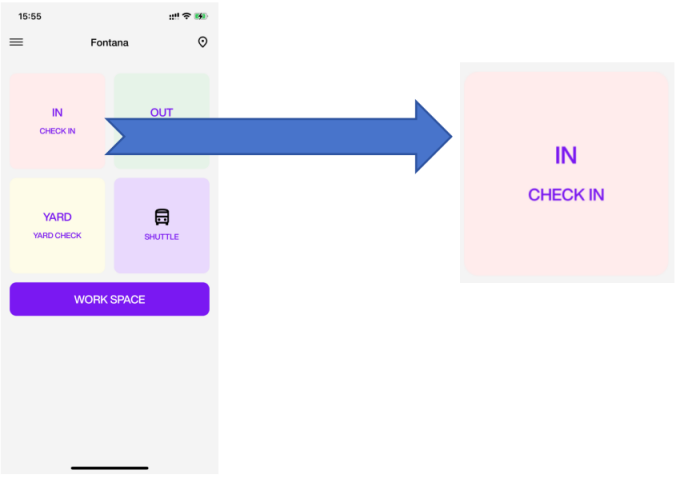
Entering the Check In Process
On the home screen, tap Check In to begin the Gate Check In process.
Check In with PE QR Code
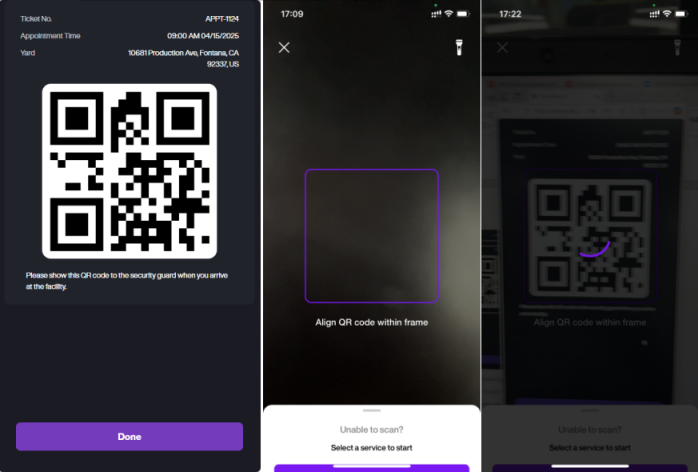
Scan PE QR Code
- If the driver provides a valid PE Code, you can complete the Check In by scanning the PE Code QR.
-
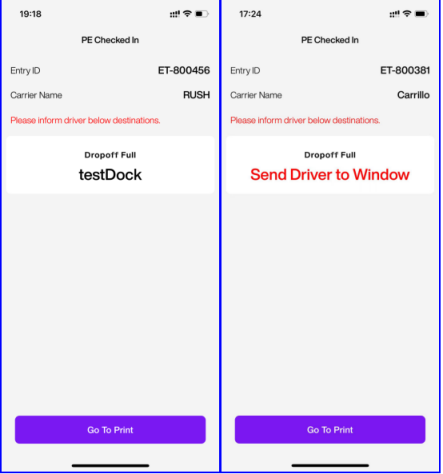
After scanning the PE Code QR, the system will automatically enter the PE Check In page.
On this page:
-
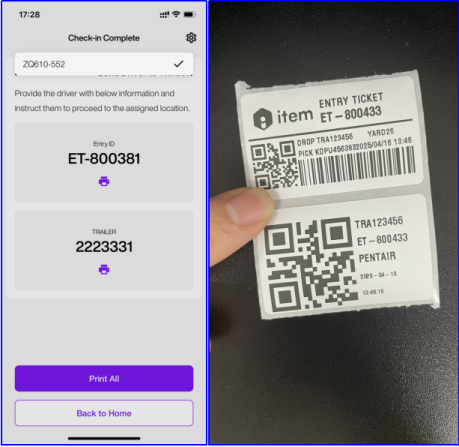
You will see the Entry ID, Carrier Name, and the assigned destination (Location) for the driver.
-
If no suitable location is found based on the system's assignment rules, you will need to instruct the driver to proceed to the window for manual check-in (Window Check).
-
Print Label
-
You can print the Entry ID label and equipment label (e.g. trailer number). You may choose to print them individually or all at once using the Print All button.
-
Use the printer dropdown Setting in the top-right corner of the screen to select the printer you want to use.
Check In without PE QR Code
Select The Check In Service
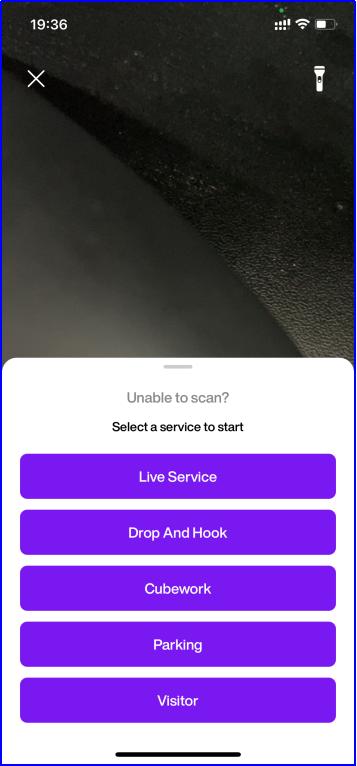
If the driver does not have a PE QR Code, swipe up on the Unable to scan? section to reveal the Service List.
From here, you can manually select the appropriate service type for the Gate Check In:
-
Live Service: Live Load & Live Delivery.
-
Drop and Hook: Drop Off Full & Drop Off Empty
-
Cubework
-
Parking
-
Visitor
Live Service Check-In Steps
If the driver is scheduled for on-site loading or unloading, select Live Service to begin the check-in process.
Select Vehicle Type
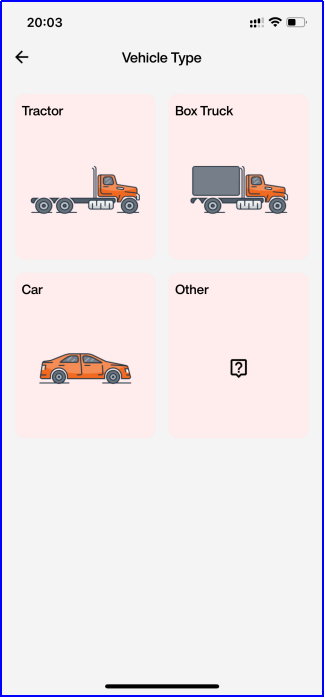
Choose the appropriate type of vehicle(Tractor/Box Truck/Car/Other).
Enter Vehicle Details And Driver Details
-
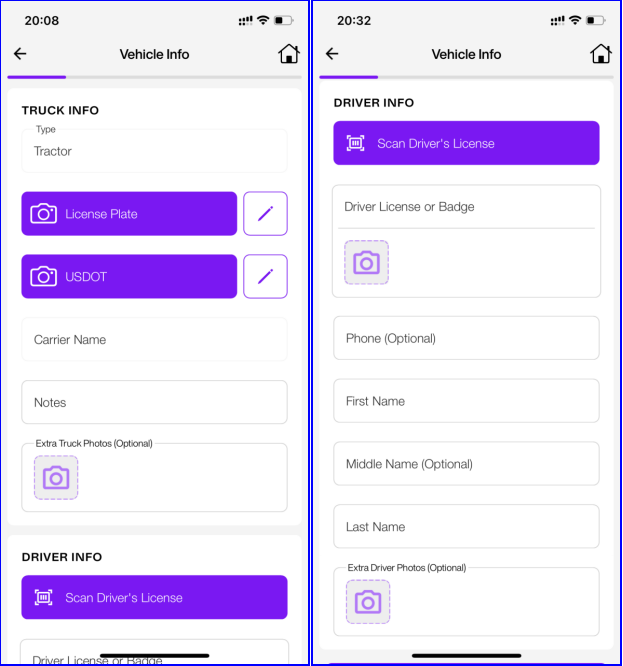
Fill in the required vehicle information such as plate number and Carrier Info.
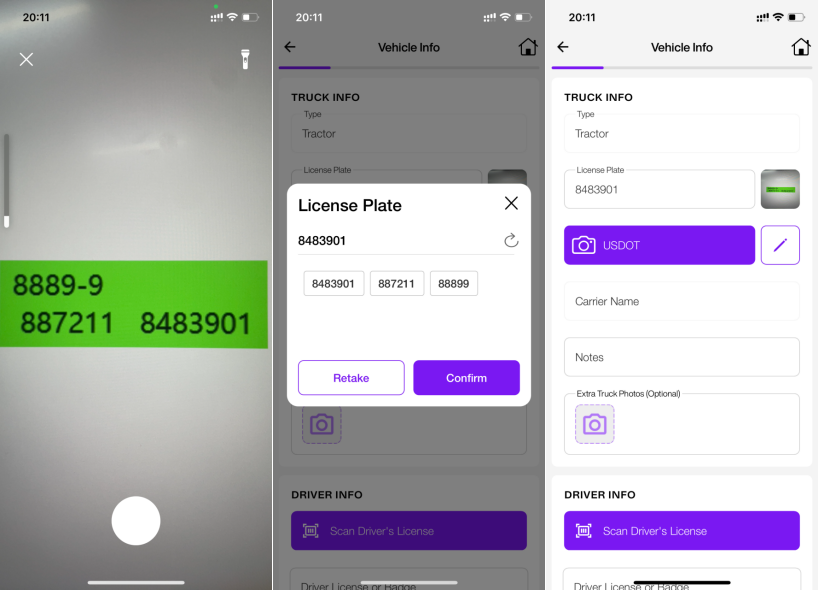
A. Plate Number. You can You can manually enter the plate number using the keyboard(tap Edit icon), or tap the camera icon to take a photo for OCR recognition.
Regardless of which method is used, taking a photo is mandatory to complete this step.
When using OCR to capture the plate number:
a. If the photo contains only one valid license plate format, the system will automatically fill the input field with the recognized plate number.
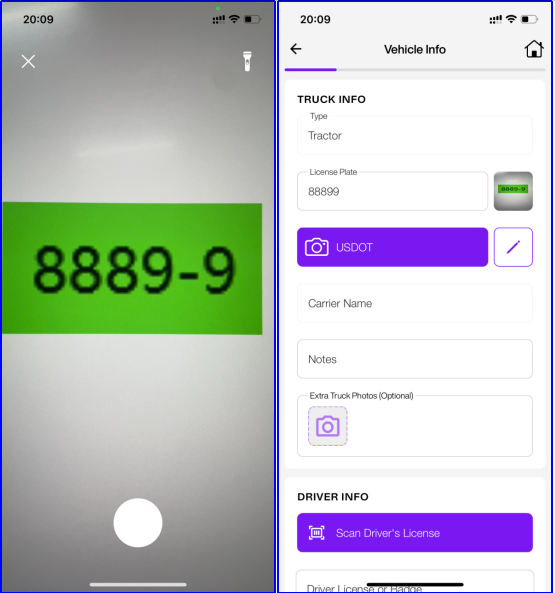
b. If the photo contains multiple text strings, the system will extract all candidates, and you can manually select the correct one to confirm.
B. Carrier Info. You can manually enter the USDOT using the keyboard (tap Edit icon), or tap the camera icon to take a photo for OCR recognition.
Regardless of which method is used, taking a photo is mandatory to complete this step.
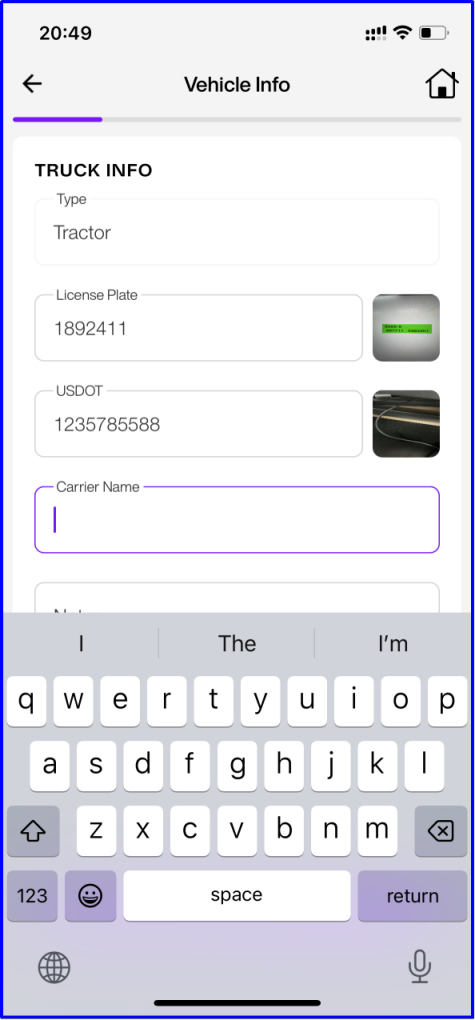
The system will automatically retrieve the Carrier Name based on the USDOT.
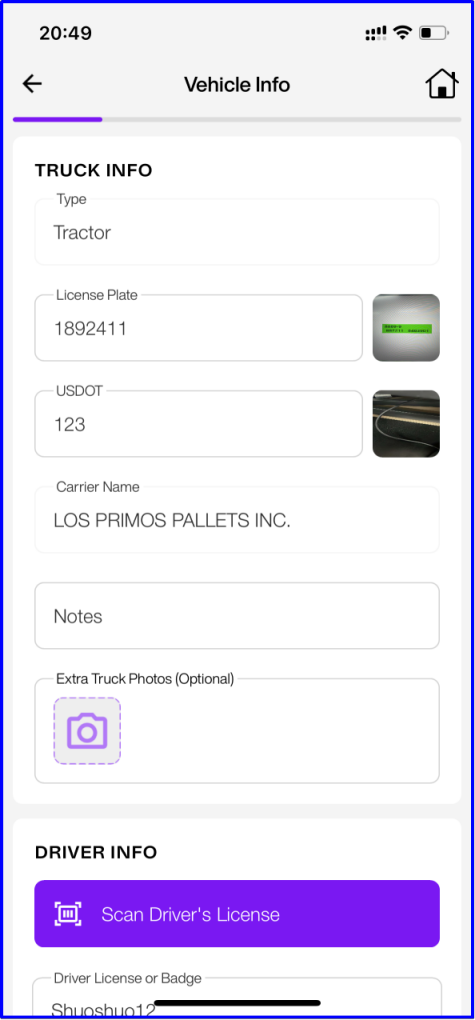
If the USDOT is not found in the system, you will need to enter the Carrier Name manually.
-
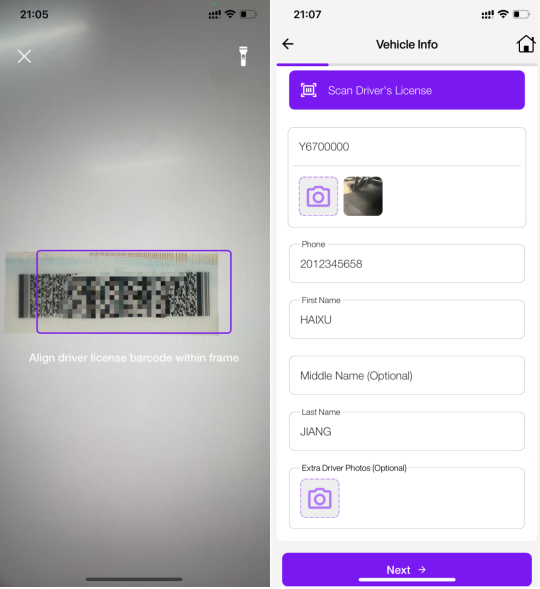
Driver Info, Enter the driver's information, including:
-
Driver's License or Badge ID
-
Phone Number
-
Driver Name
You can scan the barcode on the driver's license to quickly retrieve the Driver's License and Driver Name.
If the driver's information already exists in the system and includes a phone number, the Phone Number field will be auto-filled.
-
-
If the plate number has a prior check-in record in the system, both the Carrier Info and Driver Info will be auto-filled based on the previous entry.
-
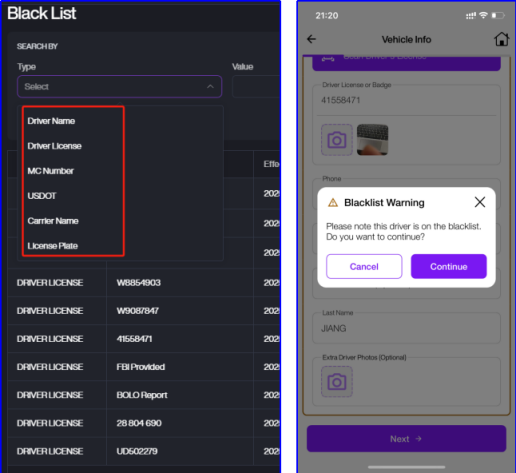
If the Driver, Vehicle, or Carrier is listed in the system's blacklist, a Black Warning message will pop up when you tap Next.
Select Equipment Type
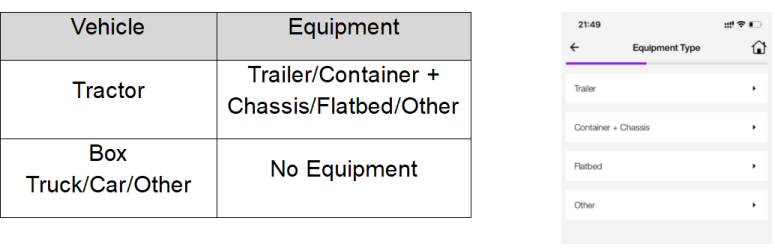
- Choose the 1.appropriate type of Equipment. When selecting different vehicle types, the available equipment options will vary as shown in the table below:
Enter Equipment Info
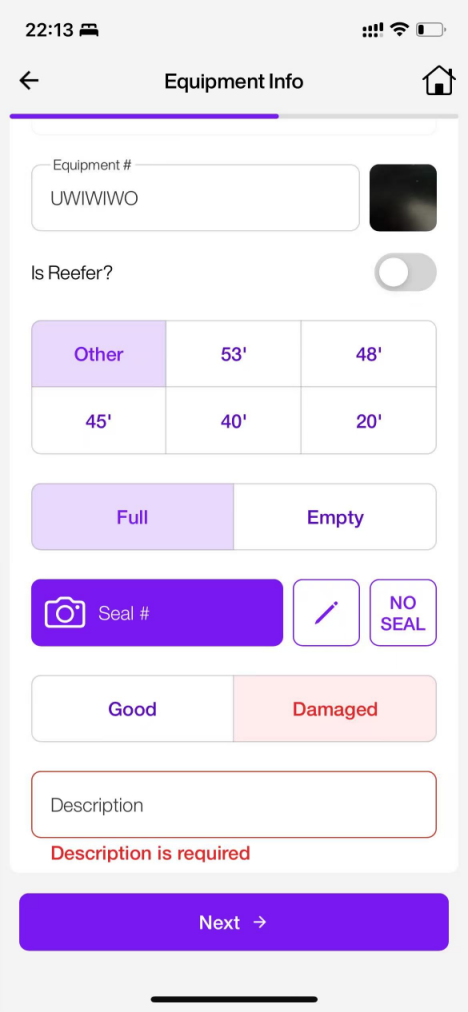
On the Equipment Info screen, please complete the following fields based on the actual equipment:
- Equipment Number: Tap the camera icon to take a photo for OCR recognition, or tap the pencil icon to manually enter the equipment number.
-
Is Reefer?
-
Equipment Size
-
Load Status
-
Seal Number: (If Load Status is Full), Tap the camera icon to scan the seal, or tap the pencil icon to enter it manually. If no seal is present, tap No Seal.
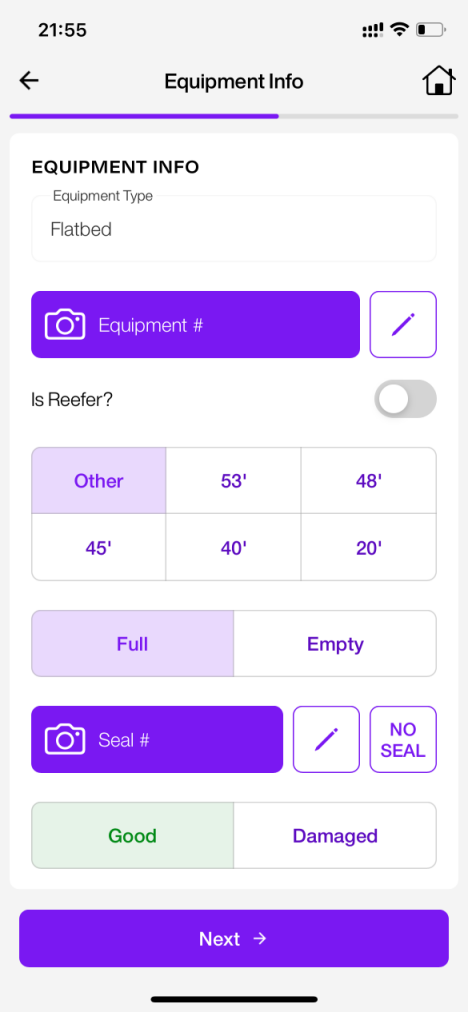
- Equipment Condition: If Damaged is selected, you will be required to enter a description of the damage before proceeding.
Enter Trip Information
- On the Trip Information screen, select the appropriate Inbound Action and Outbound Action for this check-in.
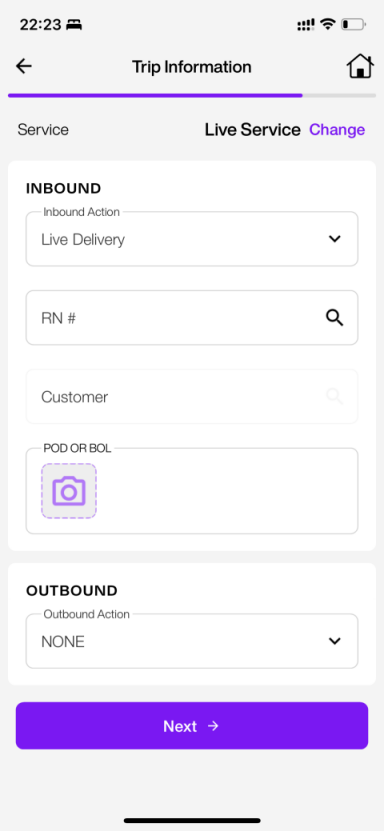
The available actions depend on the Load Status (Full / Empty). Refer to the table below:
| Load Status | Action |
|---|---|
| Full | Inbound: Live Delivery/None; Outbound: Live Load/None |
| Empty | Inbound: None; Outbound: Live Load/None |
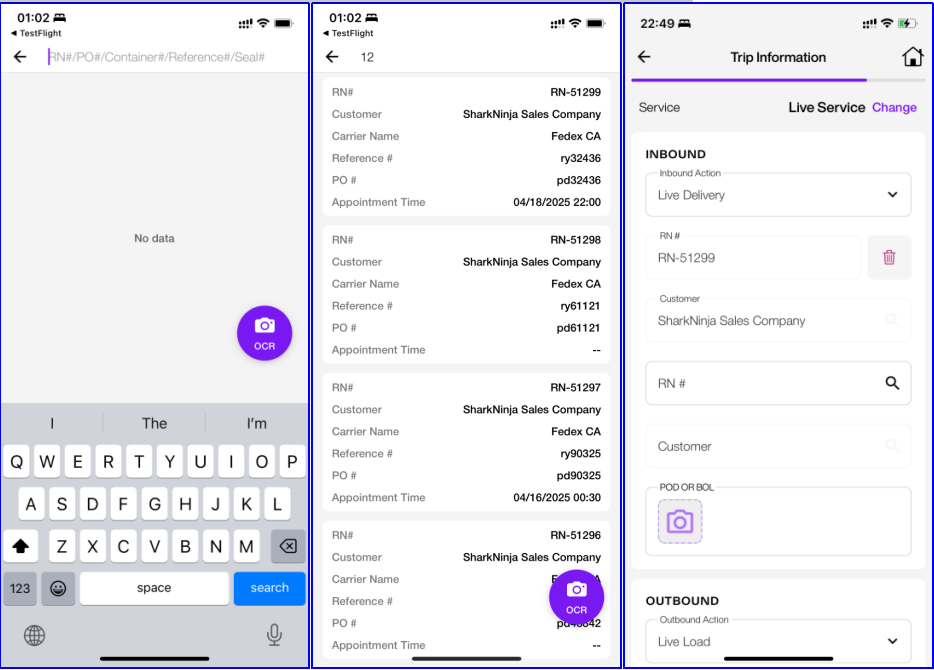
- If Inbound Action is set to Live Delivery: You must select an associated Receipt You can search for RN using any of the following fields: RN#/PO#/Container#/Reference#/Seal#.
Tap a search result to select and bind it to this trip.
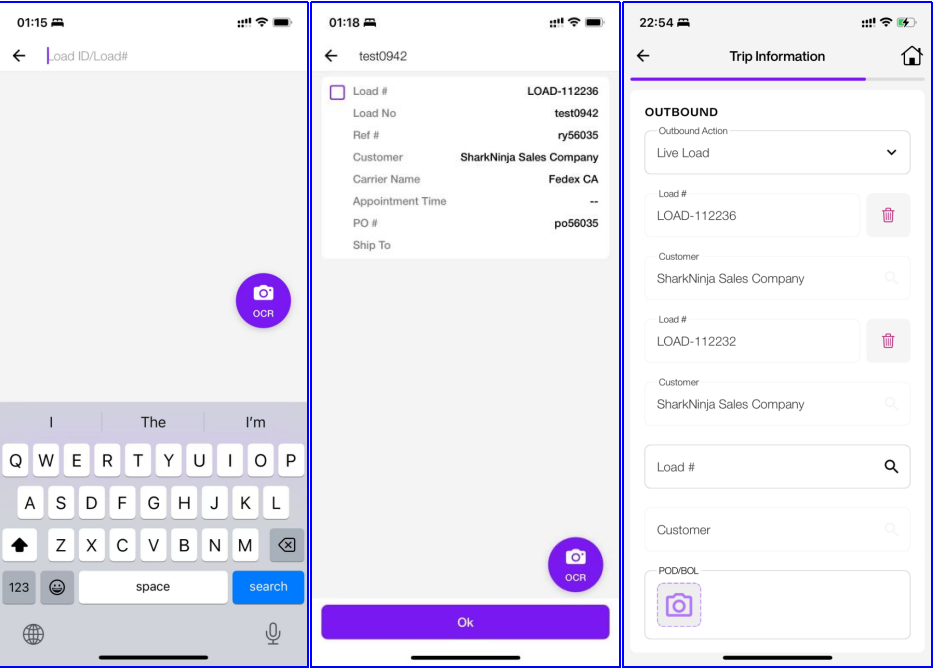
- If Outbound Action is set to Live Load: You must select a corresponding Load. Loads can be searched by either Load ID or Load #.
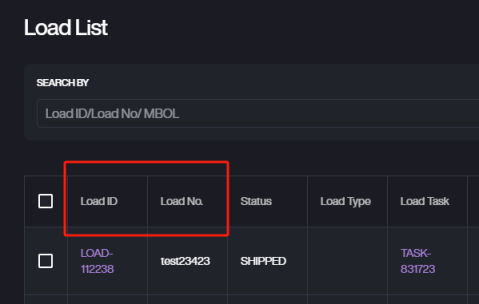
-
Uploading a POD (Proof of Delivery) or BOL (Bill of Lading) photo is mandatory for completing the check-in process.
To upload, tap the camera icon and take a clear picture of the document.
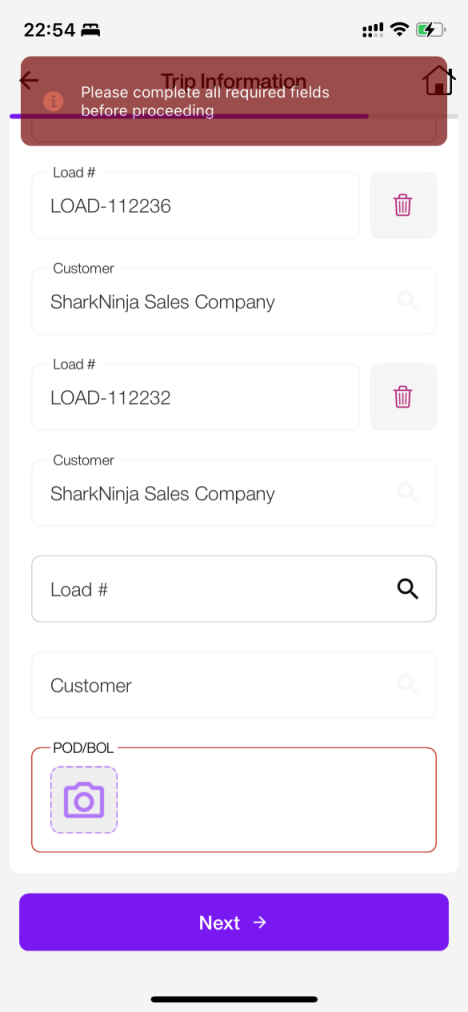
-
If you realize that the driver's current visit does not fall under Live Service, you can tap the Change link next to the Service field to select the correct service type.
Distribute Location
-
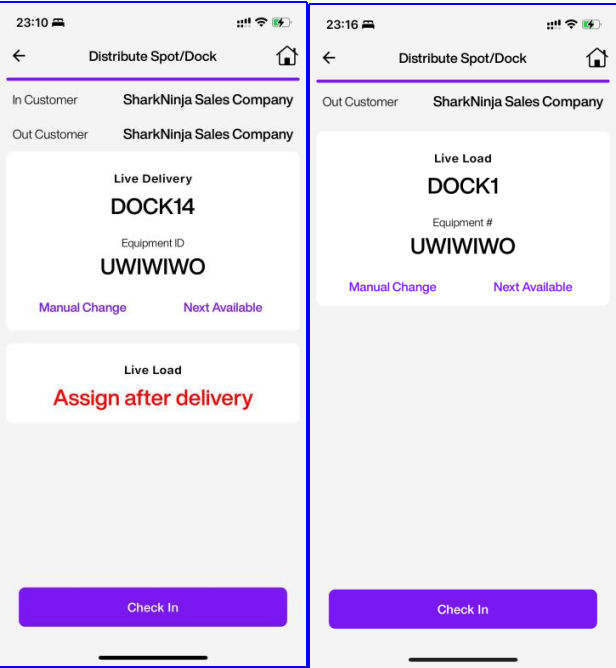
On the Distribute Spot/Dock screen, the system displays the assigned Dock for the check-in based on the Inbound and Outbound actions.
-
Live Delivery Assignment
-
For Live Delivery, the system will assign a Dock (e.g., DOCK14).
-
You can tap Manual Change to override and assign a specific Dock manually, or select Next Available to let the system find the next open dock.
-
-
Live Load Assignment
-
When both Inbound Action is Live Delivery and Outbound Action is Live Load. Dock for loading (Live Load) will be assigned after delivery is complete.
-
When only Outbound Action is Live Load (no inbound delivery). The system will immediately assign a dock for loading.
-
-
If you tap Manual Change on the dock assignment page, you will be taken to the manual selection.
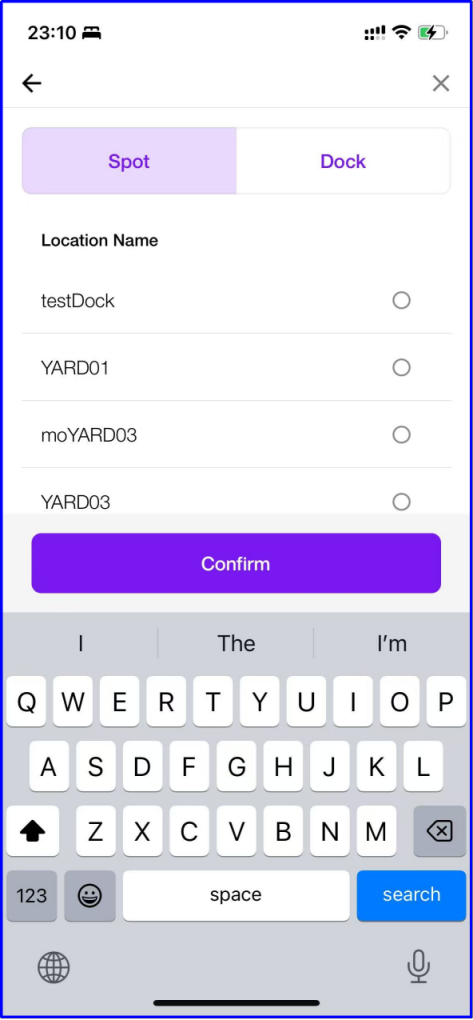
Print Label
-
You can print the Entry ID label and equipment label (e.g. trailer number). You may choose to print them individually or all at once using the Print All button.
-
Use the printer dropdown Setting button in the top-right corner of the screen to select the printer you want to use.
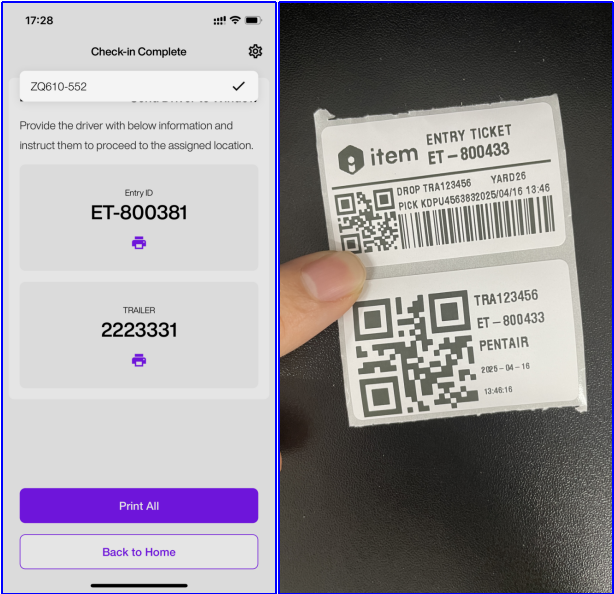
Drop And Hook Check-In Steps
Select Drop And Hook if the driver's visit involves drop off equipment (e.g., trailer, chassis) or pick up existing equipment from the yard.
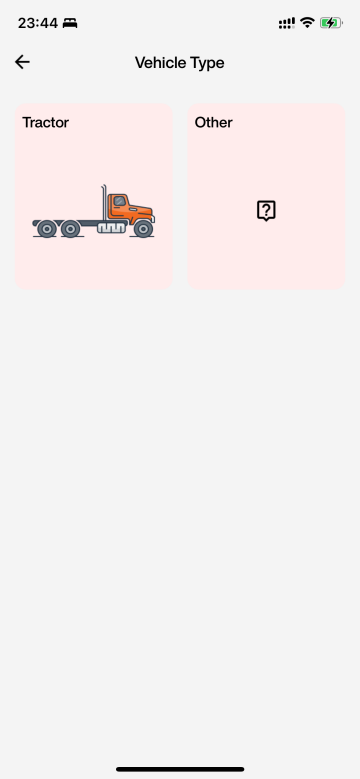
Select Vehicle Type
Choose the appropriate type of vehicle(Tractor/Other).
Enter Vehicle Details And Driver Details
-
Fill in the required vehicle information such as plate number and Carrier Info.
A. Plate Number. You can manually enter the plate number using the keyboard(tap Edit icon), or tap the camera icon to take a photo for OCR recognition.
Regardless of which method is used, taking a photo is mandatory to complete this step.
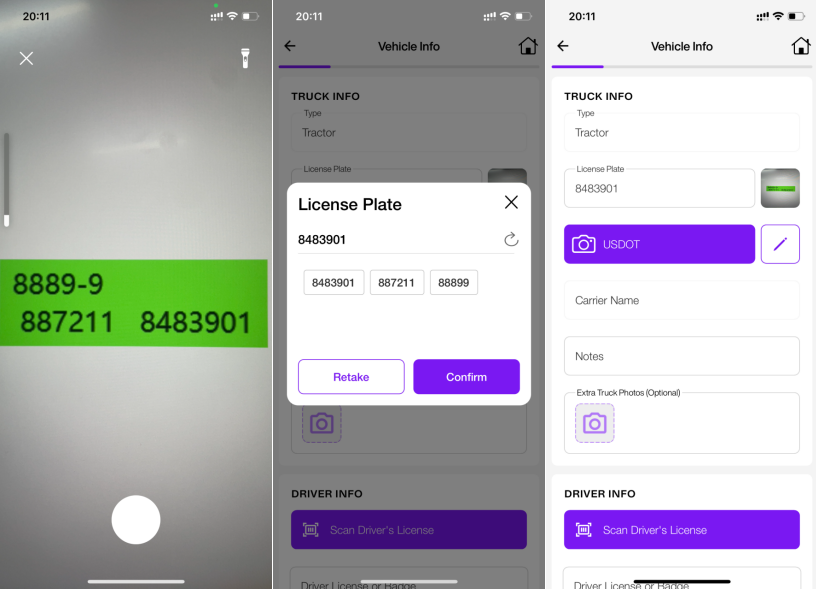
When using OCR to capture the plate number:
a. If the photo contains only one valid license plate format, the system will automatically fill the input field with the recognized plate number.
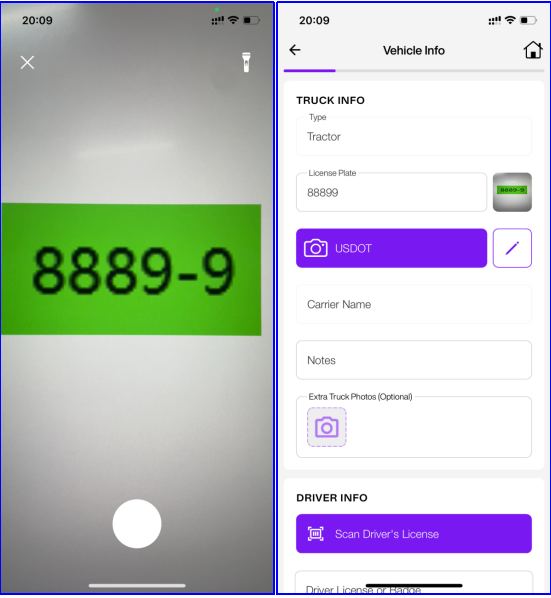
b. the photo contains multiple text strings, the system will extract all candidates, and you can manually select the correct one to confirm.
B. Carrier Info. You can manually enter the USDOT using the keyboard (tap Edit icon), or tap the camera icon to take a photo for OCR recognition.
Regardless of which method is used, taking a photo is mandatory to complete this step.
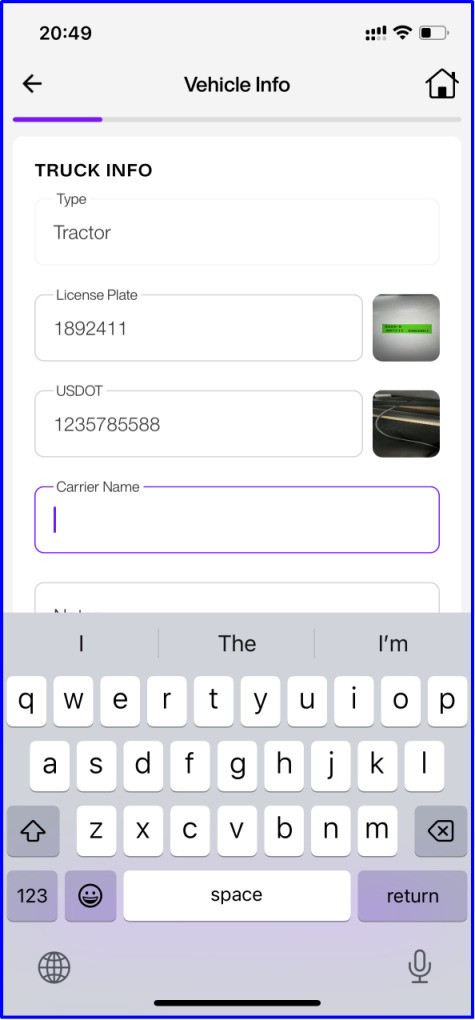
The system will automatically retrieve the Carrier Name based on the USDOT.
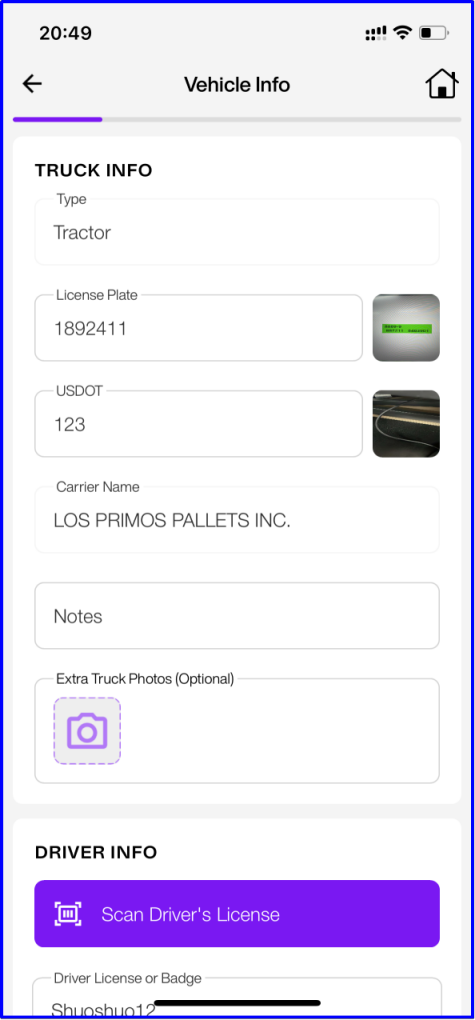
If the USDOT is not found in the system, you will need to enter the Carrier Name manually.
-
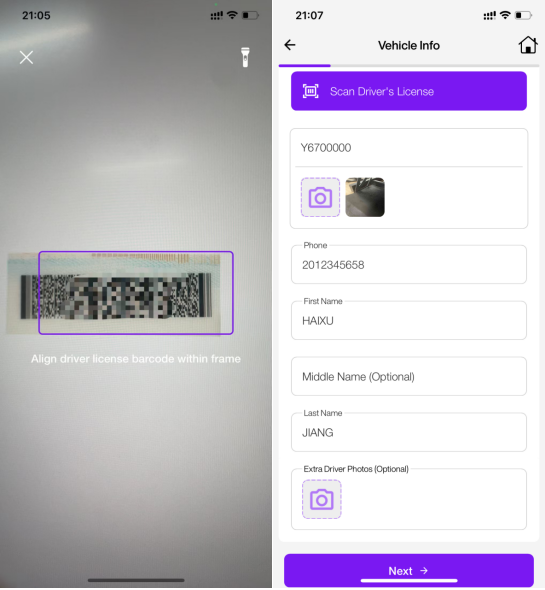
Driver Info. Enter the driver's information, including:
-
Driver's License or Badge ID
-
Phone Number
-
Driver Name
You can scan the barcode on the driver's license to quickly retrieve the Driver's License and Driver Name.
If the driver's information already exists in the system and includes a phone number, the Phone Number field will be auto-filled.
-
-
If the plate number has a prior check-in record in the system, both the Carrier Info and Driver Info will be auto-filled based on the previous entry.
-
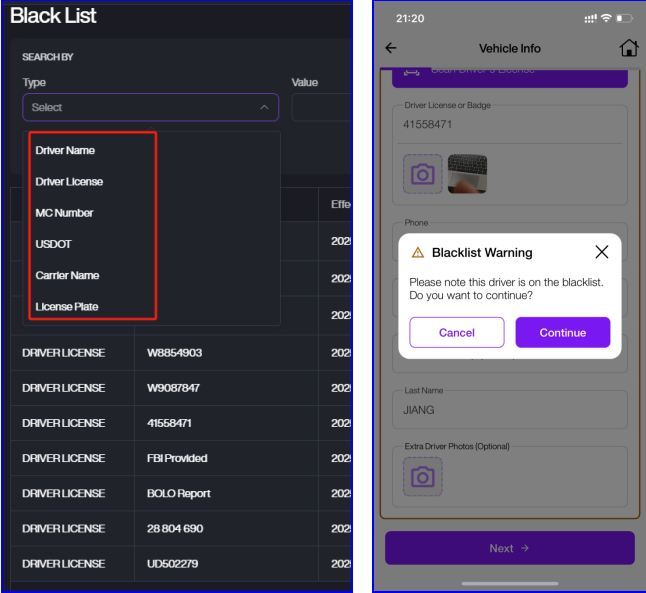
If the Driver, Vehicle, or Carrier is listed in the system's blacklist, a Black Warning message will pop up when you tap Next.
Select Equipment Type
- Choose the appropriate type of Equipment.When selecting different vehicle types, the available equipment options will vary as shown in the table below:
| Vehicle | Equipment |
|---|---|
| Tractor | Trailer/Chassis Only/Container + Chassis/Flatbed/Other/No Equipment |
| Other | No Equipment |
Enter Equipment Info
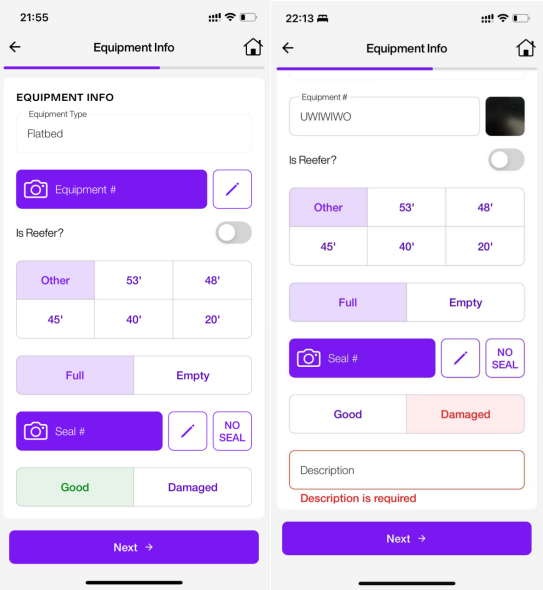
On the Equipment Info screen, please complete the following fields based on the actual equipment:
-
Equipment Number: Tap the camera icon to take a photo for OCR recognition, or tap the pencil icon to manually enter the equipment number.
-
Is Reefer?
-
Equipment Size
-
Load Status
-
Seal Number: (If Load Status is Full), Tap the camera icon to scan the seal, or tap the pencil icon to enter it manually. If no seal is present, tap No Seal.
-
Equipment Condition: If Damaged is selected, you will be required to enter a description of the damage before proceeding.
Enter Trip Information
- On the Trip Information screen, select the appropriate Inbound Action and Outbound Action for this check-in.
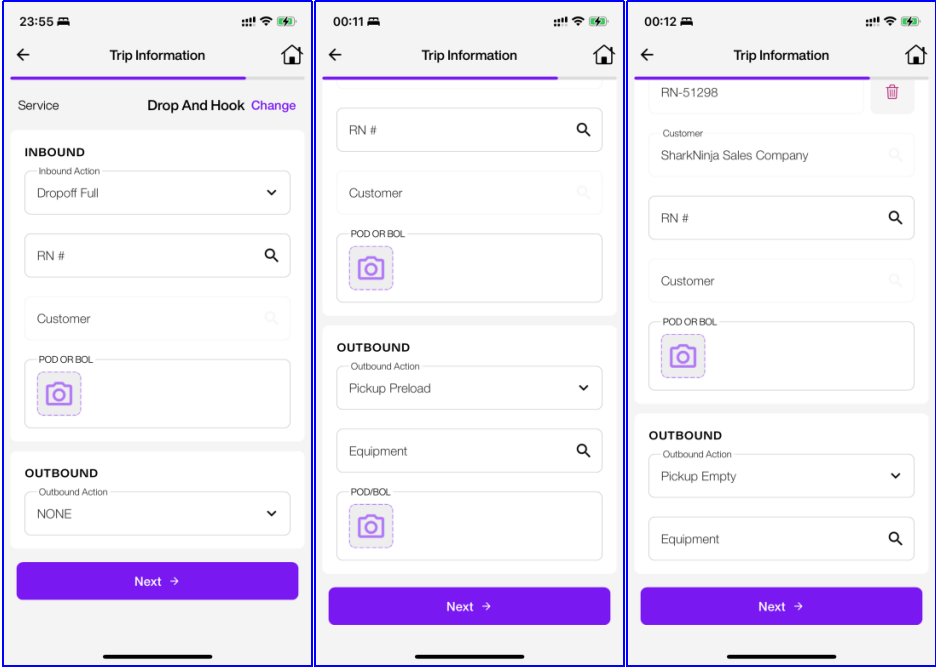
The available actions depend on the Load Status (Full / Empty). Refer to the table below:
| Load Status | Action |
|---|---|
| Full | Inbound: Drop Off Full/None; Outbound: Pickup Preload/Pickup Empty/None |
| Empty | Inbound: Drop Off Empty/None; Outbound: Pickup Preload/Pickup Empty/None |
-
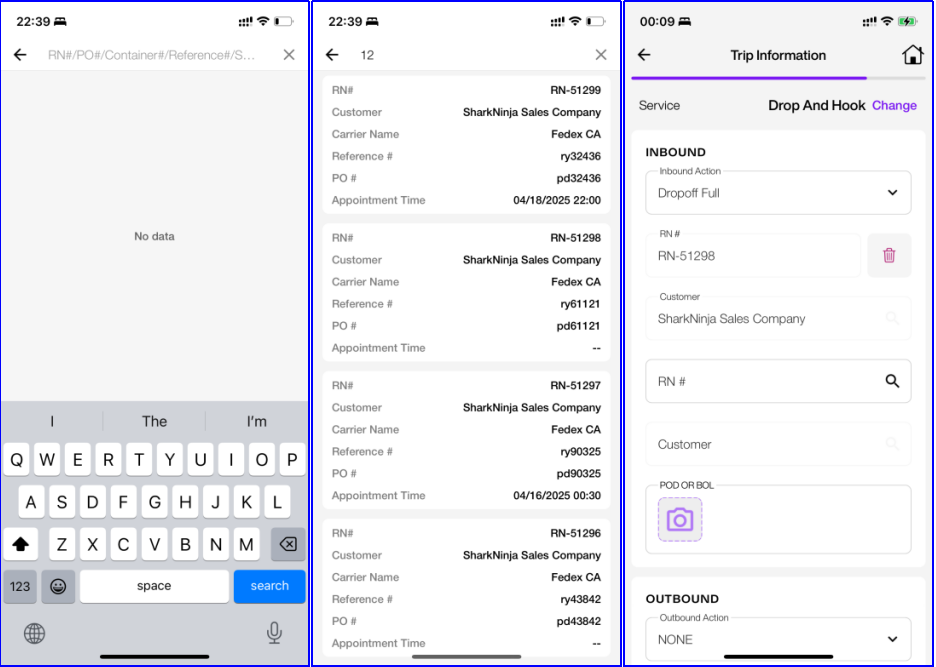
If Inbound Action is set to Drop Off Full: You must select an associated Receipt. You can search for RN using any of the following fields:
RN#/PO#/Container#/Reference#/Seal#.
Tap a search result to select and bind it to this trip.
-
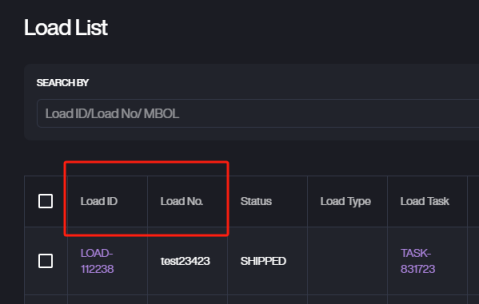
If Outbound Action is set to Pickup Preload: You must select a corresponding Equipment.
Equipment can be searched by either Load ID or Load #.
-
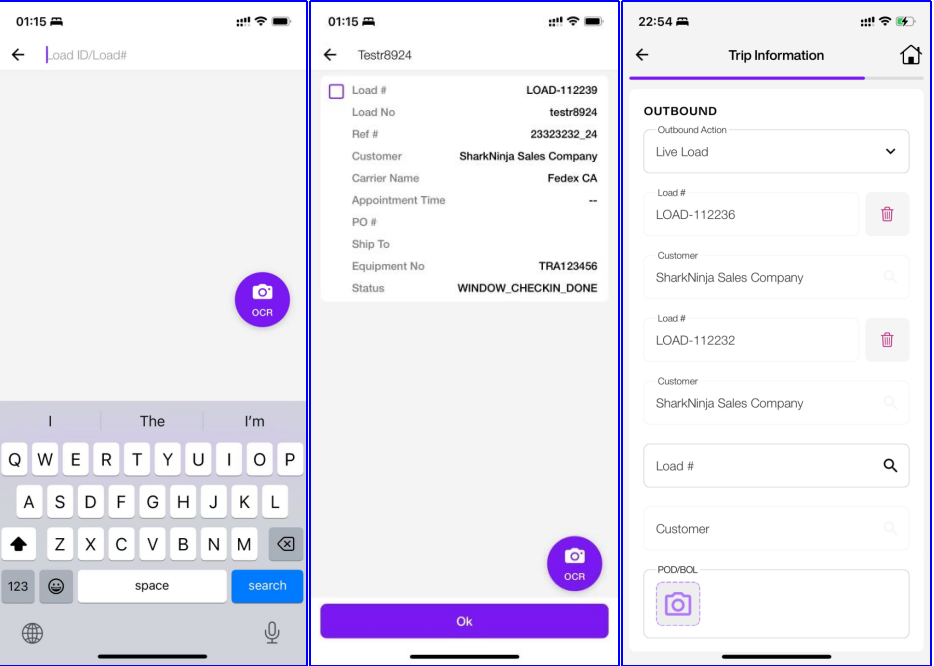
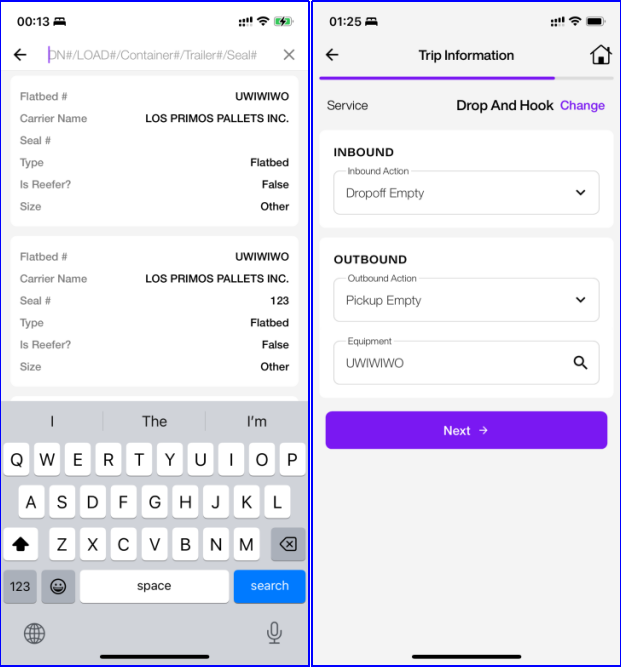
If Outbound Action is set to Pickup Empty: You must select a corresponding Equipment.
Equipment can be searched by either DN#/LOAD#/Container#/Trailer# or Seal#.
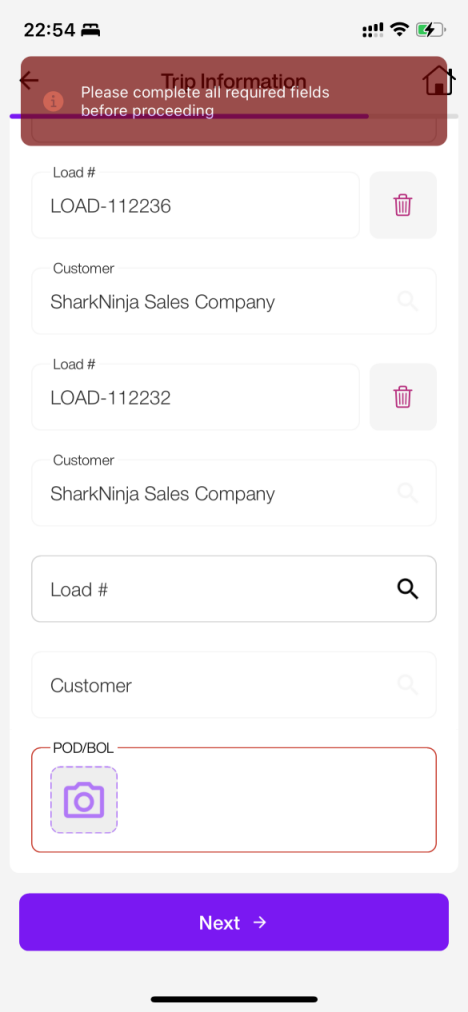
- If Action is Drop Off Full or Pickup Preload ,Uploading a POD (Proof of Delivery) or BOL (Bill of Lading) photo is mandatory for completing the check-in process.
To upload, tap the camera icon and take a clear picture of the document.
- If you realize that the driver's current visist does not fall under Live Service, you can tap the Change link next to the Service field to select the correct service type.
Distribute Location
-
On the Distribute Spot/Dock screen, the system displays the assigned Dock for the check-in based on the Inbound and Outbound actions.
-
Drop off Assignment
-
For Drop off, the system will assign a Dock (e.g., DOCK14).
-
You can tap Manual Change to override and assign a specific Dock manually, or select Next Available to let the system find the next open dock.
-
-
Pickup Assignment
- For pickup, the system will immediately assign a dock.
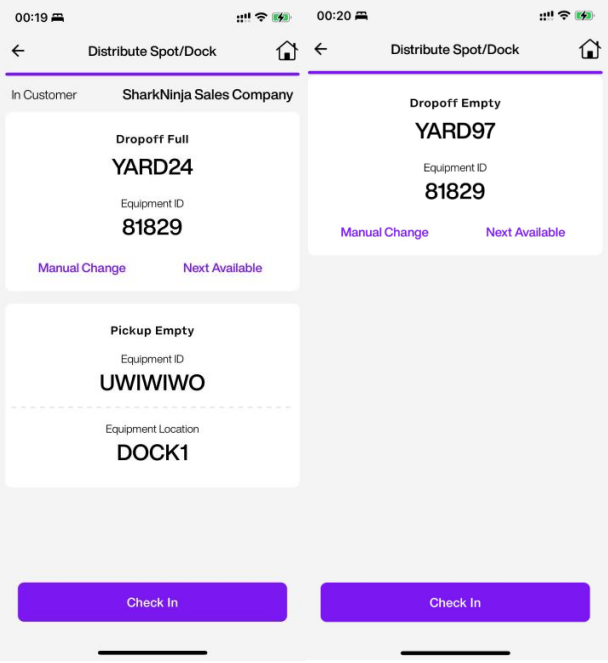
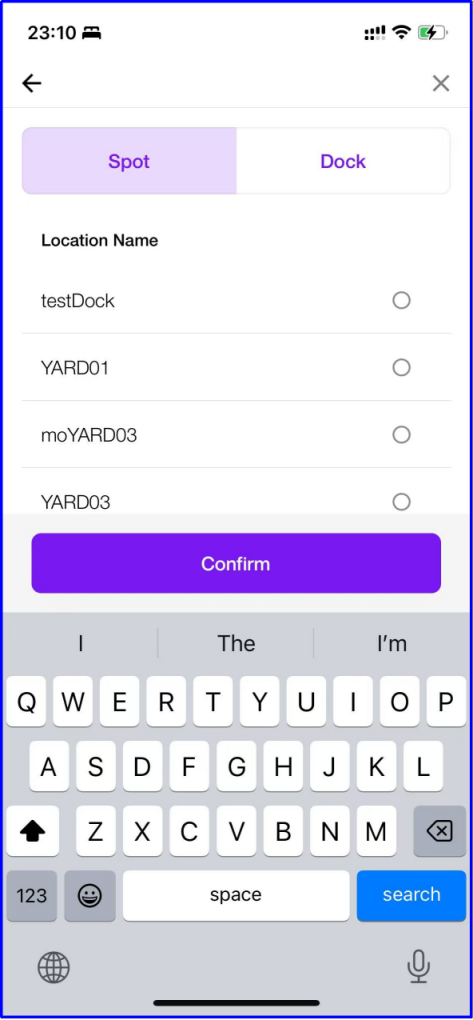
- If you tap Manual Change on the dock assignment page, you will be taken to the manual selection.
Print Label
-
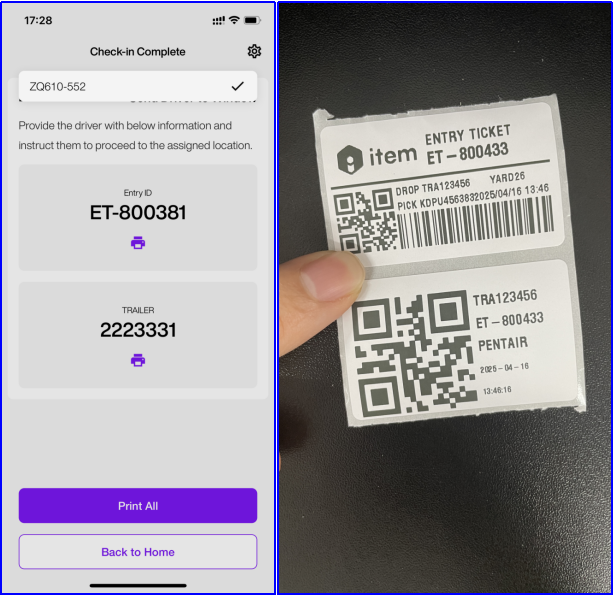
You can print the Entry ID Label and equipment label (e.g. trailer number). You may choose to print them individually or all at once using the Print All button.
-
Use the printer dropdown setting in the top-right corner of the screen to select the printer you want to use.
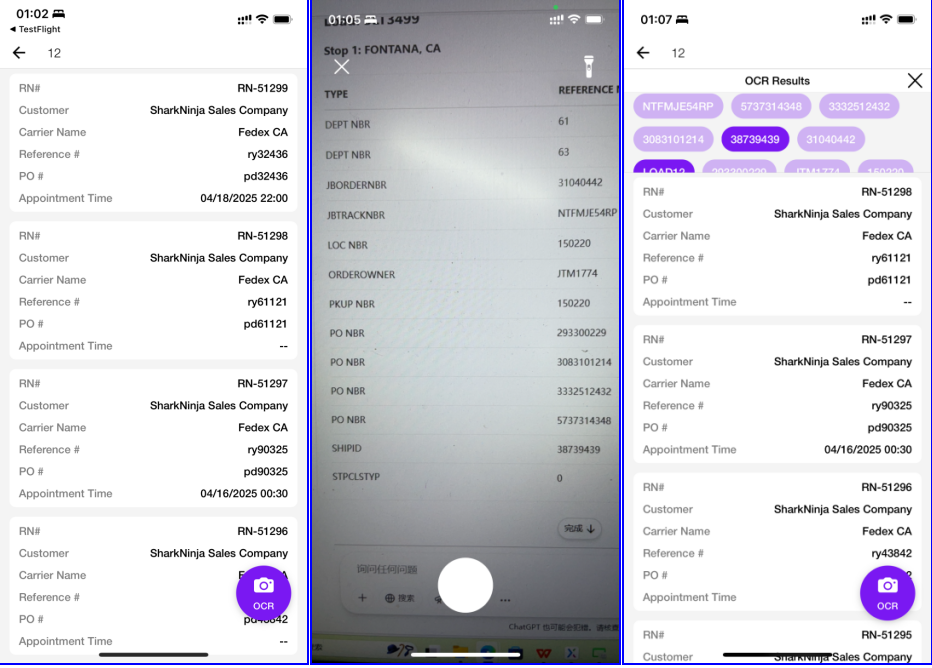
Search RN or Load Using OCR
-
To search for an RN or Load, you can tap the camera icon to take a photo and use OCR to recognize the content in the image.
-
The recognized results will appear in the OCR Result list. Simply tap on a result to begin the search.
-
If the recognized content is incorrect, you can manually edit it in the input box before searching.