Getting Started
Welcome to the Item Client Portal. Access the portal at https://portal.item.com/sign-in (opens in a new tab).
- New users must create an account before signing in (see 1.1.1). Login credentials can also be provisioned by your Item.com account manager.
- Existing users can sign in directly with their current credentials (see 1.1.2).
Creating an Account (Sign Up)
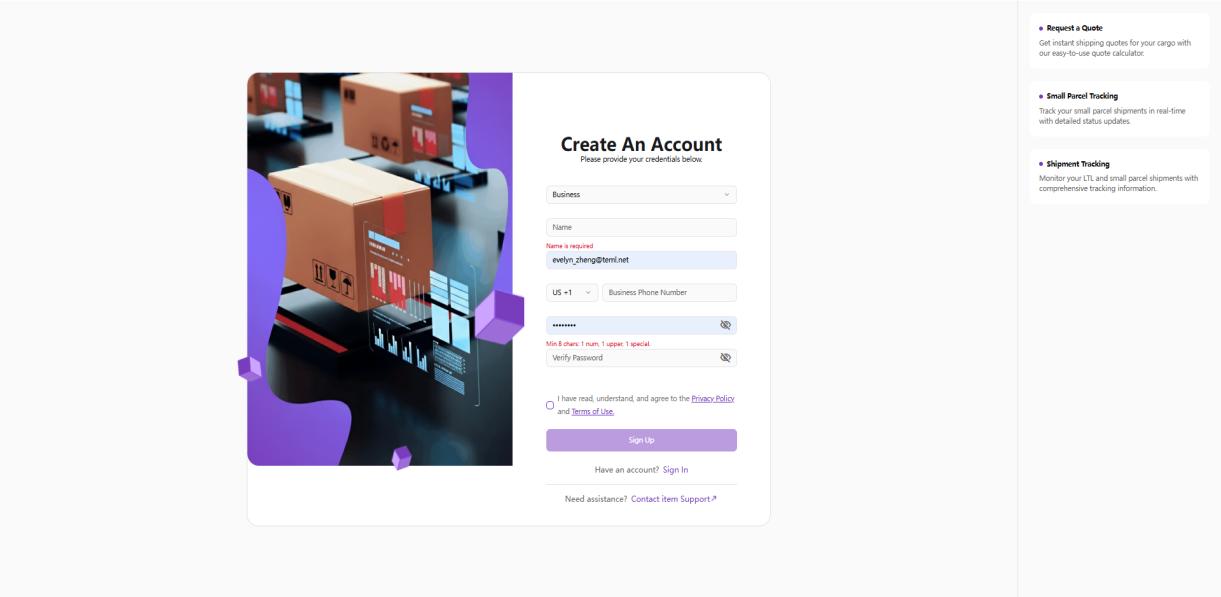
New users create an account to start using the portal. Navigate to https://portal.item.com/sign-up (opens in a new tab) (or click "Need an account? Sign Up" on the sign-in page), fill in your business and credential information, then click "Sign Up".
Operating Steps
- Navigate to https://portal.item.com/sign-up (opens in a new tab)
- Select your Business type
- Enter your Name
- Enter your Email Address and Business Phone Number (with country code, e.g. US +1)
- Set a Password and re-enter it in Verify Password
- Review and tick "I have read, understand, and agree to the Privacy Policy and Terms of Use"
- Click "Sign Up" to create your account
Sign In
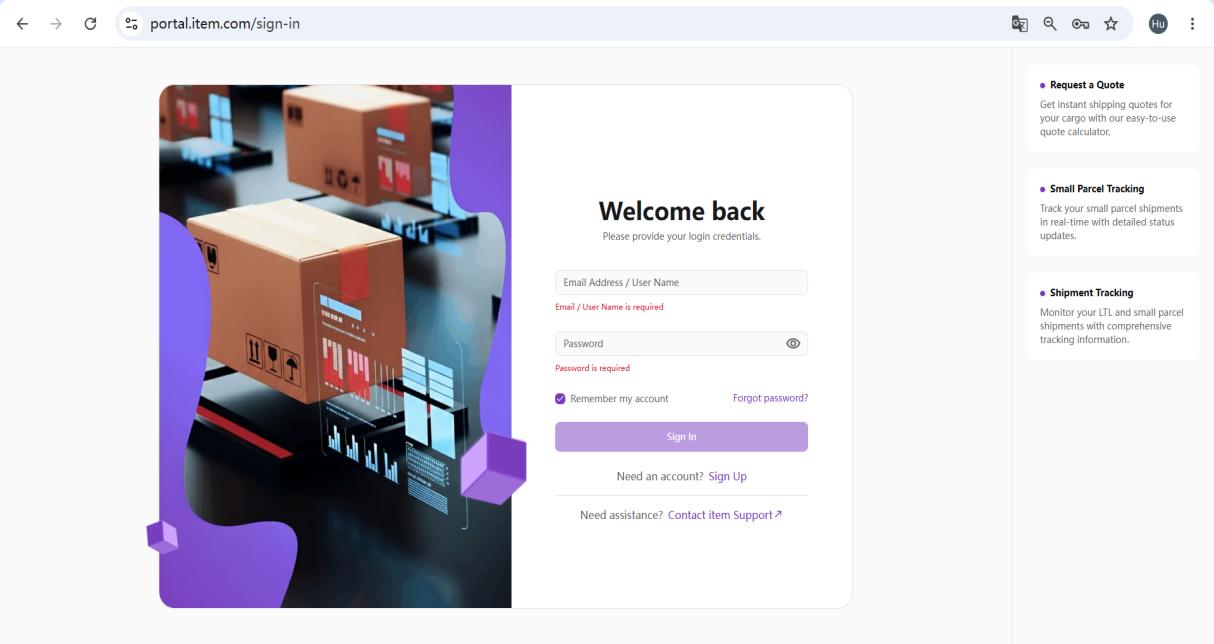
Existing users sign in to access their dashboard. Access the portal at https://portal.item.com/sign-in (opens in a new tab), enter your email address and password, then click "Sign In".
Operating Steps
- Open your browser and navigate to https://portal.item.com/sign-in (opens in a new tab)
- Enter your Email Address / Username
- Enter your Password
- Click "Sign In" to access your dashboard
First-Time Users
First-time users receive login credentials from your Item account manager. Complete profile setup before starting regular portal use.
- Upon first login, complete your profile information under User Profile.
- By default, first-time users are directed to the KPI Dashboard until data is synchronized.
To enable access to OTIF and Recovery Portal pages, provide Item.com support: a valid company email address and a phone number to receive an OTP.
Note: Existing credentials from the previous Client Portal continue to work — no action required.
Screenshots