Workspace
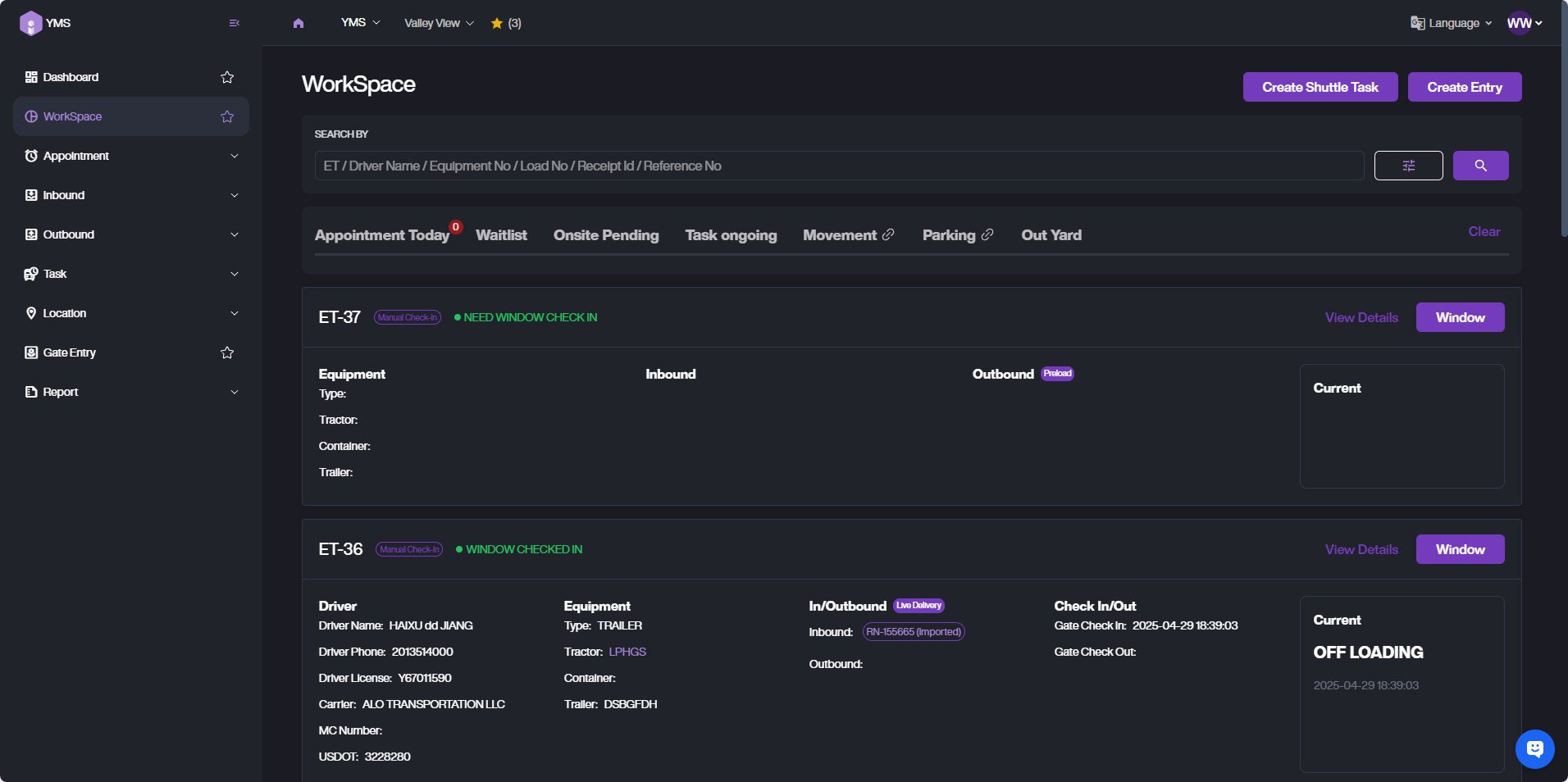
The Workspace page provides a real-time overview of yard activities and appointment statuses. Users can search, filter, and manage ongoing operations.
Search
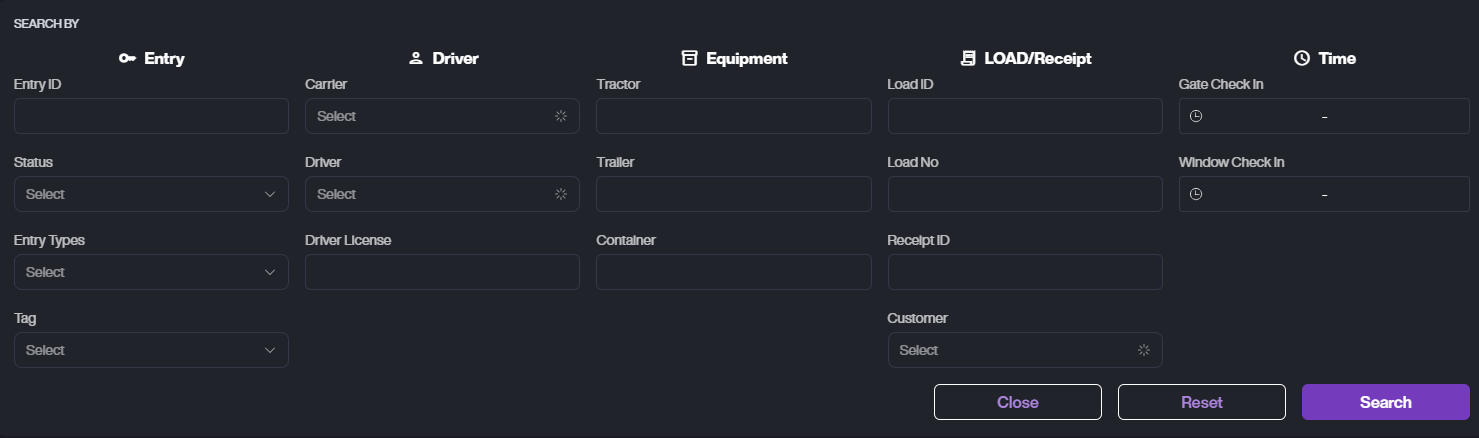
At the top of the Workspace page, Click the filter icon to switch between Quick Search and Advanced Search.
Quick Search

You can search using:
- ET Number
- Driver Name
- Equipment Number
- Load Number
- Receipt ID
- Reference Number
Advanced Search
- Entry Info: Entry IDs, Status, Type, Tag
- Driver: Carrier, Driver, License
- Equipment: Tractor, Trailer, Container
- Load/Receipt: Load ID, Load No, Receipt ID, Customer
- Time: Gate Check-In, Window Check-In
Workspace List
At the top of the Workspace page, Click the filter icon to switch between Quick Search and Advanced Search.
Tabs
- Appointment Today: Show today's upcoming appointments.

- Waitlist: Filter by waiting ETs.

- Onsite Pending: Filter by: No Assignee, No Dock, Driver Too Early/Late, Driver Not Match, Other Pending.

- Task Ongoing: Filter by Inbound/Outbound actions.

- Out Yard: Filter by Exit Time.

Appointment Card
-
APPT Info: Appointment ID, Time, Status
-
Service Type: Inbound / Outbound + Action
-
L/R Info: Linked RN or Load ID
-
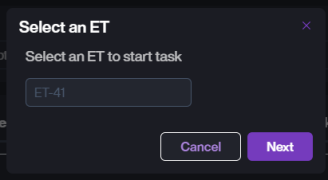
Check In Button: Click to create an ET for the selected APPT.

Entry Card
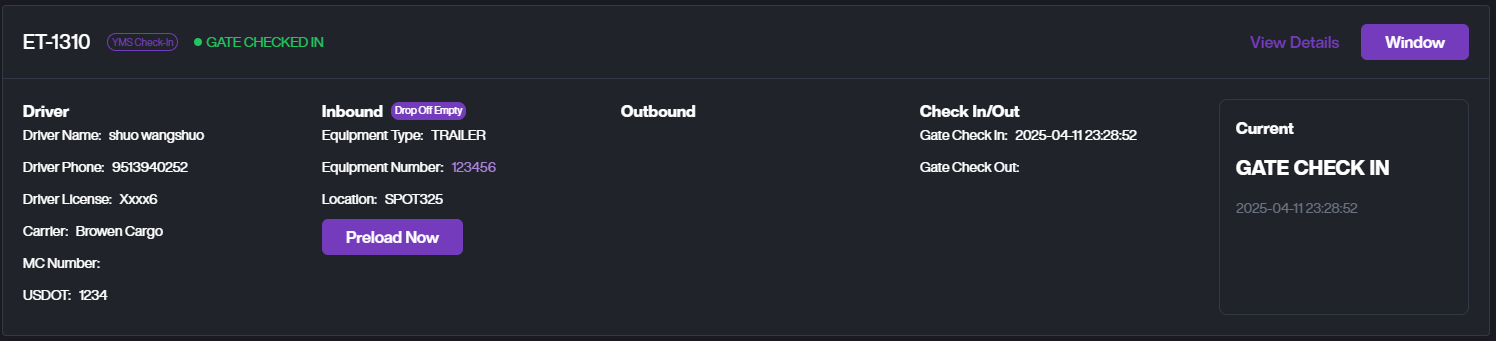
- You can view the ET's Driver info, Equipment info, In/Outbound Action, Check In/Out Time, and Current Status.
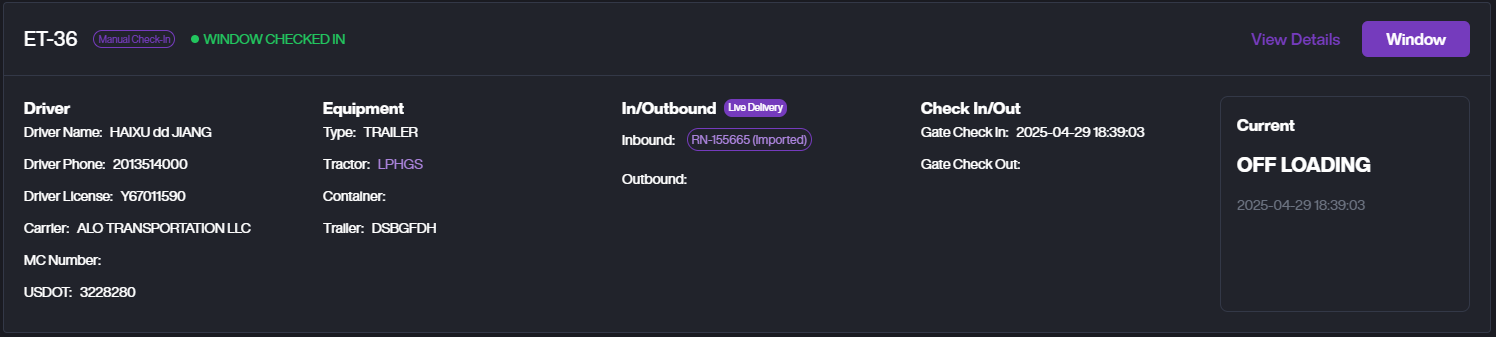
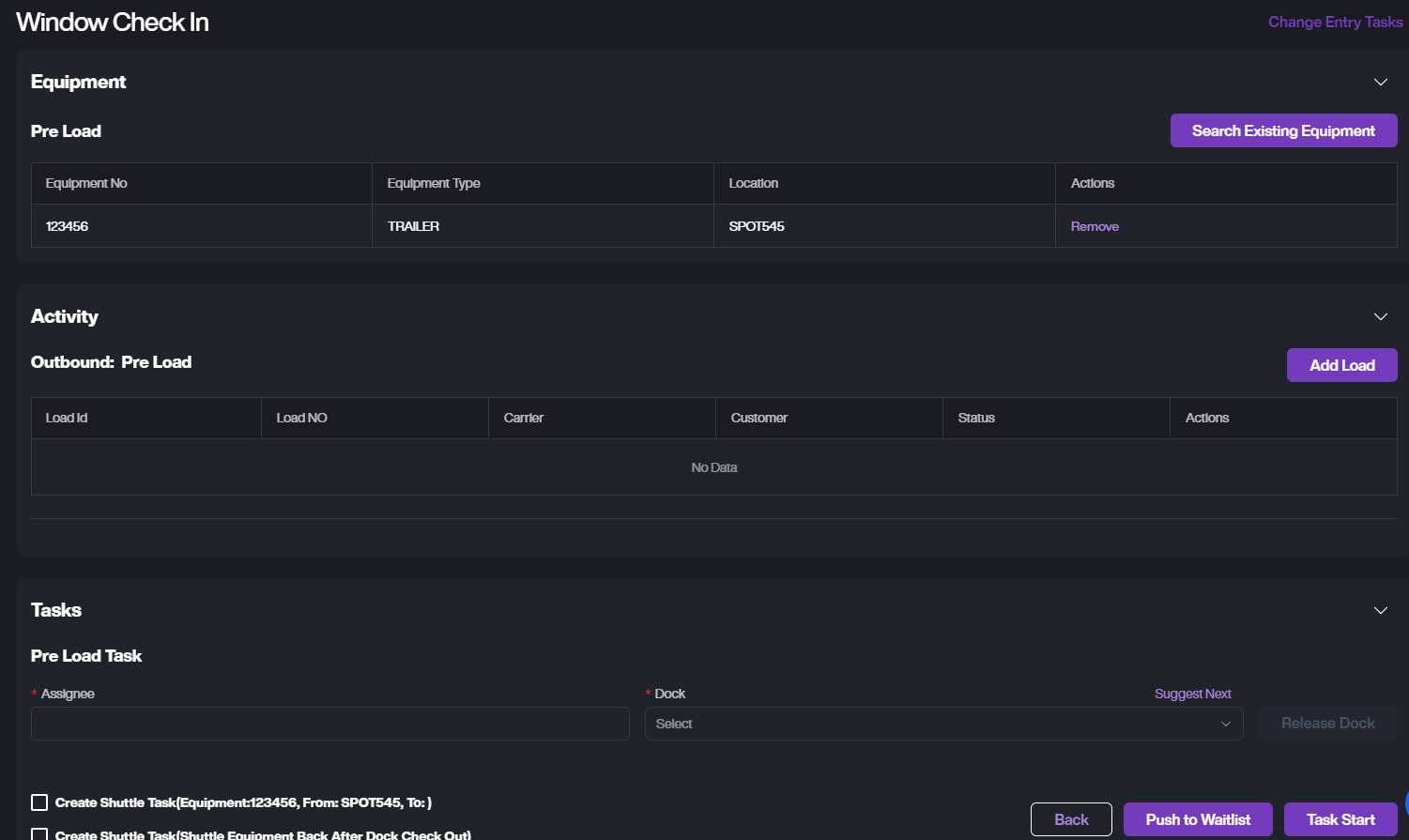
- If the Inbound Action is Drop off Empty, you will see a Preload Now button. Clicking it will create a Load Task based on this ET.
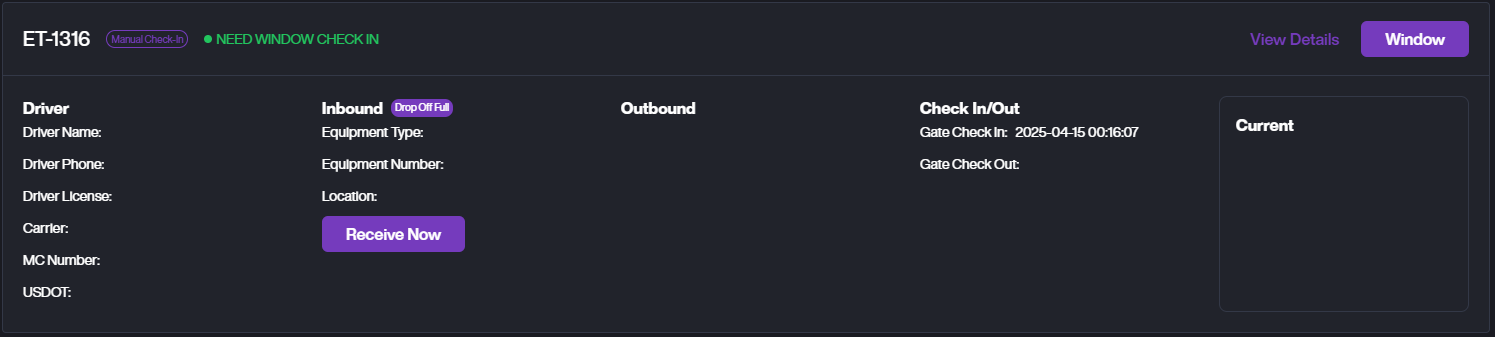
- If the Inbound Action is Drop off Full, you will see a Receive Now button. Clicking it will create a Receive Task based on this ET.
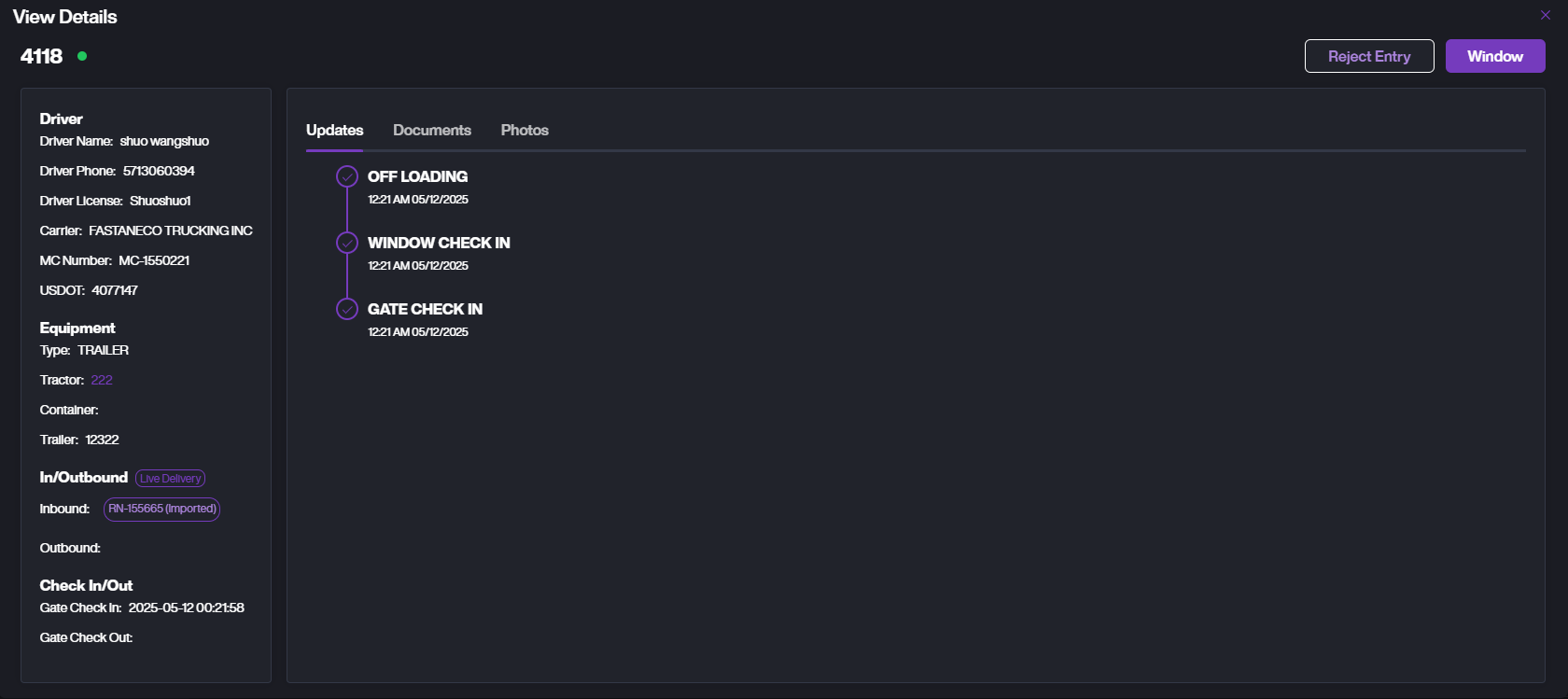
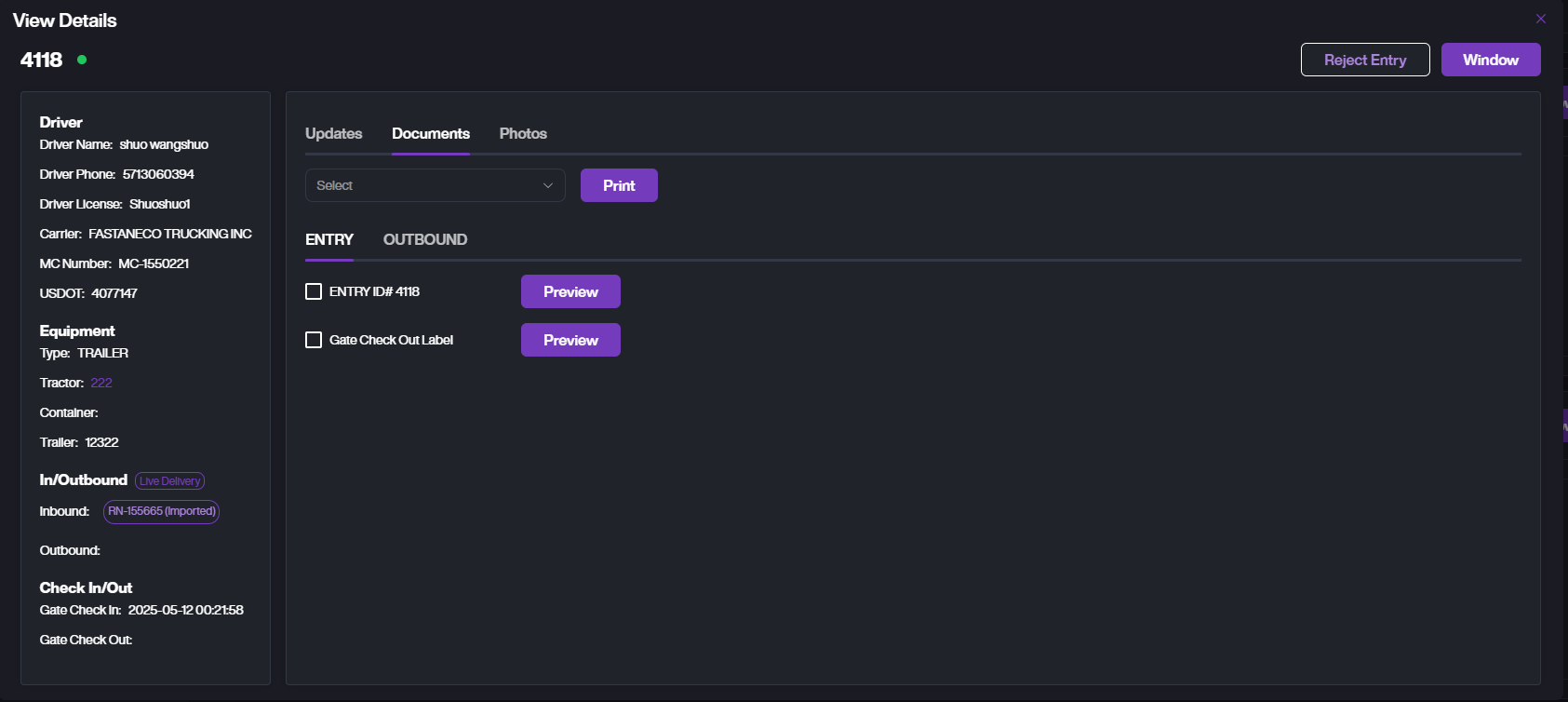
- View Details. Tap View Details, Click View Details to see the ET details, including the task timeline, documents, and entry photos.
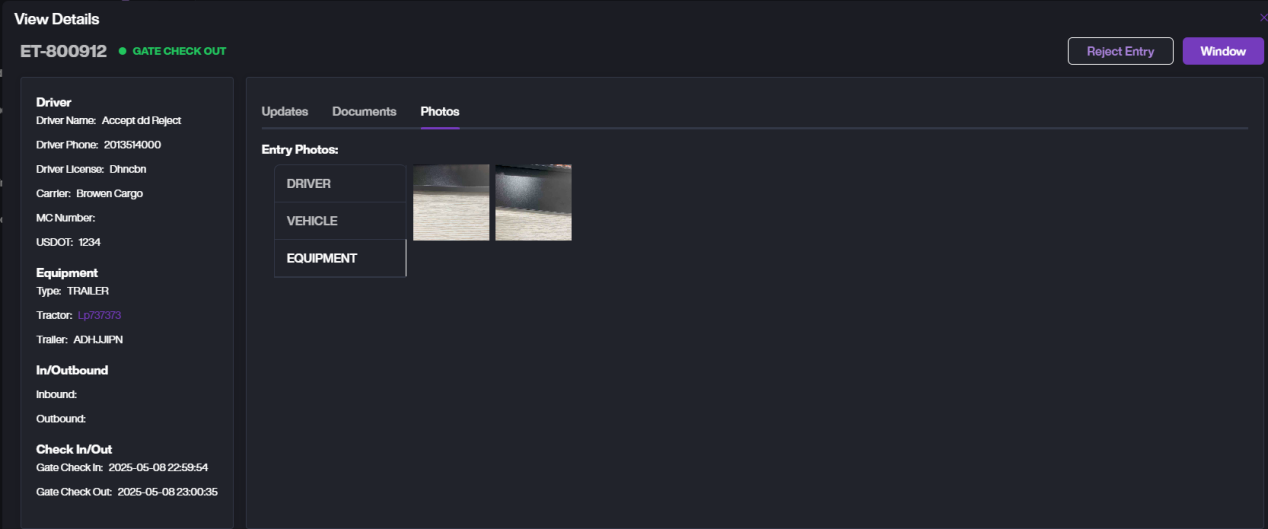
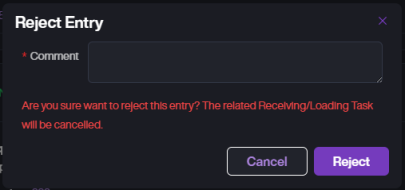
If you need to reject this ET, click Reject Entry to reject and close it.
Click Window to perform operations such as task creation and location assignment for the ET at the window.
Create Entry
- Choose entry tasks.
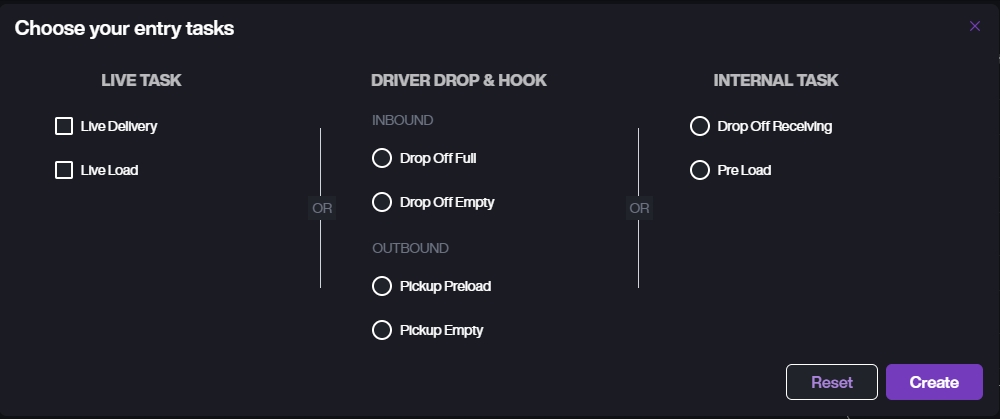
A. Live Task a. Live Delivery: The driver completes unloading on site. b. Live Load: The driver completes loading on site.
B. Drop & Hook a. Drop off Full: The driver drops off a full container and leaves. b. Drop off Empty: The driver drops off an empty container and leaves. c. Pickup Preload: The driver picks up a preloaded unit. d. Pickup Empty: The driver picks up an empty unit.
C. Internal Task a. Drop off Receiving: In-yard unloading task. b. Preload: In-yard loading task.
-
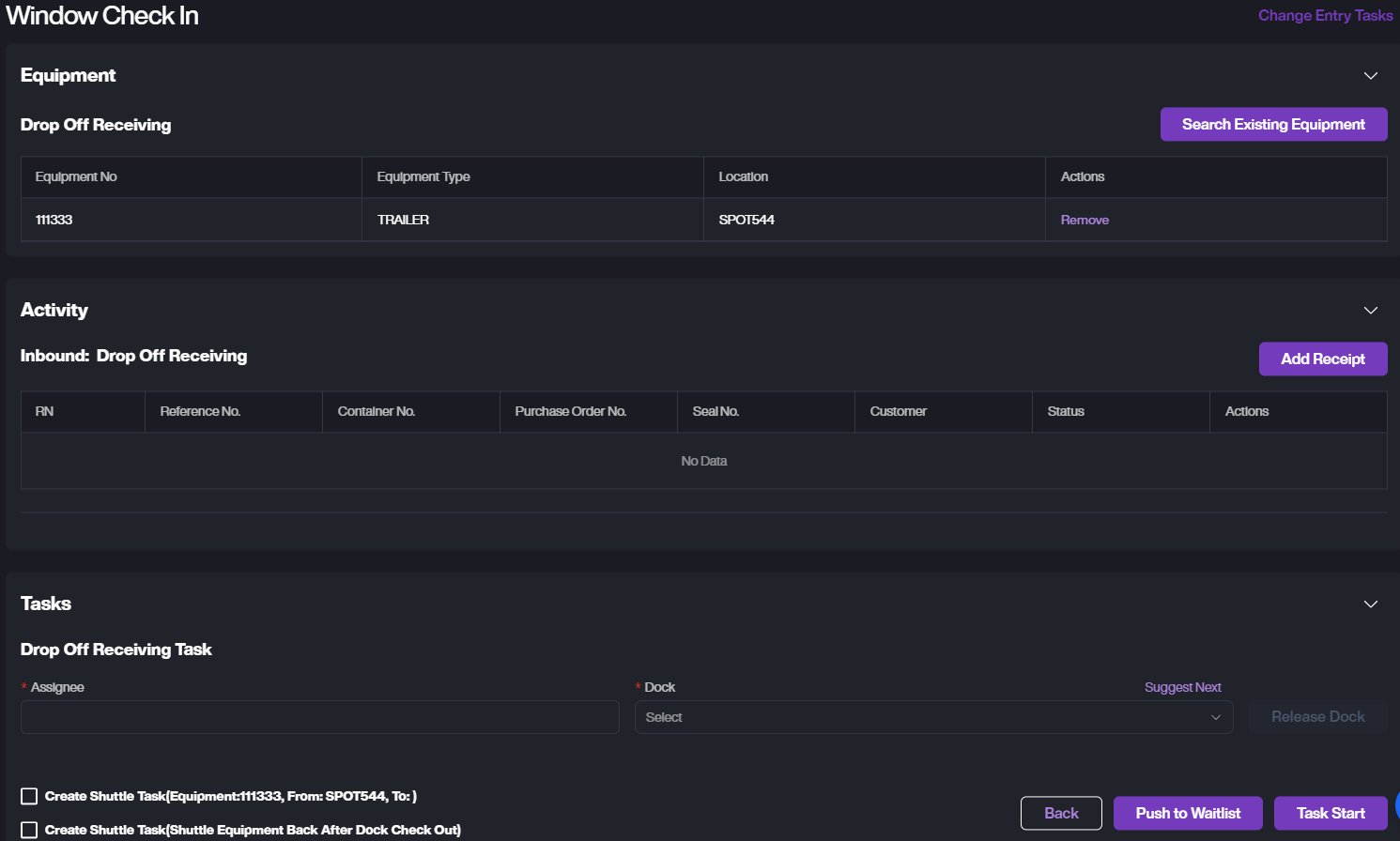
Window Check In
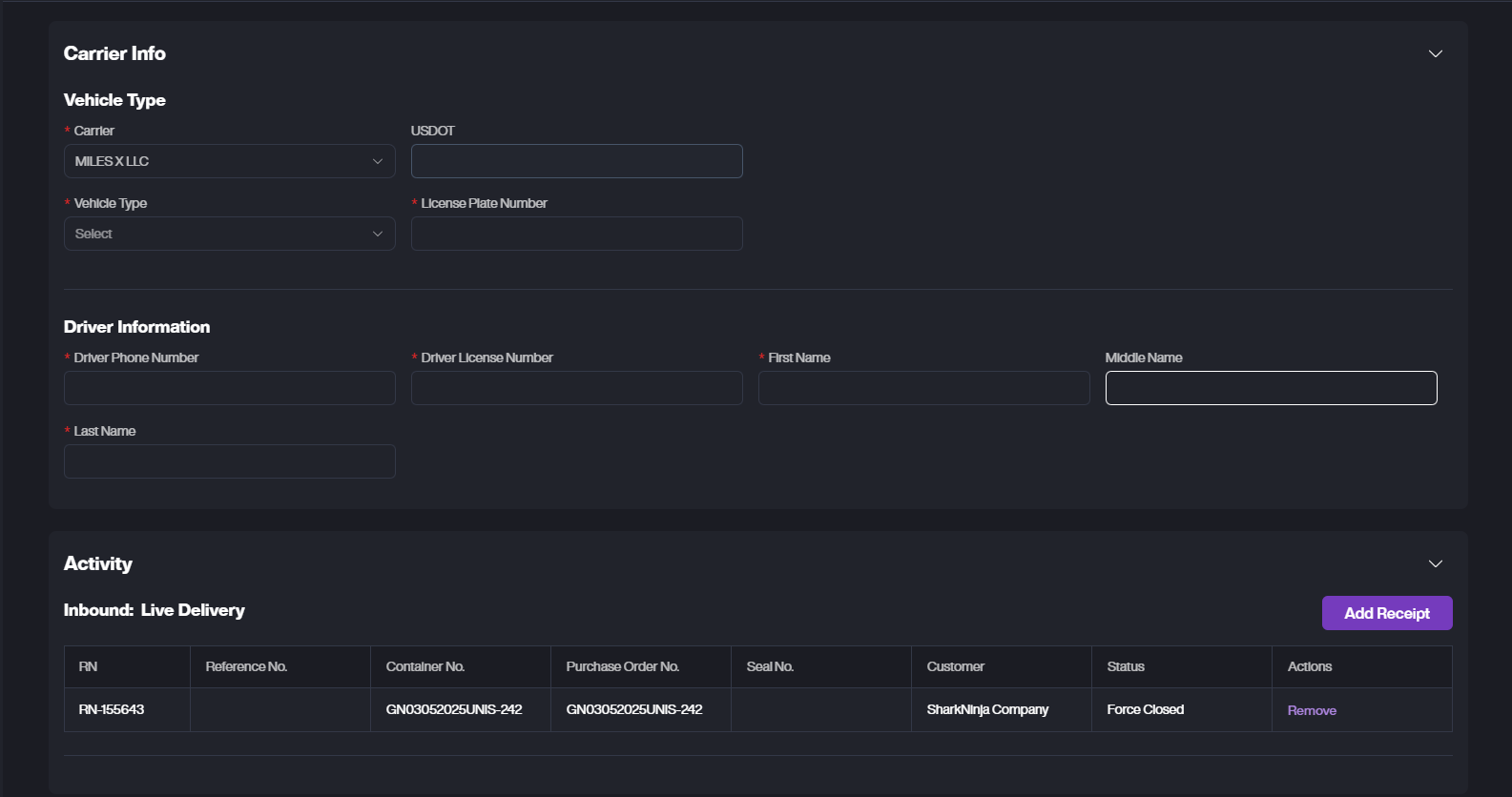
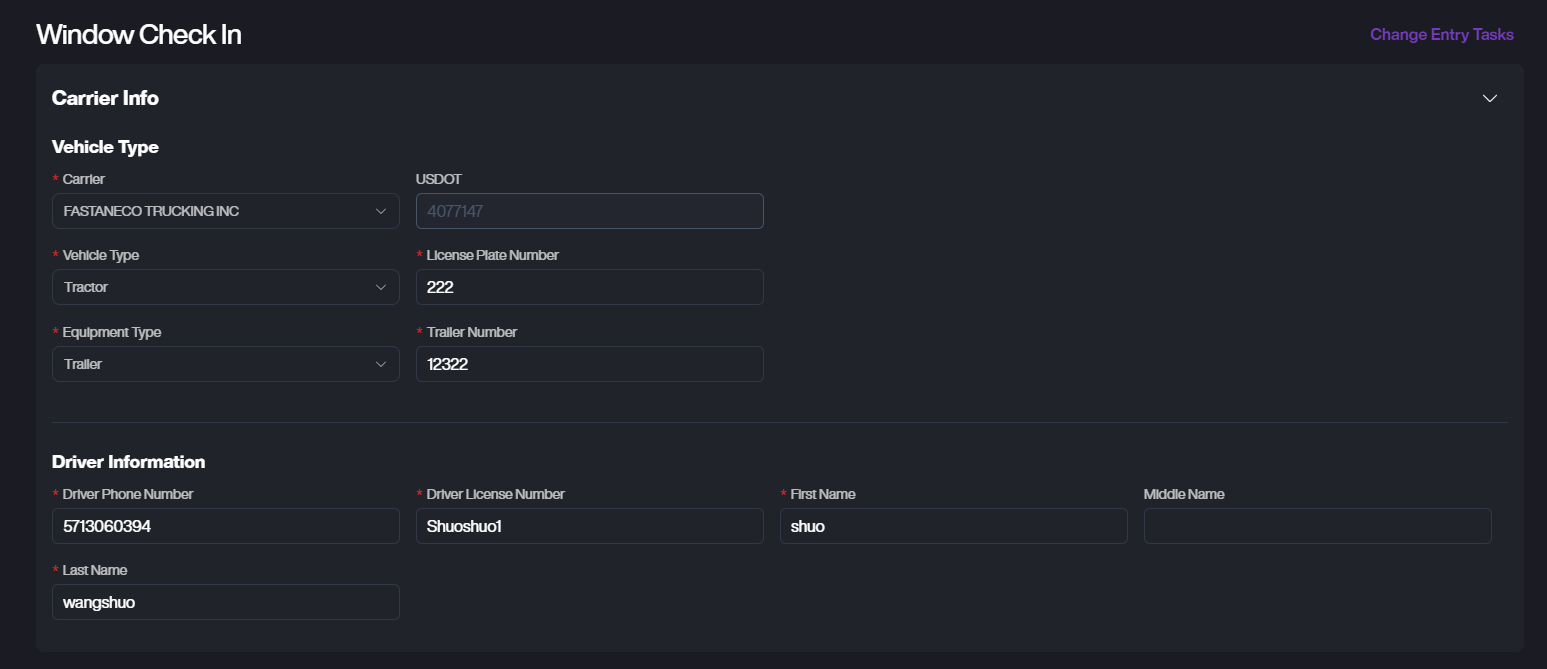
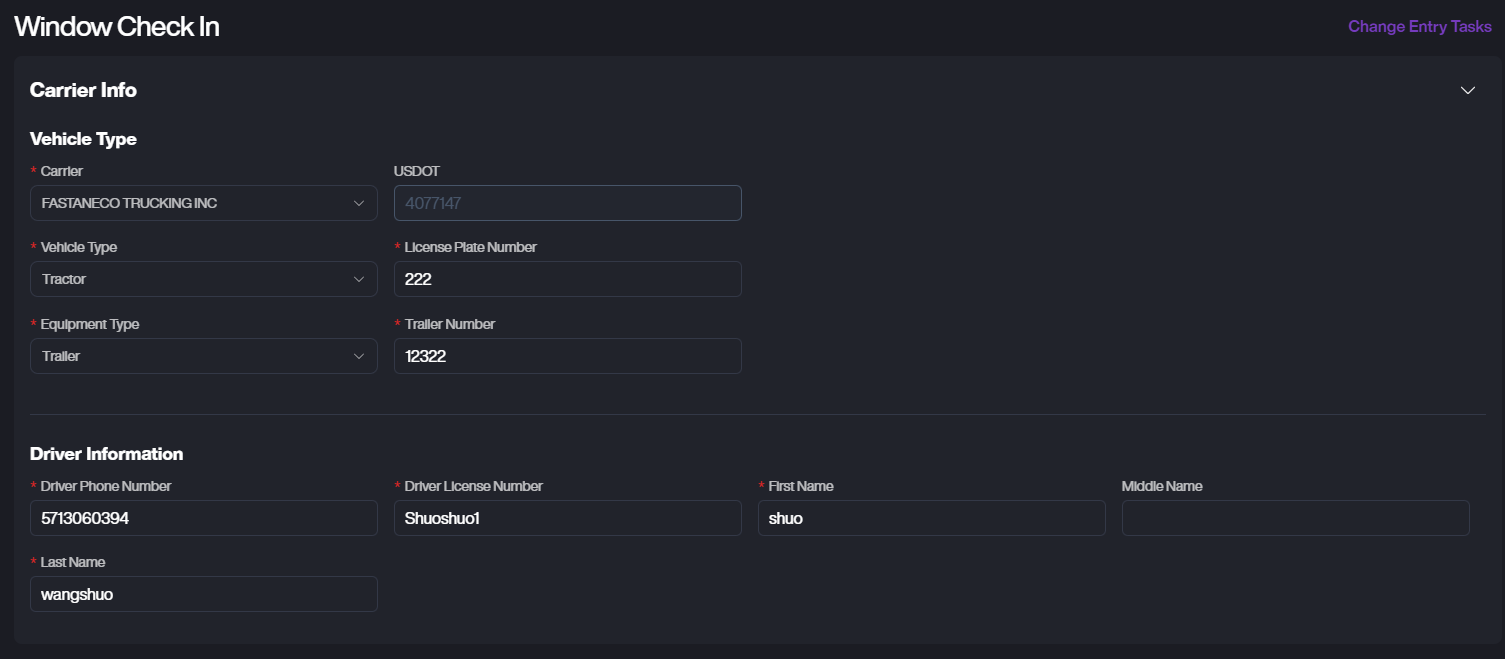
A. Enter driver and vehicle information.
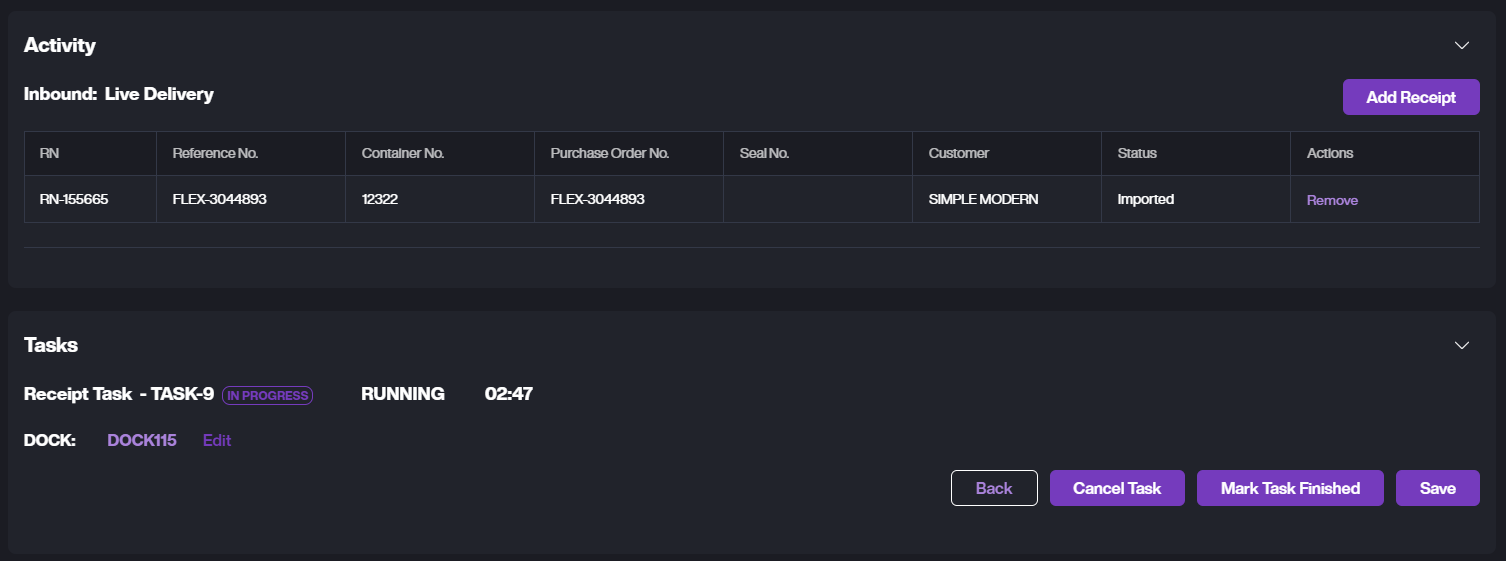
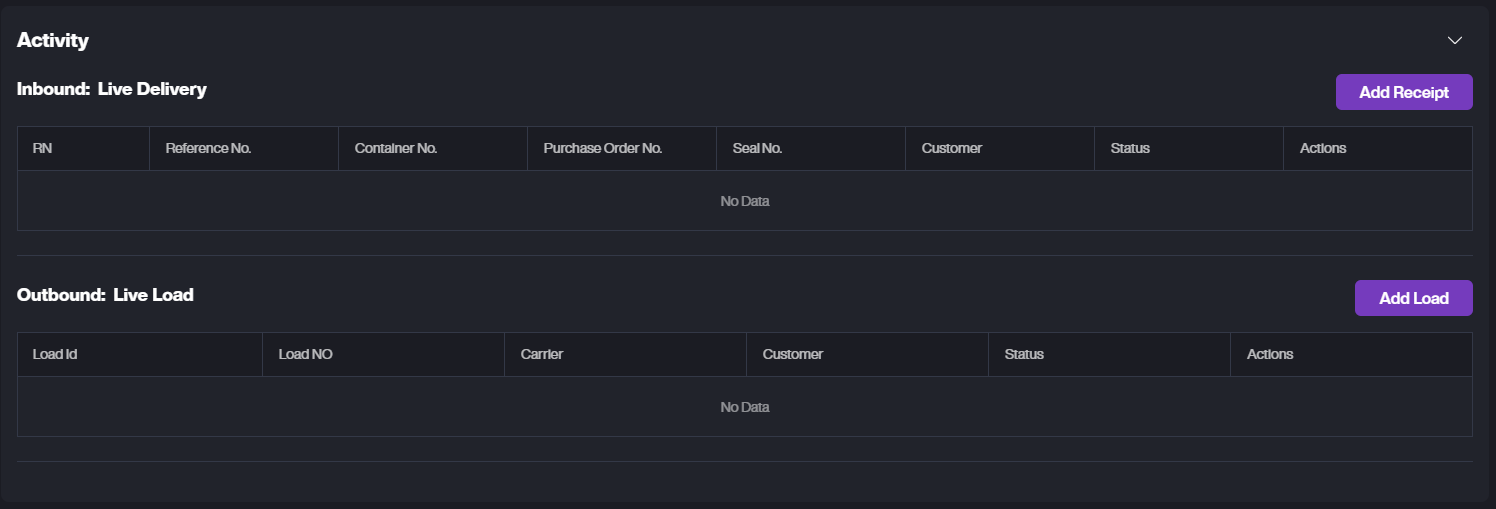
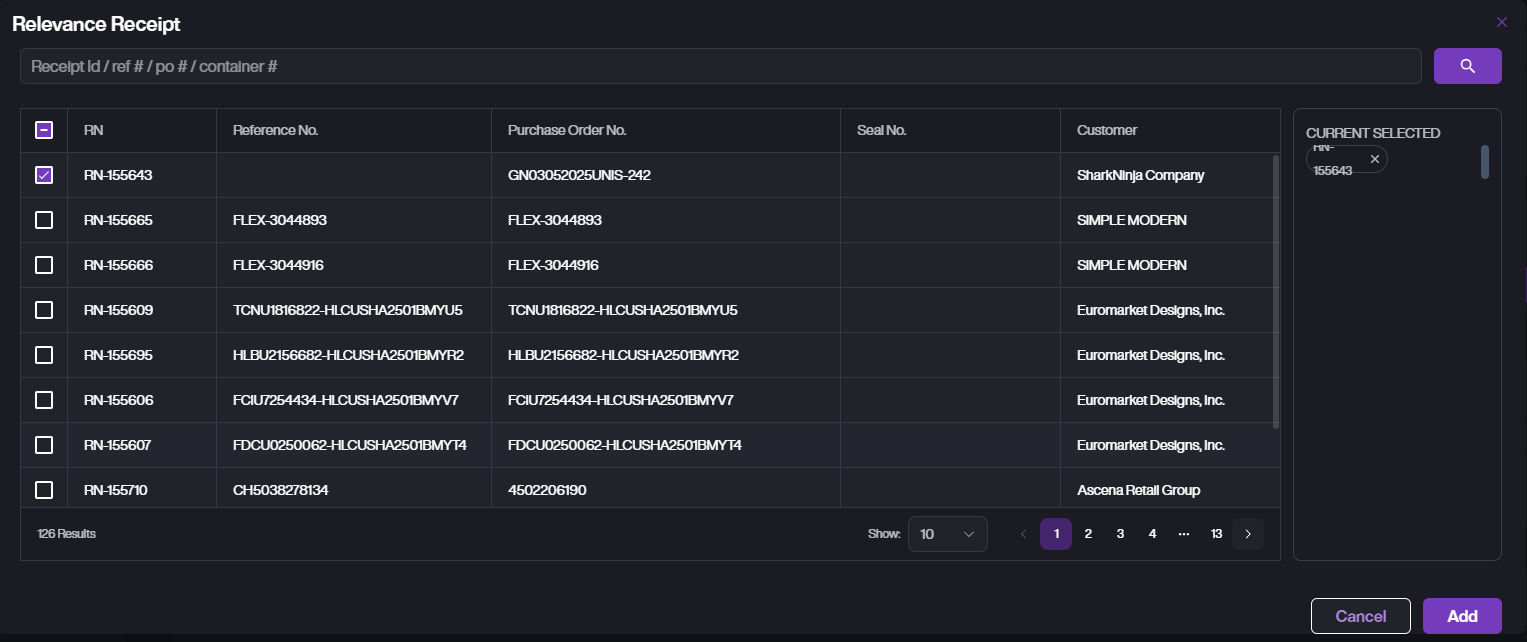
B. Select receiving RNs (multiple selectable).
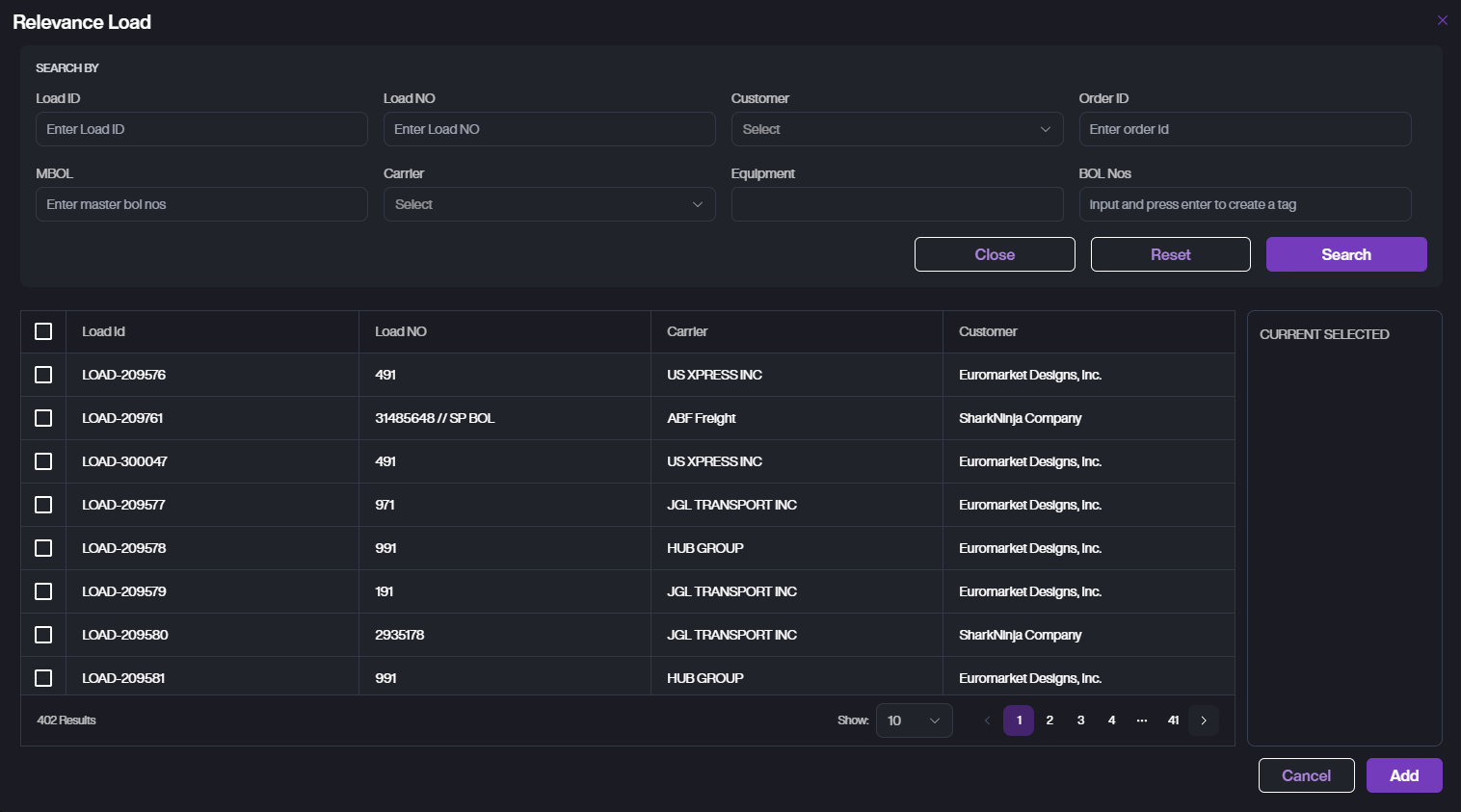
C. Select outbound Loads (multiple selectable).
D. Create Receipt Task: Assign a handler, select a location, or use Suggest Next to automatically get a suitable location.
E. Create Load Task: Assign a handler, select a location, or use Suggest Next to automatically get a suitable location.
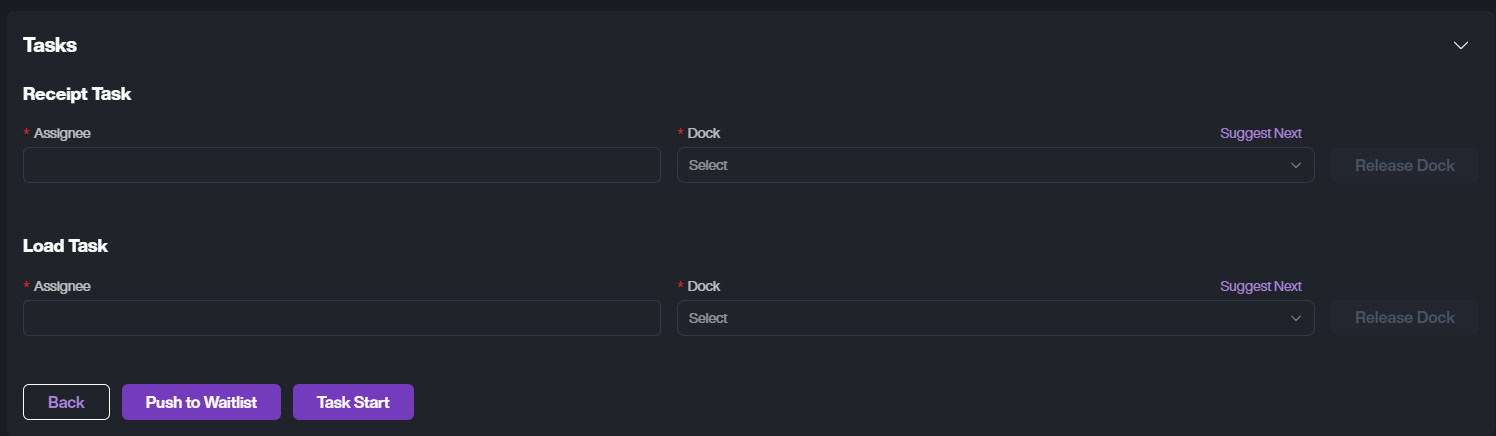
F. Click Task Start. You can complete the Window Check-in and start the Load or Receipt task.