Knowledge Base
The Knowledge Base is a powerful centralized hub designed to store, manage, and interact with organizational and personal information. It leverages AI to transform static documents into actionable insights, slides, and reports.
Overview: Two Types of Knowledge Spaces
The platform is divided into two distinct sections accessible from the left-hand navigation sidebar:
-
My Knowledge Space: A private, self-managed area for your personal notes, ideas, and individual research.
-
Enterprise Knowledge: A collaborative environment for organization-wide knowledge, documentation tools, and seamless integration capabilities.
My Knowledge Space
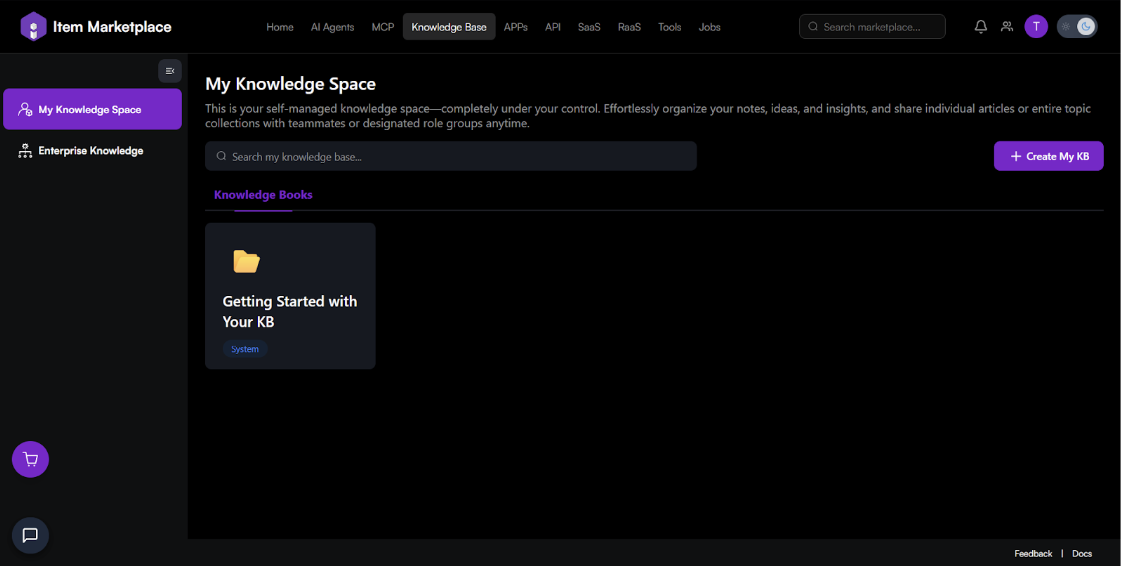
[Manage your own private repository of information.]
Creating a Personal Knowledge Base
-
Navigate to My Knowledge Space.
-
Click the + Create My KB button.
-
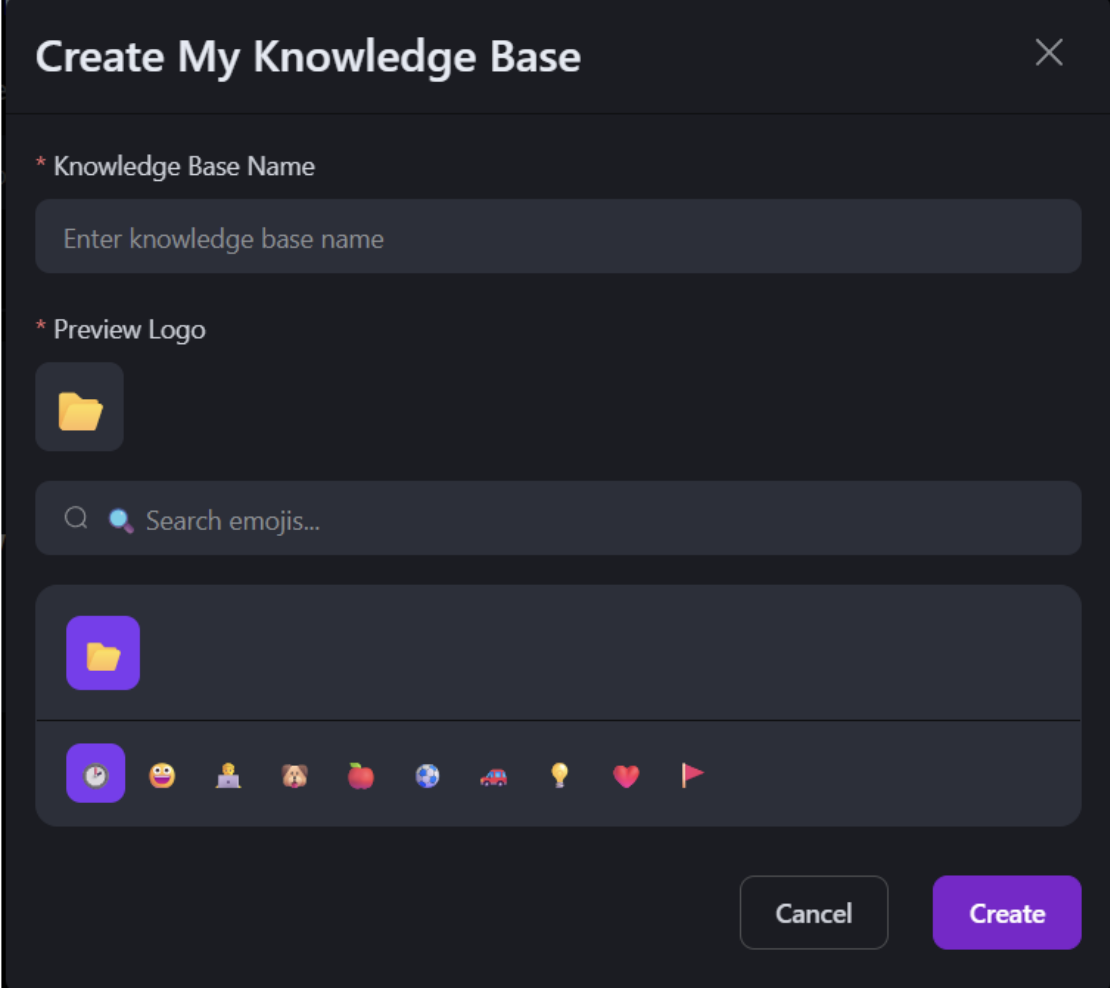
In the Create My Knowledge Base modal:
-
Knowledge Base Name: Enter a unique name.
-
Preview Logo: Select a folder color or an emoji icon to represent your KB.
-
-
Click Create.
Interacting with Your KB
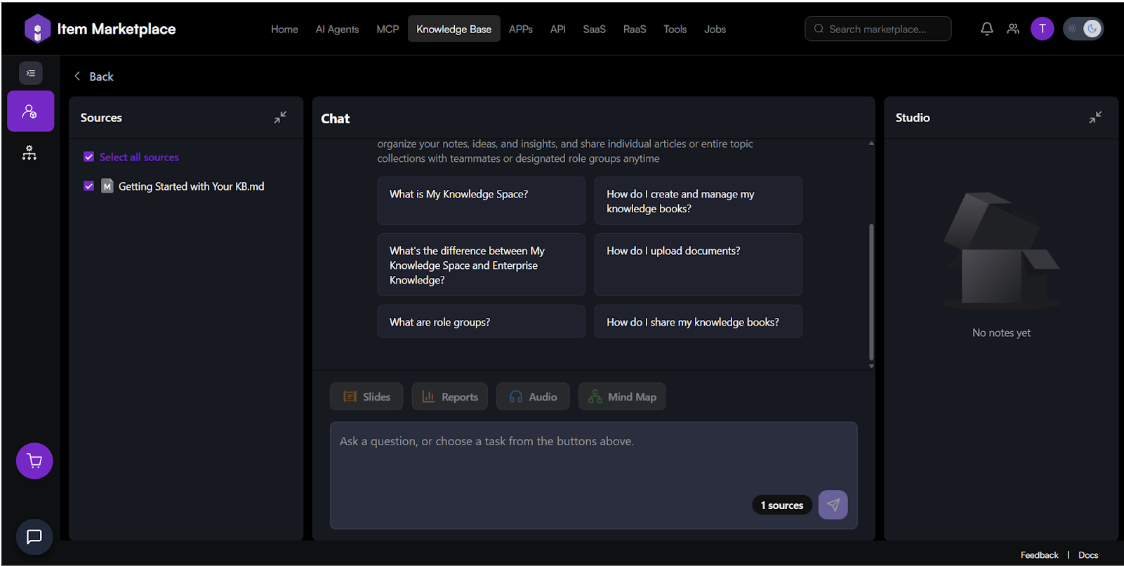
Select a Knowledge Book (e.g., "Getting Started with Your KB") to enter the Chat & Studio view.
-
Sources: View and toggle specific files used for the AI context.
-
Chat: Ask questions or use suggested prompts to explore your data.
-
Studio: Access generated notes and history.
Enterprise Knowledge
Access and manage organization-wide data and shared knowledge bases.
Navigating Knowledge Bases
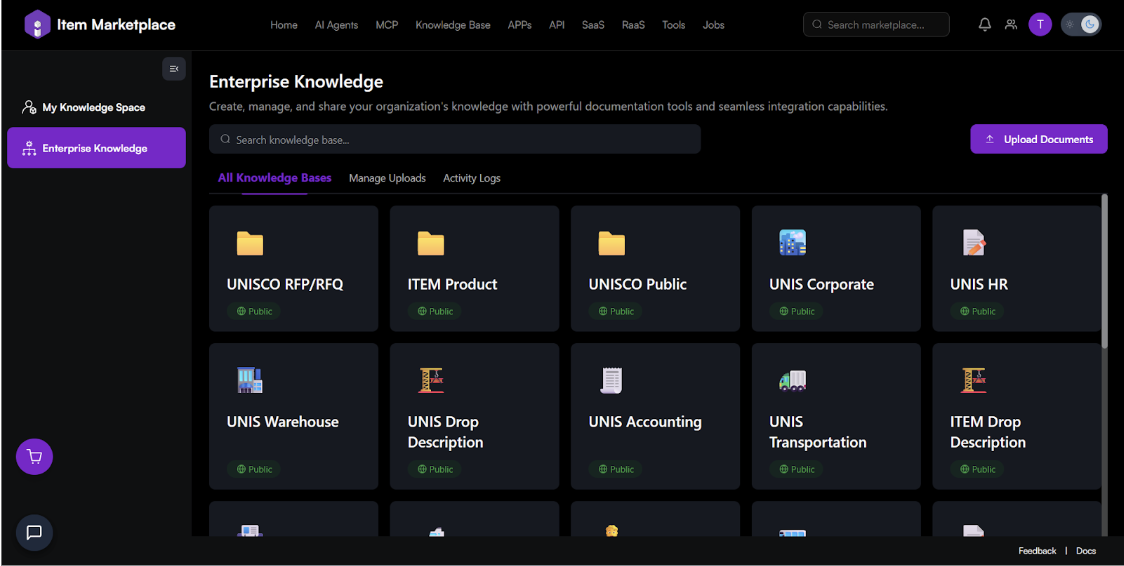
Under the All Knowledge Bases tab, you can browse the enterprise knowledge base you have permission to access. Each card displays the KB title and its visibility status.
Managing Uploads
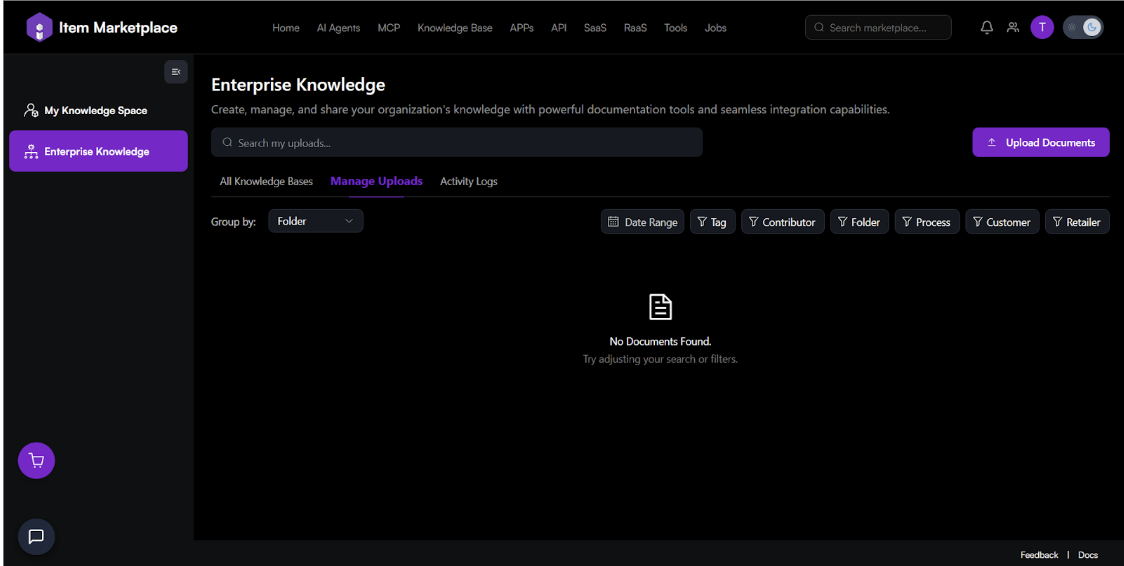
The Manage Uploads tab allows administrators and contributors to organize high volumes of data:
-
Group by: Organize files by Folder, Contributor, or Date.
-
Filters: Use filters like Tag, Process, Customer, or Retailer to find specific documents.
Activity Logs
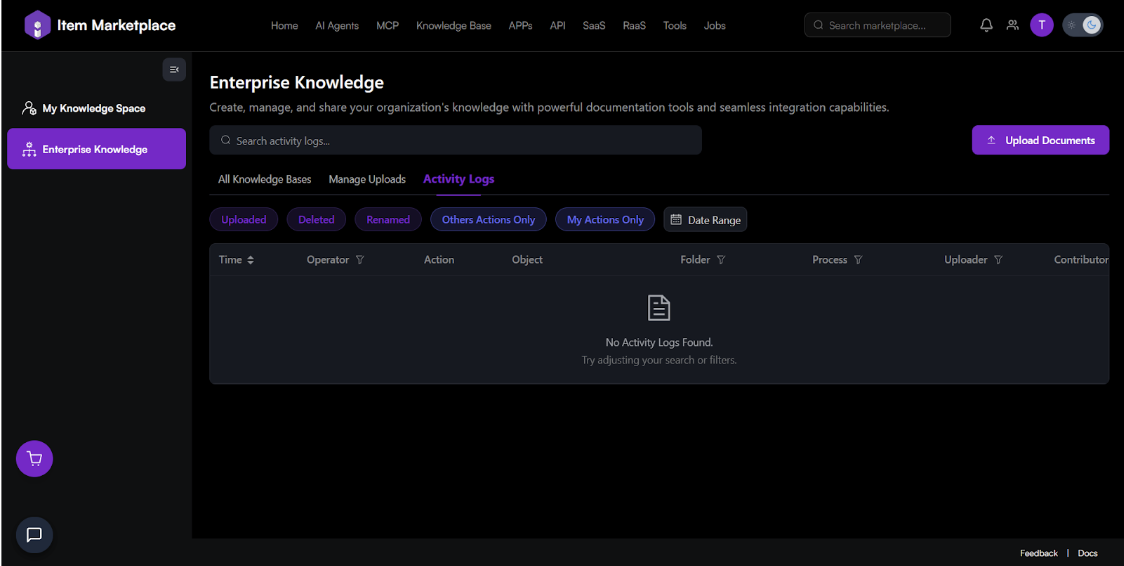
Track all actions within the Enterprise Knowledge space:
-
View logs for Uploaded, Deleted, or Renamed files.
-
Filter by My Actions Only or Others Actions Only.
-
View details including the Operator (who did it), the Action, and the specific Object/Folder affected.
Document Upload Workflow
Adding documents to Enterprise Knowledge follows a streamlined two-step process.
Step 1: Contributor Info
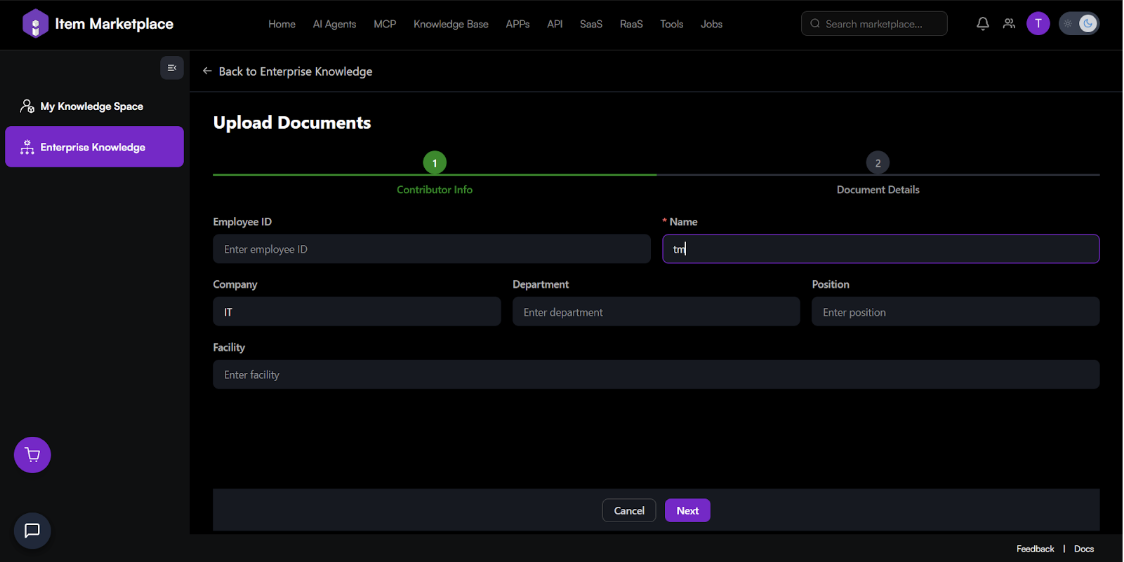
Before uploading, you must provide contributor metadata:
-
Employee ID & Name: Identification of the uploader.
-
Company/Department/Position: Professional context.
-
Facility: Specific location related to the data.
Step 2: Document Details
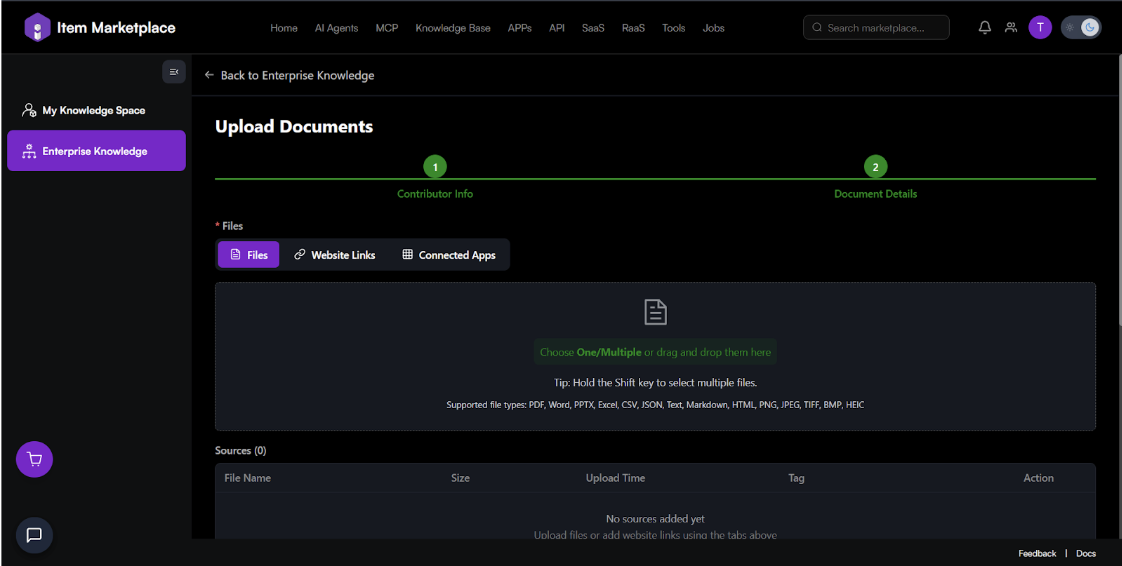
-
Source Type: Choose from Files, Website Links, or Connected Apps.
-
File Support: Drag and drop files. Supported types include: PDF, Word, PPTX, Excel, CSV, JSON, Markdown, HTML, PNG, JPEG, TIFF, BMP, HEIC.
-
Categorization: * Select a Folder Name and Process.
-
Assign to specific Customers or Retailers.
-
Add a detailed Description.
-
-
Batch Submission: Click Add to Batch List to queue multiple documents, then click Batch Submit to finalize.
AI Search & Studio Interaction
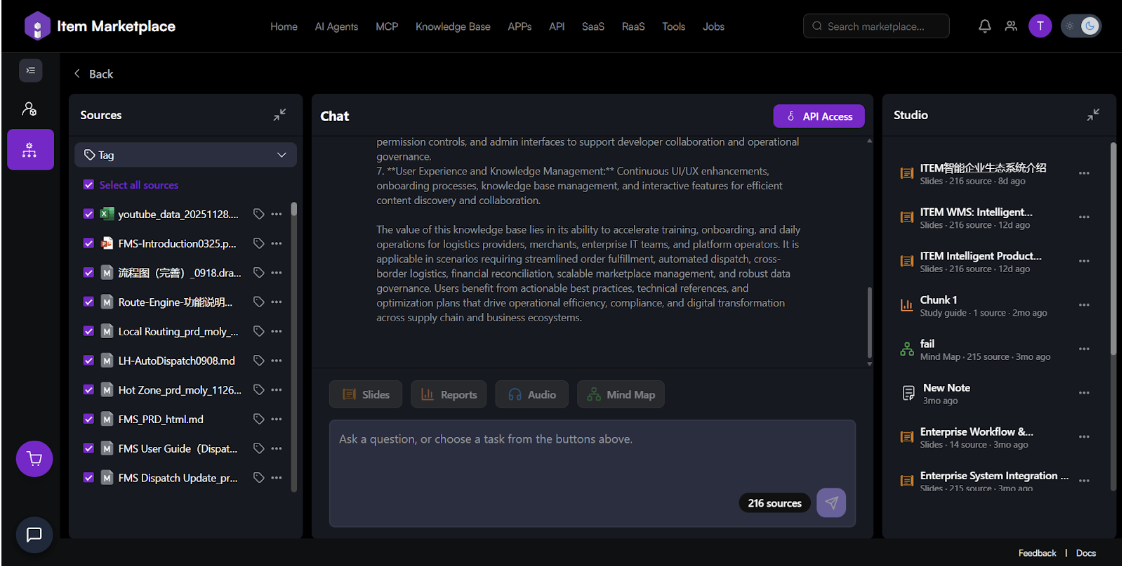
The interaction interface is designed for deep data extraction.
Sources Panel (Left)
-
Toggle specific documents on or off to control what information the AI uses to answer your questions.
-
Filter sources by Tags.
Chat & AI Tasks (Center)
-
Conversational Search: Ask any question in the chat box based on the selected sources.
-
Task Buttons: Quickly generate specialized content:
- Slides: Creates a presentation outline from your data.
- Reports: Generates reports such as Briefing Docs, Study Guides, FAQs, and Timelines.
- Audio: Generates a conversation-style narration based on the user-selected file content.
- Mind Map: Visualizes the structure of the knowledge.
Studio (Right)
The Studio acts as your workspace for AI outputs.
-
View and edit generated Slides, Study Guides, and Mind Maps.
-
Access "New Notes" and historical generation tasks.
-
Each item shows the source count and creation date (e.g., "216 sources - 12d ago").
Accessing the Knowledge Base via API
The platform provides a robust API to programmatically interact with your stored data, allowing you to perform queries and retrieve AI-generated answers directly within your own applications.
How to Find API Access
To access your API credentials and documentation, navigate to any specific Knowledge Base and click the API Access button located in the top-right corner of the interface. This will open a modal where you can manage your keys and view integration guides.
Choosing Your API Type
The platform offers two distinct API tiers tailored to different usage needs:
| Feature | Personal API | Developer API |
|---|---|---|
| Primary Use Case | Personal research, quick testing, and internal tools. | External development, system integration, and production environments. |
| Authentication | No standard authentication required; it consumes personal tokens linked to your account. | Supports organizational IAM authentication for secure, cross-system access. |
| Sharing | Not Recommended. Sharing this key gives others access to your personal quota. | Recommended. Requires identity verification, ideal for production environments. |
| Validity | Permanent (until manually reset or deleted). | Permanent (until manually disabled or replaced). |
Generation & Setup
-
Open the API Access modal and select either the Personal API or Developer API tab.
-
Click the Generate Personal API (or Generate Your First Personal API) button to create your unique key.
-
Copy the generated API-Key immediately, as it may be hidden for security in future views.
Technical Documentation
Request Parameters
All requests are sent via a POST method to the provided endpoint with the following parameters in the JSON body:
-
query (String, Required): The natural language question or command for the AI.
-
topK (Integer, Optional): The number of relevant document chunks to retrieve (default is 3).
-
useSemanticRanker (Boolean, Optional): Whether to use advanced semantic ranking for higher accuracy.
-
sessionId (String, Optional): Used to maintain conversation history across multiple requests.
Response Structure
The API returns a JSON object containing the following top-level fields:
-
status: Success or failure status of the request.
-
message: A brief description of the result.
-
code: The HTTP-style status code (e.g., 200 for success).
-
data: An object containing the primary results:
- answer: The AI-generated text response.
- query: The original query processed.
- sources: An array of objects detailing the documents used to generate the answer.
Source Object Details
Each item in the sources array includes metadata to help you verify the information:
-
content: The specific text snippet retrieved from the document.
-
source_document: The filename of the document.
-
page_number: The specific page where the content was found.
-
score: A numerical value indicating the relevance of this source to your query.
Permissions & Access Management
Visibility Levels
-
Private: Content in "My Knowledge Space" is visible only to you.
-
Public: "Enterprise Knowledge" bases marked as Public are discoverable by the whole organization.
Sharing & Role Groups
Click the Share button within a Knowledge Book to:
-
Grant access to specific Individual Teammates.
-
Share with Role Groups (e.g., "Sales Team") to manage permissions at scale.
Frequently Asked Questions (FAQ)
Q: What is the main difference between "My Knowledge Space" and "Enterprise Knowledge"?
A: "My Knowledge Space" is a private, self-managed area intended for your personal notes and individual research. "Enterprise Knowledge" is a collaborative organization-wide space where shared documents are managed, categorized, and accessed by authorized team members.
Q: What file formats can I upload to the Knowledge Base?
A: The platform supports a wide variety of formats, including:
- Documents: PDF, Word (.doc/docx), PPTX, Excel (.xls/xlsx), CSV, Text (.txt), Markdown (.md), and HTML.
- Data: JSON.
- Images: PNG, JPEG, TIFF, BMP, and HEIC.
Q: How can I control which documents the AI uses to answer my questions?
A: In the Chat view, use the Sources panel on the left. You can check or uncheck individual documents or use the "Select all sources" toggle. The AI will only generate answers based on the specific sources you have selected.
Q: Can the AI do more than just answer chat questions?
A: Yes. Using the Task Buttons below the chat window, the AI can automatically generate:
- Slides: Professional presentation outlines.
- Reports: Briefing Docs, Study Guides, FAQs, and Timelines.
- Mind Maps: Visual flowcharts of concepts within your documents.
- Audio: Text-to-speech insights for listening on the go.
Q: How do I track who uploaded or deleted a specific document in the Enterprise space?
A: Navigate to Enterprise Knowledge > Activity Logs. You can see a chronological list of actions, including the operator's name, the specific action taken (Uploaded, Deleted, Renamed), and the time it occurred.
Q: Is there a way to upload multiple files at once?
A: Yes. In the Upload Documents workflow, you can drag and drop multiple files into the upload area or hold the Shift key while selecting files. Once the details are filled out, use the Add to Batch List button to queue them and click Batch Submit to upload them all simultaneously.
Q: How do I access the Knowledge Base via API for external apps?
A: Within any Enterprise Knowledge Base, click the API Access button located at the top right of the Chat/Studio interface to manage your integration keys and settings.