SaaS
The SaaS Marketplace is built to provide a unified and streamlined experience - enabling software discovery, flexible subscription management, and efficient SaaS distribution for vendors.
Introduction
The SaaS section of Item Marketplace allows you to:
-
Discover and subscribe to a curated catalog of cloud-based software services (SaaS), from Item or certified third-party vendors.
-
Manage your subscriptions, access, and billing through a unified workspace.
-
For vendors/developers: publish your SaaS product to the marketplace so others can subscribe.
This guide outlines the full user flow - from browsing services to publishing your own - and provides helpful tips to avoid common pitfalls.
Getting Started: Access & Registration
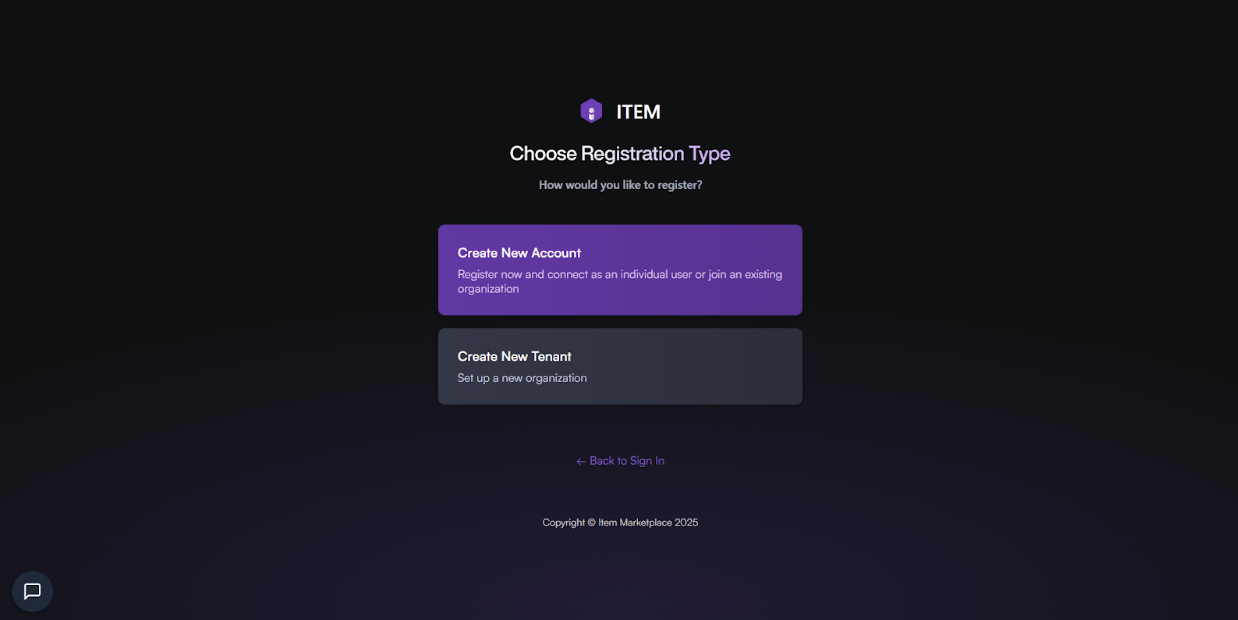
To use the SaaS Marketplace you need an Item Marketplace account. You can register as:
-
Enterprise Tenant User - ideal if your organization/team needs shared access and unified billing.
-
Individual User (Personal) - for personal use or trial/individual exploration.
Registration Scenarios
| Scenario | When to Use | Basic Steps |
|---|---|---|
| Create New Tenant (Enterprise) | Setting up a company account for the first time | Sign up → Choose Create New Tenant → Fill in company info → primary user info → billing info → Done |
| Join Existing Organization (Enterprise) | If your company already has a tenant and you need to join | Sign up → Email verify → Choose Business Account → Select existing org → Request access → Await approval |
| Add New User (by Admin) | Admin onboarding new team members | Log in as admin → Go to “Team / Users” section → Add new user → Set permissions → Save |
| Individual Account (Personal) | For solo or personal use | Sign up → Fill in user info → Verify email → Choose Personal Account → Done |
Browsing & Subscribing to SaaS
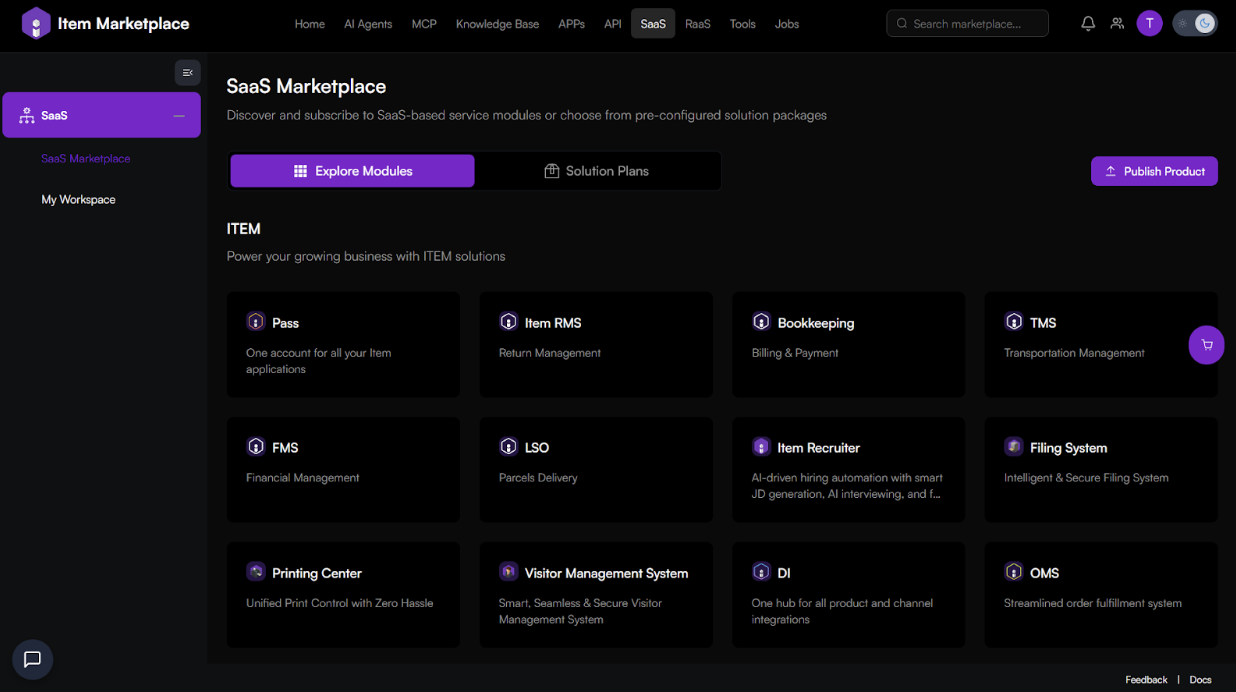
Explore Modules
-
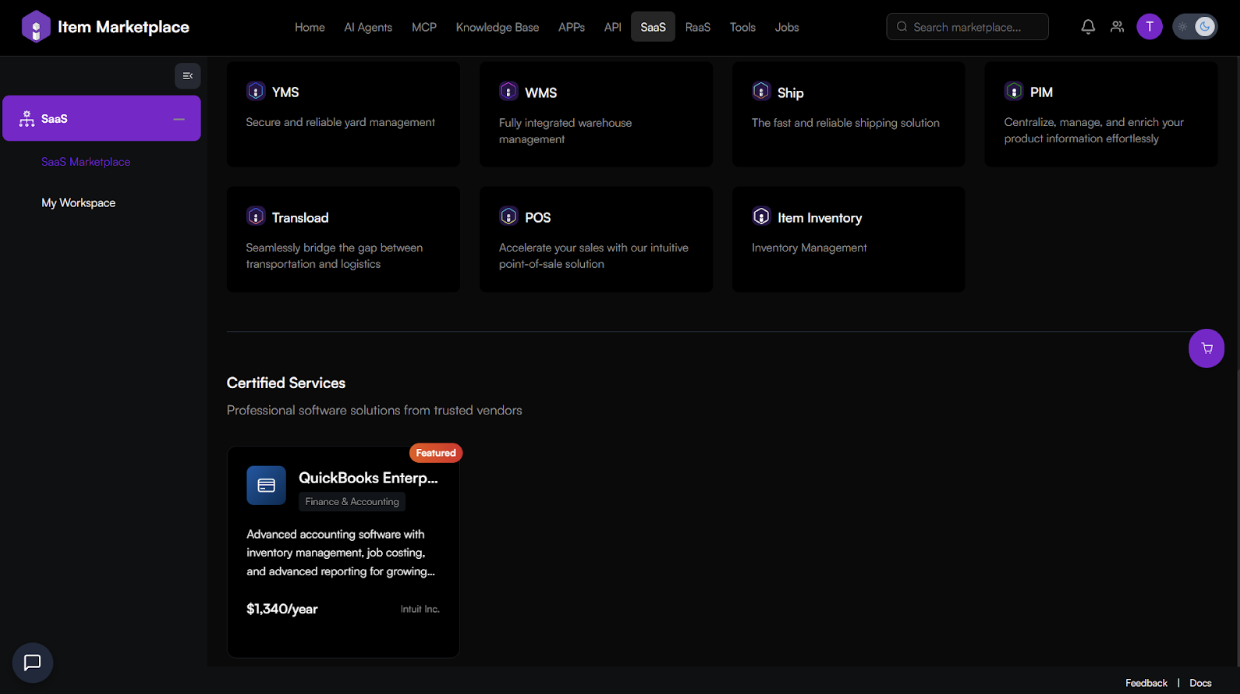
The Explore Modules page shows all available SaaS offerings - first-party solutions (like WMS, OMS, DI) and third-party certified services (e.g. accounting, financial tools).
-
For each service you can see: description, key features, pricing plans, and (if available) user reviews - to help evaluate before subscribing.
-
Use search/filter tools to narrow down by category, use-case, vendor, or pricing.
Solution Plans & Pricing
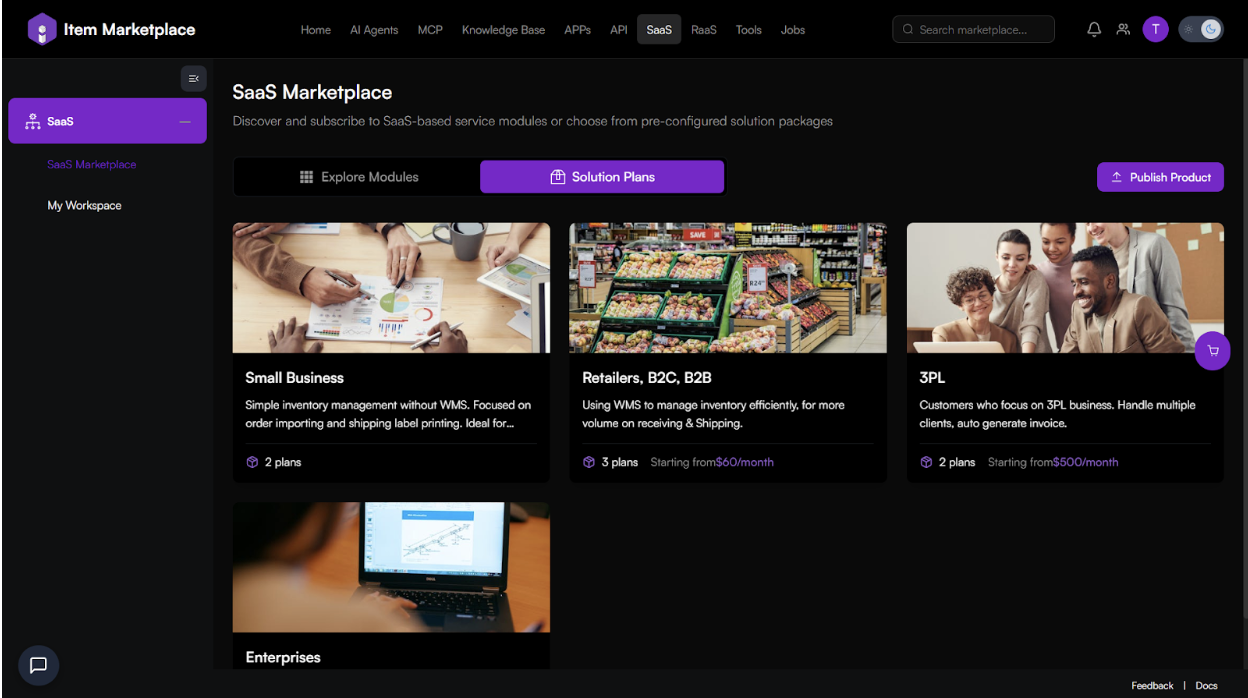
When you click on a service, you'll be taken to its detail page where you can view the available solution plans. This page typically includes:
-
Different subscription tiers (e.g. Small Business, Retailers, B2C, B2B, 3PL, Enterprises)
-
Comparison of features between tiers (user limits, included modules, support levels, etc.)
-
Billing cycle (monthly/annual), prices, quotas or usage limits.
-
Controls to Subscribe, Quick Start, Add to Cart, Compare all features - enabling flexible plan management without leaving the UI.
Publishing a SaaS Product (For Vendors / Developers)
If you are a vendor and want to list your SaaS product to the Marketplace, use the Publish Product function.
Publish Product Workflow
-
Go to the "Publish Product" page and click Publish Product.
-
Review requirements/instructions: Upload Instructions, Upload Method, Form Wizard.
-
Choose your submission method:
-
Fast Scaffold / Quick Upload Package - download pre-defined scaffold, fill metadata and upload.
-
Standard Form Upload - manually fill in configuration parameters directly via web form.
-
Required Configuration Parameters (Standard Form)
When submitting via Standard Form, you need to provide:
-
API Integration: API docs, endpoints, authentication flow.
-
Design Compliance: UI screenshots, design documentation.
-
IAM Setup: user roles, permissions, access controls.
-
Dependencies: external libraries or services your SaaS relies on.
-
Pricing Model: define subscription tiers, billing cycle, pricing model.
-
Marketplace Display Info: provide description, marketing text, icons/logos, screenshots, feature list - what users will see.
-
Usage Rules / Permissions: licensing terms, quotas, allowed use cases, restrictions if any.
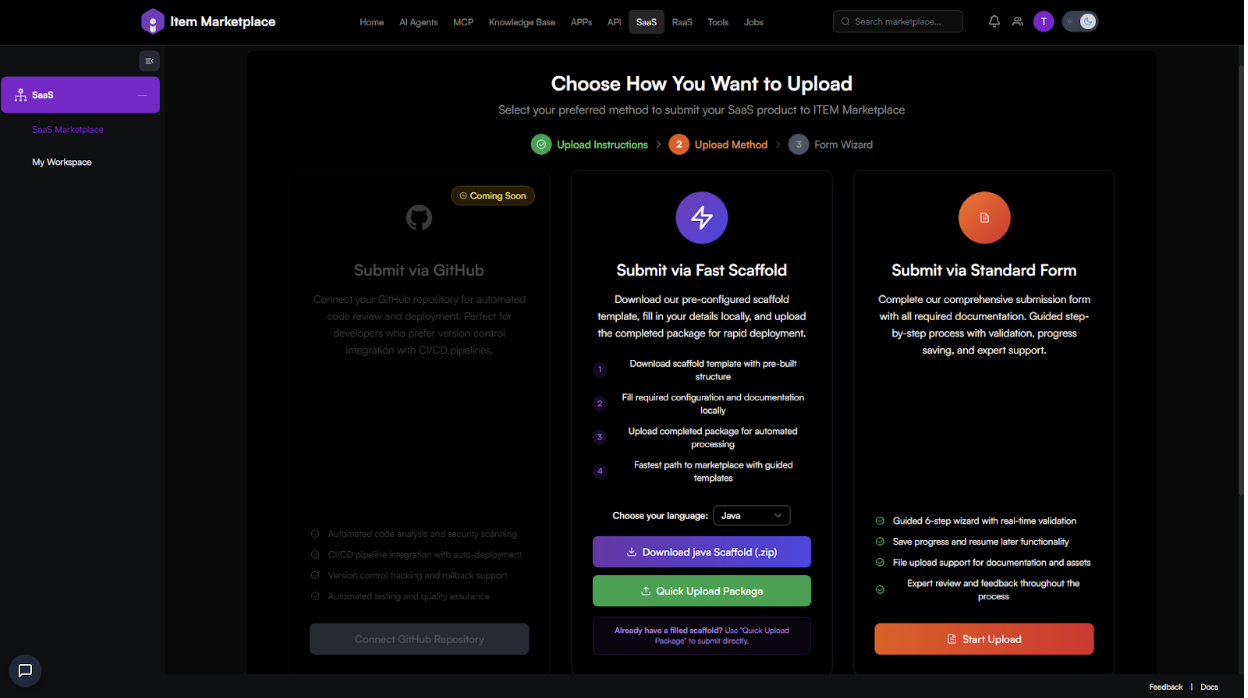
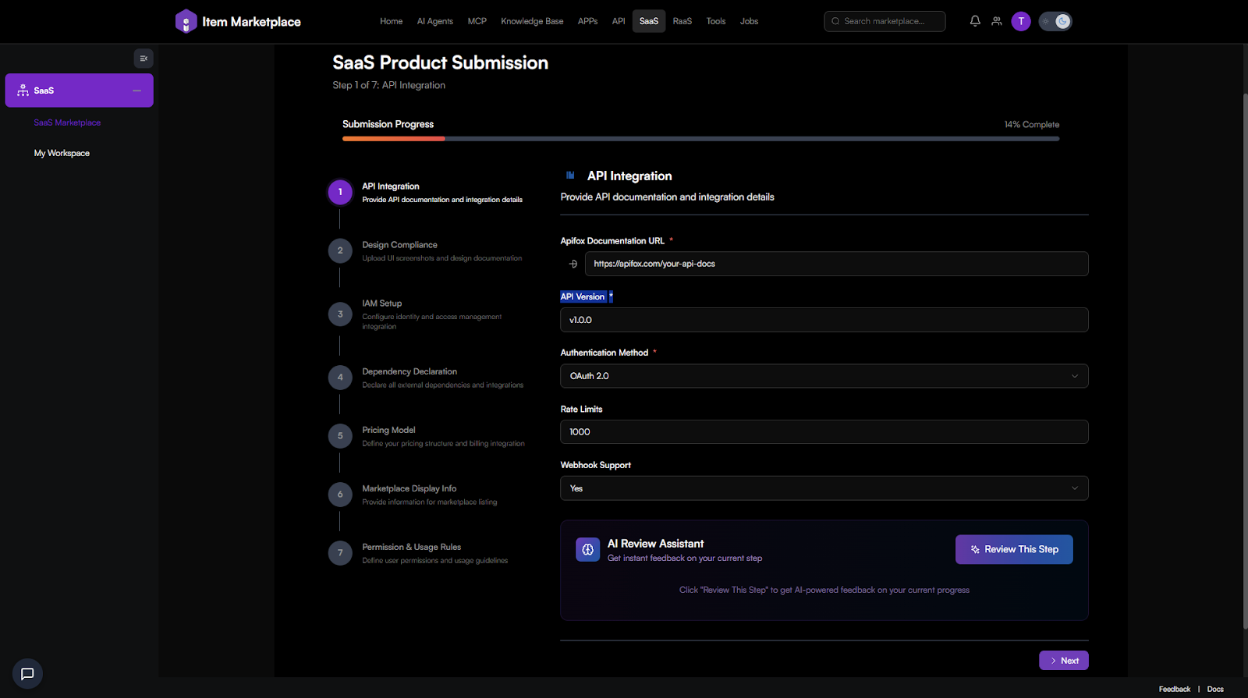
After you submit, the platform reviews your submission. If approved, your SaaS listing becomes visible in the Marketplace for users to subscribe.
My Workspace - Managing Your SaaS Subscriptions or Uploads
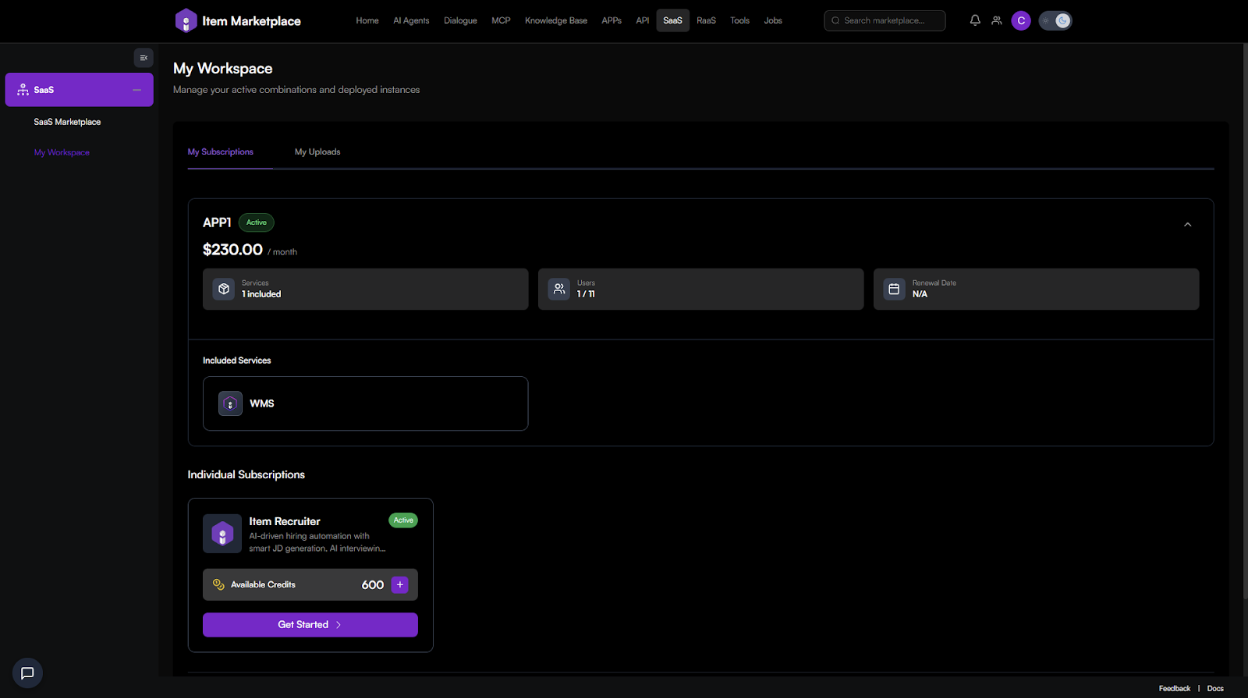
Once logged in, you have a dedicated My Workspace section.
For Subscribers (Users)
-
View all active subscriptions: status, renewal/expiry dates, billing cycle.
-
Upgrade, downgrade, renew, or cancel subscriptions.
Manage payment methods (especially enterprise accounts).
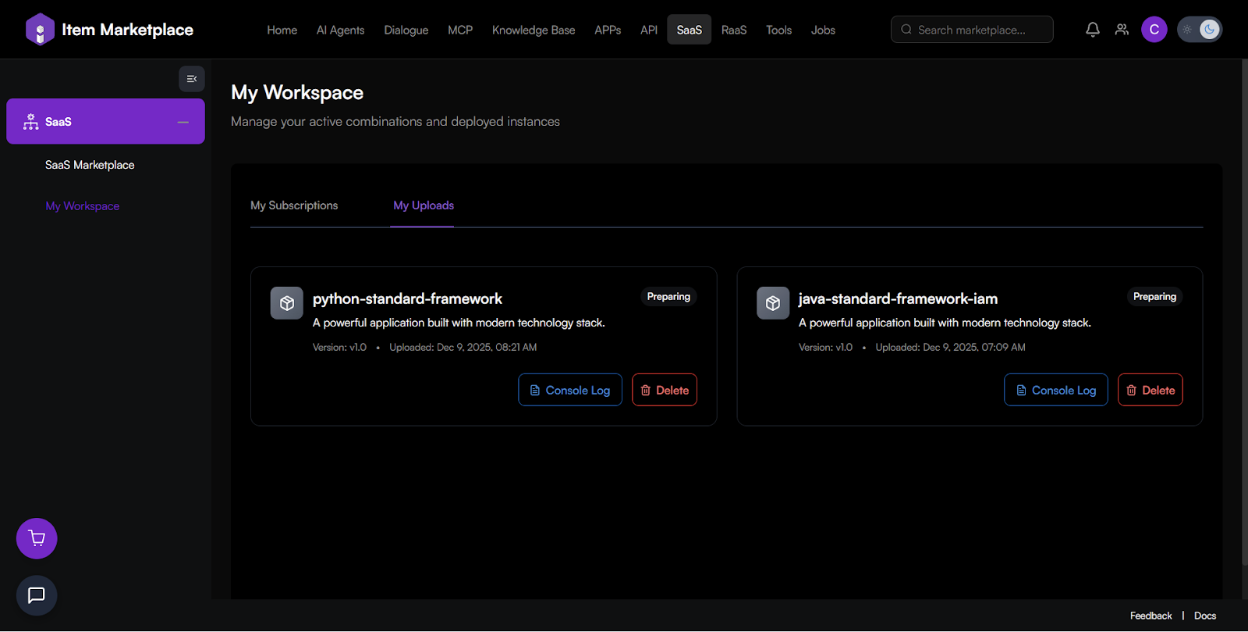
For Vendors (My Uploads)
-
Track status of products published: pending review, approved, or needs edits.
-
View metrics: number of subscribers, revenue (if available), usage stats.
Update product info, upload new versions, edit description/pricing.
Best Practices & Tips (with Image/Design Guidance)
-
Use clear screenshots and images - crop only relevant UI parts (buttons, menus, forms). Avoid full browser window or irrelevant elements.
-
Add visual aids for complex flows - consider flowcharts or diagrams for multi-step procedures (publishing, API config, IAM setup).
-
Use PNG or JPG for screenshots. Compress if needed to avoid large file sizes (>1MB).
-
Redact sensitive info in screenshots - blur/mask usernames, billing, personal data before documentation.
-
Keep screenshot style consistent - same window size, same cropping rules, consistent naming across images.
-
Limit images to those that truly add value - too many can make docs heavy, slow, and harder to maintain.
FAQ / Troubleshooting
Q: I can't find a SaaS product I expect in Explore Modules.
A: Check if filters are excluding it (category, vendor, or pricing). It might not be published yet or may be region/account restricted.
Q: My product upload got rejected. What should I do?
A: Review rejection feedback. Ensure all required fields are complete (especially API docs, UI screenshots, dependencies, pricing, display info, usage rules). Fix then resubmit.
Q: Can I update my SaaS after publishing (new version/pricing/features)?
A: Yes. Use "My Uploads" in My Workspace to edit metadata or upload updates. After approval, changes go live.
Q: Can I upgrade/downgrade a subscription after subscribing?
A: Yes - from the solution plan page or My Workspace → Subscriptions, choose Upgrade, Downgrade, or Renew.
Q: Can I cancel a subscription anytime?
A: Yes - via Subscription Management. Depending on billing cycle, partial refunds may or may not apply (see terms).