APPs
APPs Marketplace Overview
The APPs section of the Item Marketplace is a centralized hub designed to help users streamline their workflows with productivity tools and enterprise solutions.
Navigation
The APPs interface is divided into two primary sections accessible via the left sidebar:
-
APP Market: Browse and search the full catalog of available applications.
-
My APPs: Manage your personal library of downloaded apps and track the status of your own app submissions.
APP Market: Discovering Apps
The APP Market is where you can find tools ranging from communication suites to logistics management systems.
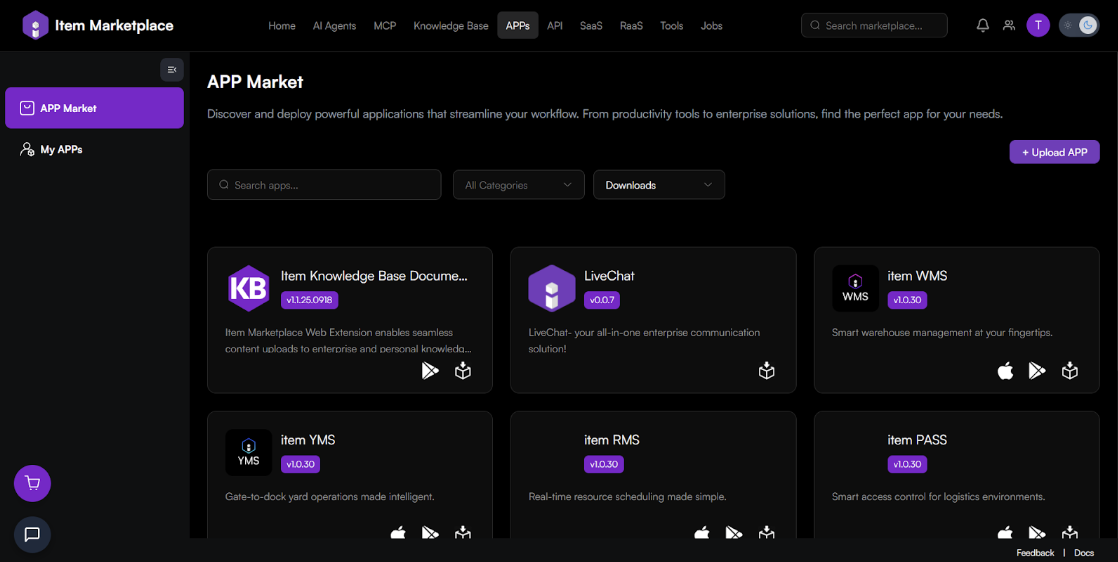
Browsing and Filtering
-
Search: Use the search bar to find specific apps by name or description.
-
Category Filter: Narrow down your search by selecting specifiv categories (e.g., Productivity).
-
Sorting: Use the "Downloads" dropdown to sort apps by popularity or other metrics.
App Cards
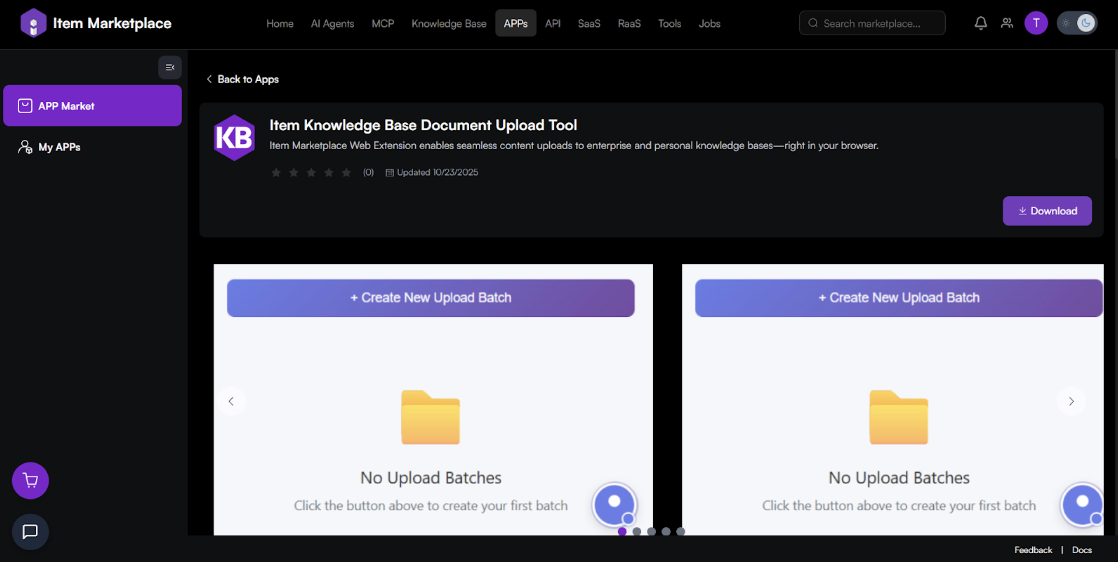
Each app card displays:
-
Version Number: Currently active version (e.g., v1.1.25.0918).
-
Description: A brief summary of the app's utility.
-
Platform Icons: Visual indicators for compatibility (e.g., Apple, Google Play, Web/Chromium).
Understanding App Details
Clicking on an app opens its detailed profile. This page is divided into four main tabs:
1. Overview
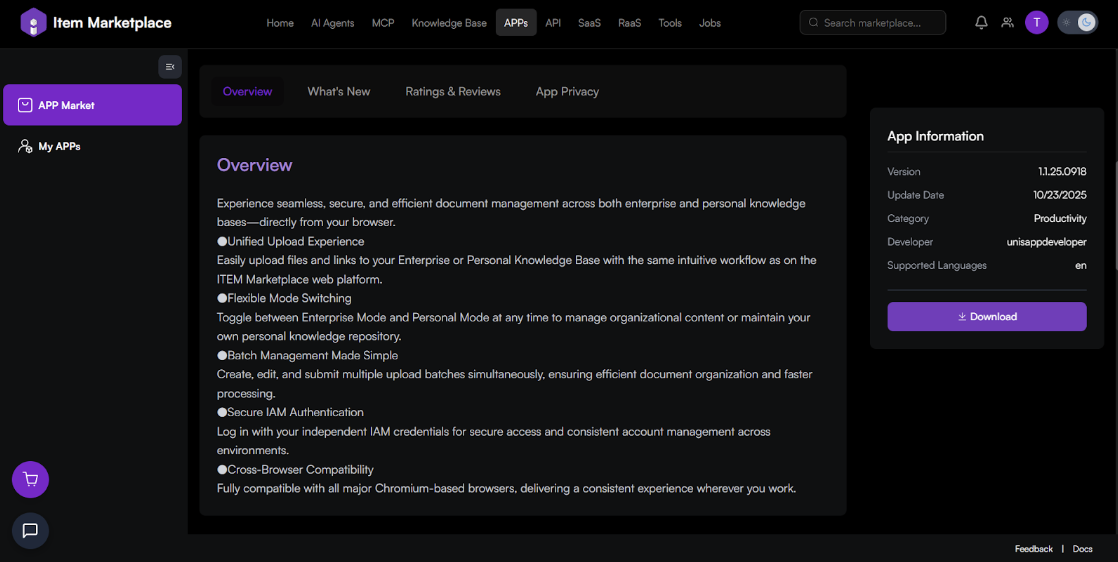
A deep dive into the app's features. For example, the Item Knowledge Base Document Upload Tool highlights:
-
Unified Upload Experience for enterprise and personal knowledge bases.
-
Flexible Mode Switching.
-
Batch Management for multiple uploads.
-
Secure IAM Authentication for account management.
2. What's New
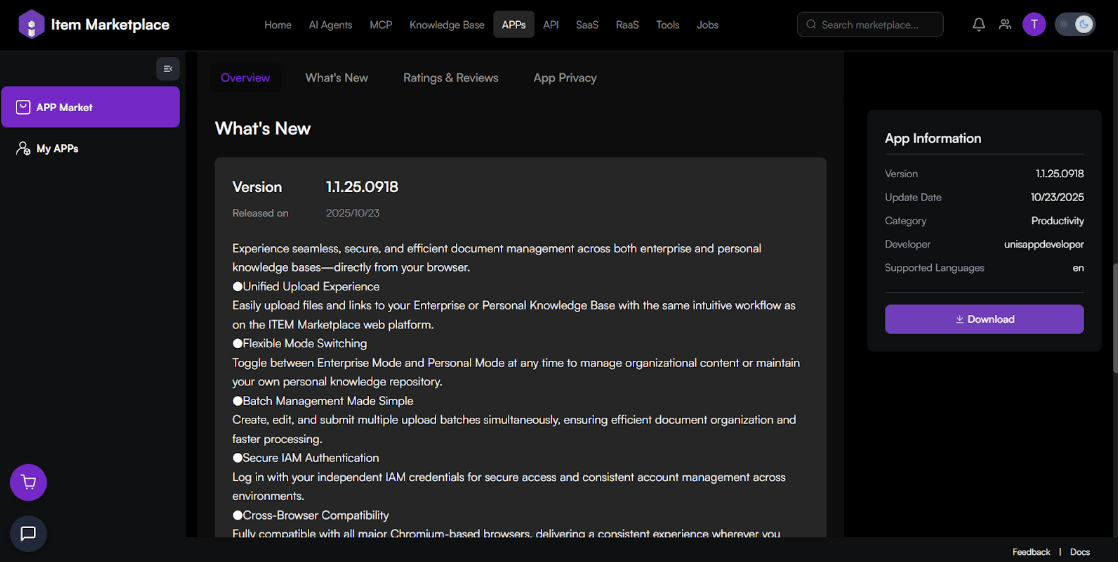
View the release history and specific updates included in the latest version (e.g., Version 1.1.25.0918).
3. Ratings & Reviews
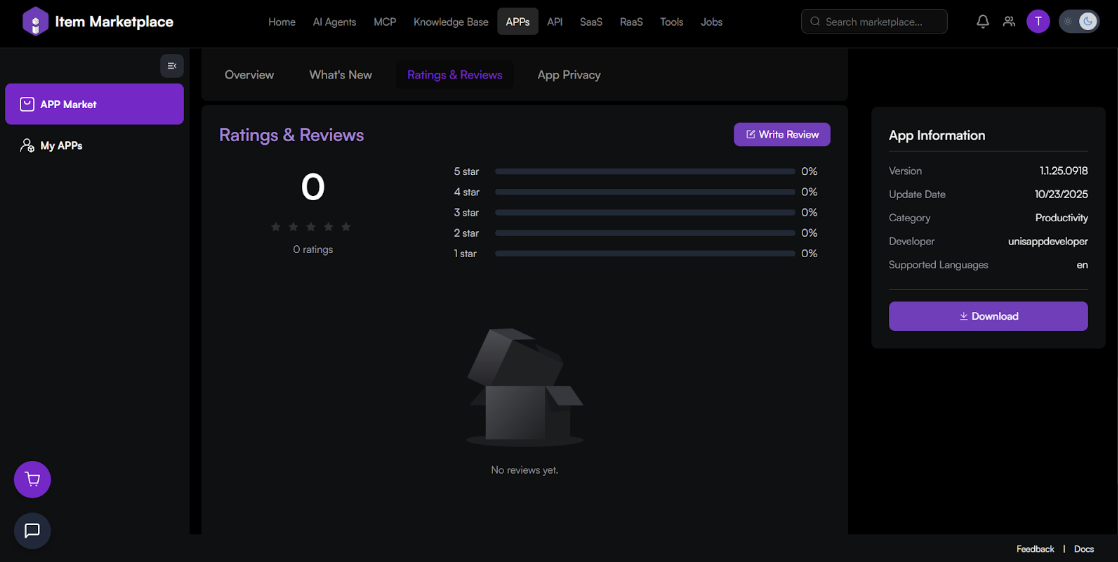
See feedback from the community. You can view the star distribution and click Write Review to share your own experience.
4. App Privacy
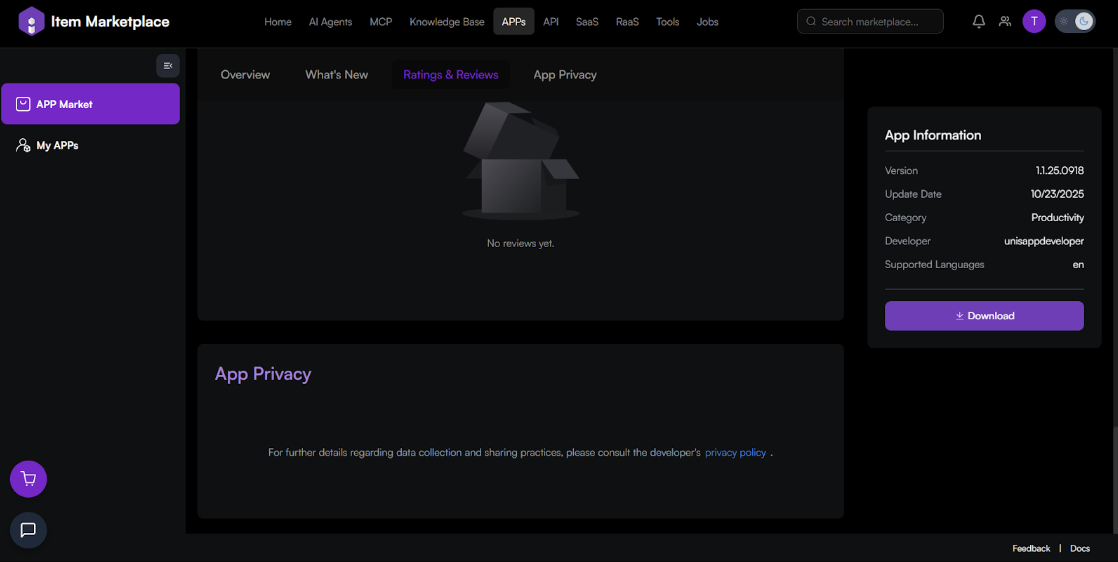
Check how the app handles your data to ensure it meets your security standards.
Sidebar: App Information
The right-hand sidebar provides technical metadata:
-
Update Date: When the app was last refreshed.
-
Developer: The entity responsible for the app.
-
Supported Languages: Language availability (e.g., 'en' for English).
-
Download Button: The primary action to install the tool.
My APPs: Management
The My APPs page is your personal dashboard for controlling your marketplace activity.
Downloaded Apps
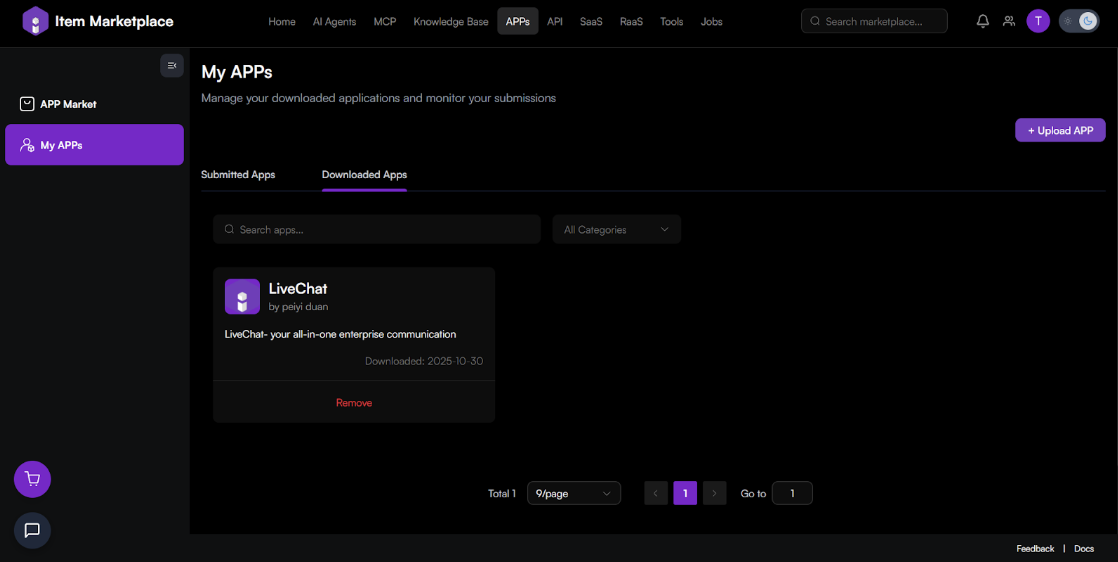
The Downloaded Apps tab lists everything you have currently installed.
-
Information: View the developer and the date you downloaded the app.
-
Remove: Use the "Remove" button to uninstall an app from your account.
Submitted Apps
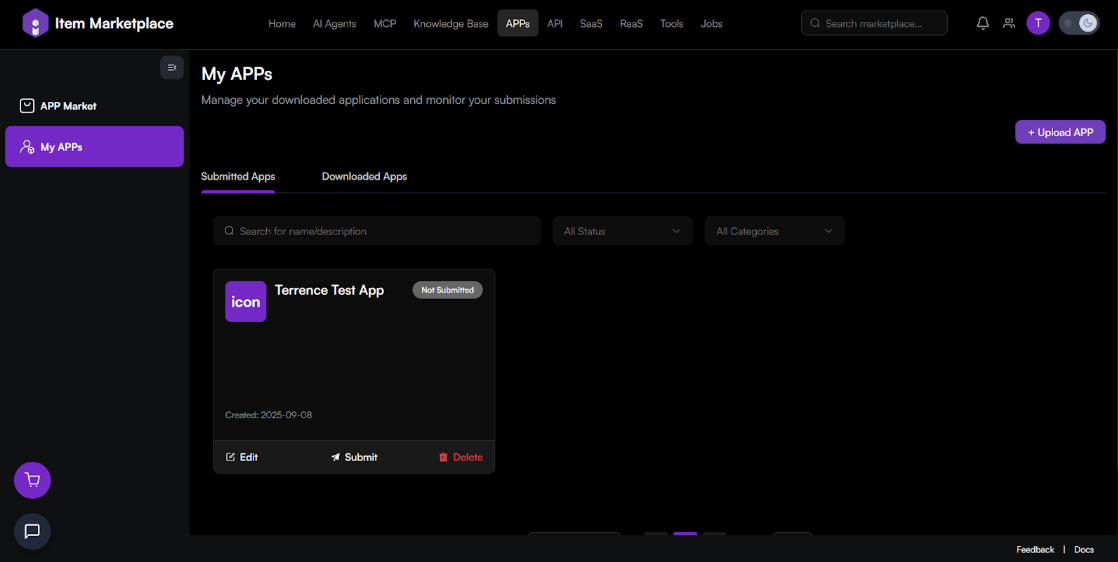
If you are a developer, this tab allows you to monitor your app's journey to the marketplace.
-
Status Tracking: See if your app is "Not Submitted," "Under Review," or "Published."
-
Actions:
-
Edit: Modify app metadata or assets.
-
Submit: Send your draft for official review.
-
Delete: Permanently remove a submission draft.
-
App Upload & Distribution Workflow
Item Marketplace offers a robust distribution service, handling the complexity of publishing across multiple external stores.
The Value Proposition
When you upload an app, the Item Marketplace team handles:
-
U.S. Company Registration
-
Privacy Compliance Reviews
-
Multi-language Content Formatting
-
App Store Account Submissions
-
Store-by-Store Communication
Upload Requirements

To ensure a successful submission, developers must comply with several standards:
-
Developer Qualification: Legal entity verification.
-
Content Sensitivity: Ensuring cultural fit and appropriate content.
-
Privacy Compliance: Explicit declaration of data collection and user consent for tracking.
-
Technical & SDK Integrity: Avoiding undisclosed data collection SDKs.
-
Geopolitical Restrictions: Adhering to regional legal requirements.
-
Monetization Standards: Following payment processing rules.
External Store References
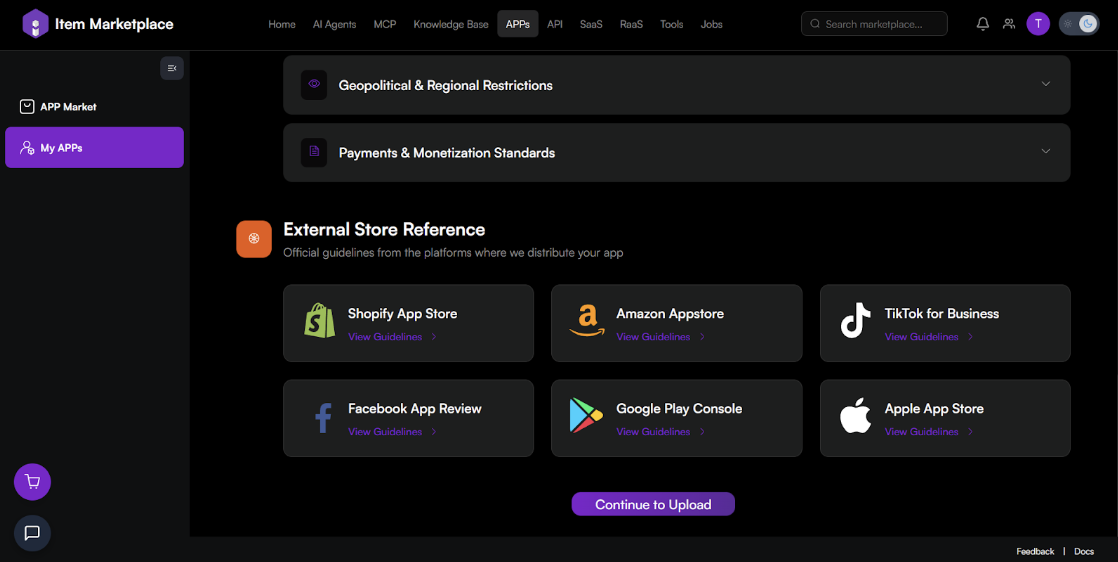
The marketplace supports distribution and provides official guideline links for:
-
Shopify App Store
-
Amazon Appstore
-
TikTok for Business
-
Facebook App Review
-
Google Play Console
-
Apple App Store
To begin, navigate to My APPs, click + Upload APP, review the instructions, and click Continue to Upload.
Step-by-Step Upload Process
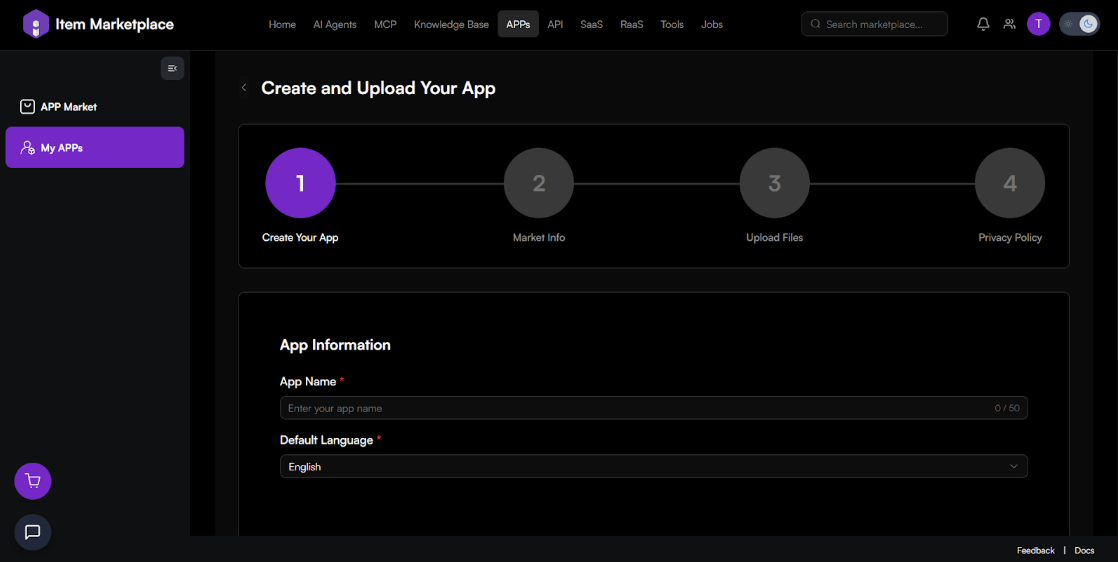
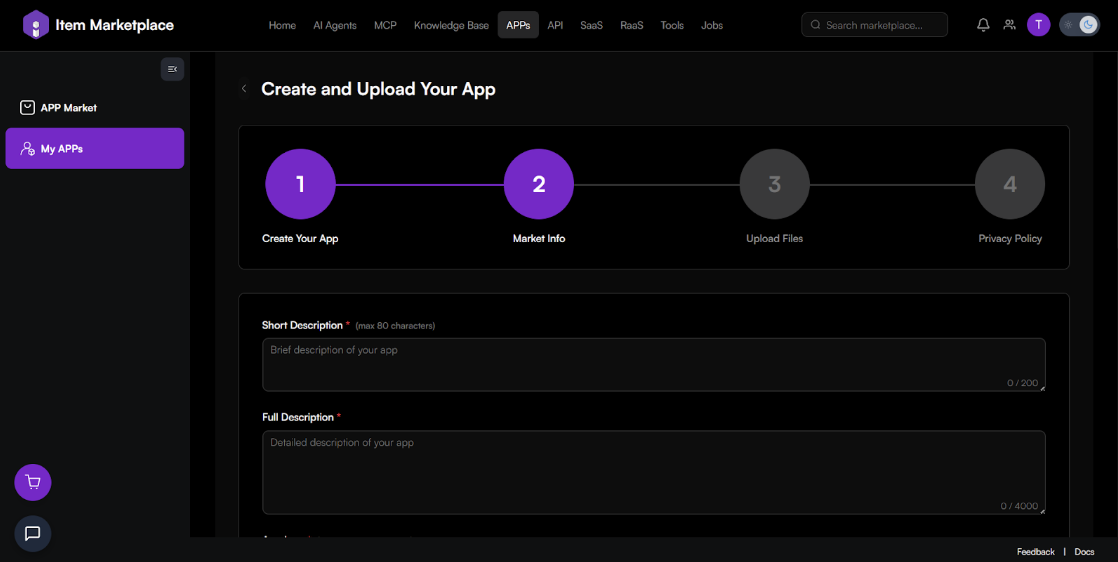
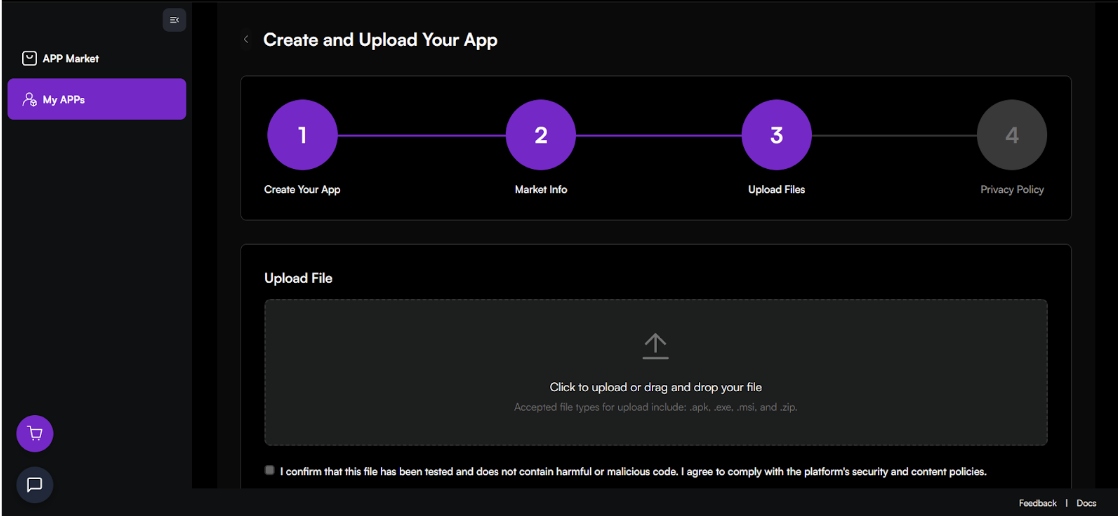
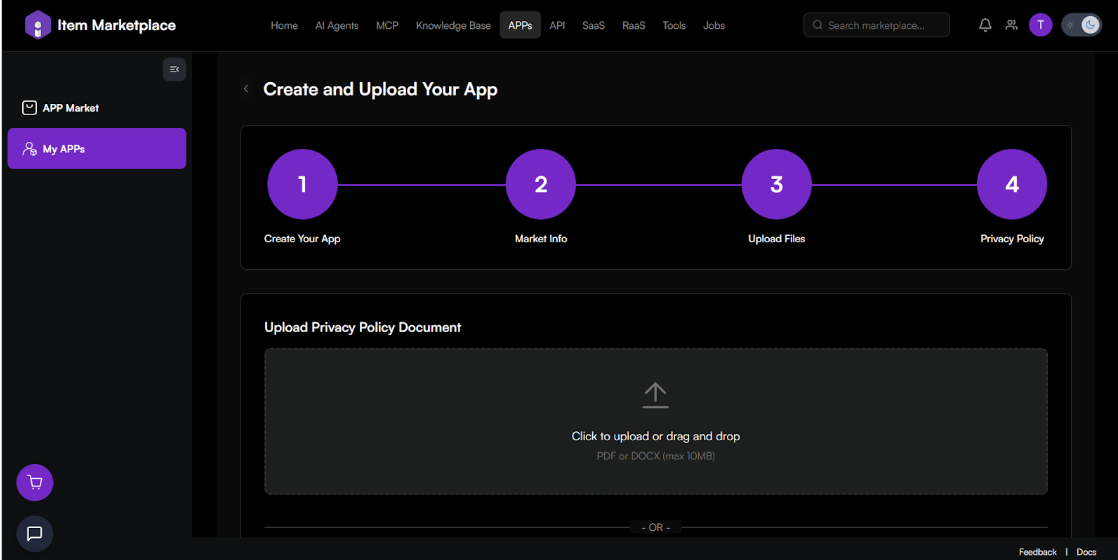
The submission process is divided into four primary stages:
- Create Your App: Enter the App Name, select a Default Language, and declare compliance with legal guidelines and export laws.
- Market Info: Provide short and full descriptions, an App Icon (512x512 recommended), up to 5 Screenshots, and optional external store links.
- Upload Files: Submit the application file (accepted types: .apk, .exe, .msi, .zip). Developers must confirm the file has been tested and contains no malicious code.
- Privacy Policy: Provide a Privacy Policy URL or upload a document (PDF or DOCX). This must include clear descriptions of data collection, user rights, and third-party sharing policies.
Compliance Standards
All submissions must meet specific requirements regarding Developer Qualification, Content Sensitivity, Technical & SDK Integrity, and Geopolitical Restrictions. Official platform guidelines are referenced for stores including Shopify, Amazon, TikTok, Facebook, Google Play, and Apple.
Frequently Asked Questions
General & Usage
Question: How can I find a specific app or filter by category?
Answer: In the APP Market section, you can use the top search bar to look for apps by name. You can also use the All Categories dropdown to filter by specific types (e.g., Productivity) or sort by Downloads to find the most popular tools.
Question: What does "Chromium-based browser compatibility" mean?
Answer: It means the app or extension is designed to work seamlessly across major browsers built on the Chromium engine, including Google Chrome, Microsoft Edge, Brave, and Opera.
Question: Can I use these apps for both personal and professional work?
Answer: Yes. Many apps, such as the Item Knowledge Base Document Upload Tool, offer "Flexible Mode Switching." This allows you to toggle between Enterprise Mode for organizational tasks and Personal Mode for your own private repositories.
Managing My APPs
Question: Where do I go to see the apps I have already installed?
Answer: Navigate to My APPs in the left-hand sidebar and select the Downloaded Apps tab. This page displays all your active applications along with the developer's name and the date you downloaded them.
Question: How do I delete or uninstall an application?
Answer: Go to My APPs > Downloaded Apps, locate the app card you wish to remove, and click the red Remove button.
Question: How can I check for the latest updates or bug fixes for an app?
Answer: Click on any app in the Market to view its details, then select the What's New tab. This section lists the current version number and details the specific changes included in the latest release.
Developer & Upload Process
Question: What are the benefits of uploading my app to Item Marketplace?
Answer: The marketplace provides a managed distribution service. Our team handles the heavy lifting, including U.S. company registration, privacy compliance reviews, multi-language formatting, and direct communication with external stores like Apple and Google Play.
Question: What file types are accepted during the upload process?
Answer: You can upload application files in .apk, .exe, .msi, or .zip formats.
Question: What are the mandatory privacy requirements for a new submission?
Answer: Apps must clearly declare what user data is collected and how it is stored. For international markets, explicit user consent is required before any tracking or profiling. You must also provide a valid Privacy Policy URL or upload a document (PDF/DOCX).
Question: How do I know the current status of my app submission?
Answer: In the My APPs > Submitted Apps tab, each of your applications will have a status tag (e.g., Not Submitted, Under Review, or Published) to help you monitor its progress through the pipeline.