Carrier & Delivery Service Setup
This guide describes how to configure carriers (shipping providers) and their associated services within the Order Management System (OMS). Configuring these records is essential for defining available shipping options during order fulfillment, enabling automated label generation, and facilitating shipment tracking.
The setup involves two distinct records:
- Carrier Account: Connects the system to your specific billing account and API credentials.
- Carrier & Delivery Service: Defines which providers and service levels are available in the system.
Setting Up a Carrier Account
The Carrier Account record links your organization's physical billing account to the OMS. This configuration requires your account number, API credentials, and shipping origin address. A valid Carrier Account is mandatory for generating live shipping labels and pulling rates.
To add a Carrier Account:
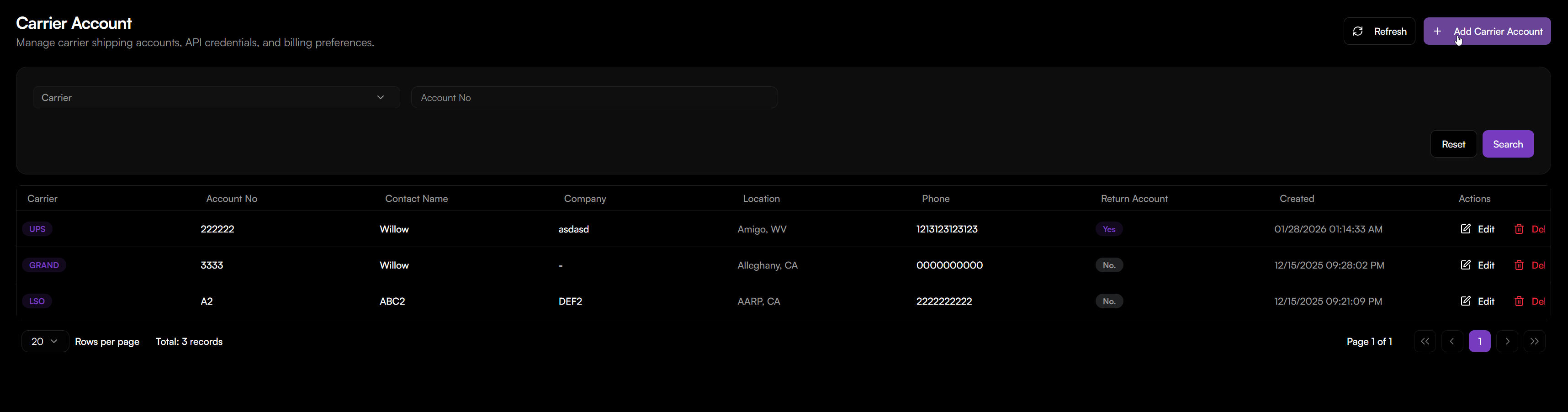
- Go to Logistics > Carrier Account.
- Click the Add Carrier Account button.
- Complete the configuration fields as detailed below:
Basic Information
- Carrier: Select a carrier from the dropdown list (populated from the Carrier & Delivery Service setup).
- Account No: Enter your carrier-issued billing account number.
- Contact Name: Enter the primary contact person for this account.
- Company: Enter the company name as registered with the carrier.
API Configuration
- API Client ID: Enter the Client ID provided by the carrier's developer portal.
- API Client Password: Enter the password or secret key associated with the Client ID.
- API Token: Enter the authentication token if required by the specific carrier.
- Track API Key / Secret: Enter the credentials required specifically for tracking requests.
Address Information
- Address 1 / 2: Enter the street address for the shipping origin.
- City, State / Province, Zip Code: Enter the location details.
- Country / Region: Select the appropriate country (e.g., United States).
- Phone: Enter the phone number associated with the shipping origin.
Additional Settings
- Smart Post Hub ID: (FedEx SmartPost only) Enter the Hub ID if applicable.
- Is Return Account: Toggle this switch if this account is used exclusively for return shipments.
- Return Account Number: Enter the account number for returns if it differs from the main account.
- Click Add to save the account.
Setting Up a Carrier & Delivery Service
This record acts as a catalog of available shipping options. You must define the carrier and its specific service levels (e.g., UPS Ground, FedEx 2-Day) before they can be selected for orders.
To add a new Carrier Service:

- Go to Logistics > Carrier & Delivery Service.
- Click the Add Carrier & Delivery Service button.
- In the Basic Information section, enter the following:
- Carrier SCAC: Enter the unique Standard Carrier Alpha Code (e.g.,
UPSN,FDEG). This code is used for industry-standard identification. - Carrier Name:** Enter the display name for the carrier (e.g.,
UPS,FedEx,DHL).
- Click Add to save the carrier.
To add delivery services to a Carrier:
- Navigate to the Carrier & Delivery Service list.
- Locate the desired carrier and click Edit in the Actions column.
- In the Delivery Service section, add the specific service codes provided by the carrier (e.g.,
GROUND,2_DAY,NEXT_DAY).
Note: Service codes must match the carrier's API requirements exactly to function correctly.
- Click Save.
Use Cases
- Order Routing: The system evaluates available carrier services at specific warehouse locations to determine the optimal shipping method.
- Rate Shopping: The OMS utilizes carrier account credentials to calculate and display real-time shipping rates during checkout or order import.
- Label Generation: When shipments are created, the system uses these credentials to purchase postage and generate print-ready labels.
- Tracking: API credentials enable the automated retrieval of tracking updates and status changes.
Troubleshooting
| Issue | Potential Cause | Resolution |
|---|---|---|
| No rates found | Carrier account not linked or invalid credentials. | Verify the Account Number and API keys are correct. Ensure the specific service is enabled on the carrier side. |
| Label generation fails | Invalid address or insufficient funds. | Validate the origin address fields. Check the carrier account balance and API permissions. |
| Tracking not updating | Missing Track API credentials. | Ensure the Track API Secret or Key is entered correctly in the API Configuration section. |