Check Out
Entering the Check Out Process
On the home screen, tap Check Out to begin the Gate Check Out process.
You can choose one of the following three tabs to locate the record.
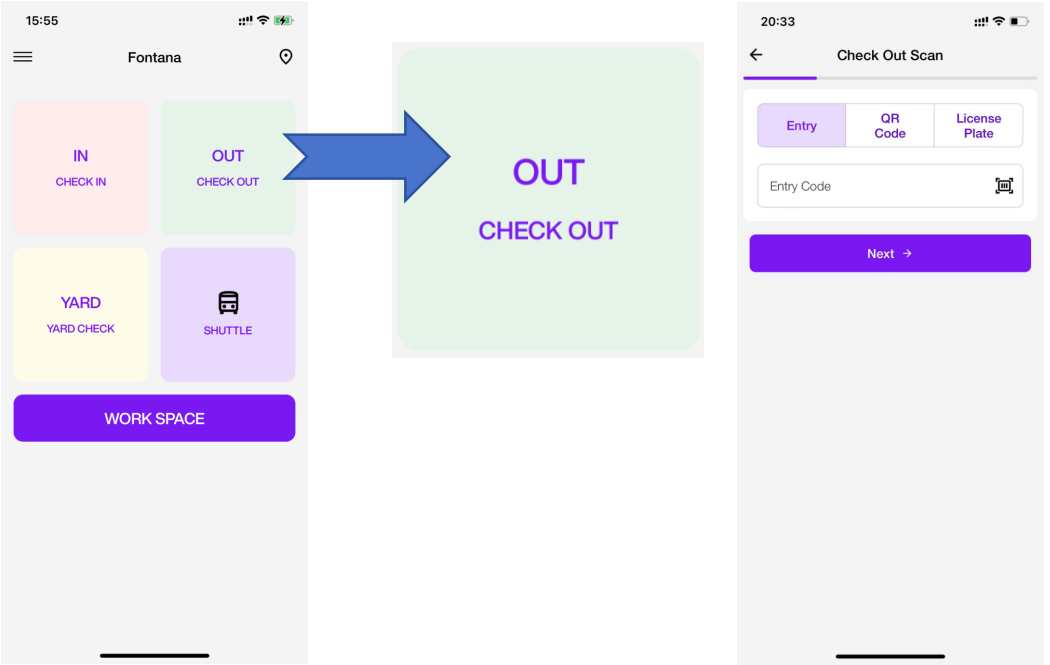
Select the Type of Code for Check-Out
Tap one of the three tabs to indicate what code the driver is providing:
-
Entry - for Entry Code
-
QR Code - for QR label printed earlier or ET QR code
-
License Plate - for vehicle plate number
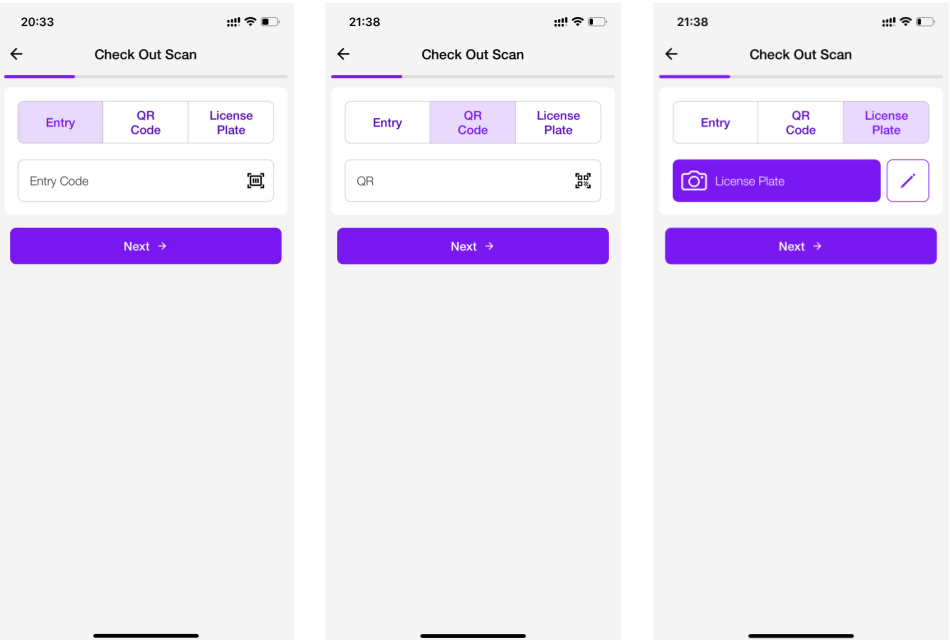
Check Out with Entry Code
Manually enter the ET Code into the input field, tap Next to continue. Or scan the barcode on the label attached to the vehicle or barcode on the Gate Check-Out Label.
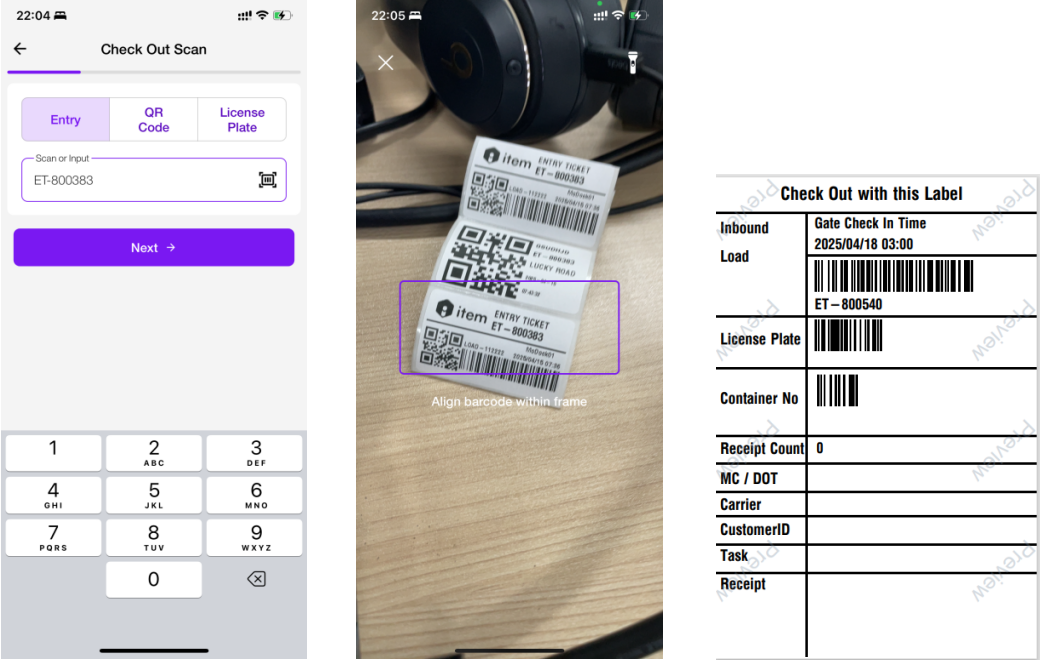
Check Out with QR Code
You can scan the QR code from any of the following sources: QR code on the vehicle label, QR code from the Driver Portal, barcode on the Gate Check-Out Label.
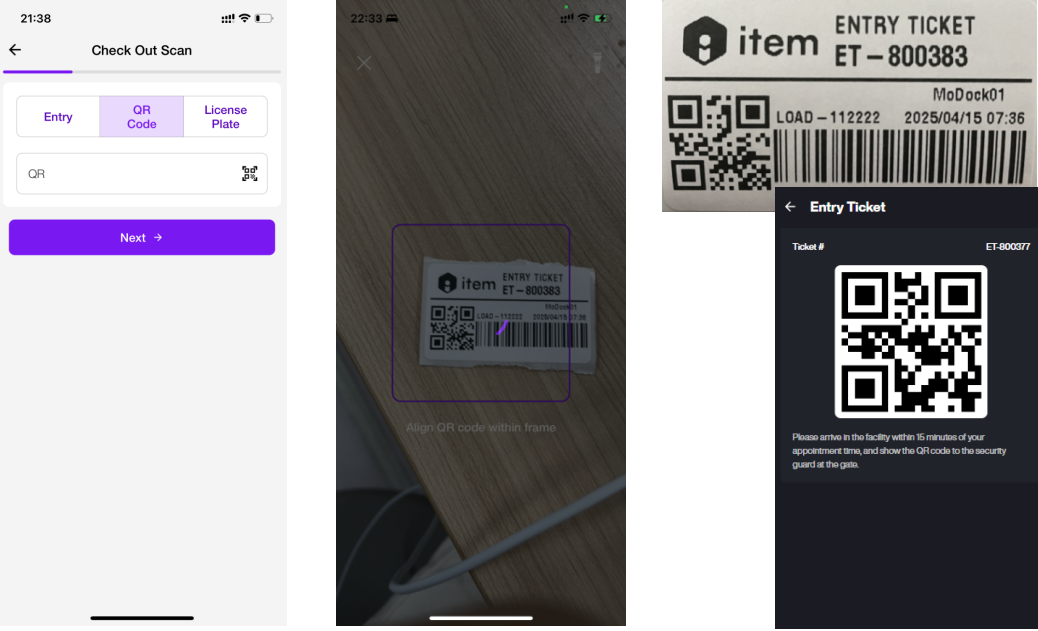
Check Out with License Plate
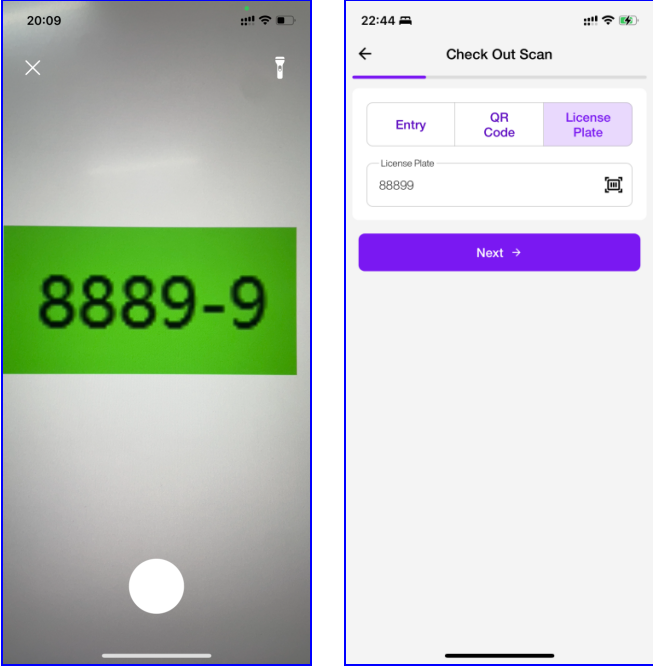
Plate Number.
You can manually enter the plate number using the keyboard (tap edit icon), or tap the camera icon to take a photo for OCR recognition.
Vehicle Information
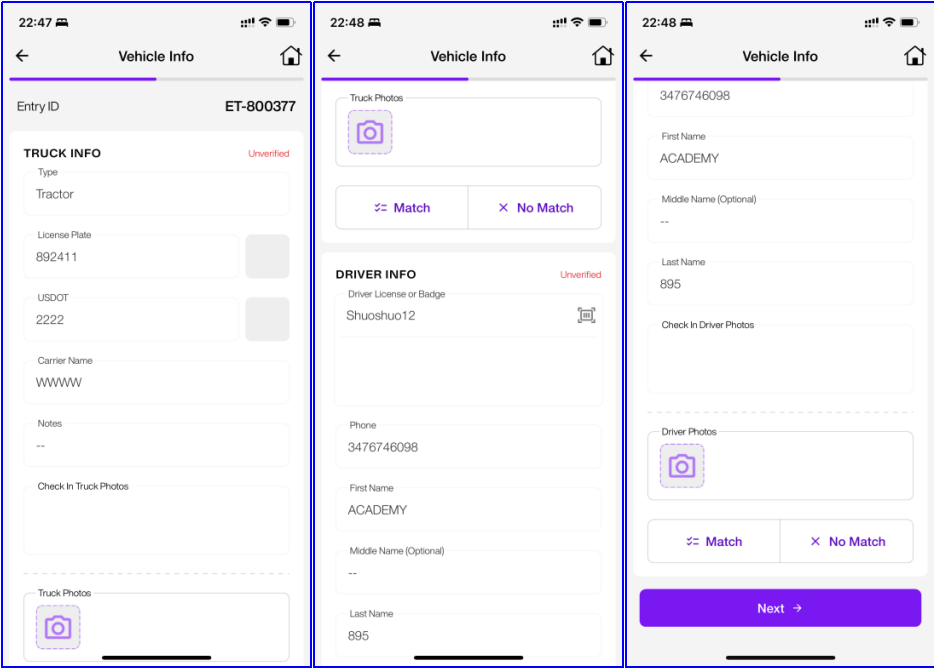
This screen is used to verify the vehicle and driver information before allowing check-out.
-
If the vehicle or driver information has not been verified, the page will display Unverified.
-
If the vehicle or driver information doesn't match system records, tap No Match. Then a warning icon will appear.
You can modify License Plate/USDOT or Driver Info, and you can also tap the image, then tap Retake button to use OCR (camera will open).
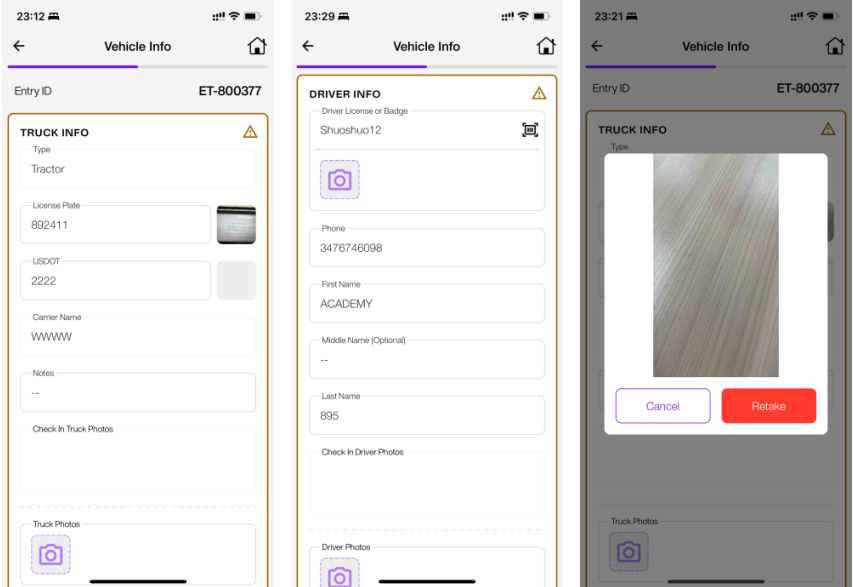
- If the vehicle or driver information has match system records, tap No Match.
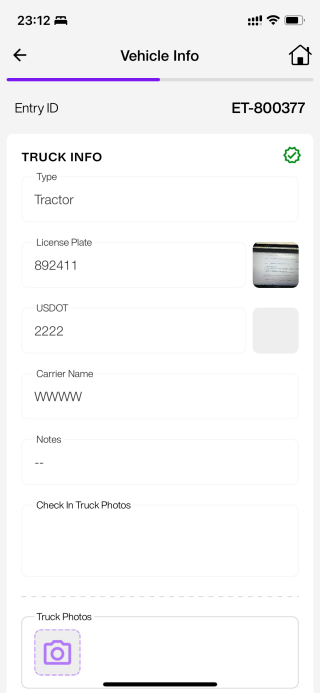
- Before tapping Next, you need to upload photos of the vehicle and the driver.
Equipment Information
This screen is used to verify the Equipment Information before allowing check-out.
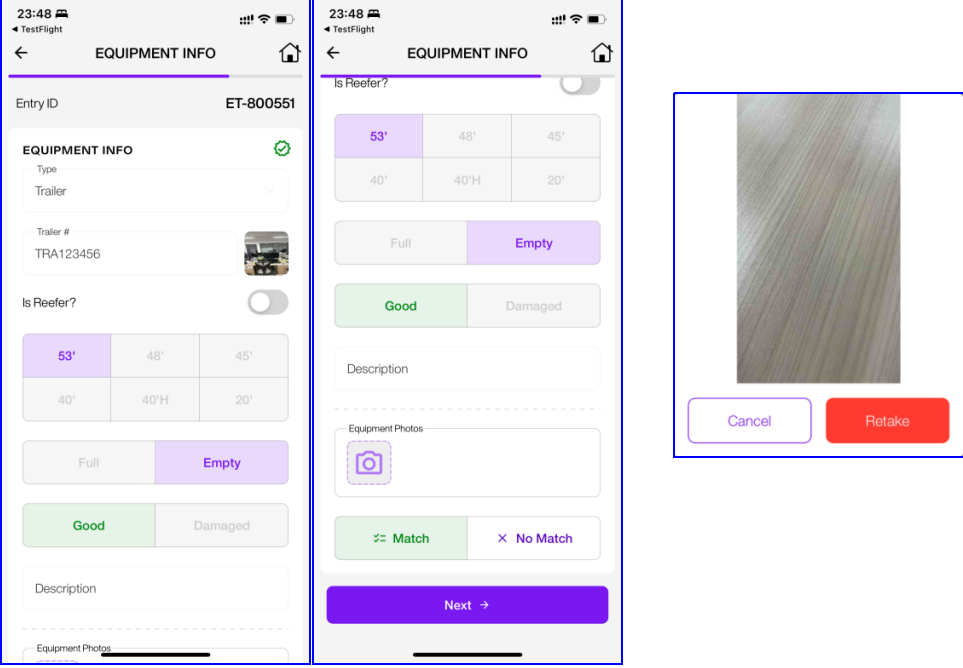
If the Equipment Information doesn't match system records, tap No Match. You can modify License Plate/USDOT or Driver Info, and you can also tap the image, then tap Retake button to use OCR (camera will open).
Before tapping Next, you need to upload photos of the Equipment.
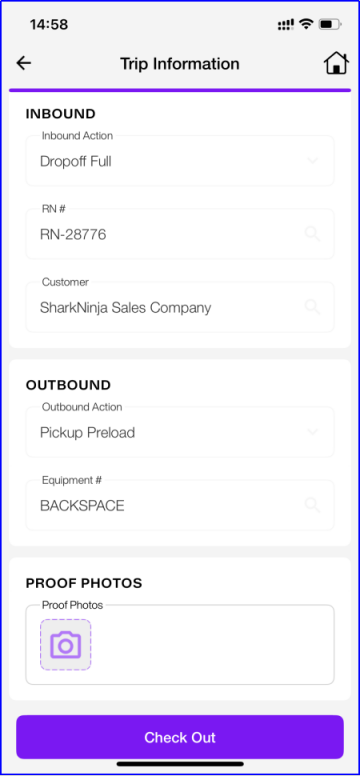
Trip Information
This page displays a summary of the inbound and outbound trip information for final review before check-out.
If the driver, vehicle, or equipment information is marked as No Match, uploading a proof photo is required.