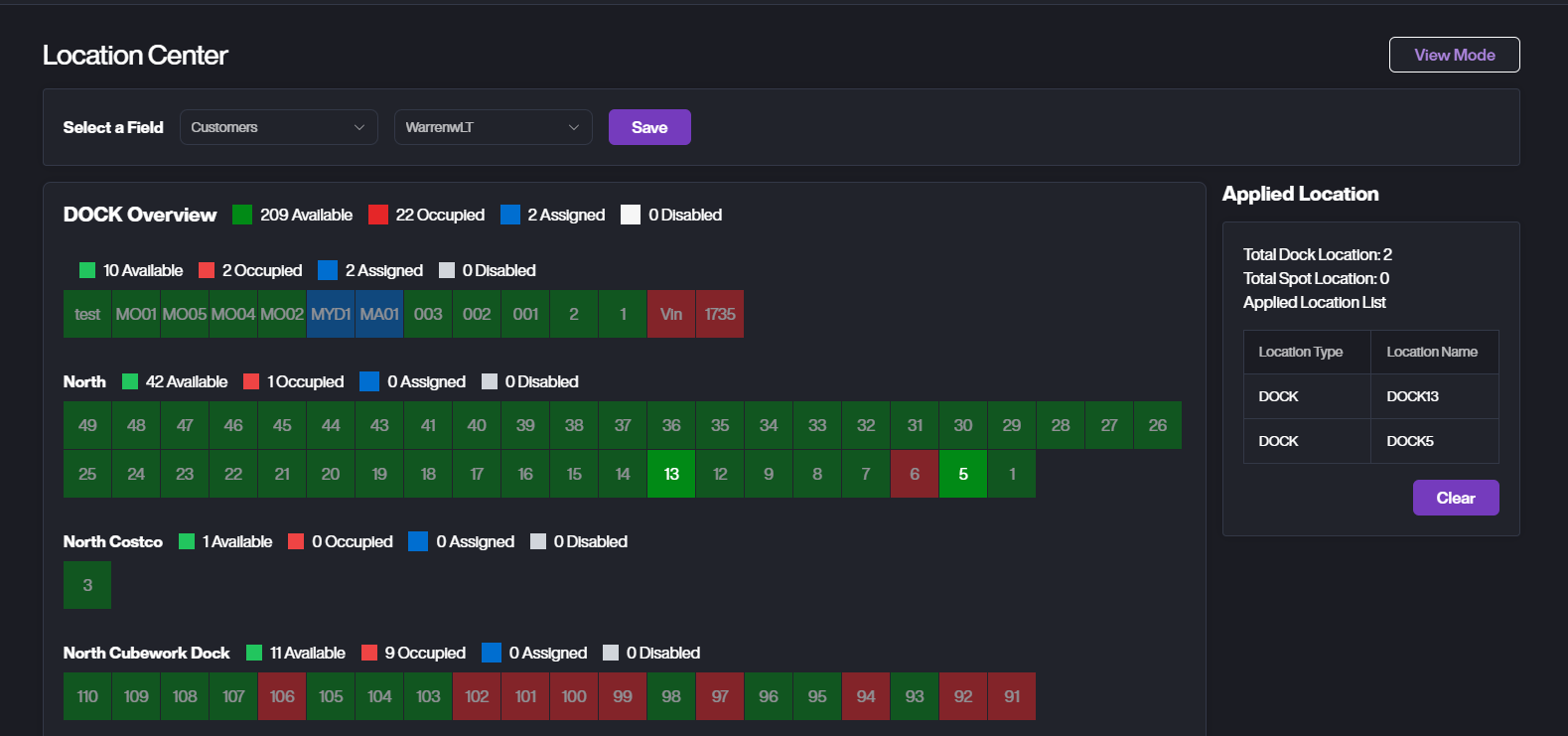
Location Center
To monitor and manage the current status of locations, including dock and yard capacity, availability, and assignments.
View Mode
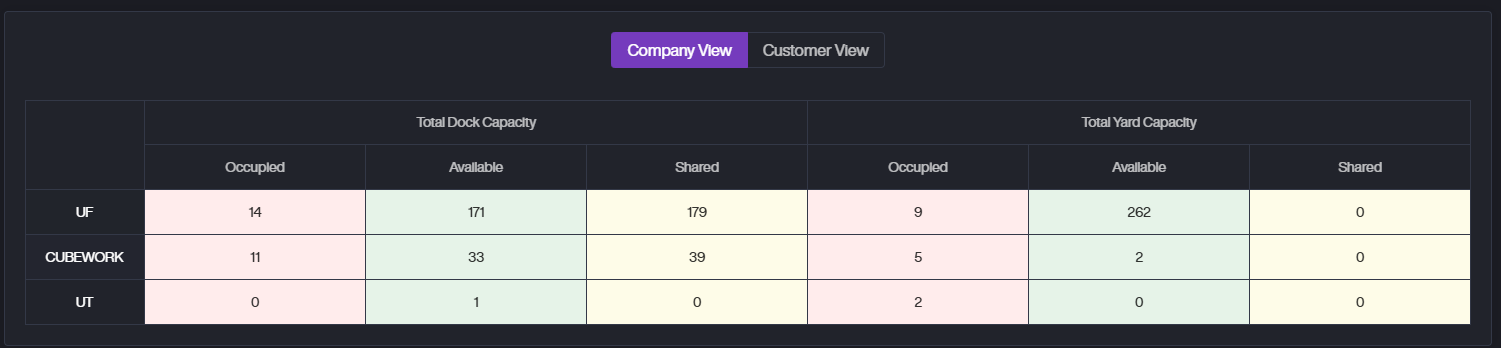
Company View
The Company View shows the allocation status of docks and spots based on Company:
-
Occupied: Displays the number of spaces that are currently in use.
-
Available: Shows the number of spaces that are available for use.
-
Shared:
A. For Dock: Displays the total Dock Activity Shared capacity for each company code.
B. For Yard: Displays the total Yard Activity Shared capacity for each company code.
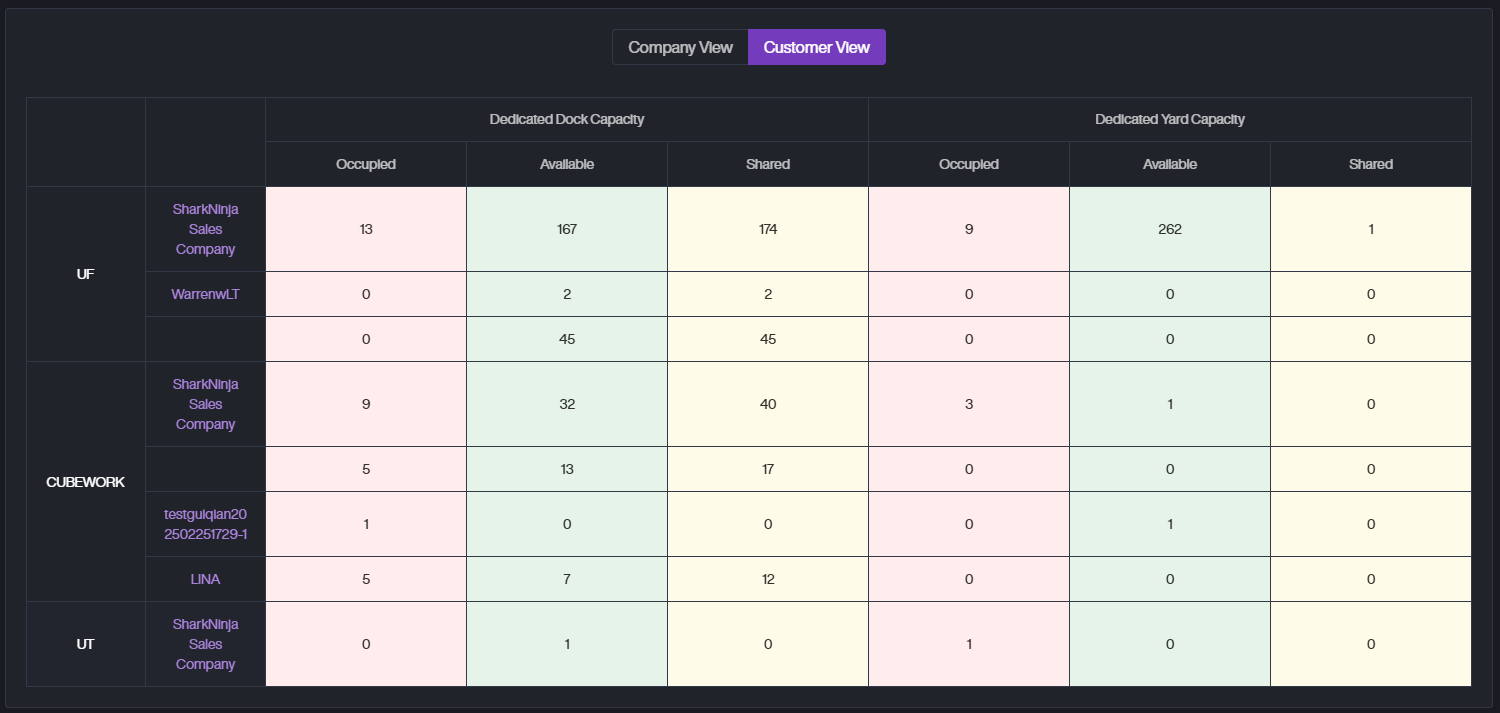
Customer View
The Customer View shows the allocation status of docks and spots based on Customer under each Company.
-
Occupied: Displays the number of spaces that are currently in use by the customer.
-
Available: Shows the number of spaces that are available for use by the customer.
-
Shared:
A. For Dock: Displays the total Dock Activity Shared capacity for each company code.
B. For Yard: Displays the total Yard Activity Shared capacity for each company code.
If the Customer field is empty for any row, it represents the number of locations under this company that do not have a specified customer assigned. These locations will be open to all customers.
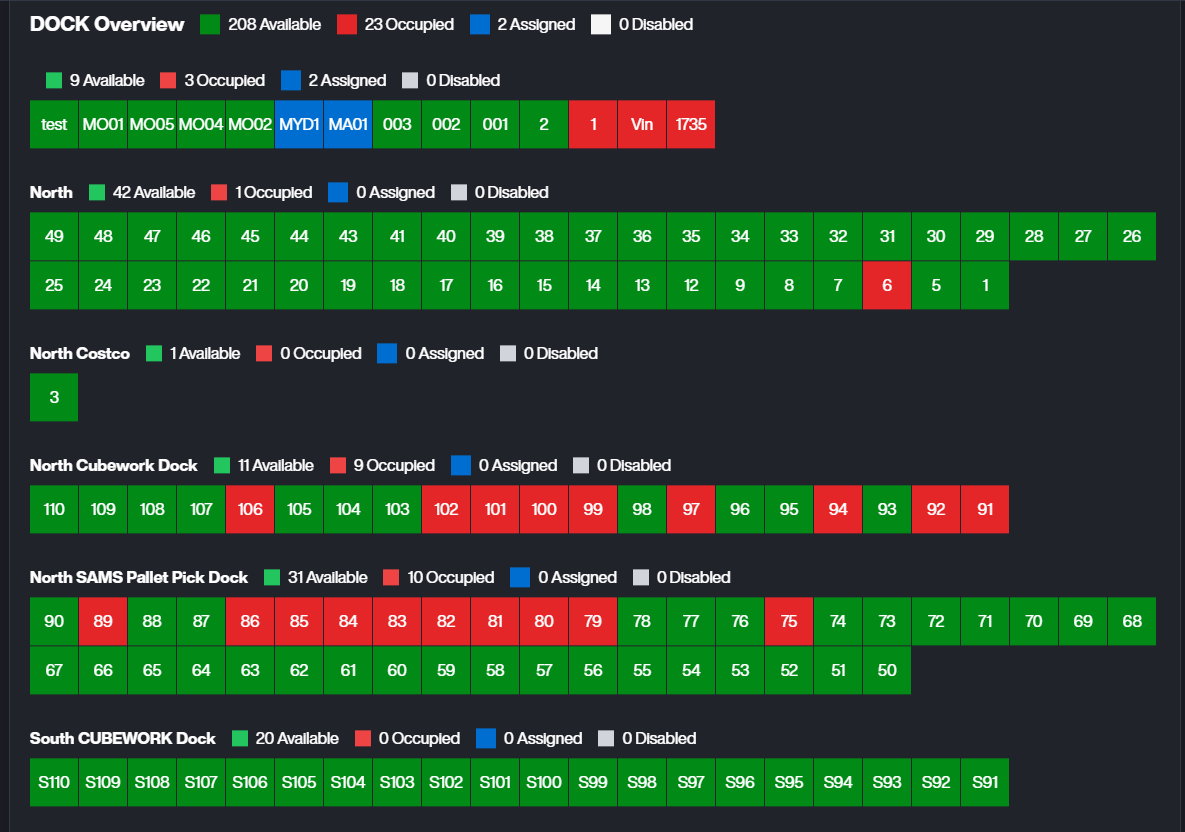
Dock Overview
-
View Dock Status
A. The Dock Overview shows the current status of all docks:
a. Available: Docks that are free.
b. Occupied: Docks in use.
c. Assigned: Docks assigned to tasks.
d. Disabled: Docks that are not in use.
-
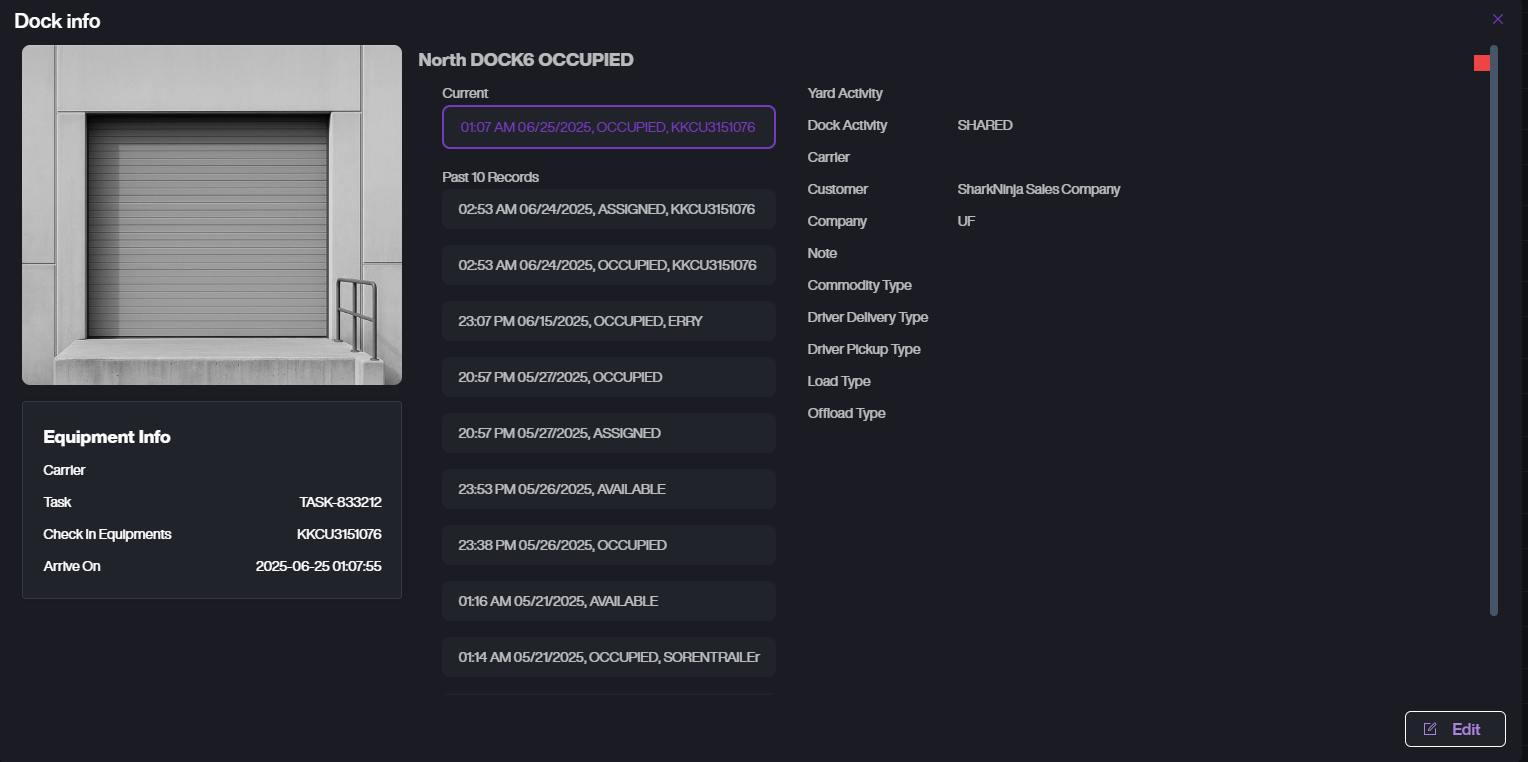
View Dock Details
-
Click on a Dock Name (e.g., MO01) to see more details.
-
A pop-up will show the current status, past records, and equipment info.
-
Click the edit button to edit the dock information.
-
Spot Overview
- View Spot Status
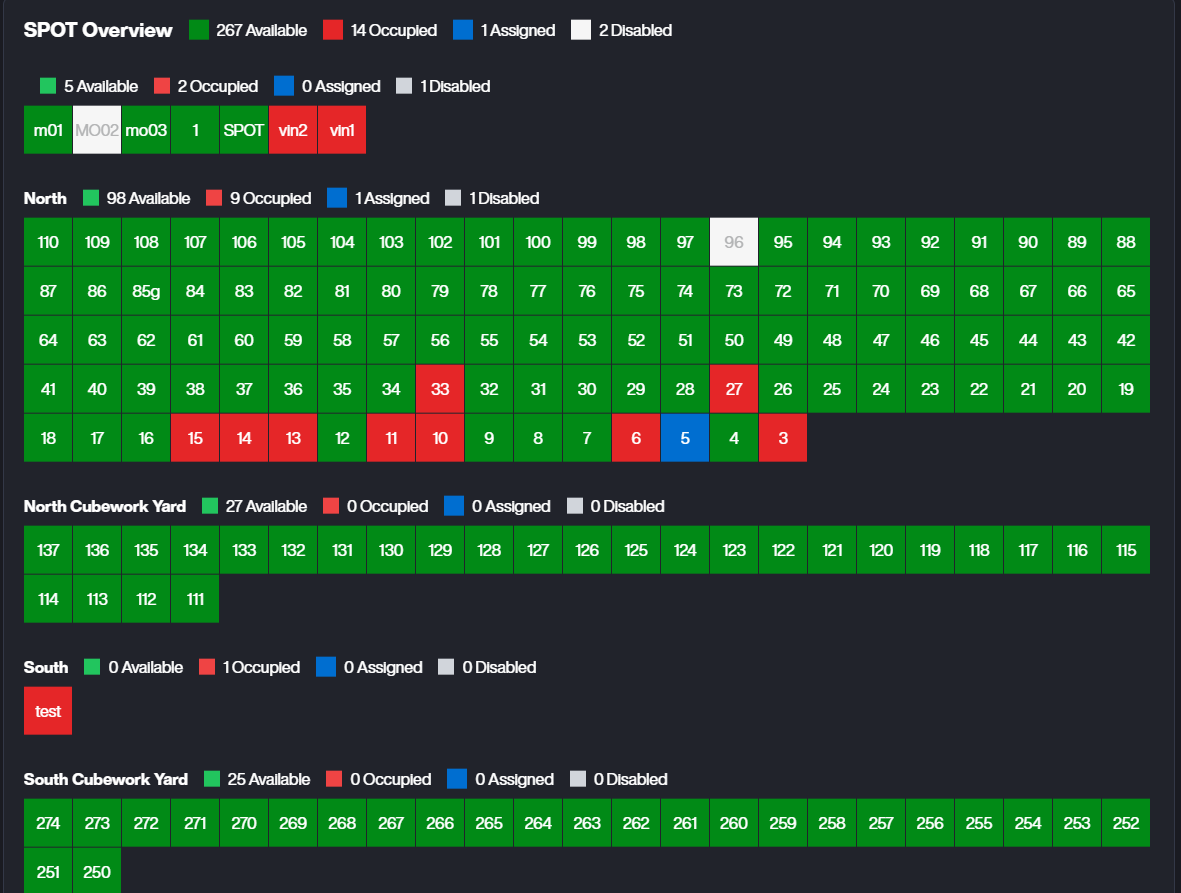
A. The Spot Overview shows the current status of all docks.
-
Available: Spots that are free.
-
Occuiped: Spots in use.
-
Assigned: Spots assigned to tasks.
-
Disabled: Spots that are not in use.
-
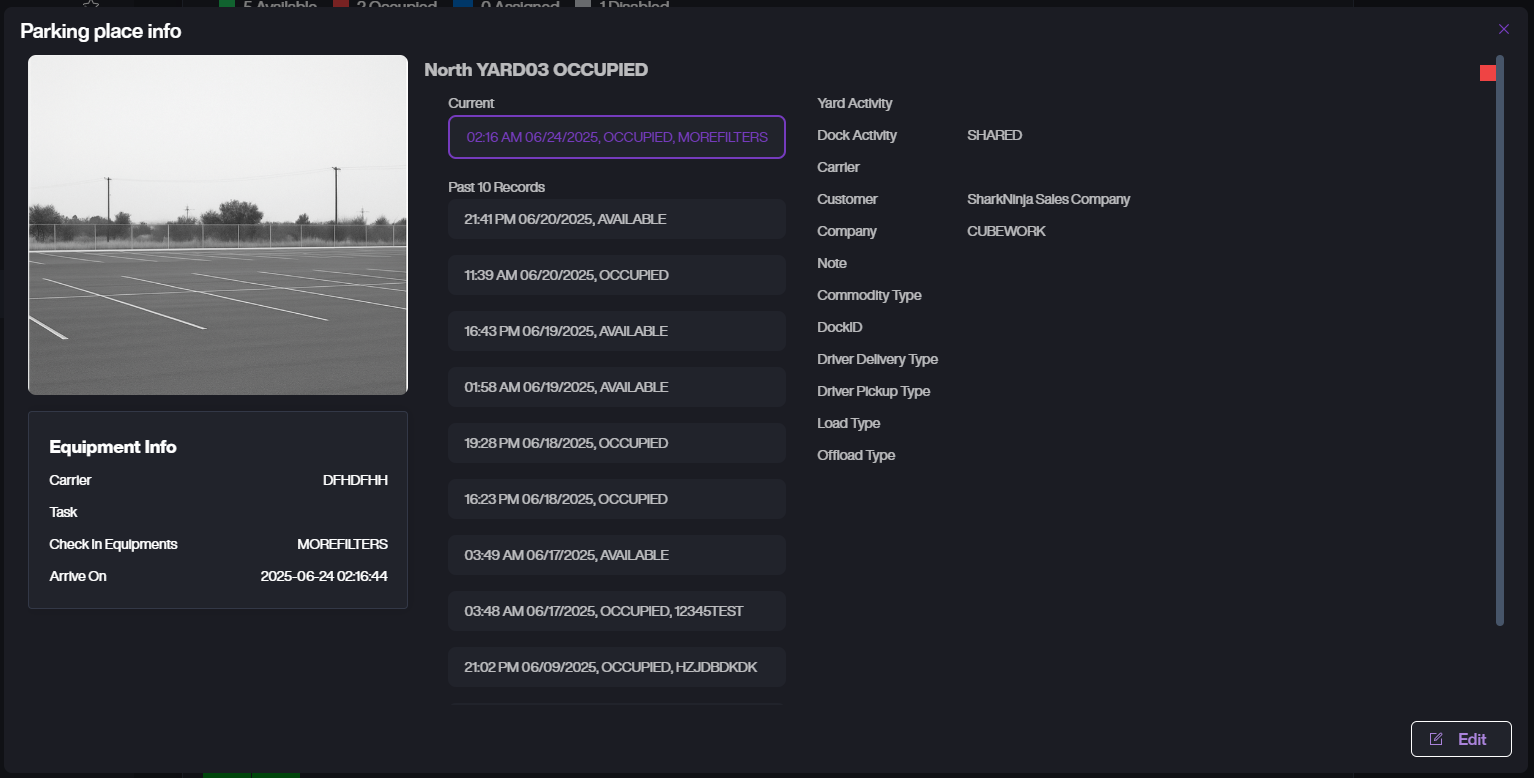
View Spot Details
-
Click on a Spot Name (e.g., MO01) to see more details.
-
A pop-up will show the current status, past records, and equipment info.
-
Click the edit button to edit the dock information.
Filter By
- Apply Filters
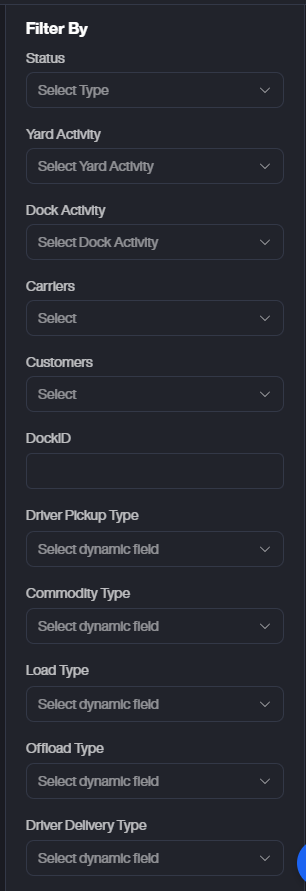
Use the Filter By section to filter data by: Status, Yard Activity, Dock Activity, Carriers, Customers, DockID, and other dynamic fields like Driver Pickup Type, Commodity Type, Load Type, Offload Type, and Driver Delivery Type.
- View Results
The data will update automatically based on your selected filters.
Edit Mode
-
Access Edit Mode: Click the Edit Mode button to switch to Edit Mode.
-
Filter Locations: In Edit Mode, use the Select a Field dropdown (e.g., Customers) to filter locations based on specific criteria.
-
Edit Locations: Click on a Location Name to Add the location to the filtered field, or Remove it from the field. This allows you to quickly update the location's status in relation to the selected field.