Shuttle Task - WMS App
Shuttle Task List
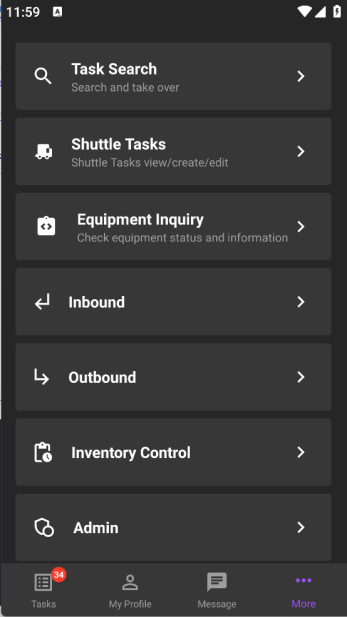
- On the WMS App, click the more menu. Then tap Shuttle Task to enter the Shuttle Tasks List page.
-
Task Status:
A. New: Task has been created but not yet started. Can be edited or deleted.
B. In Progress: Task is being handled.
C. Closed: Task has been completed.
D. Exception: Task failed, such as Equipment not found.
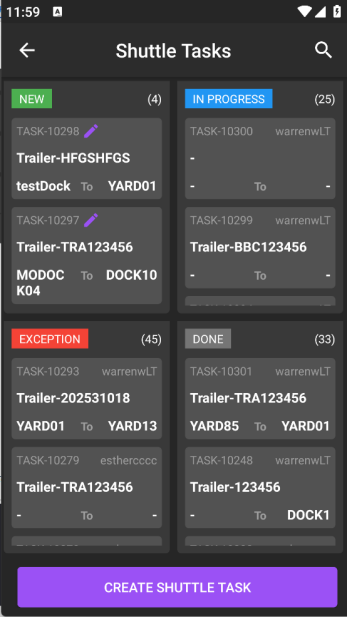
- You can use the Search function at the top to narrow down results.
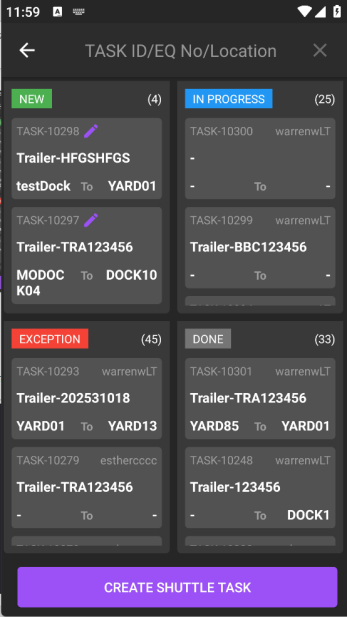
- Tap on the Task Card to view the task details. You'll see the task details and any photos taken while handling the task.
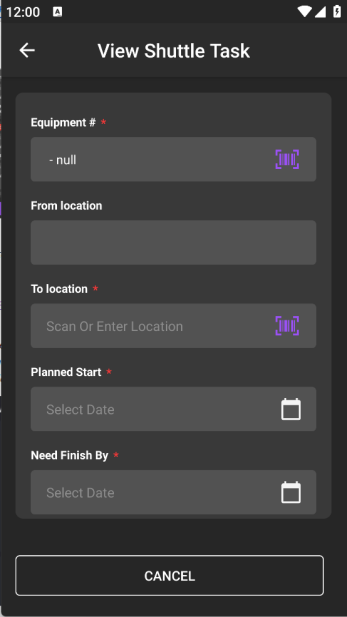
Create Shuttle Task
-
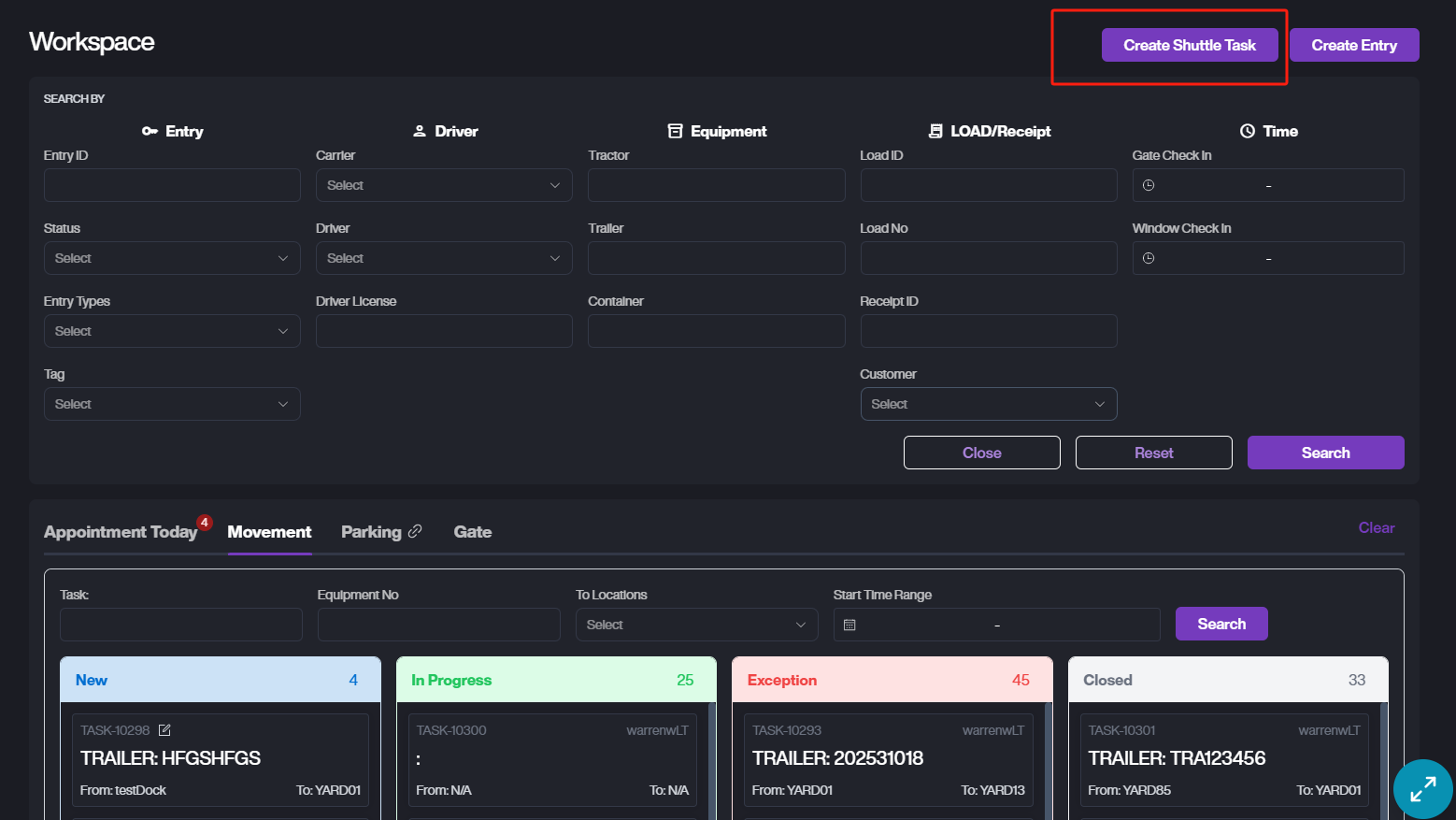
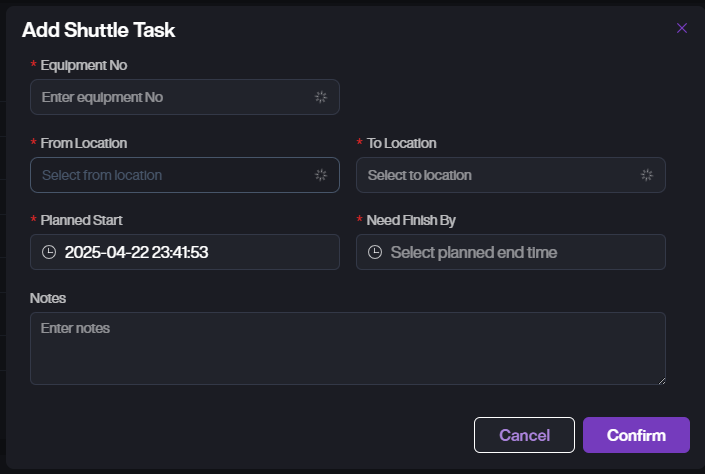
Click the Create Shuttle Task button to open the task creation popup.
-
Select the equipment to move and the target location, then choose the planned start and end time.
-
Click Confirm to create a task with status New. Tasks in New status can be edited or deleted.