Product Management
The Products module serves as a central hub for managing all your product information. You can create and edit products in the OMS, then publish them to connected sales channels. You can also download existing products from channels like SHEIN to centralize management.
Prerequisites
Before creating products, set up the following:
Add a Brand
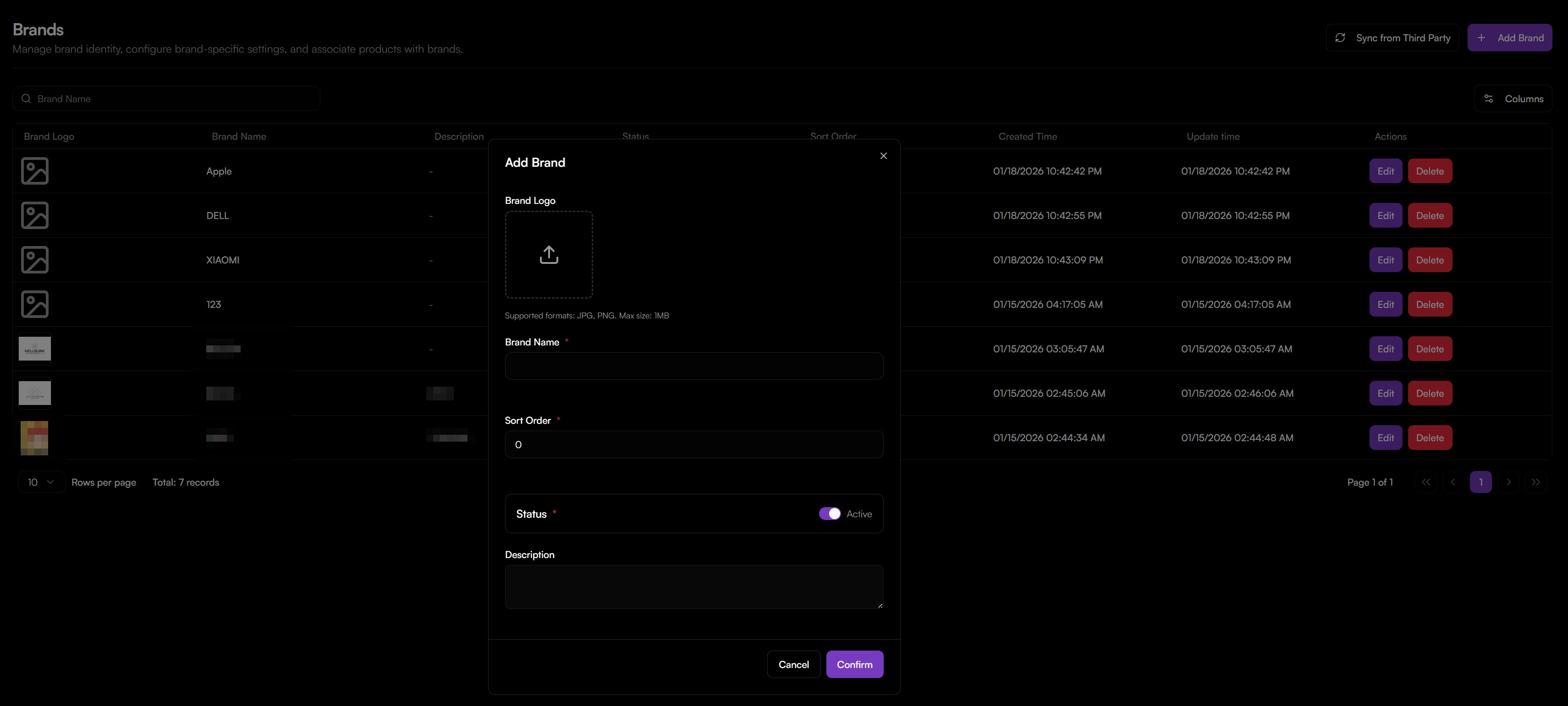
- Go to Products > Brands.
- Click Add Brand.
- Upload a Brand Logo (JPG/PNG, max 1MB).
- Enter:
- Brand Name (required)
- Sort Order (numeric, determines display order)
- Status (Active/Inactive)
- Description (optional)
- Click Confirm.
Add a Category
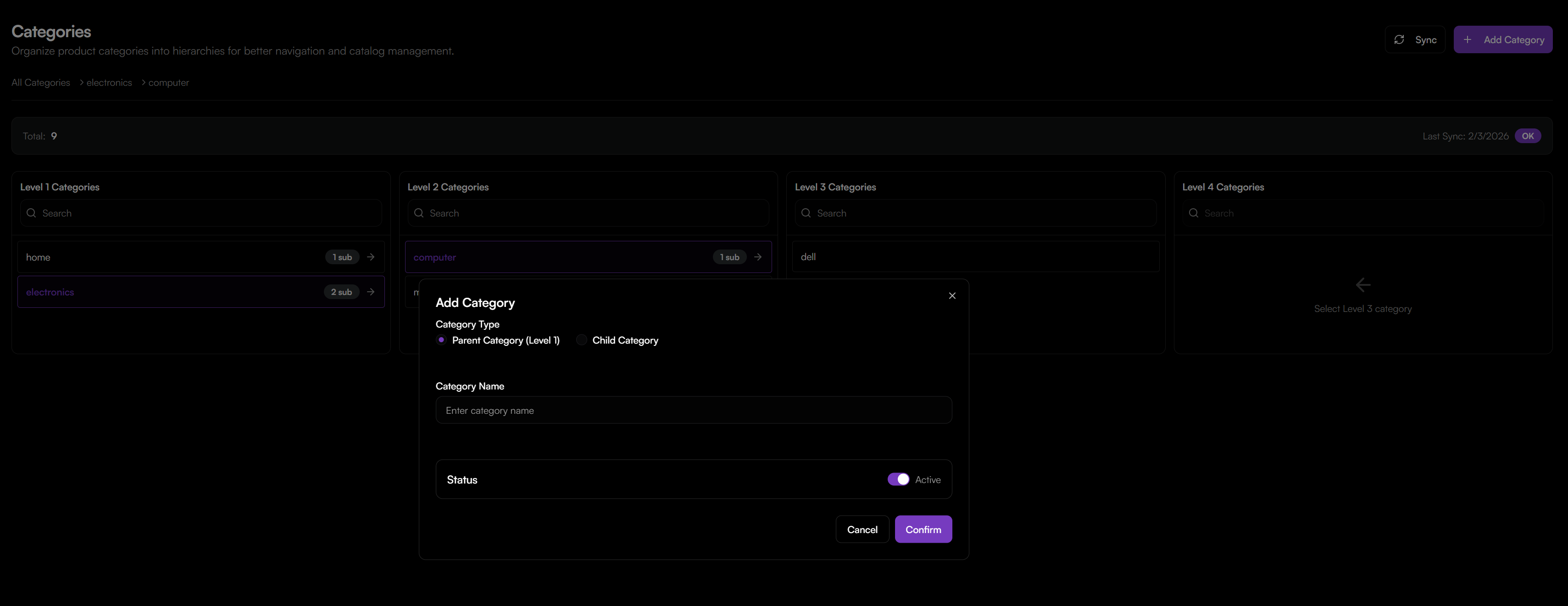
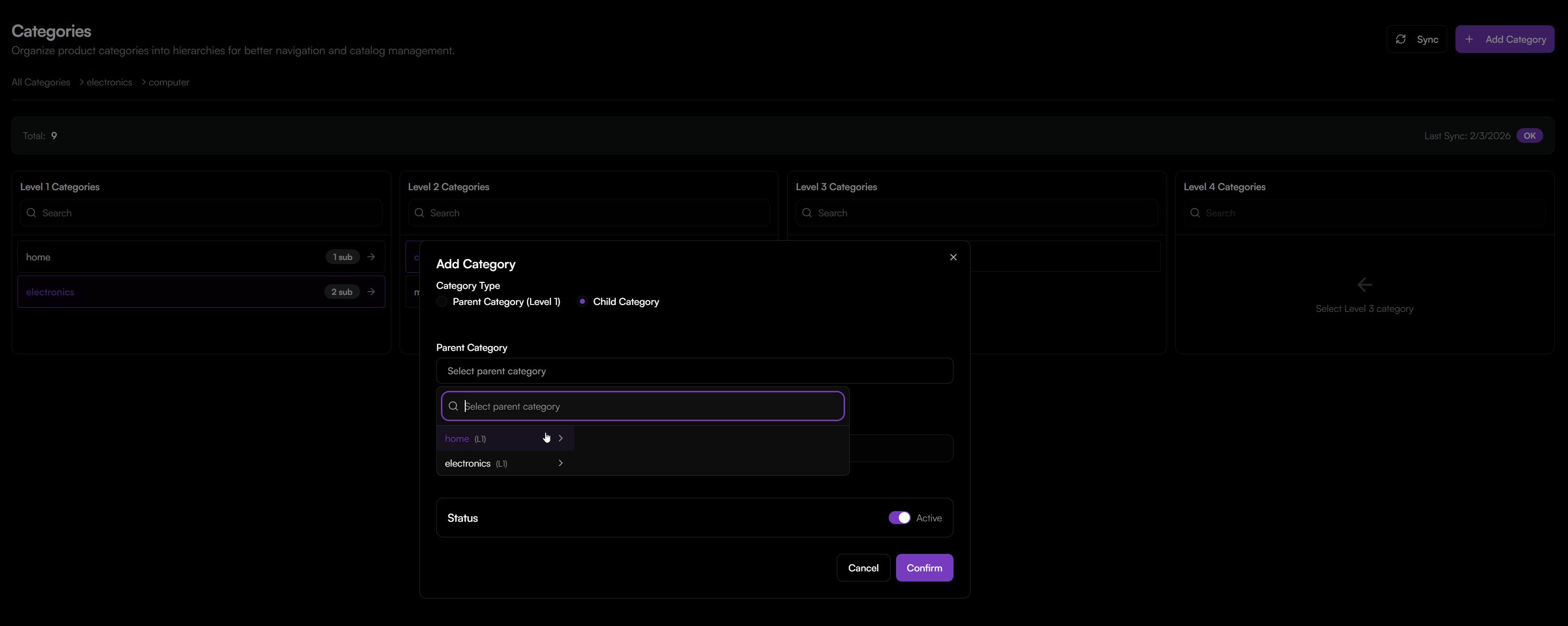
- Go to Products > Categories.
- Click Add Category.
- Select:
- Parent Category (Level 1): For top-level categories.
- Child Category: For subcategories (select a parent first).
- Enter Category Name and set Status (Active/Inactive).
- Click Confirm.
Creating a Product
- Go to Products > Product List.
- Click Create.
- Fill in the required sections:
Basic Information
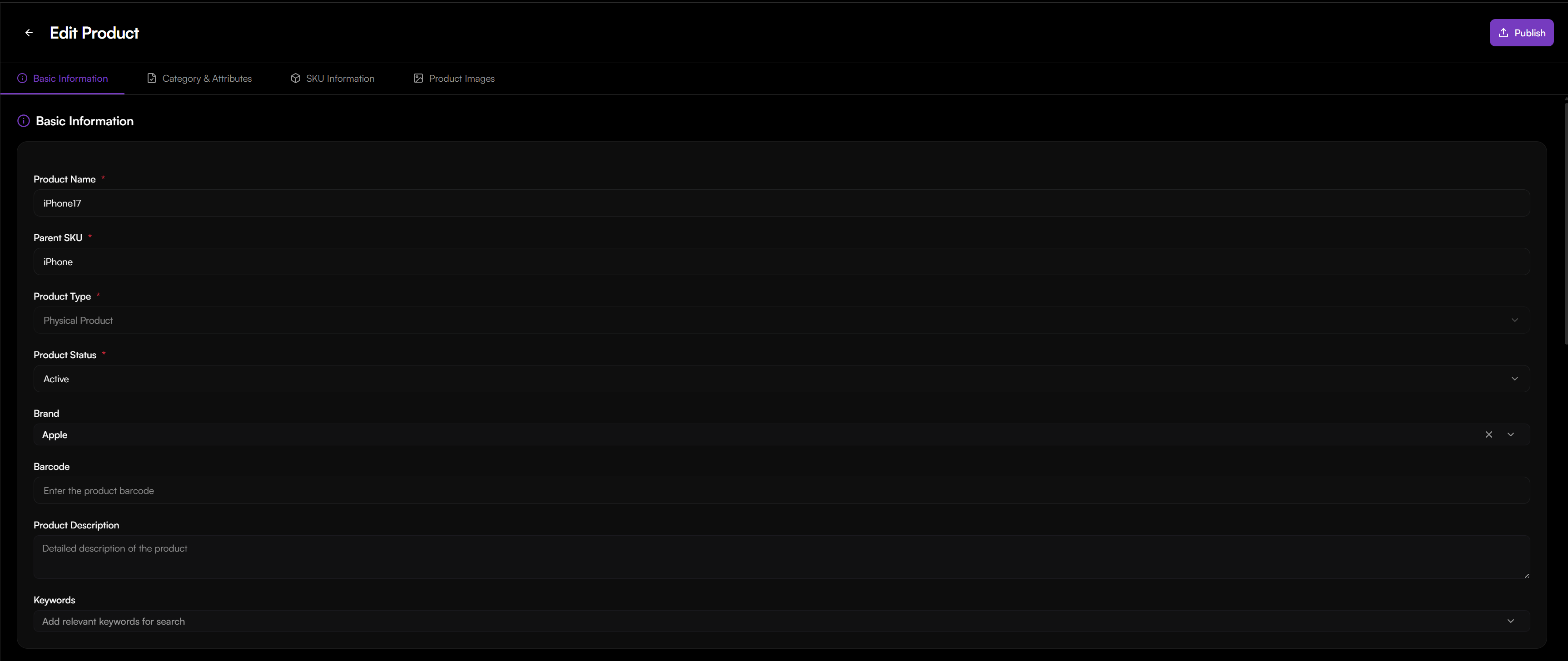
- Product Name*: Up to 200 characters.
- Parent SKU: Your unique identifier for the product (up to 256 characters).
- Product Type: Select from:
- Physical: Tangible items with inventory (e.g., clothing, electronics).
- Virtual: Digital goods (e.g., software, e‑books).
- Service: Services (e.g., consulting, repair).
- Gift: Promotional or gift items.
- Sample: Trial or sample products.
- Material: Raw materials.
- Product Status:
- Draft: Internal only, cannot be published or sold.
- Active: Ready for publishing and sales.
- Inactive: Taken offline, cannot be sold.
- Brand: Select a pre‑configured brand.
- Barcode: Enter UPC, EAN, or ISBN.
- Product Description: Detailed product information.
- Keywords: Search terms for internal use.
Category & Attributes

- Product Category: Select a category and map it to your sales channel's category system.
- Product Attributes:
- Platform Required Attributes: Fields required by the connected channel (e.g., SHEIN). These appear after category mapping.
- Custom Attributes: Define your own attributes (Name, Value, Type).
SKU Information
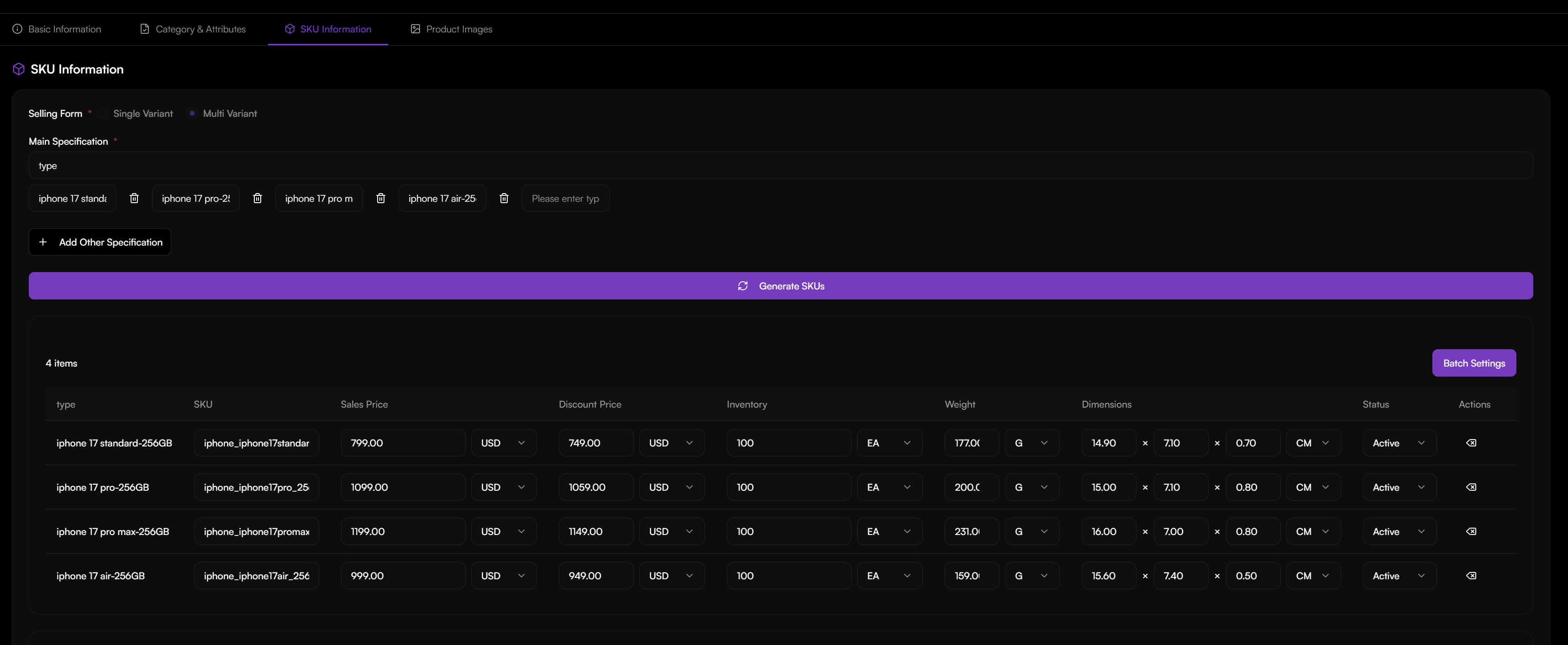
- Define attributes like Color, Size, etc. You can define a single variant or a multi-variant; the system will generate unique Seller SKUs for each variant.
- For each variant, set:
- Sales Price
- Discount Price (optional)
- Inventory Quantity
- UOM (Unit of Measure, e.g., EA, CS)
- Weight & Dimensions
- Status (Active/Inactive)
SKU Images & Product Images
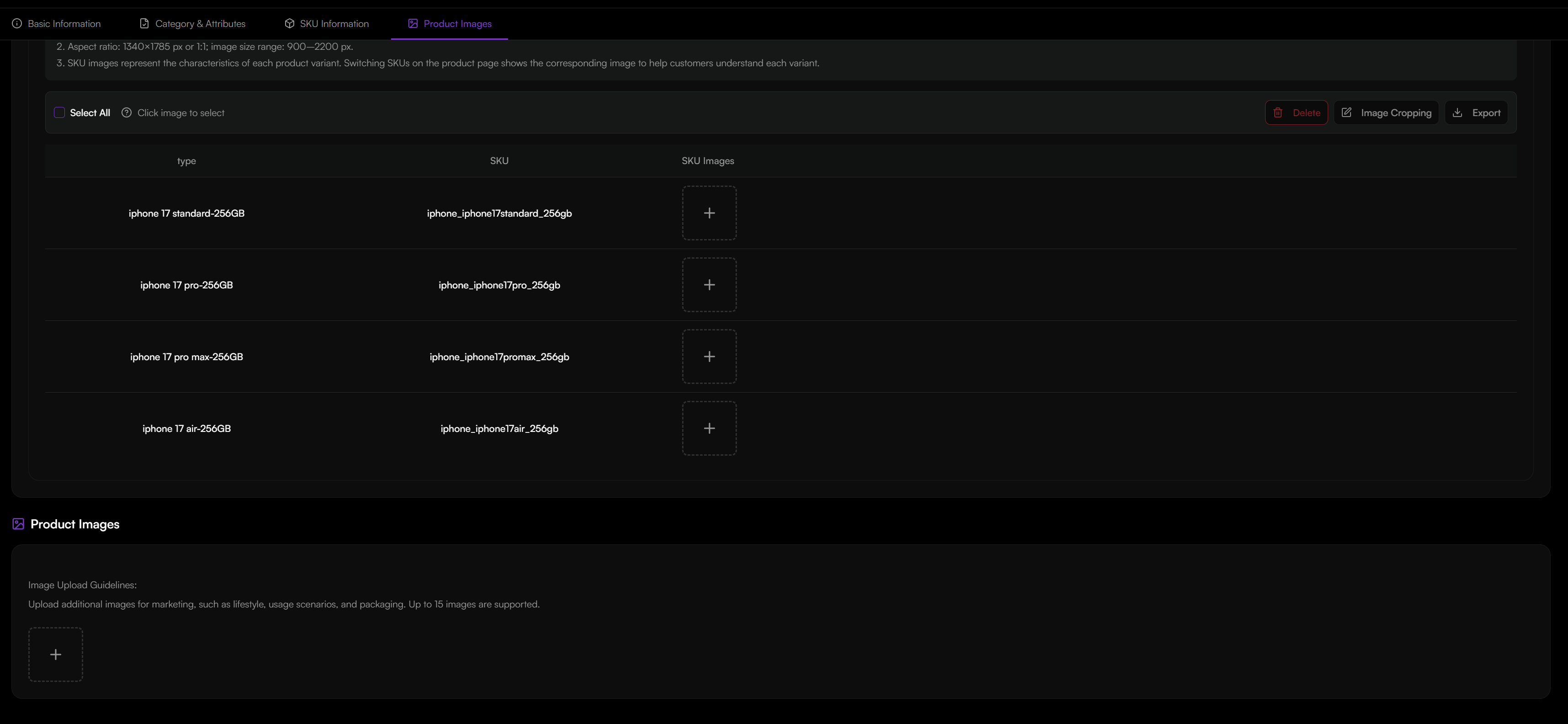
- SKU Images: Upload images for each SKU.
- Product Images: Upload main Product images.
- Click Save.
Publishing Products to Channels

Once a product is Active, you can publish it to connected sales channels (e.g., SHEIN, Shopify).
- In Product List, select one or more products.
- Click Publish.
- In the Publish Targets section, select the e‑commerce platforms to publish to.
- Click Confirm Publish.
Note: Only products with a mapped category and completed required attributes for the target platform can be published successfully.
Downloading Products from Channels
If you have connected a channel via Integrations, you can pull existing products into the OMS.
- Ensure the channel integration (e.g., SHEIN) is connected and syncing.
- Products from the channel will appear in the Product List with Source marked as the channel name.
- You can then edit and manage these products centrally in the OMS.