Yard Check
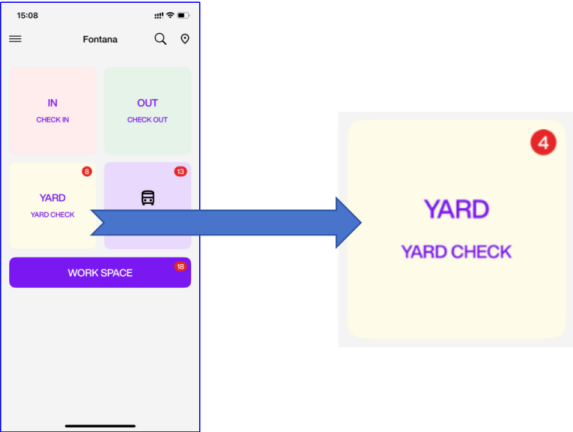
Create Yard Check Task
-
Open the Create Yard Check Task page
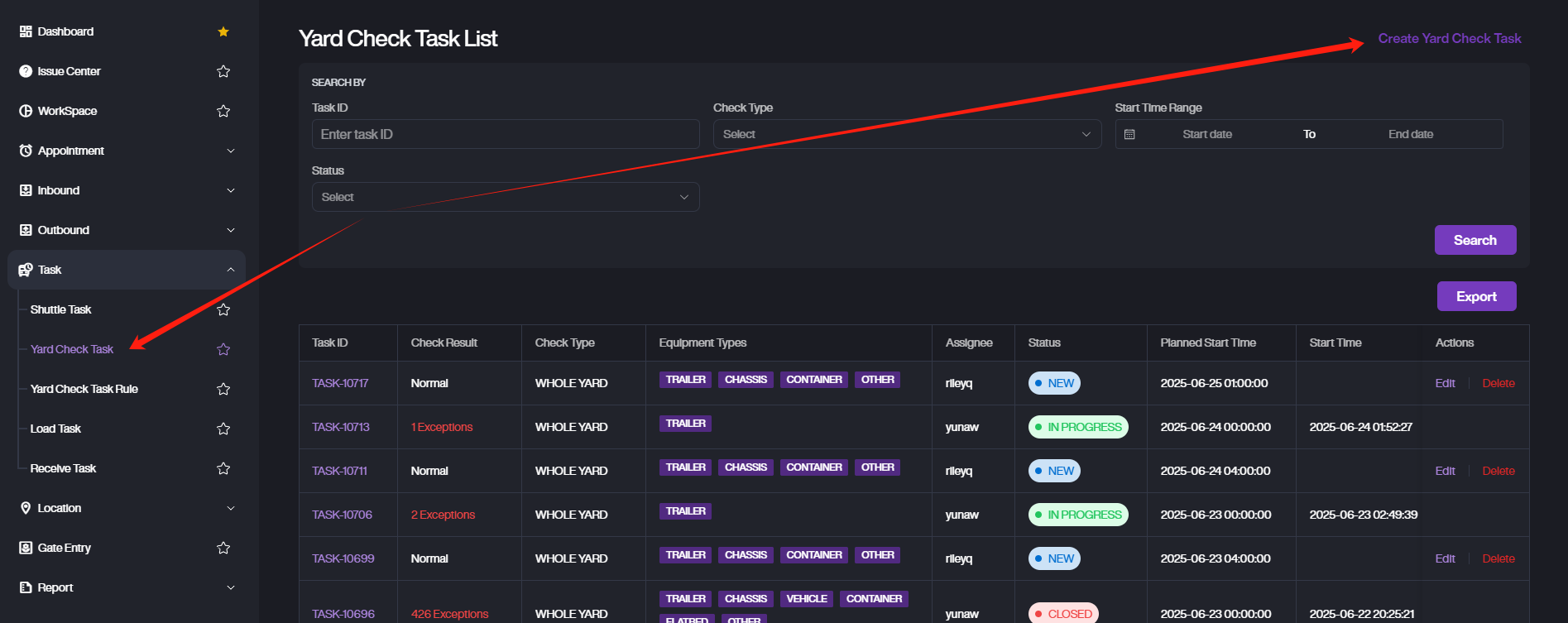
- On the Yard Check List Page, click on Create Yard Check Task to open the task creation form.
-
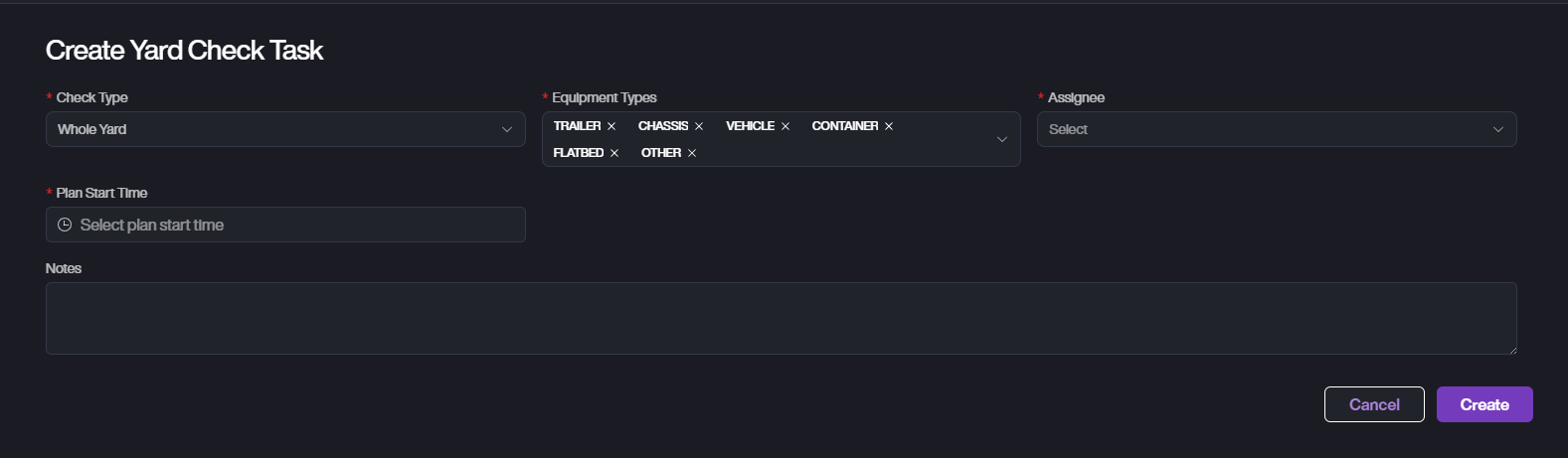
Fill in the required fields:
-
Check Type: Select the check type (e.g., Whole Yard, Specific Location, Specific Equipment).
-
Plan Start Time: Set the planned start time.
-
Equipment Types: Select the equipment types (e.g., Trailer, Chassis, Vehicle, etc.).
-
Assignee: Assign the task to a user.
-
Notes: Add any relevant notes (optional).
-
-
Create Task.
A. After filling in all the fields, click Create to save the task.
B. If you wish to cancel, click Cancel.
Yard Check Task List
- In the Yard Check List, you can view all Yard Check tasks assigned to you, including those not started, in progress, and completed.
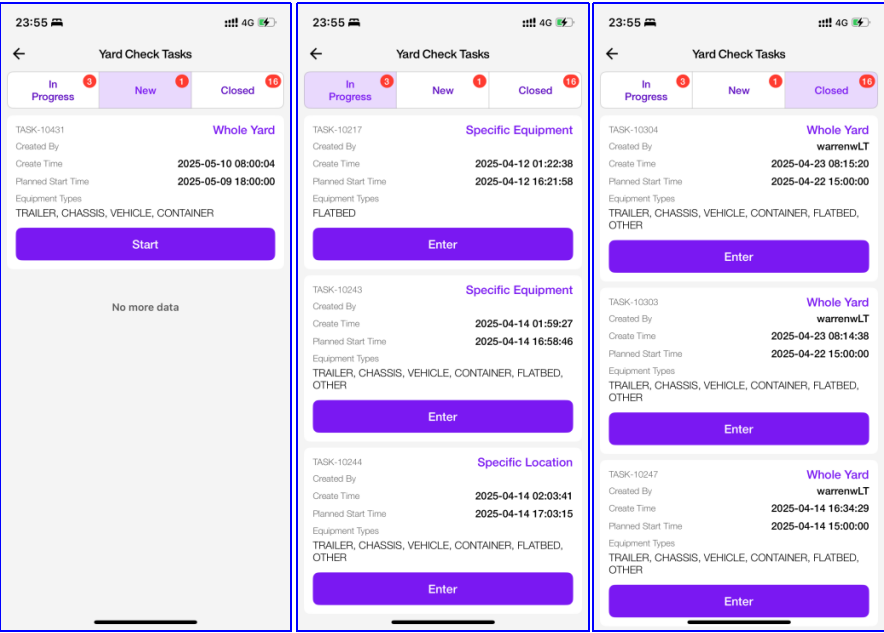
A. For tasks in New status, tap Start to begin. For tasks in In Progress status, tap Entry to continue handling the task.
B. When a task is in Closed status, you can tap Entry to view the task details.
Task Type
-
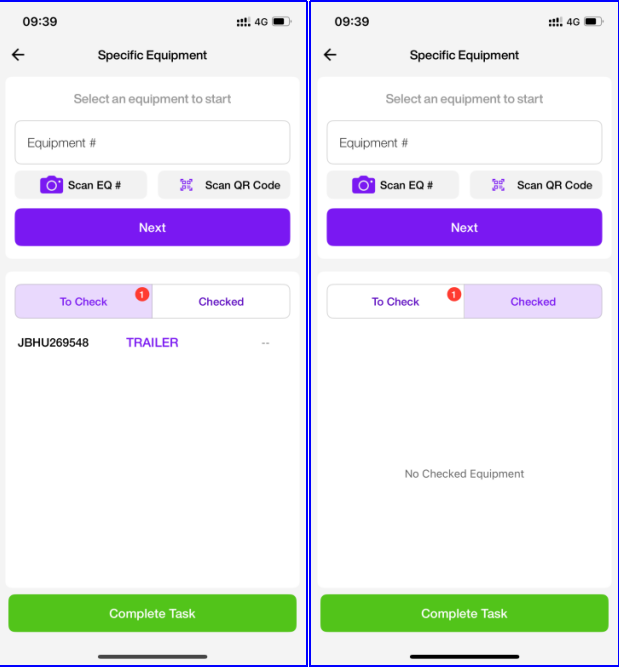
Specific Equipment.
A. This is a task assigned to check a specific group of equipment.
B. On the task page, you can view both the equipment to be checked and the equipment already completed.
-
Specific Location/Whole Yard
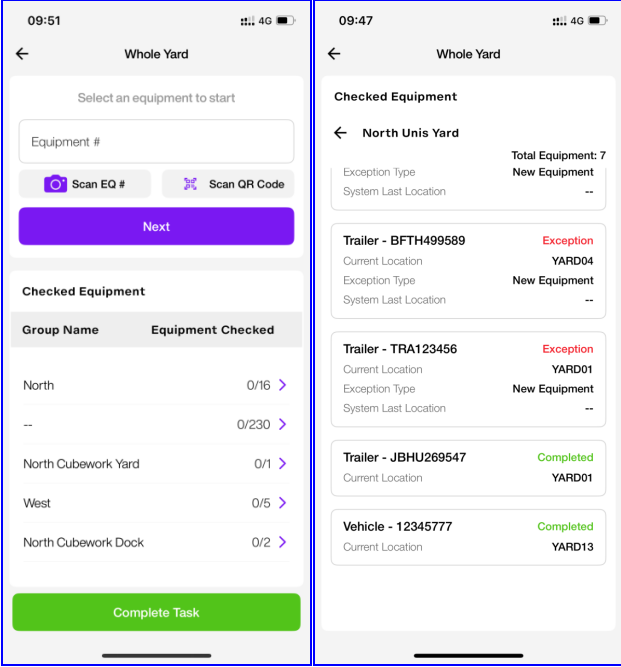
A. This is a task assigned to check a specific group of location or whole yard.
B. You can view the list of location groups to be checked. Tap on a location group to see which equipment in that group has already been checked.
Inspecting Equipment
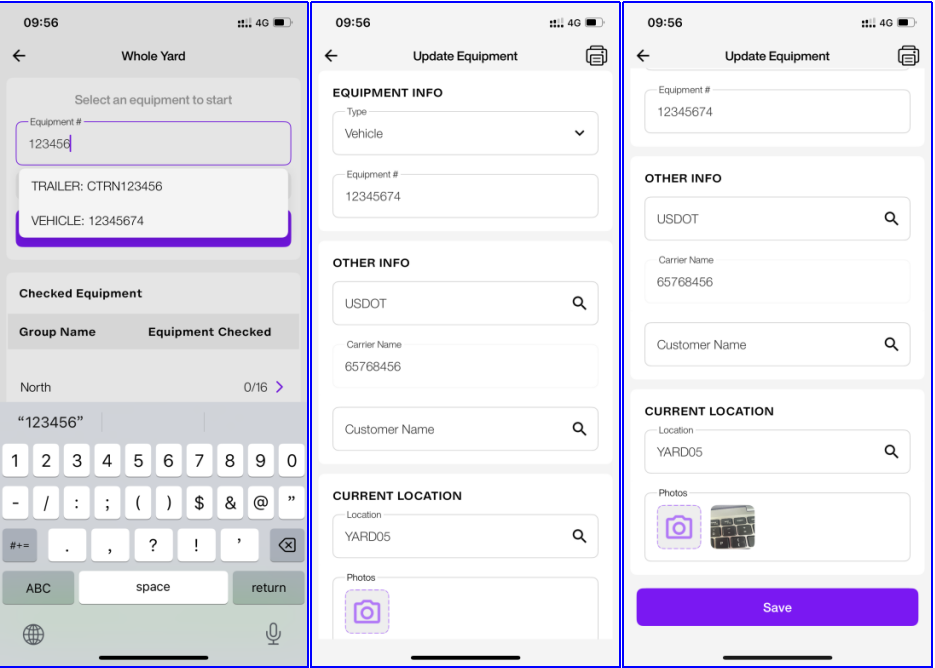
When you locate a piece of equipment to be checked:
-
Enter the equipment number (OCR and QR code scanning are supported).
-
Tap Next to proceed to the confirmation page.
-
Check whether the equipment is in the correct location. If not, you can update it to the correct one.
-
Take a photo to complete the check for that item.
-
Then, you can directly use the QR scan box to start inspecting the next equipment.
Exception
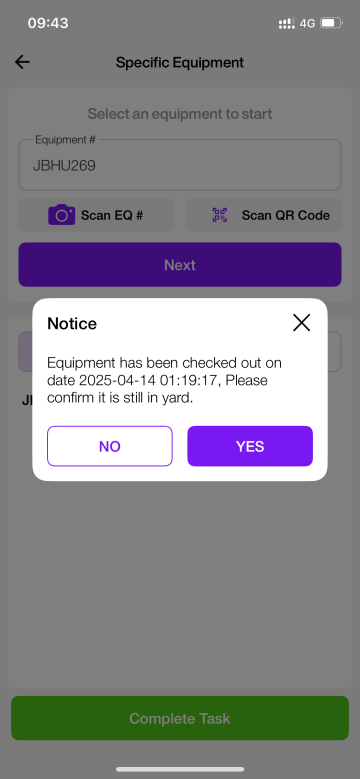
- The equipment is not in the yard, if you confirm that the equipment is still in the yard, tap Yes to proceed to the inspection page for that equipment.
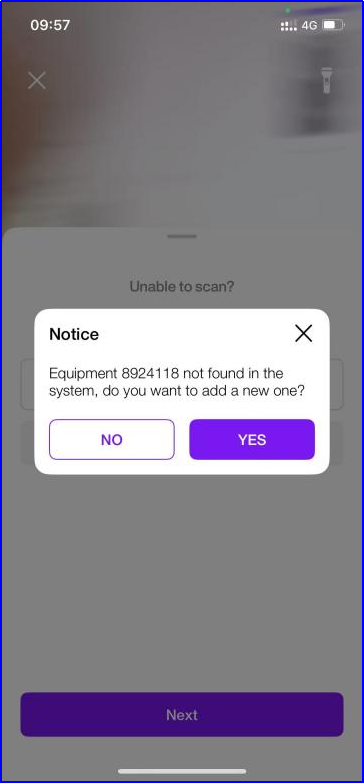
- The equipment cannot be found in the system, if you confirm that the equipment is still in the yard, tap Yes to proceed to the inspection page for that equipment.
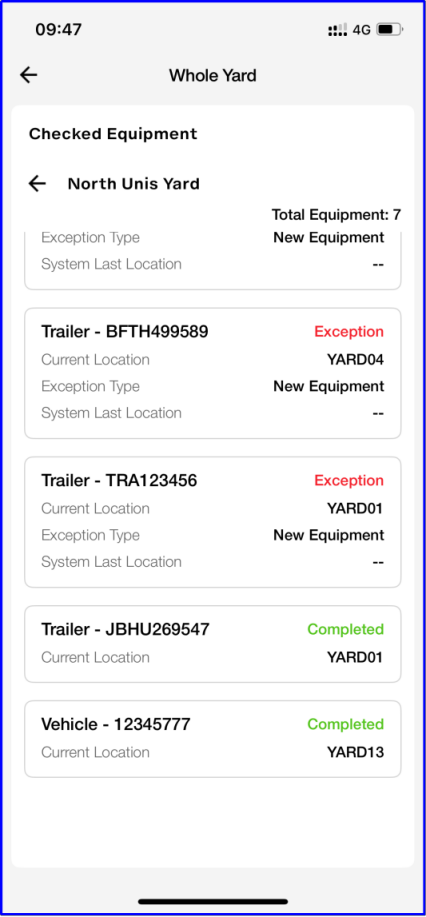
- Exception Display. You can view exception information in the list of completed equipment checks.
- Missed Equipment. If some equipment is not found during the task, a Missed group will appear on the Closed details page. This section shows which equipment items were not located.
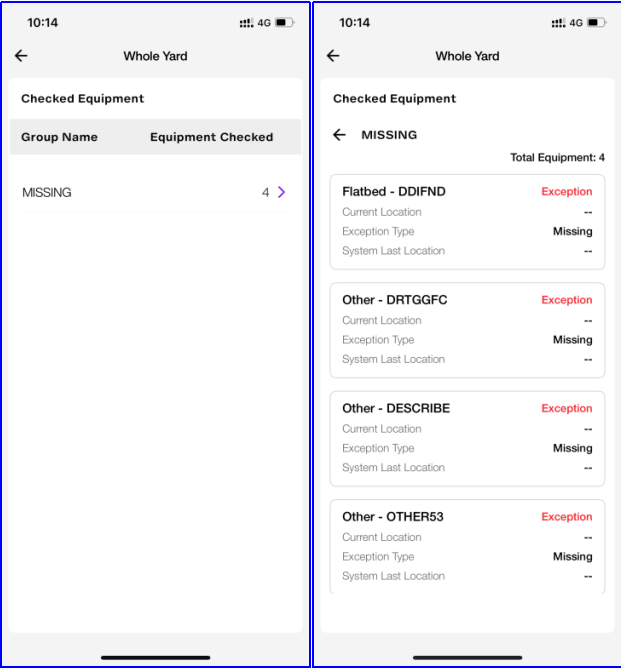
- If the same equipment is missed in three separate Yard Check tasks, it will be automatically removed from the yard in the system.