Webhook Configuration
You can use the Webhook feature to let item oms send automated notifications to external systems when defined events occur. This allows downstream systems (such as WMS, ERP, or analytics) to receive real-time updates and initiate corresponding workflows.
Configure a Webhook Rule
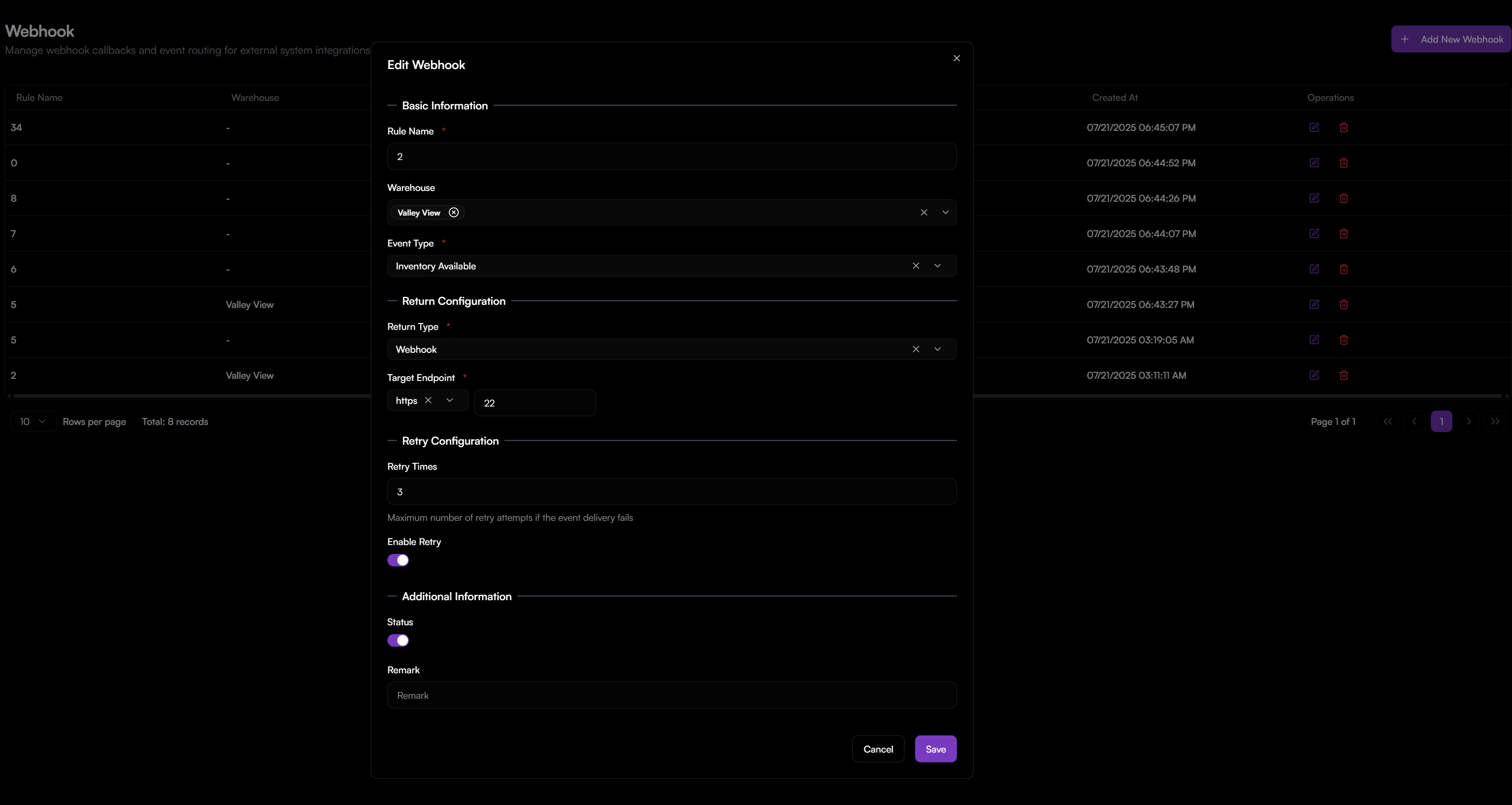
- Navigate to Automation > Webhook, click + Add New Webhook.
- In the Edit Webhook dialog, complete the following:
- Rule Name: Enter a unique identifier for the webhook rule.
- Warehouse: Select the warehouse to which this rule applies.
- Event Type: Select one event trigger from the drop-down list (e.g., Order Created, Order Split, Delivery Confirmed, Order Exception, Inventory Available).
- Return Type: Set to Webhook (pre-configured for HTTP callback).
- Target Endpoint: Enter the HTTP/HTTPS URL of the external system that will receive the event payload.
- Configure retry behavior:
- Retry Times: Specify the maximum number of retry attempts if initial delivery fails.
- Enable Retry: Toggle ON to allow retries. Toggle OFF to disable retries.
- Optional:
- Remark: Enter any internal notes or comments.
- Status: Set to Enabled to activate the rule immediately.
- Click Save to persist the rule.
Note: The rule becomes active and will trigger whenever the selected event occurs in the applicable warehouse scope.