Shuttle Task - YMS App
Entering the Shuttle Task
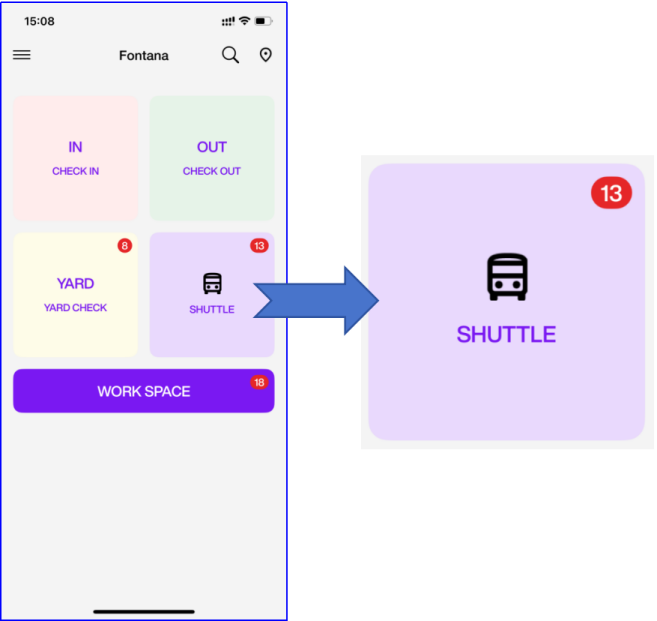
The number displayed on the Shuttle icon indicates the total count of ongoing and newly created Shuttle Tasks.
Shuttle Tasks List
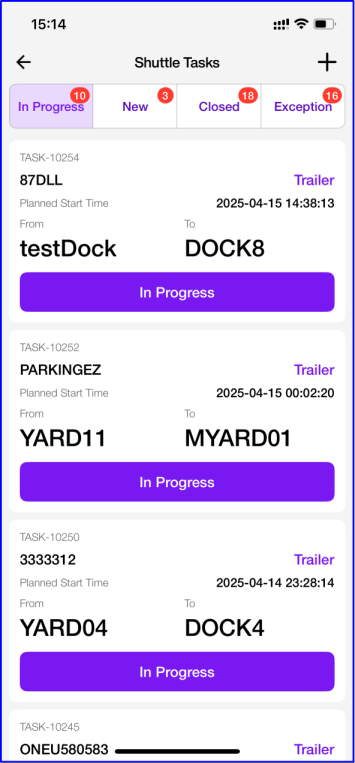
In Progress - Shuttle Task
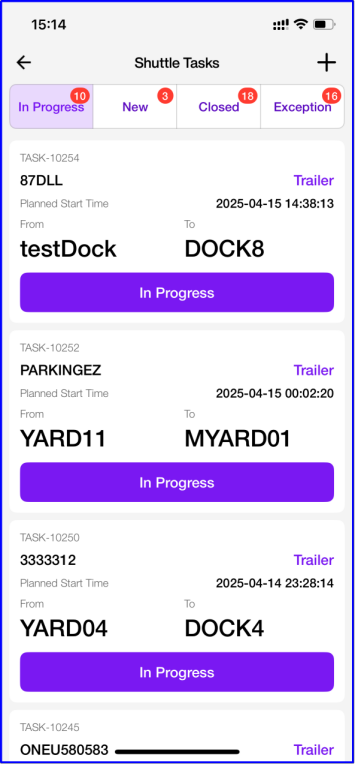
This page displays all Shuttle Tasks assigned to the current user. Tap In Progress to enter the task handling page.
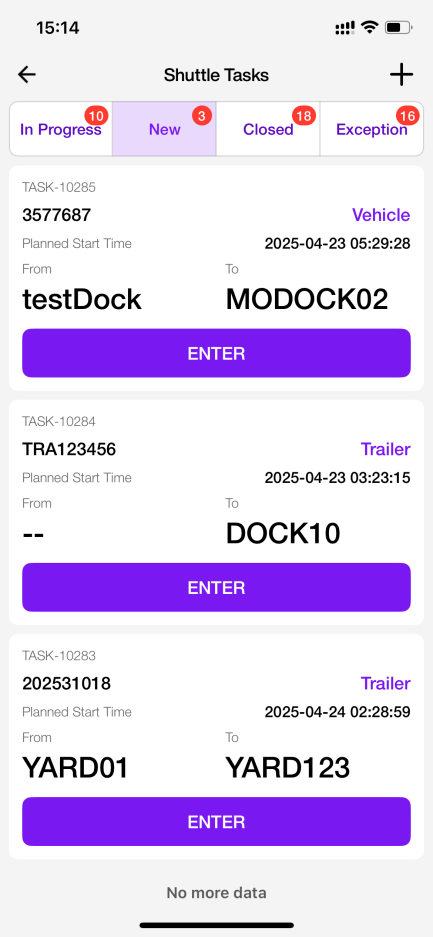
New - Shuttle Task
This page shows all unassigned new Shuttle Tasks. Tap Enter to open the task handling page - the task will then be assigned to you.
Closed - Shuttle Task
This page shows all closed tasks that were assigned to you. Tap Enter to view task details.
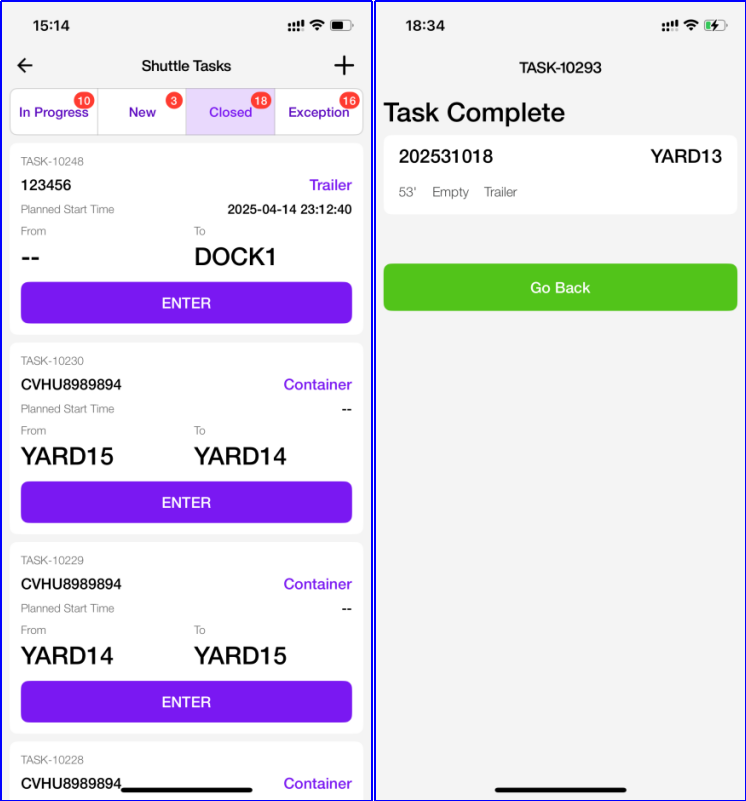
Exception - Shuttle Task
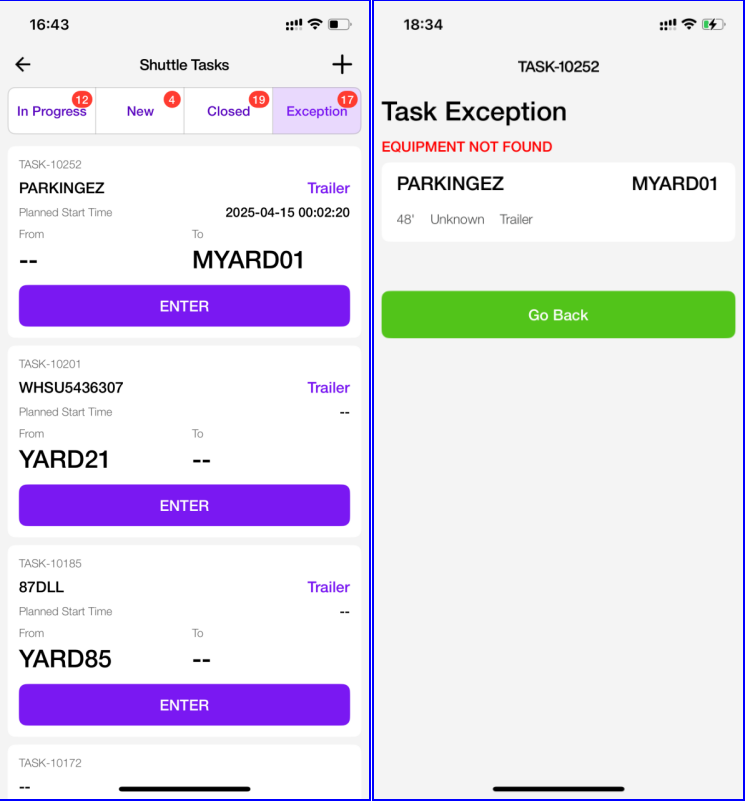
This page shows all tasks in exception that were assigned to you, such as: Equipment not found. Tap Enter to view task details.
How to Perform a Shuttle Task
Step - Shuttle Task
- Use the From Location to locate the assigned equipment.
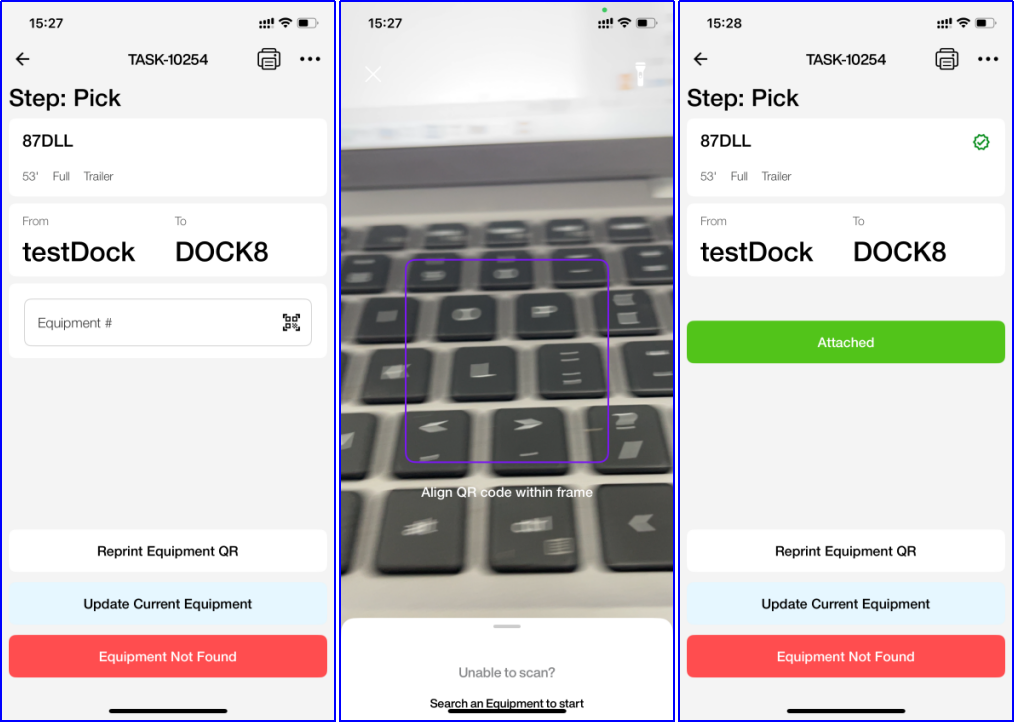
- On the task page, enter or scan the equipment number to confirm you've found it, then tap Attach.
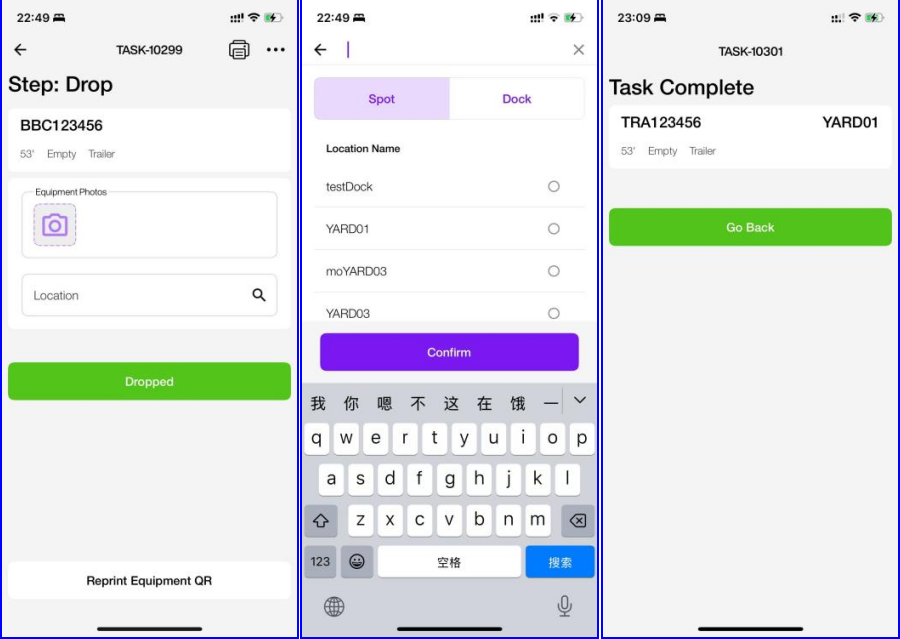
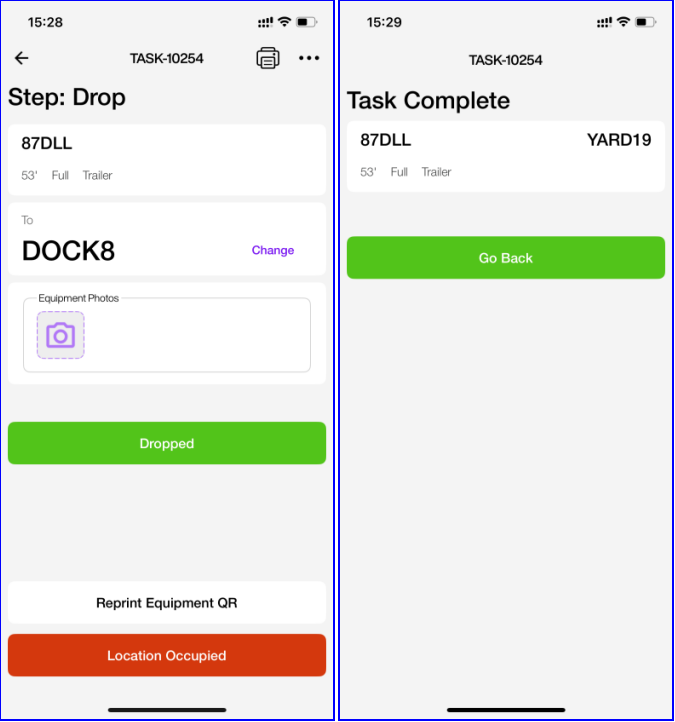
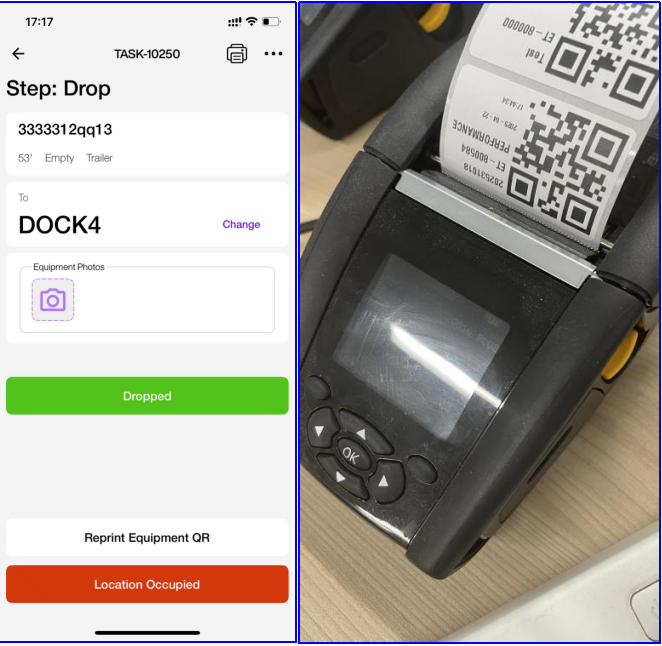
- After reaching the To Location, take and upload a photo of the equipment, then tap Dropped to complete the task.
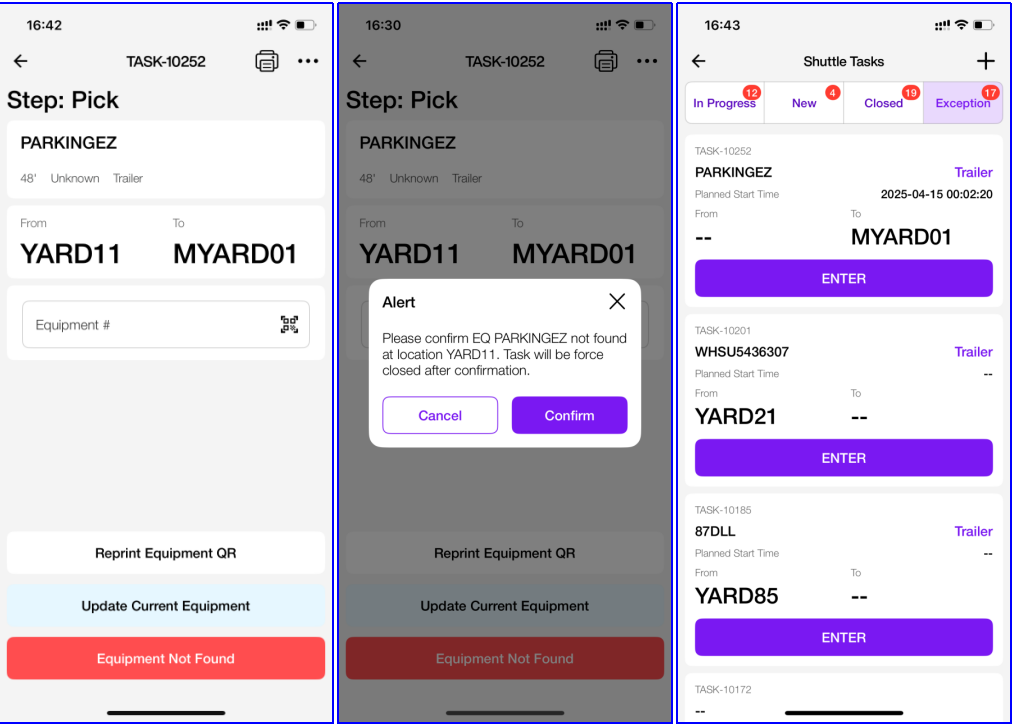
Equipment Not Found at From Location
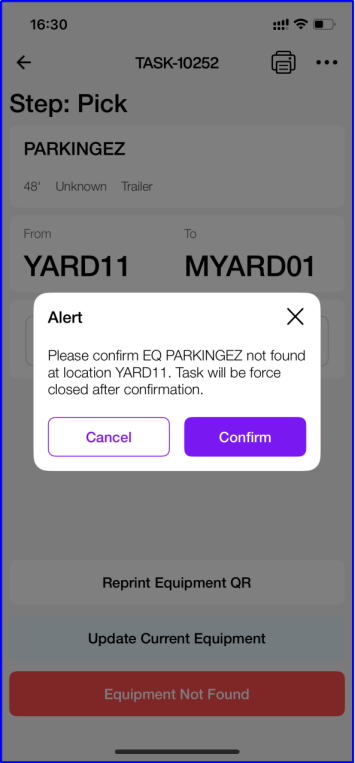
If the equipment is not found at the From Location, you can tap Equipment Not Found. The system will display an alert. If you confirm, the task will be force-closed and moved to the Exception list.
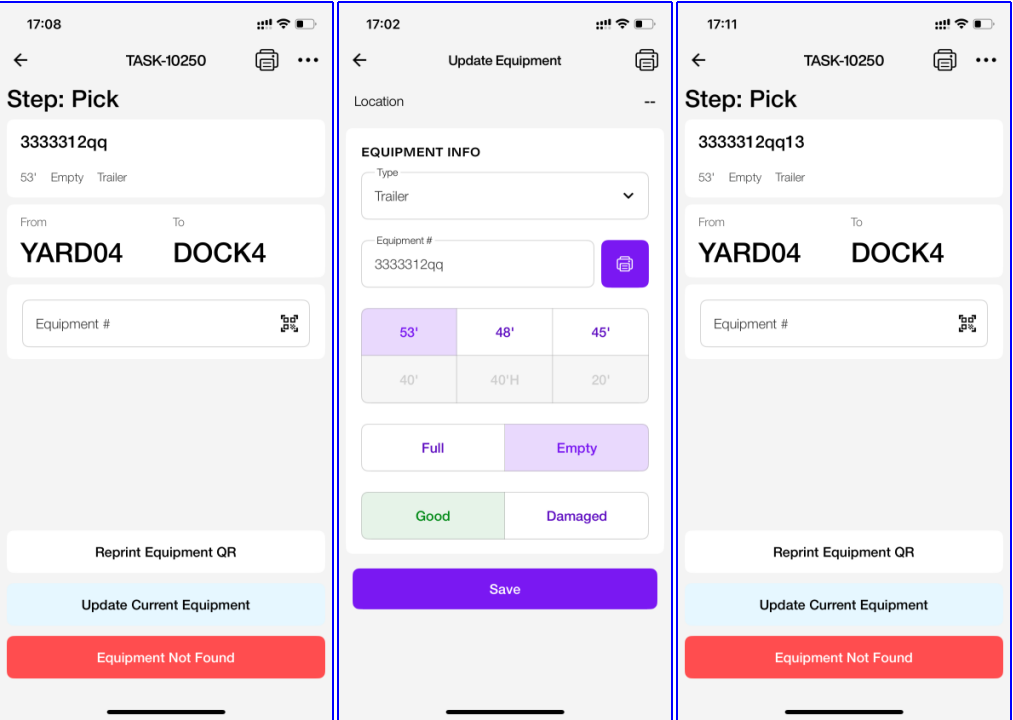
Incorrect Equipment Found at From Location
If the equipment at the From Location does not match the system record, you can tap Update Current Equipment.
On the update screen, enter the correct Equipment Number, select its size, status, and condition. Tap Save to replace the original equipment in this task.
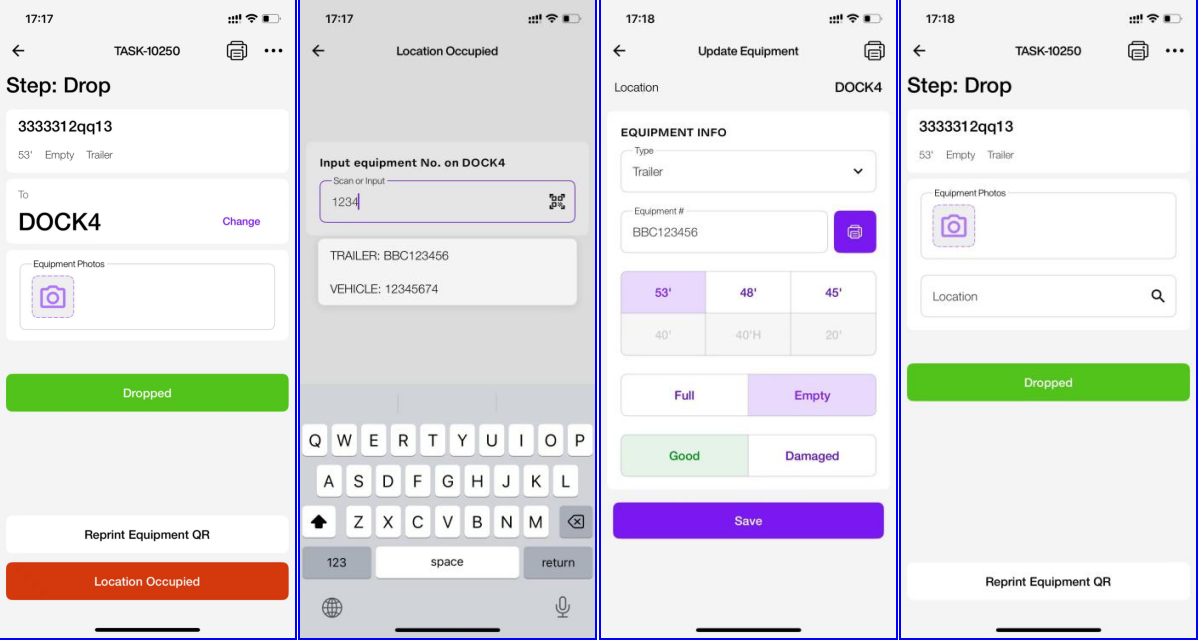
To Location is Currently Occupied
If the target location is occupied, you can either change to another location to complete the task, or tap Location Occupied. Then, enter the equipment info currently at the target location. After that, you must select a different location to drop your equipment.
Reprint Equipment Label
If you want to reprint the equipment label, you can tap Reprint Equipment QR. You can check the How to Set Up Printer (opens in a new tab) guide to learn how to configure your printer.
Froce Close
To froce-close a task, tap the More menu.
Create Shuttle Task - YMS App
- On the Shuttle Tasks list page in the YMS App, tap the + icon at the top right to create a new Shuttle task. Enter or scan the equipment number you want to move. A new Shuttle task will be created and automatically assigned to yourself.
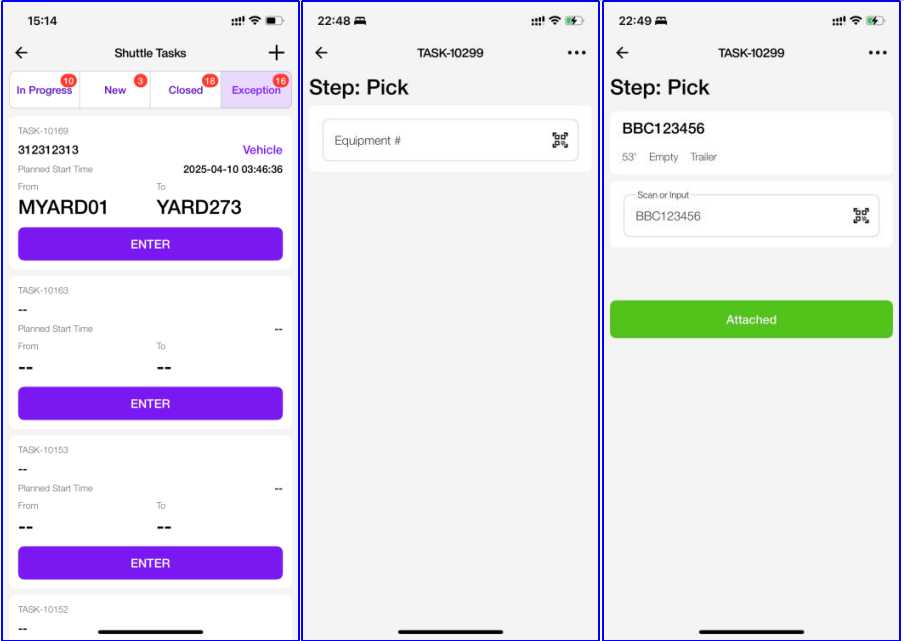
- Tap Attached to start the task. Before completing the task, you must Select the destination location where the equipment will be dropped and Take a photo of the equipment at the destination. Finally, tap Dropped to complete the Shuttle task.