MCP
The Model Context Protocol (MCP) is an open standard that enables AI agents to interact with external tools, APIs, and data sources. Item Marketplace provides a centralized platform to discover, test, and manage these servers to enhance your AI's capabilities.
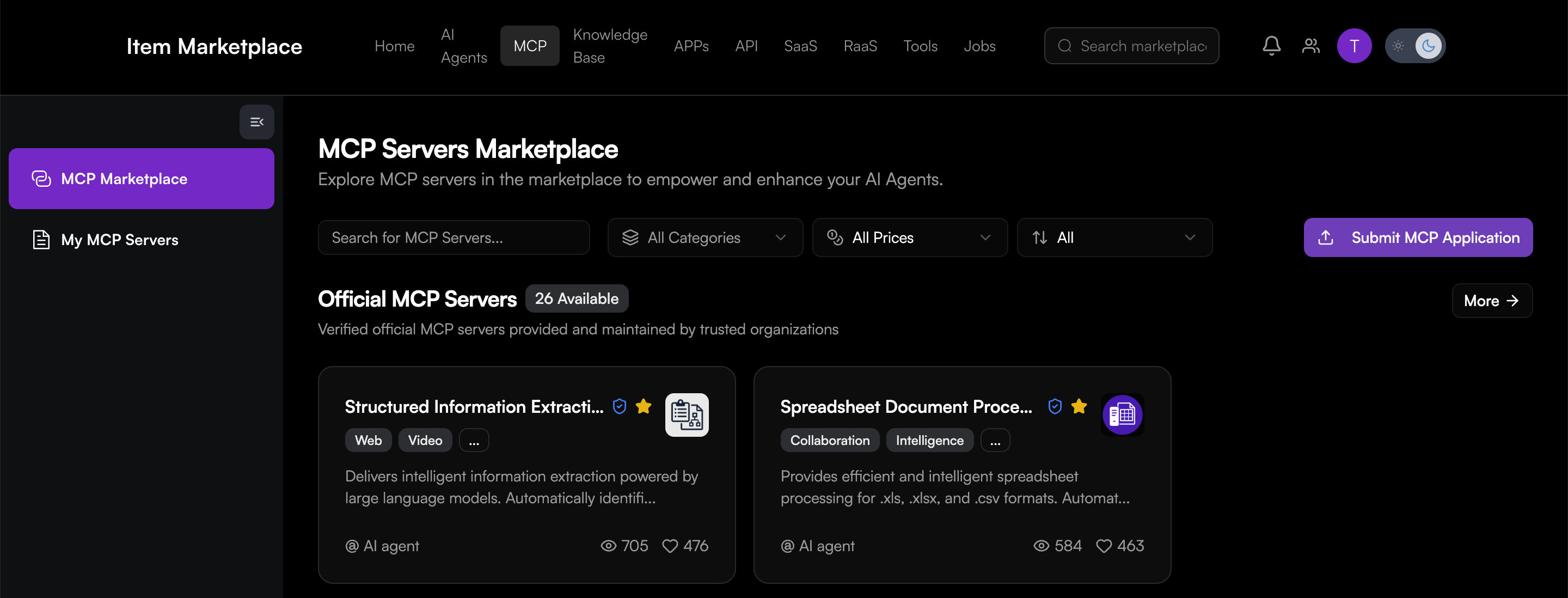
MCP Marketplace
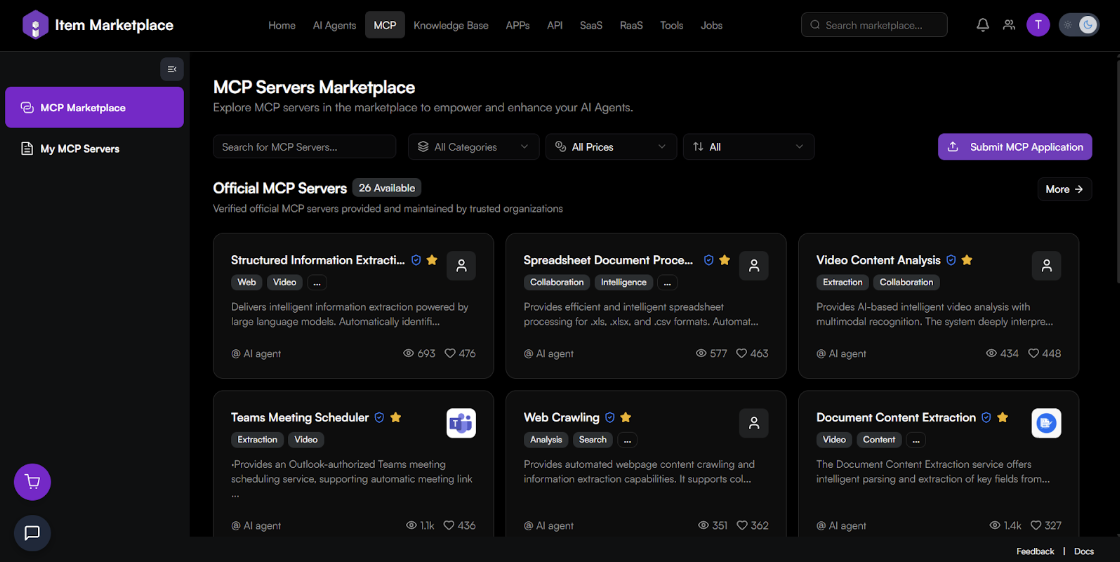
The MCP Marketplace is the primary hub for exploring verified and community-built servers.
-
Browsing Servers: You can browse "Official MCP Servers" maintained by trusted organizations.
-
Search and Filters: Use the search bar or filter by Categories (e.g., Web, Video, Extraction), Prices, and Sort order.
-
Performance Metrics: Each server card displays the total number of Views and Likes, helping you identify popular tools.
-
Server Metadata: Clicking a server reveals its Last updated date, publisher (e.g., @AI agent), and user Rating.
Exploring Server Details
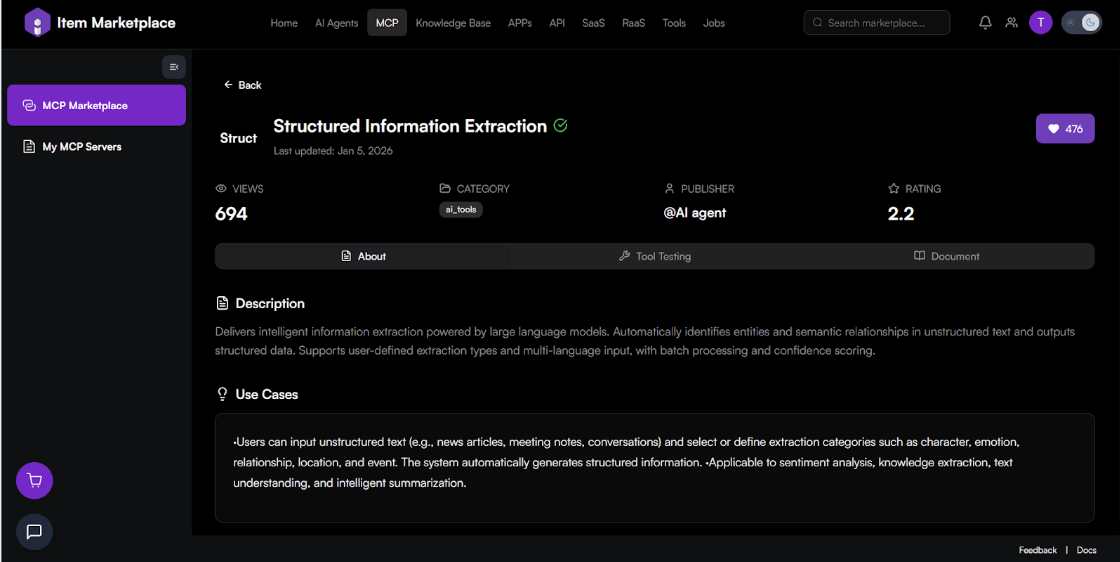
The Server Detail page provides three distinct tabs for evaluation andintegration.
About Tab
-
Description: A detailed overview of the server's function and capabilities.
-
Use Cases: Real-world examples of how the server can be applied, such as meeting note summarization or knowledge extraction.
Tool Testing Tab
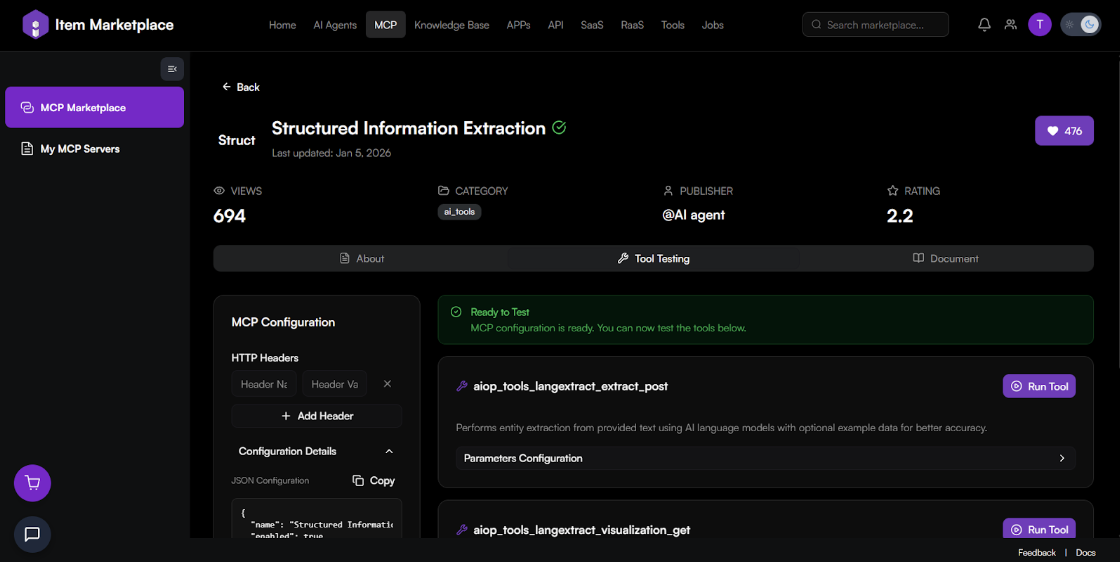
This tab allows you to verify tool functionality before adding the server to your environment.
-
Live Tool List: Displays all functions provided by the server, such as extract_post or visualization_get.
-
Parameters Configuration: Expand tools to view and configure input parameters for testing.
-
Run Tool: Execute tools directly from the interface to see live responses.
-
Quick Installation: Use one-click installation buttons for platforms like Cursor and Cherry Studio.
-
JSON Configuration: View and Copy the raw JSON setup for manual integration.
-
Custom Headers: Add HTTP Headers (Name and Value) if the server requires specific authentication.
Document Tab
-
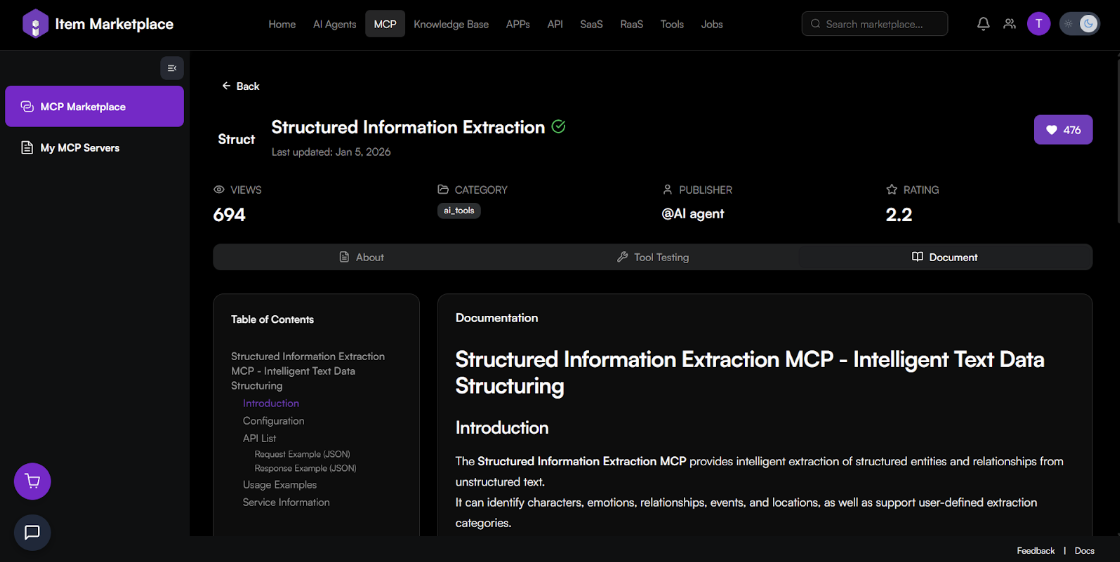
Table of Contents: Navigate through sections like Introduction, Configuration, API List, and Usage Examples.
-
API Reference: Detailed JSON examples for requests and responses to aid custom development.
Managing Connections
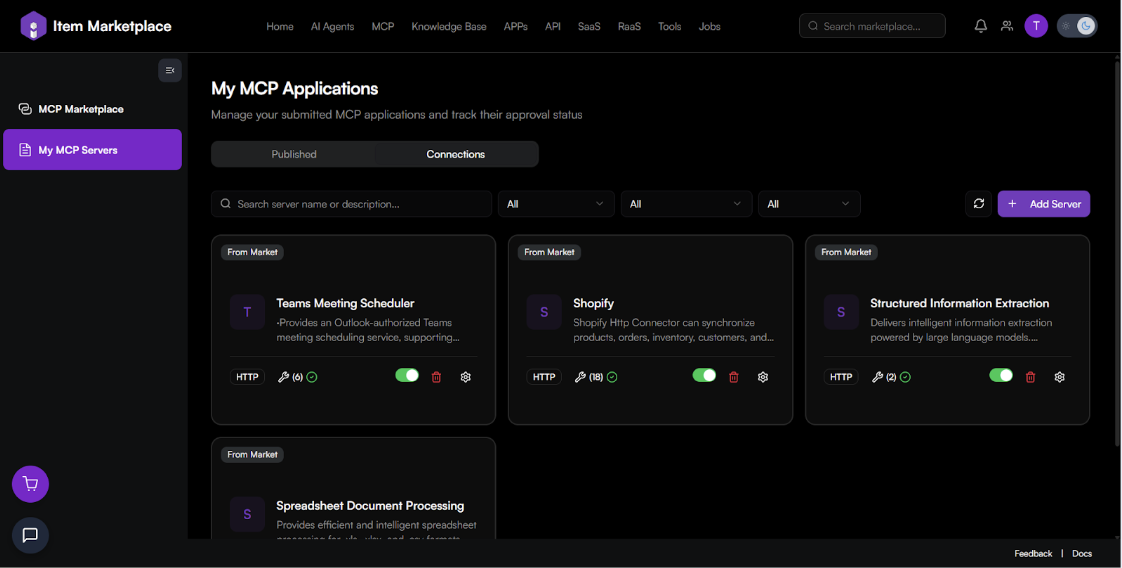
Manage your active servers in the My MCP Servers section under the Connections tab.
Adding a Custom Server
-
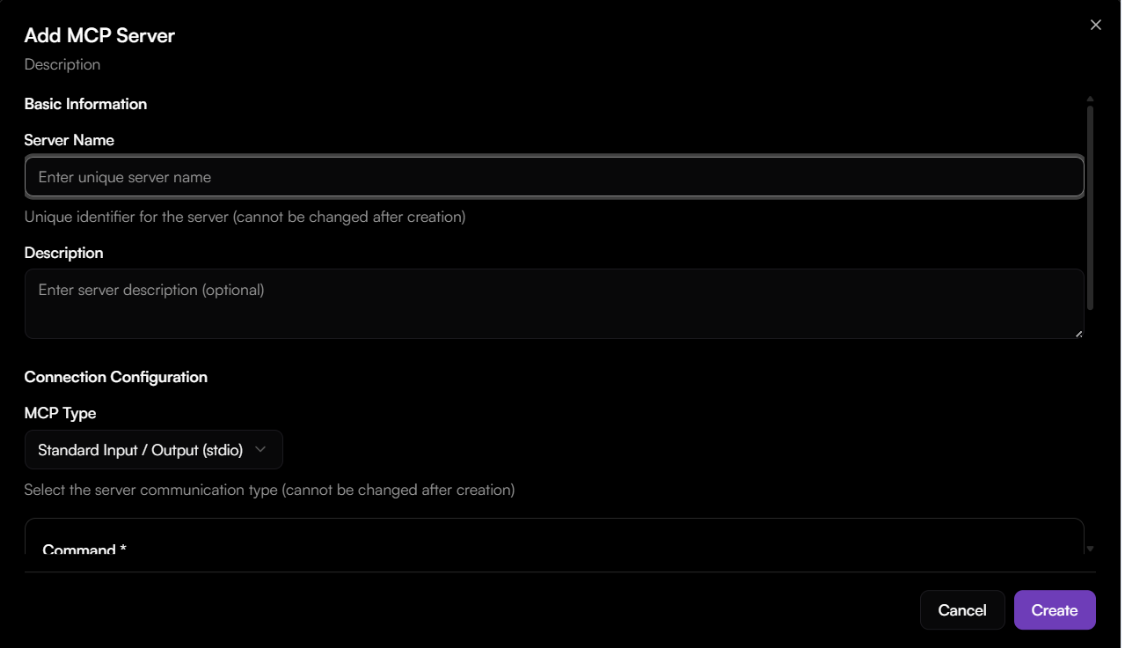
Navigate to My MCP Servers > Connections and click + Add Server.
-
Basic Information: Enter a unique Server Name and an optional Description.
-
Connection Configuration: Select the MCP Type (e.g., Standard Input / Output (stdio)).
-
Executable Command: Enter the command (e.g., npx, node, python).
-
Arguments: Use + Add Argument to include necessary flags or paths (e.g., -y, @modelcontextprotocol/server-github).
-
Environment Variables: Add secure key-value pairs like GITHUB_PERSONAL_ACCESS_TOKEN.
-
Fetch Tools: Click this button to retrieve the list of available tools from your server.
-
Enable Server: Toggle the "Enable Server" switch to make it active immediately upon creation.
Connection Management
-
Server Cards: View active connections with tags for their communication protocol (e.g., HTTP) and the total number of tools available.
-
Enable/Disable: Use the green toggle switch on the card to quickly turn a server on or off.
-
Settings & Deletion: Use the gear icon to edit configurations or the trash icon to remove a server.
Publishing to Marketplace
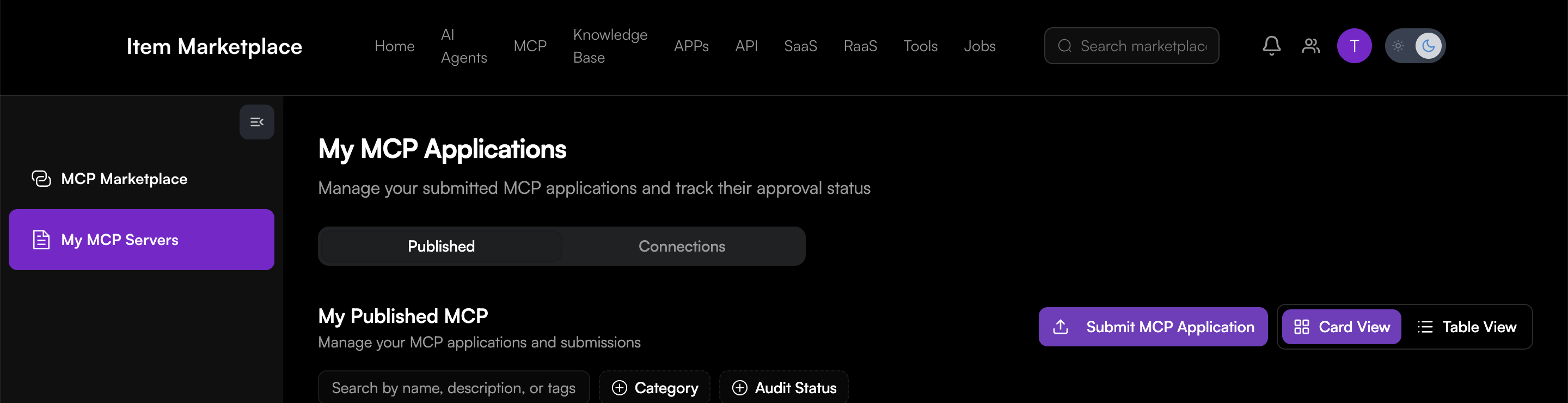
Share your MCP server with the community by submitting a formal application. You can click the Submit MCP Application on the upper right of either My MCP Marketplace or my MCP Servers.
Submission Requirements
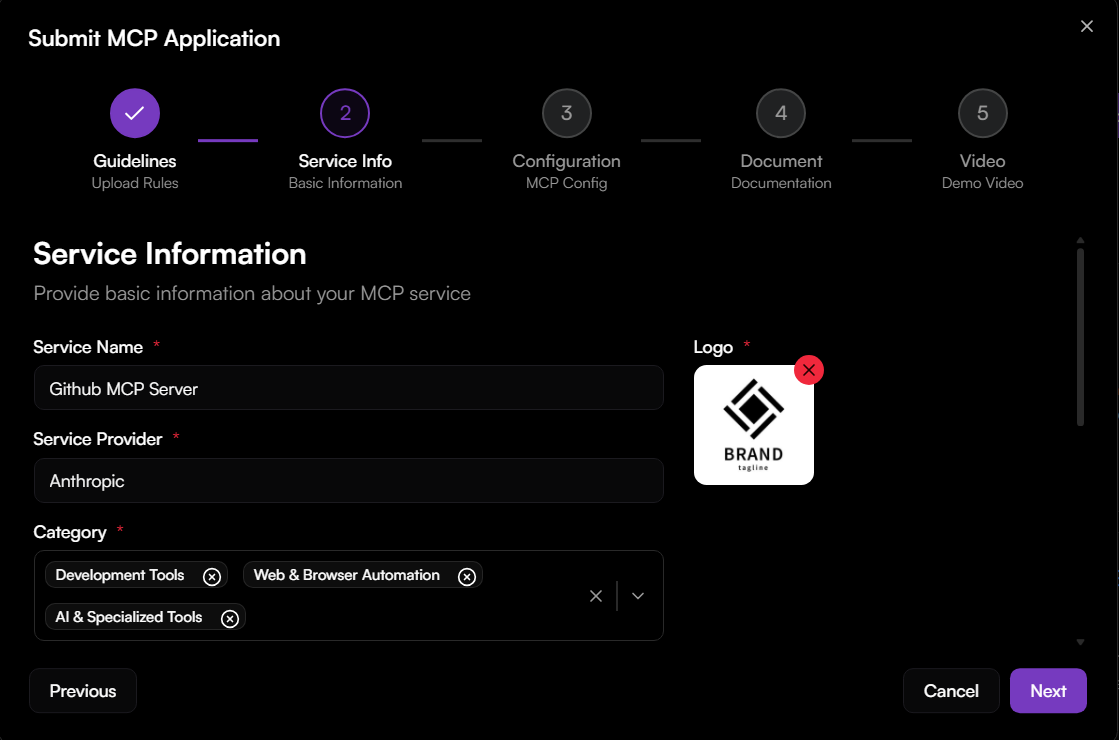
- Guidelines: Before uploading, you must meet mandatory requirements including Service Name, Service Provider, and selecting at least one of the 7 available Categories.
Workflow Steps:
- Guidelines: Read and accept the upload rules.
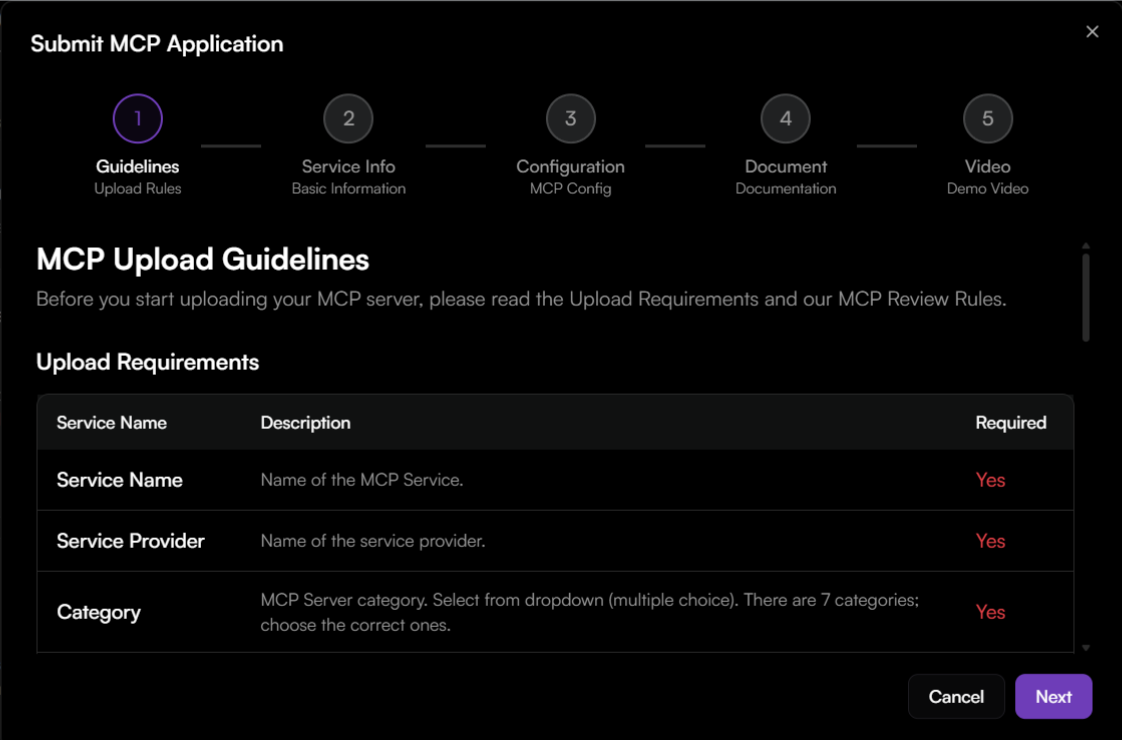
- Service Info: Provide basic server details.
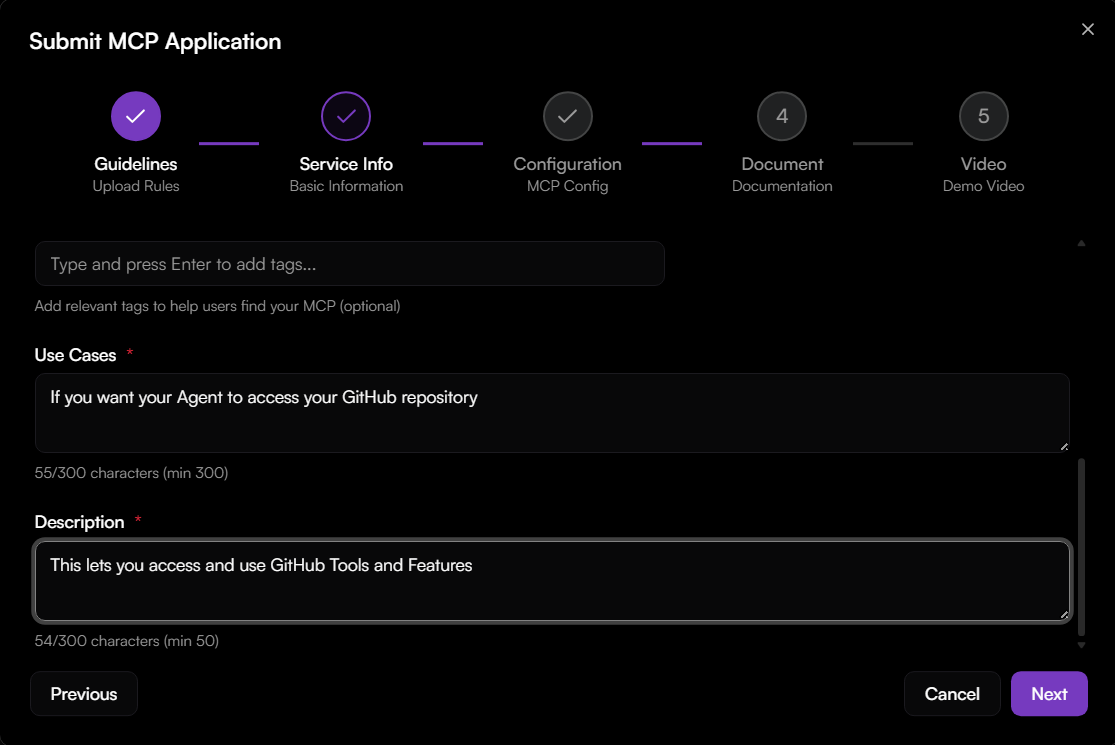
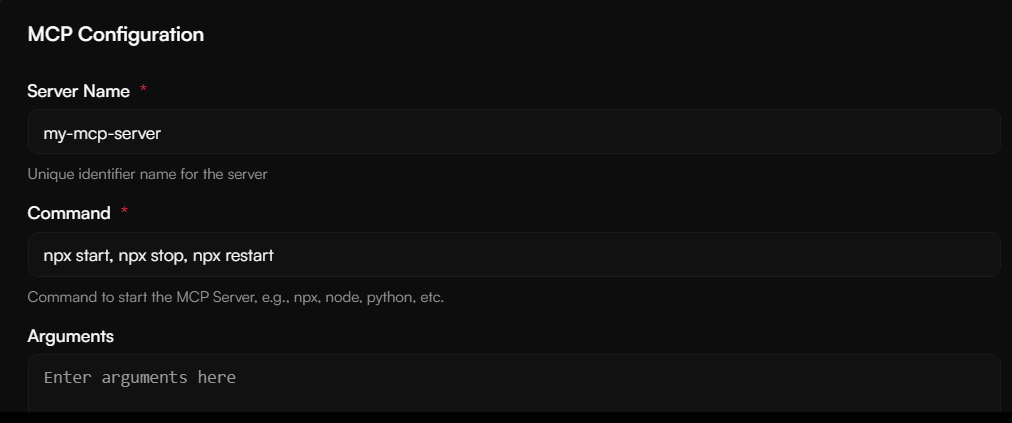
- Configuration: Define the default MCP config.
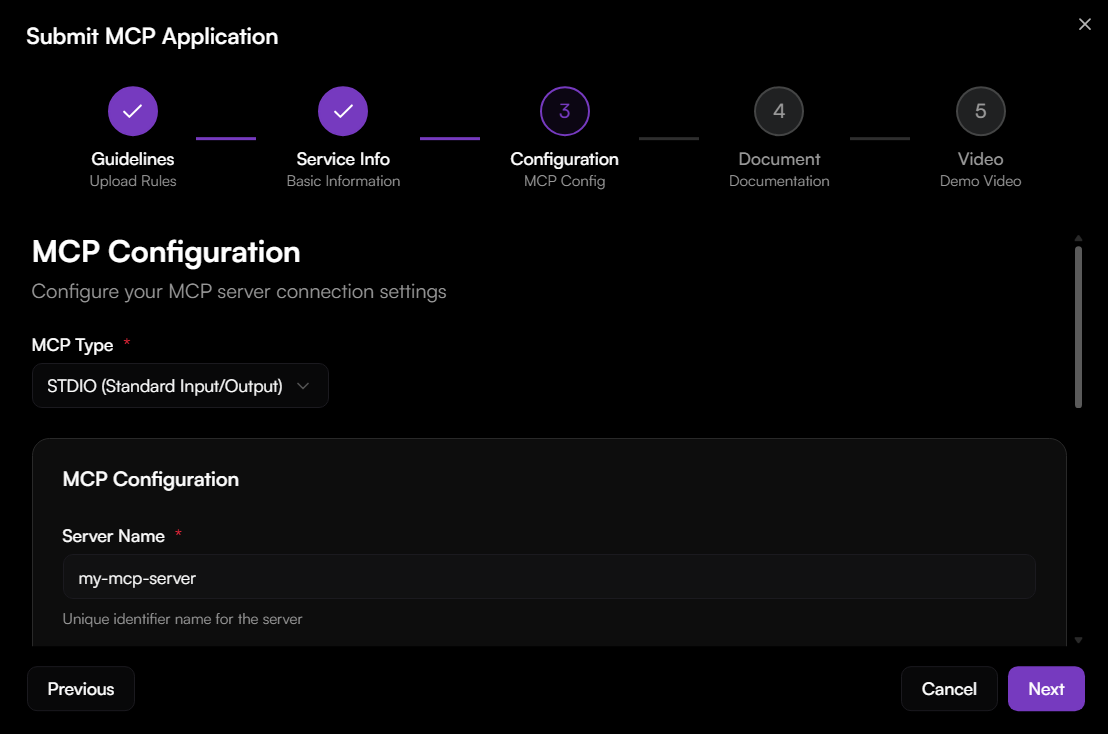
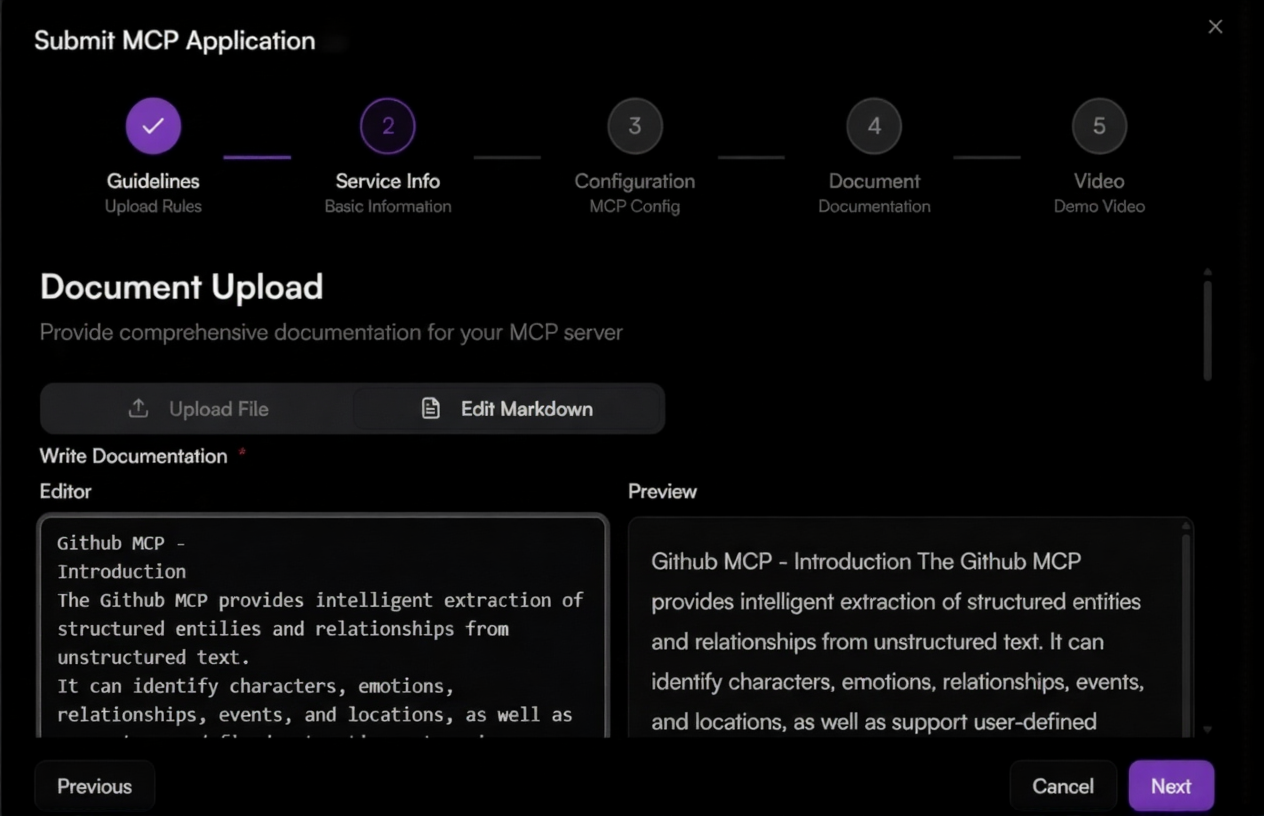
- Document: Upload technical documentation.
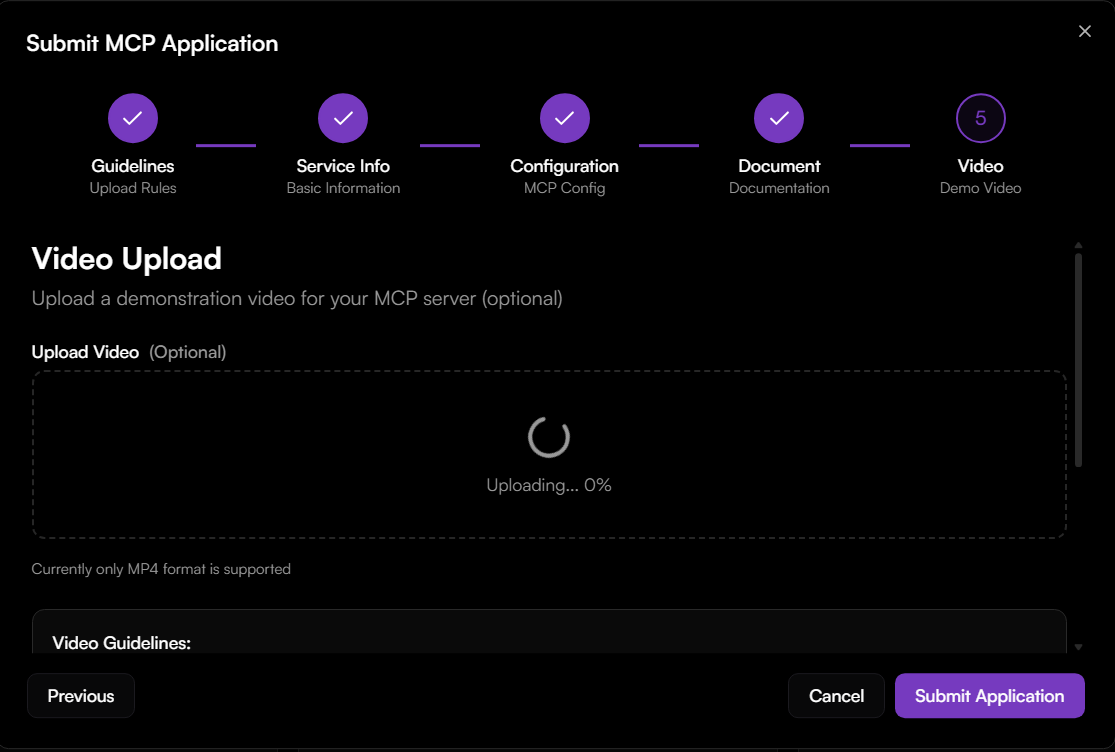
- Video: Provide a demo video of the server in action.
Tracking Applications
Track the Audit Status of your submissions in the Published tab under My MCP Applications.
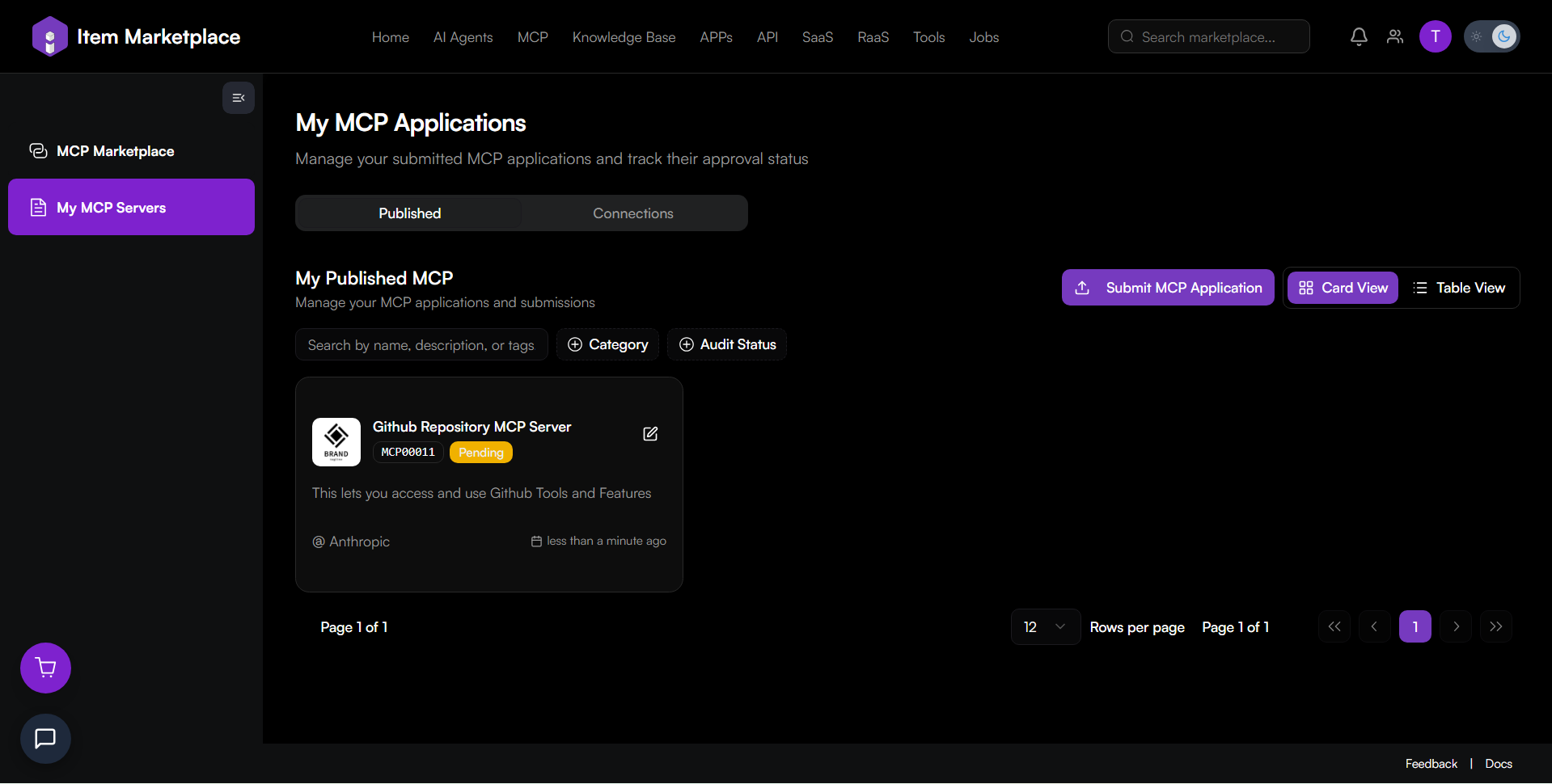
Application Status:
Pending - The submission has been received and is currently awaiting review and approval.
Approved - The submission has been reviewed and meets all approval requirements.
Rejected - The submission failed to pass the review and approval process.
Frequently Asked Questions (FAQ)
General & Discovery
Q: How many official MCP servers are currently available?
A: There are currently 26 official MCP servers provided and maintained by trusted organizations.
Q: How can I find a specific type of MCP server?
A: You can use the search bar to find servers by name or description. You can also filter the results by Categories, Prices, and Sort order.
Using & Connecting Servers
Q: What connection types are supported when adding a custom server
A: The system supports Standard Input / Output (stdio) and HTTP communication types.
Q: How do I verify that my custom server is working correctly?
A: Within the Add Server modal, use the Fetch Tools button. This will attempt to communicate with the server and retrieve a list of available tools.
Q: Can I test a server before adding it to my connections?
A: Yes, on the server's detail page, navigate to the Tool Testing tab. From here, you can configure parameters and click Run Tool to see real-time responses.
Q: Does the platform support quick installation into other AI tools?
A: Yes, the platform provides one-click installation settings for Cursor and Cherry Studio.
Managing Connections
Q: How can I temporarily stop an AI agent from using a specific server?
A: In the Connections tab, each server has a toggle switch that allows you to enable or disable it immediately.
Q: What do the numbers next to the wrench icon on my server cards mean?
A: This number indicates the total number of tools provided by that specific server (e.g., "(18) Tools").
Developer Submissions
Q: What information is mandatory for submitting a new MCP application?
A: You must provide a Service Name, Service Provider, and at least one Category.
Q: What are the steps involved in the submission process?
A: The process consists of 5 stages: Guidelines, Service Info, Configuration, Document (technical guide), and Video (demo).
Q: Where can I track the status of my marketplace application?
A: Navigate to My MCP Servers > Published to view your submissions and their current Audit Status.