Deallocate Order
You can manually deallocate orders to pull an entire order or specific sub-orders back from their assigned warehouse. This stops the fulfillment process at the warehouse without canceling the actual sales order. Once you deallocate, the items are unlocked, allowing you to assign them to a different warehouse or fix inventory issues. Use this feature when:
- An order or sub-order needs to be released from the assigned warehouse
- Inventory needs to be adjusted before fulfillment
- The original warehouse cannot fulfill the order
- The order requires reallocation due to system, stock, or warehouse issues
Deallocate an order
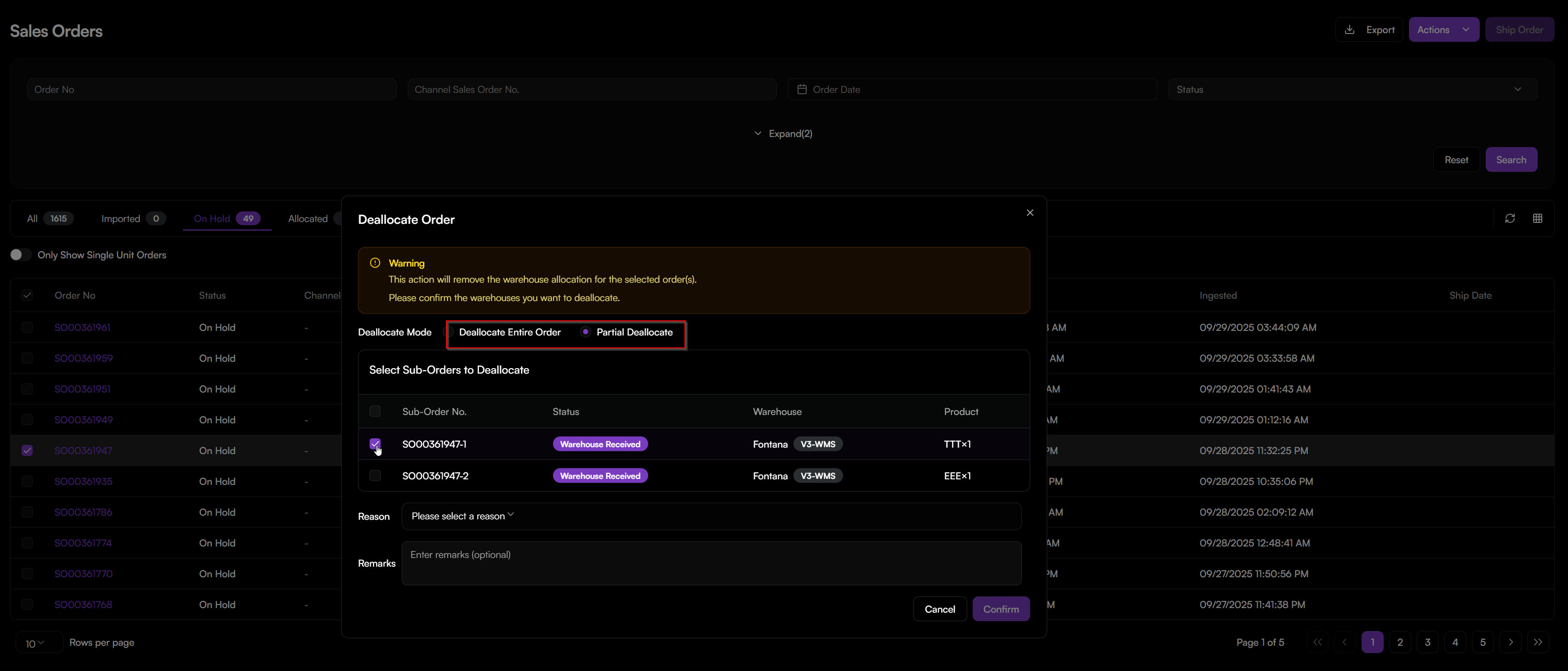
- Go to Sales Orders > Sales Orders.
- Check the box for the order you want to release.
Note: This action is available only when the order or sub-order status is Allocated, Warehouse Processing or On Hold.
- Click the Actions menu and choose Deallocate Order.
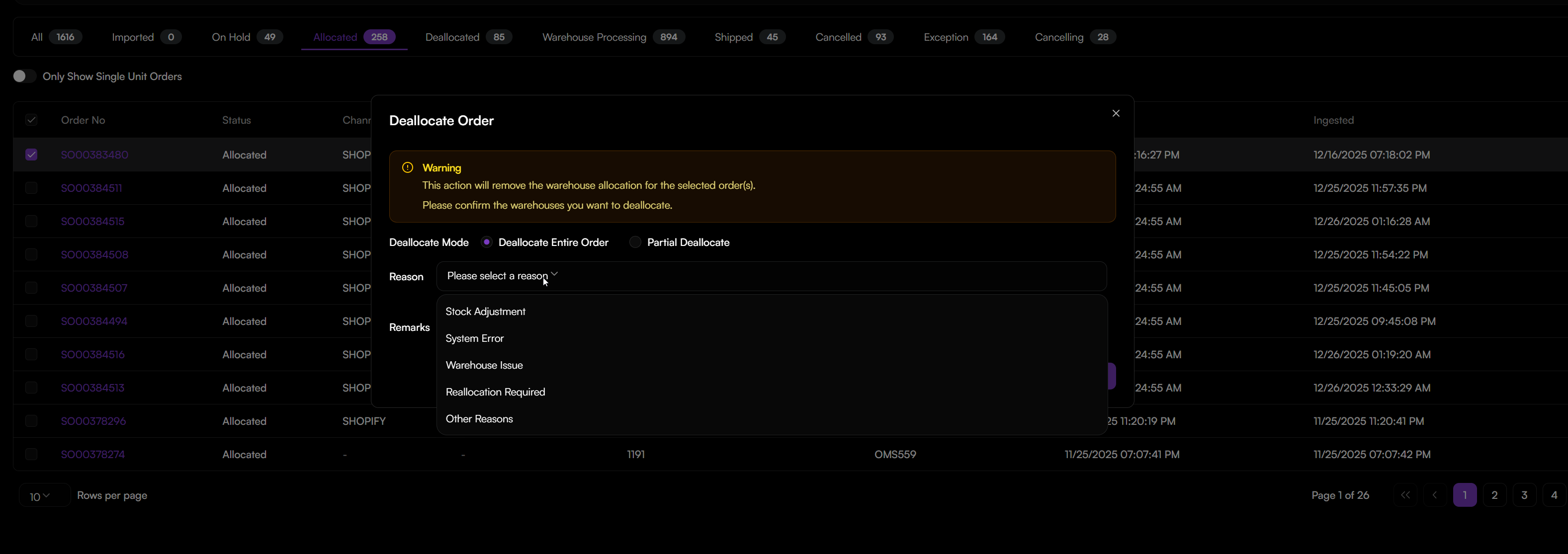
- Choose one option (Entire Order Deallocation or Partial Deallocation).\nEntire Order: Pulls back every item in the order that hasn't shipped yet. Partial: Choose specific items to pull back while leaving the rest of the order at the warehouse.
- Select a Reason from the menu (Stock Adjustment, System Error, Warehouse Issue, Reallocation Required, Other Reasons).
- (Optional) Add a Remark if you want to explain why you are doing this for the record.
- Click Confirm.
After submission, the order will enter to either Cancelling or Cancelled status from the WMS system's view.
- Cancelling: Waiting for the downstream WMS system to confirm the cancellation.
- Cancelled: The order has been successfully cancelled by WMS.