Self-Service User Registration SOP
This platform supports an efficient self-registration process, enabling users to independently join their respective organizations and access the platform, thereby minimizing administrative intervention. This manual provides detailed instructions on the registration workflow and related specifics.
Registration Types
The platform supports two types of user registration:
-
Individual User (C-end User): Free registration without joining an organization, suitable for personal or trial use.
-
Enterprise Tenant User: Created or joined under an organization for team collaboration and unified billing.
Registration Scenarios & Flow
Scenario A: Individual User Registration
Applicable for users looking to explore platform features independently without enterprise management requirements.
-
Go to Item Marketplace, then click on Sign In on the top right corner.
-
Click on Sign up on login page.
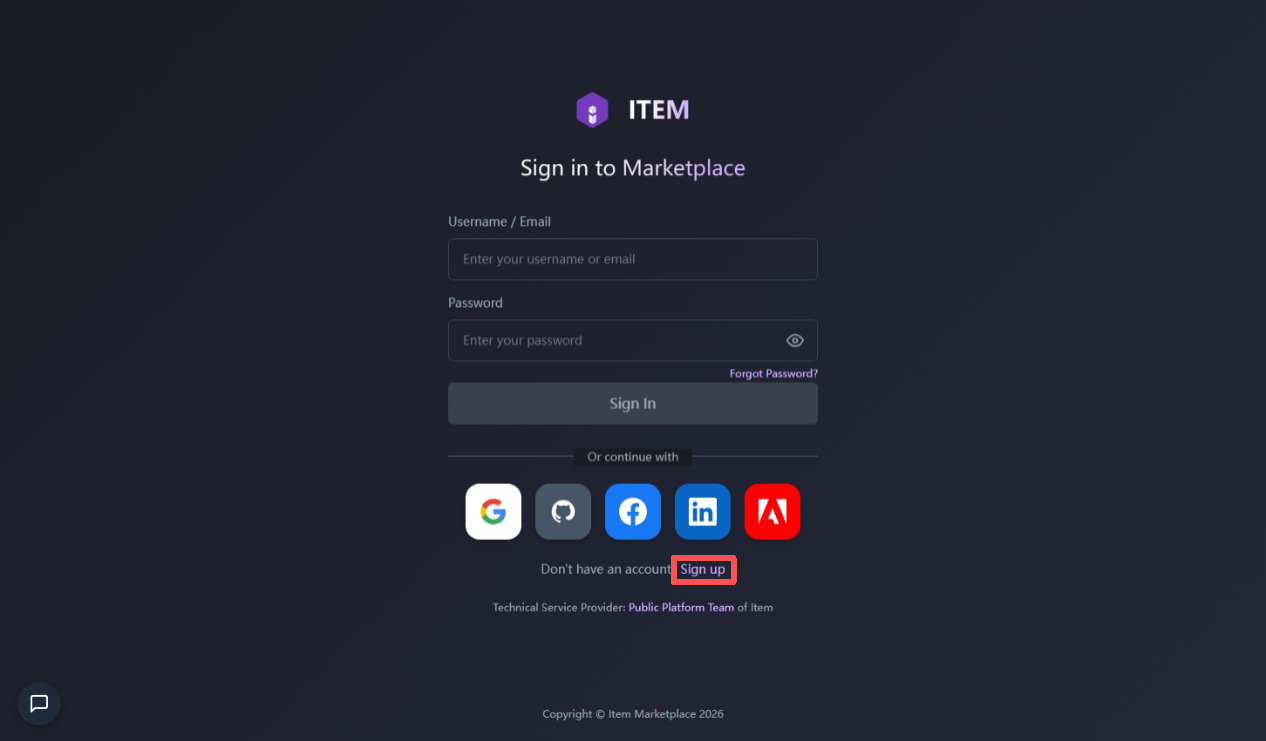
- Fill in Email Address, User Name, First Name, Last Name, Password and Confirm Password.
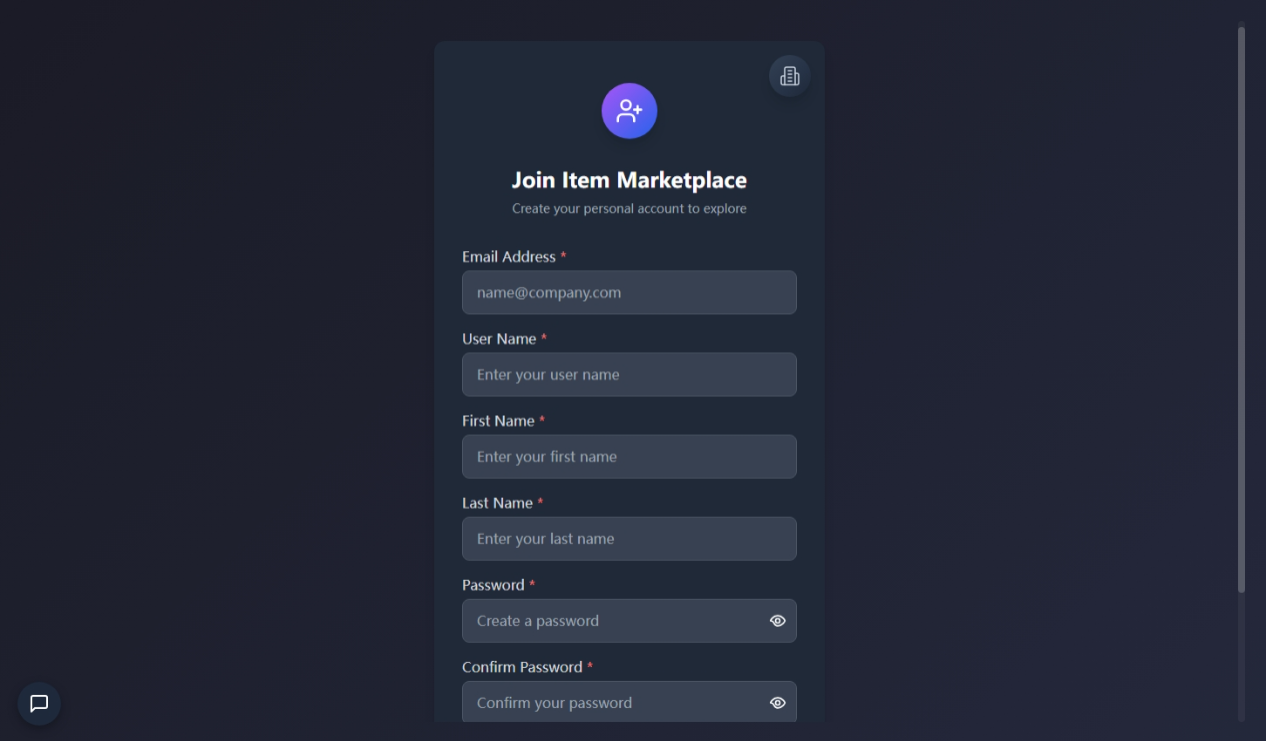
- Then, click on Continue button.
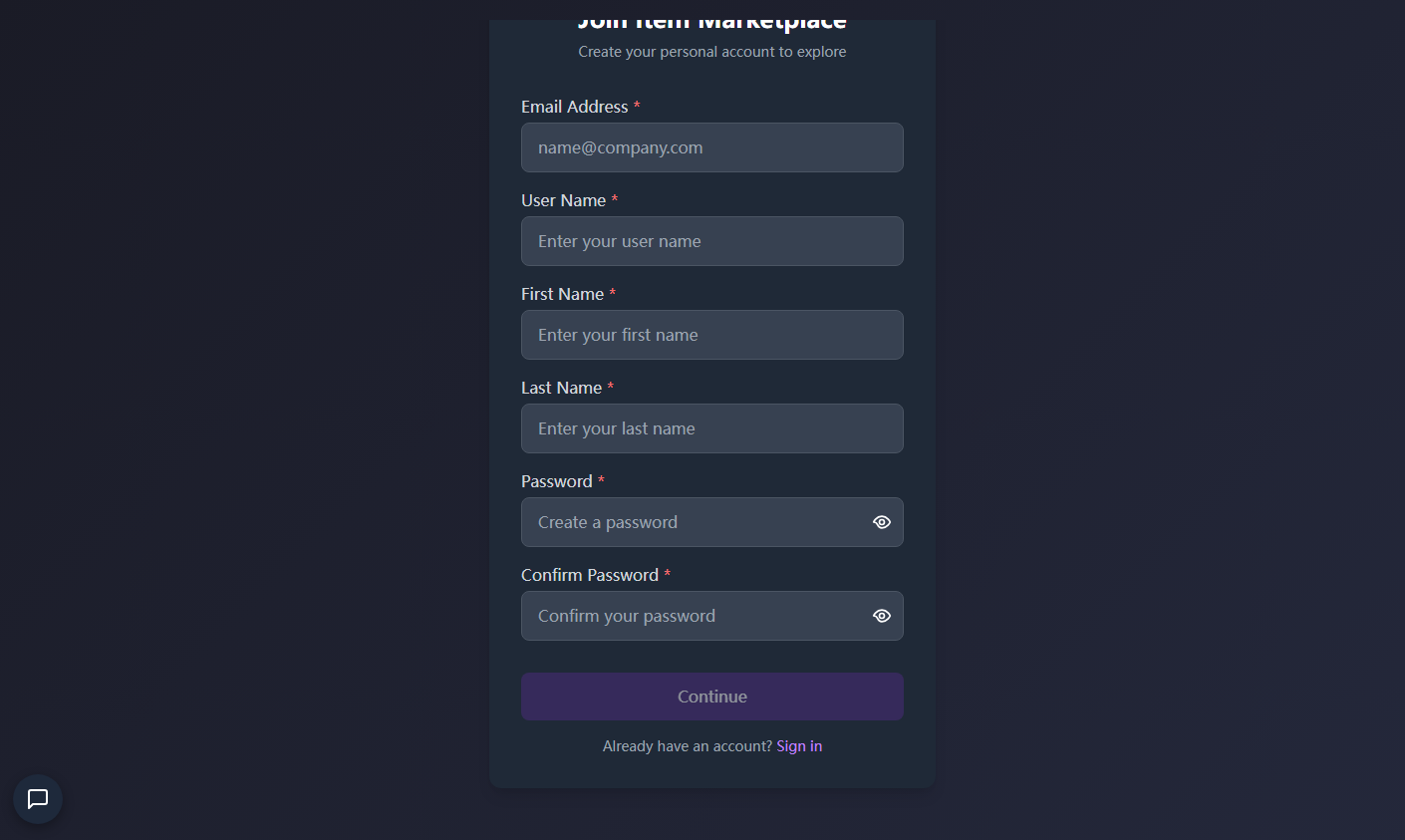
- Enter the 6-digit to complete email verification.
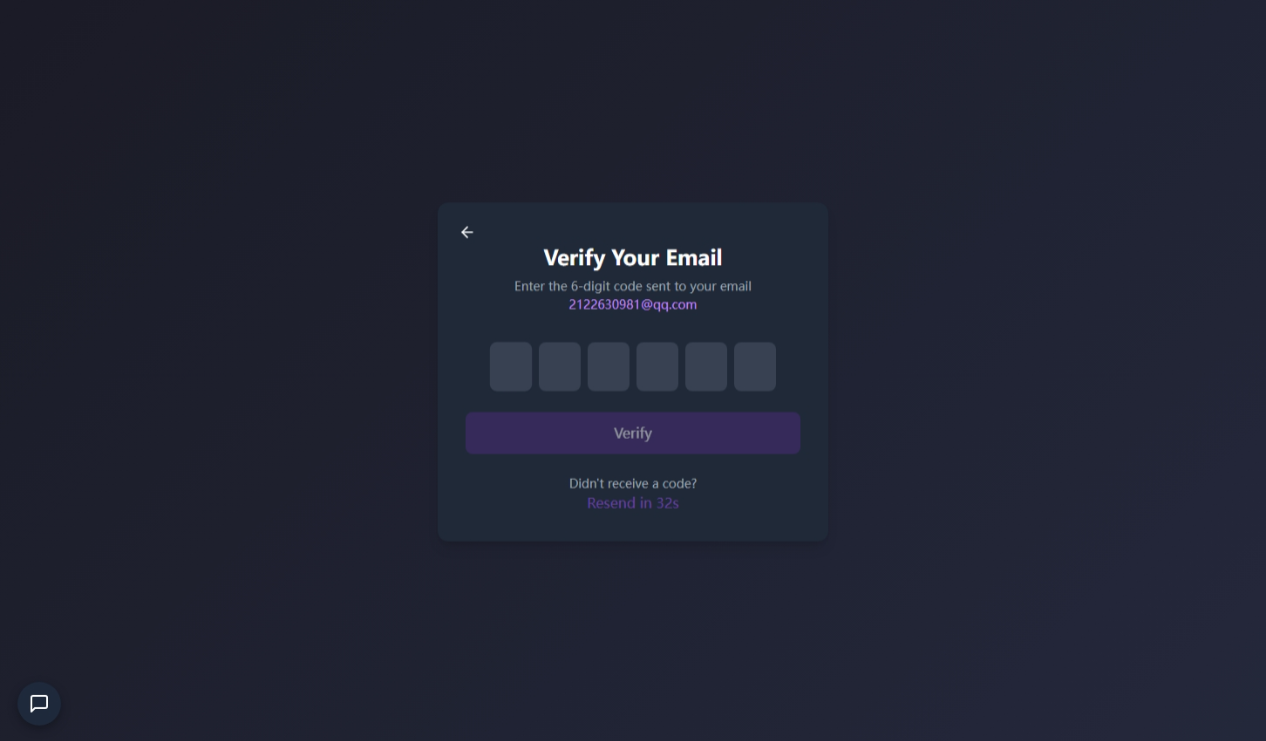
- The account has been created and you can click Sign In to explore Item Marketplace.
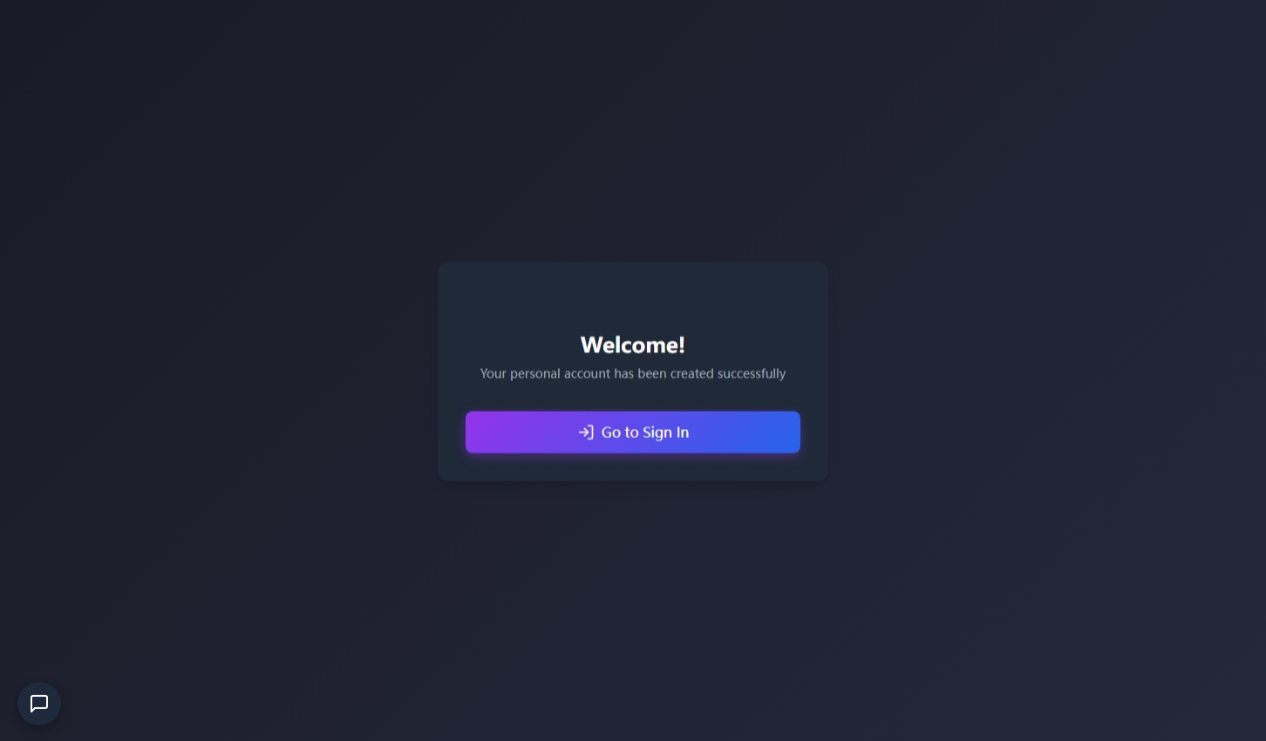
Scenario B: Join to An Existing Organization
Applicable if your company already has a tenant in the Marketplace and you need to join that specific organization.
-
Go to Item Marketplace, then click on Sign In on the top right corner.
-
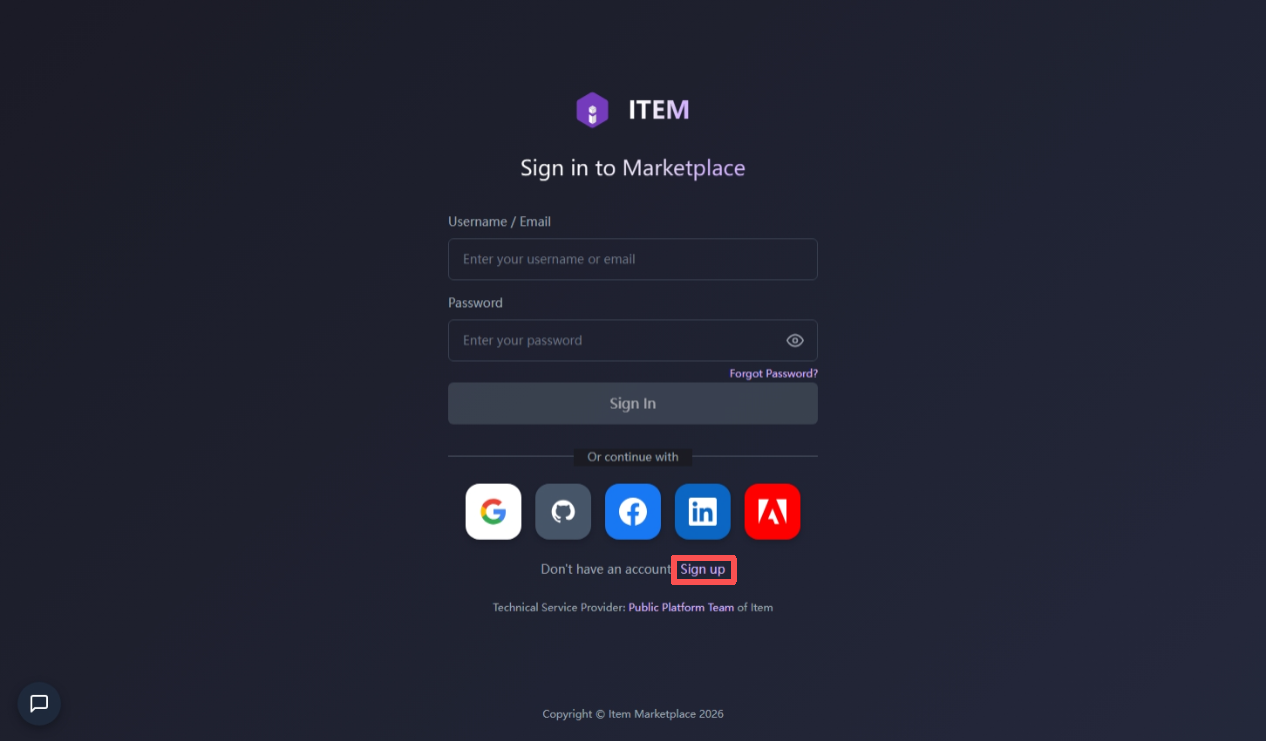
Click on Sign up on login page.
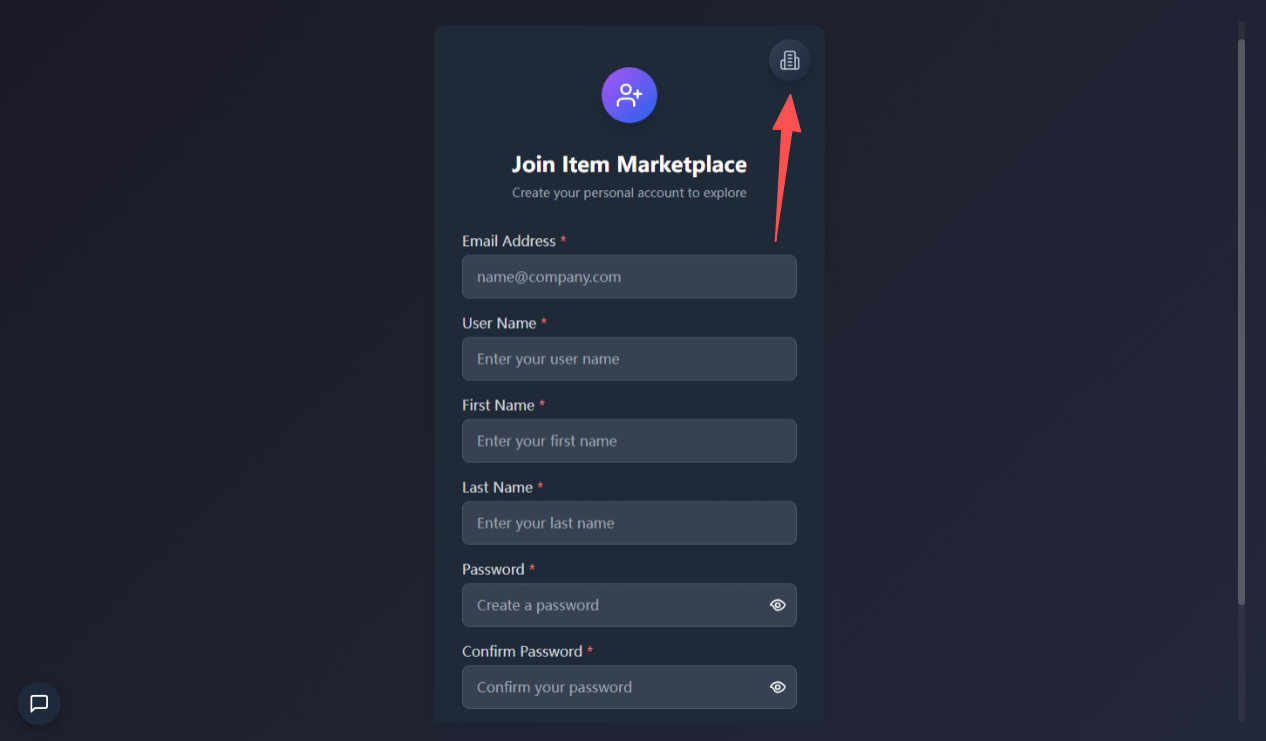
- Click the entry link on the top right corner.
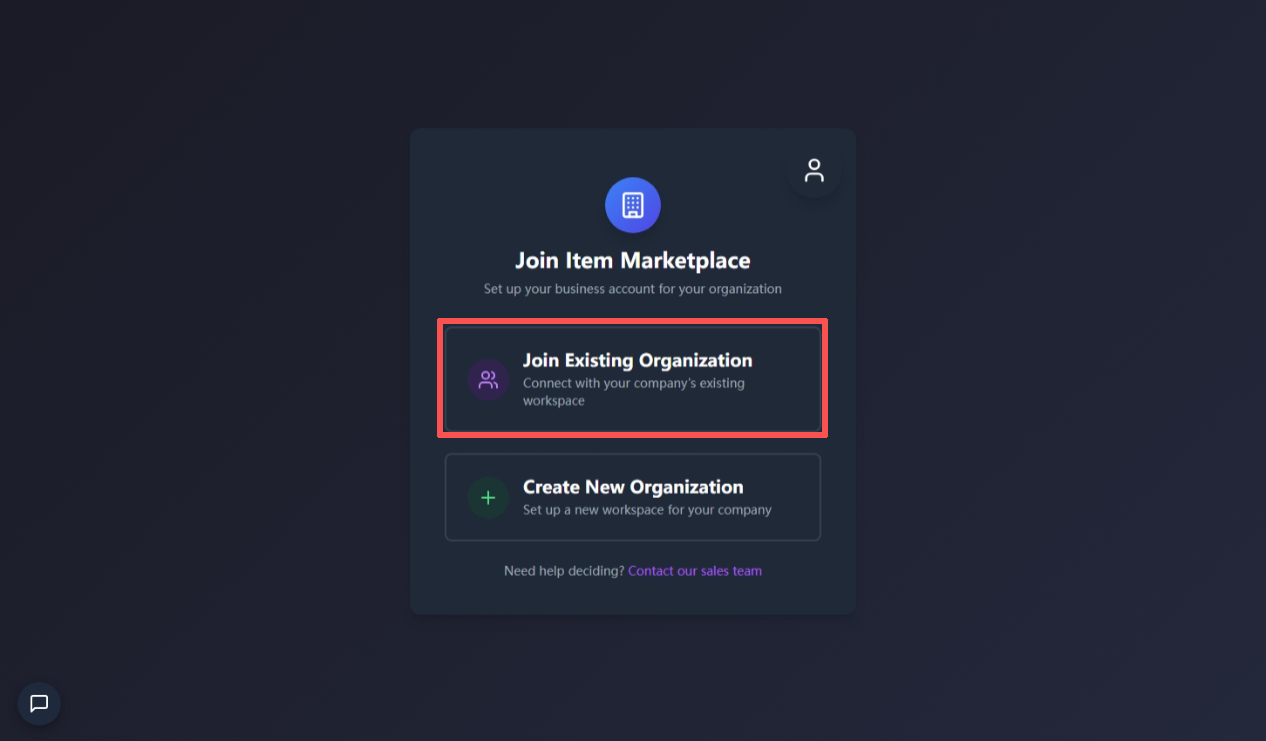
- Select Join existing organization.
-
Fill in Email Address, User Name, First Name, Last Name, Password and Confirm Password.
-
Then, click on Continue button.
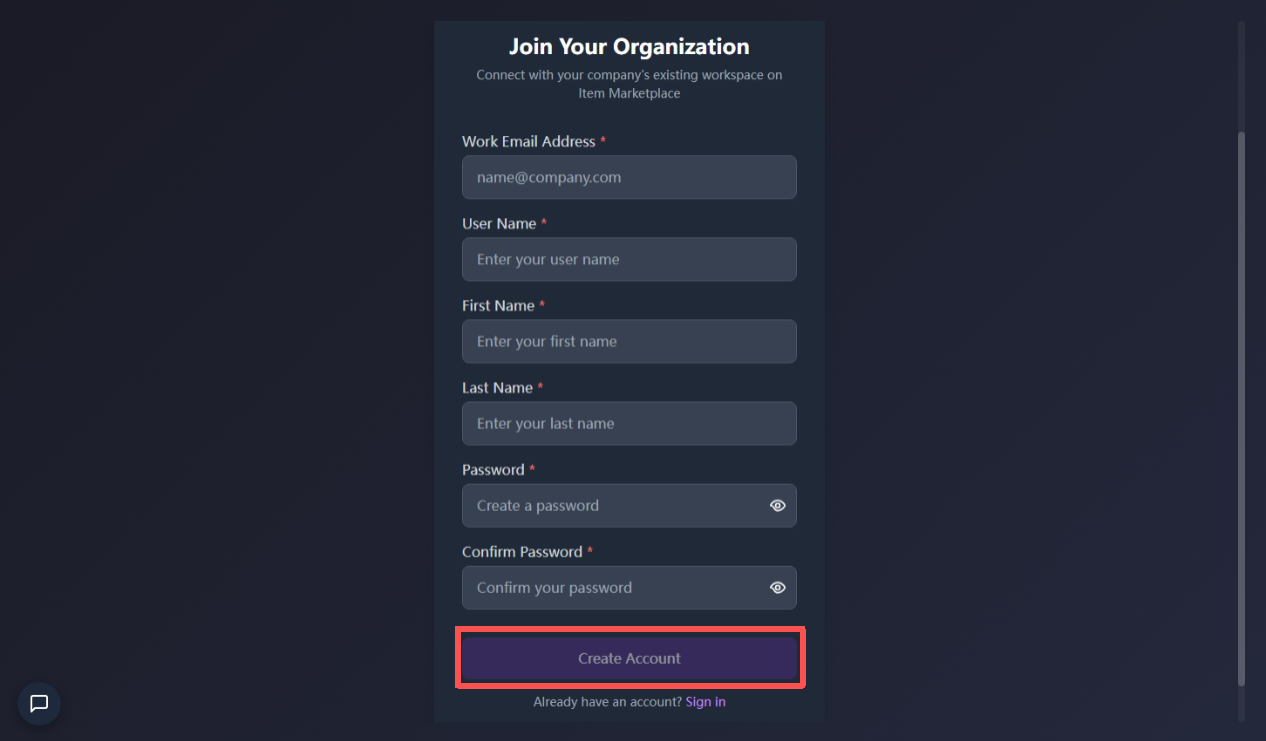
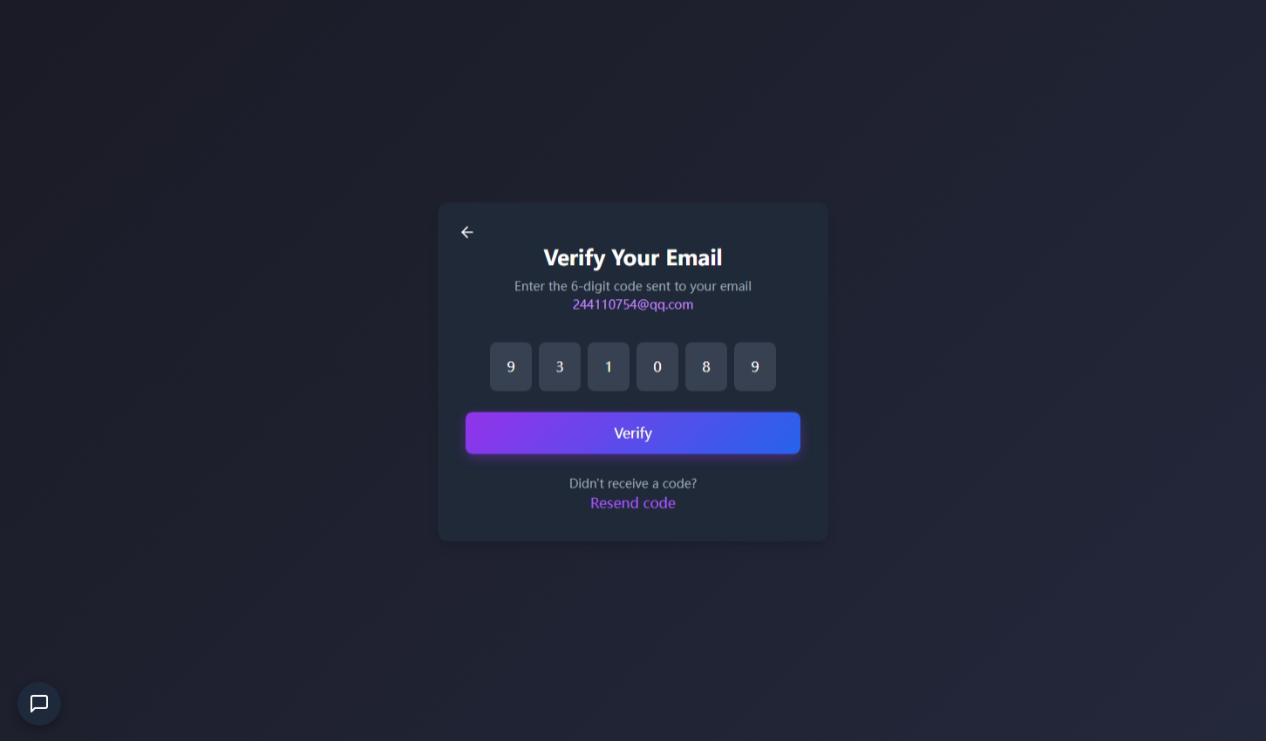
- Enter the 6-digit to complete email verification.
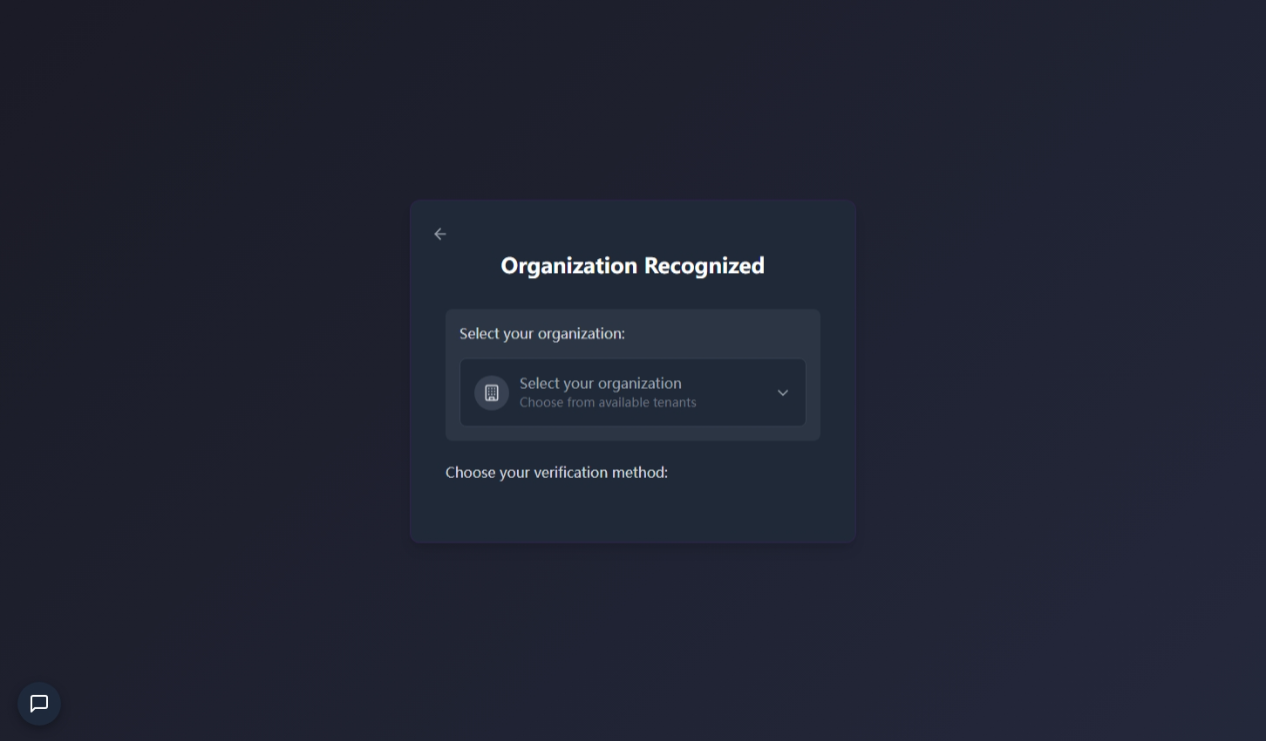
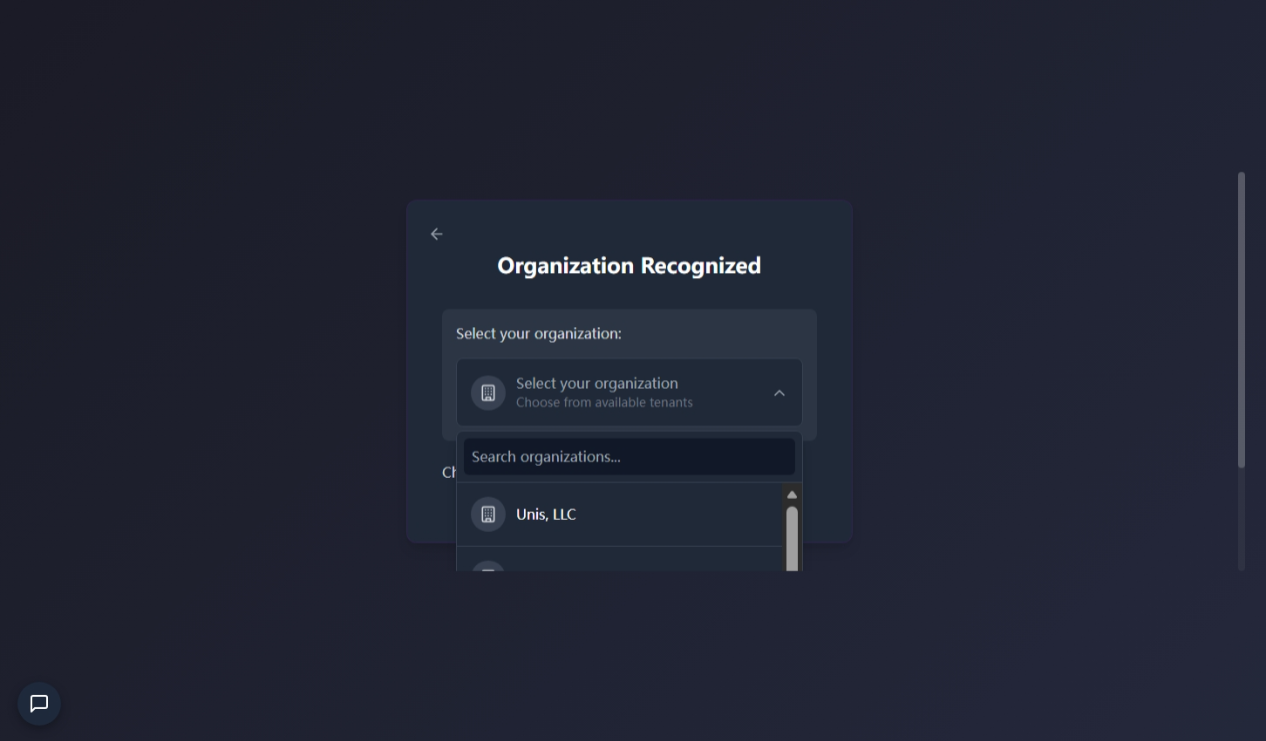
- Search for your company in the input box or select it from the dropdown list.
-
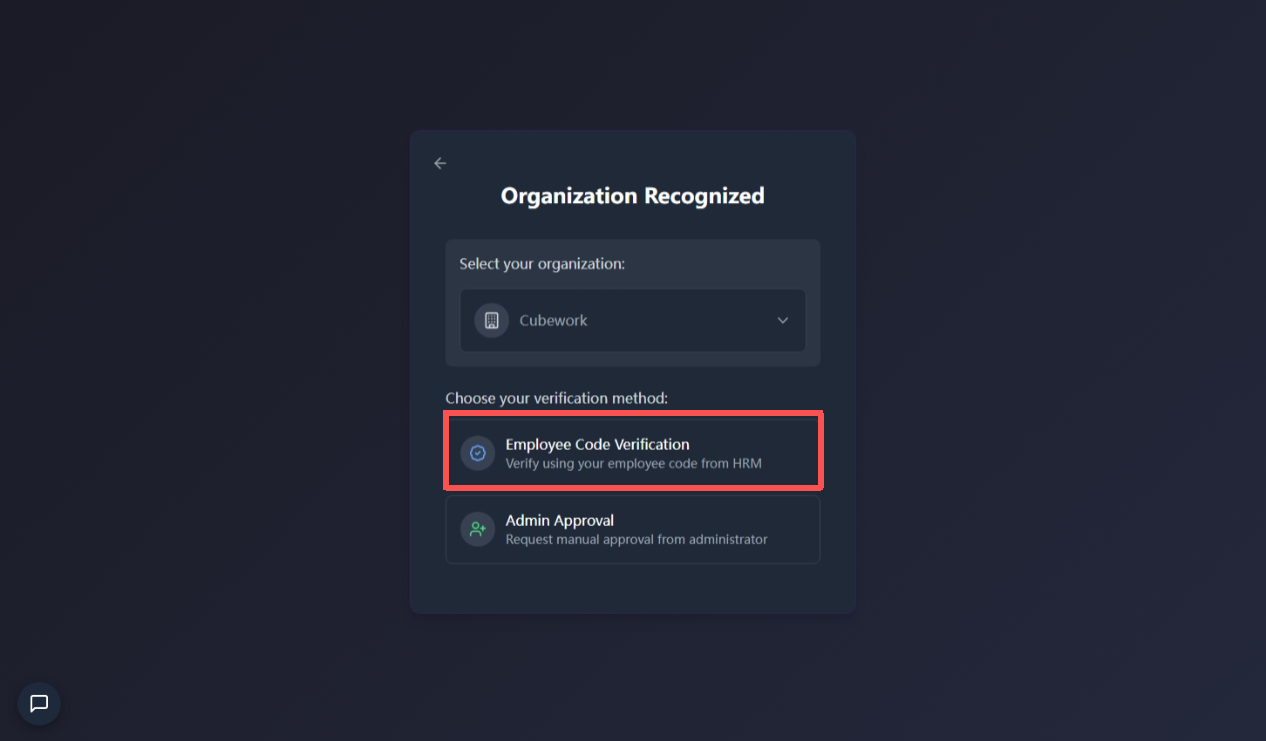
Choose one of the following methods to complete the registration:
A.
(1) Choose Employee Code Verification.
(2) Enter the code provided by your company, and click Verify to join.
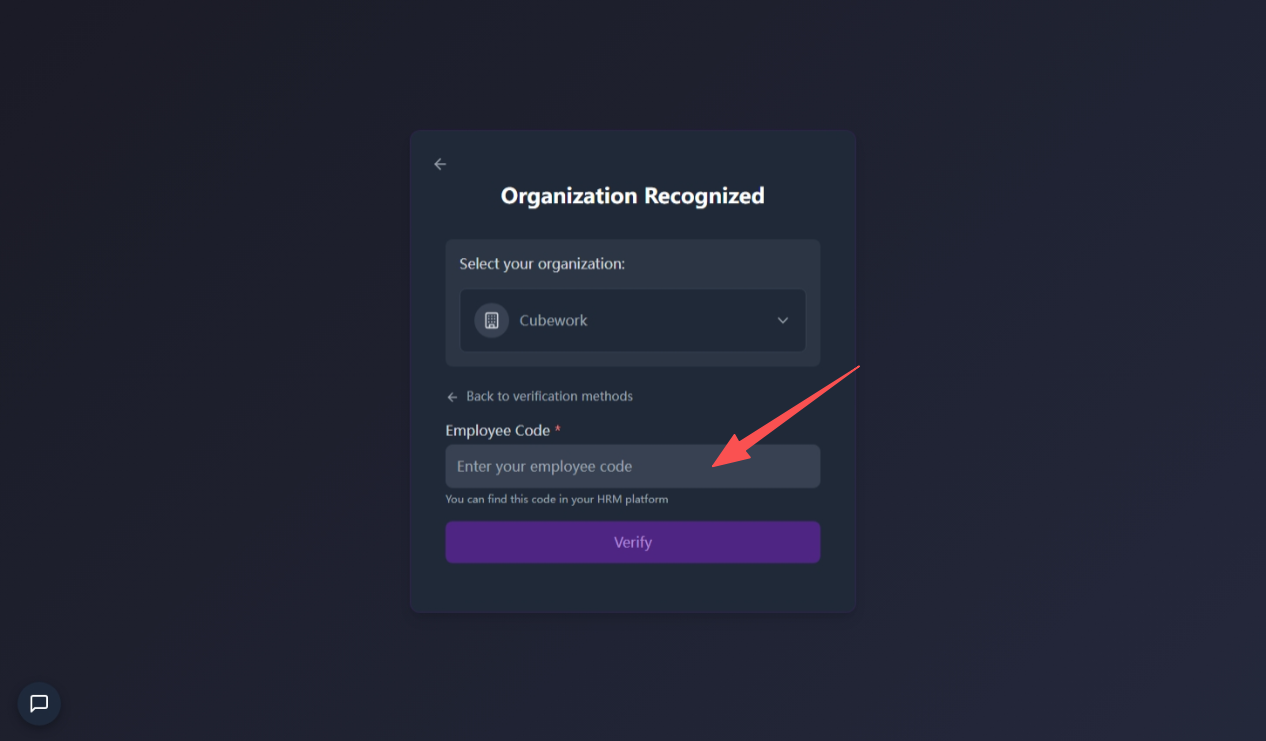
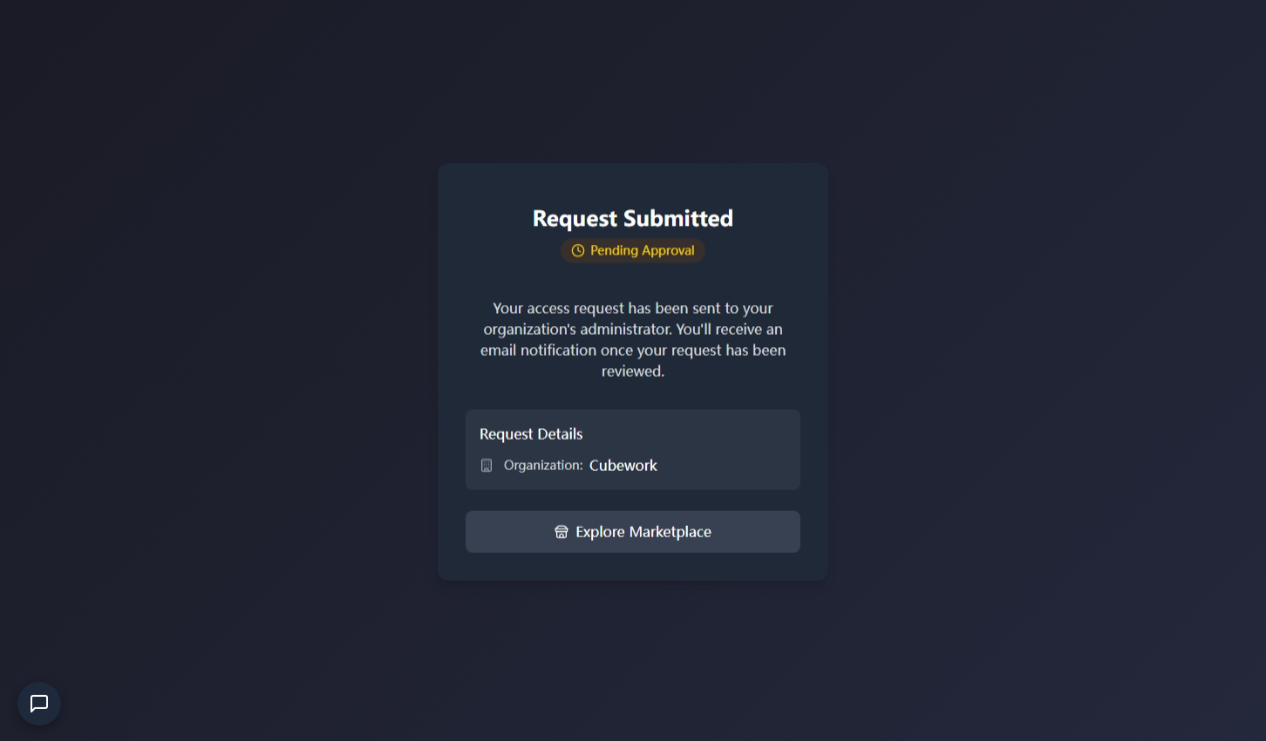
(3) The access request will be sent to your organization's administrator, please wait for the approval.
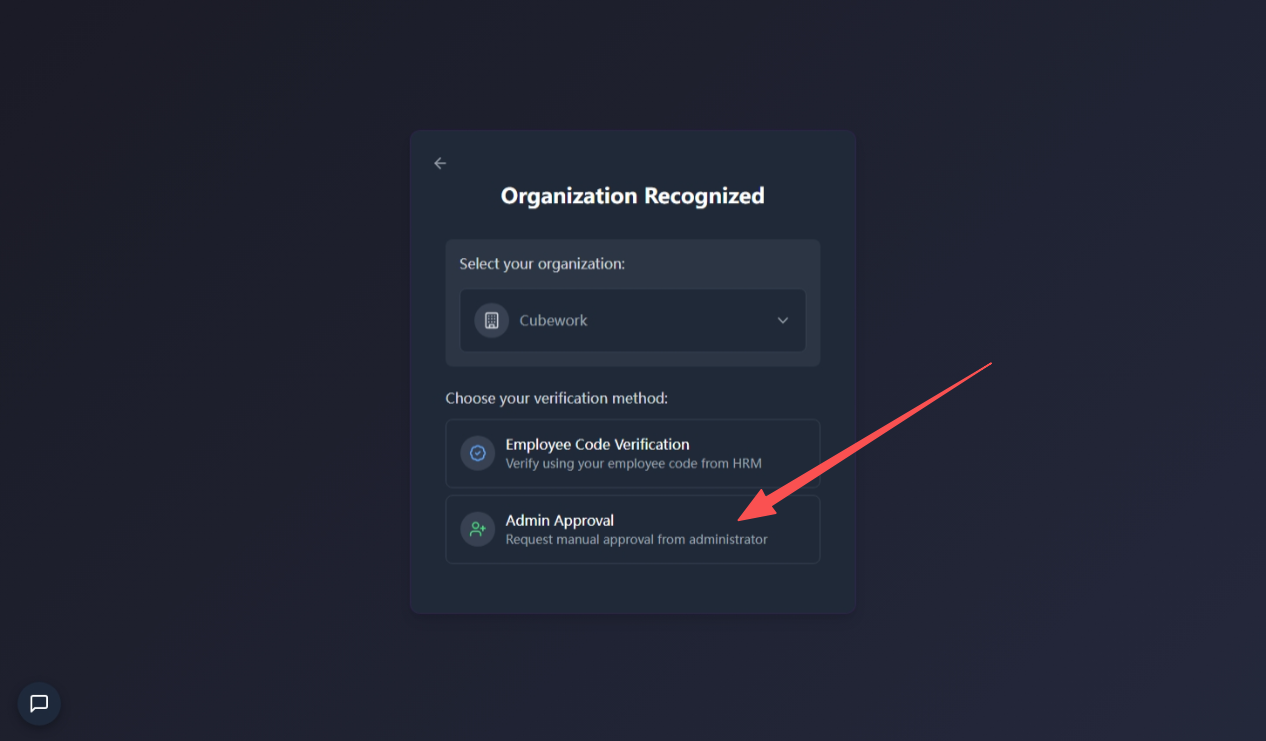
B.
(1) Click Admin Approval.
(2) Fill in the Request Note, and click Send Request.
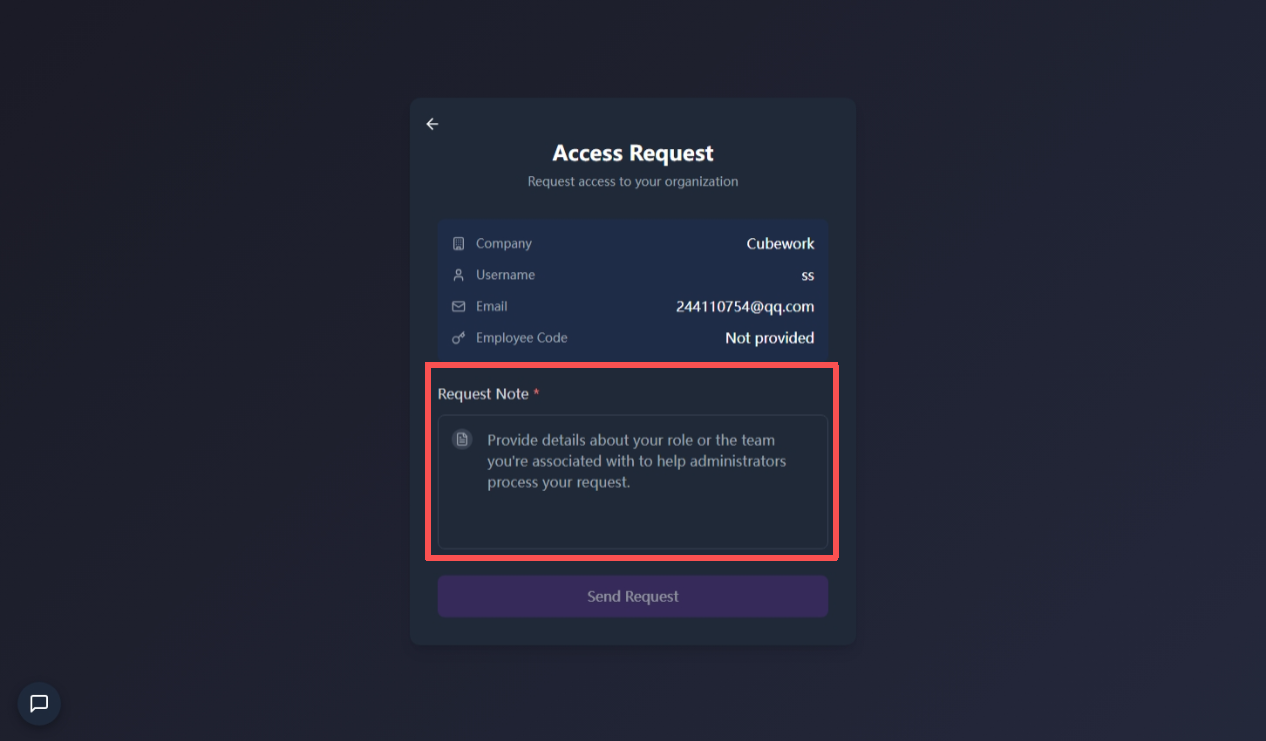
(3) Wait for administrator review.
Approval Results & Notifications
For users applying to join an enterprise organization, the outcomes are as follows:
-
Approved: The user will receive a confirmation message and gain access to the organization's modules within the platform.
-
Rejected: The user will receive a rejection notification. If there are any questions, please contact your Organization Admin or the Support Team for further assistance.