Location Management
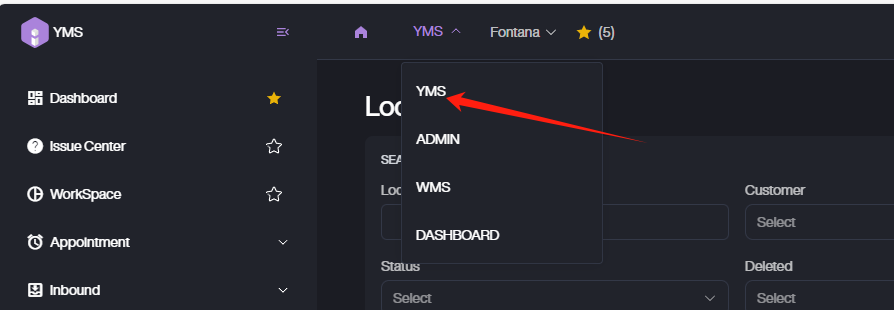
Click the top switch to select YMS. From the left menu, go to Locations to open the Location Management page. Here, you can view, create, edit locations in the yard.
Search

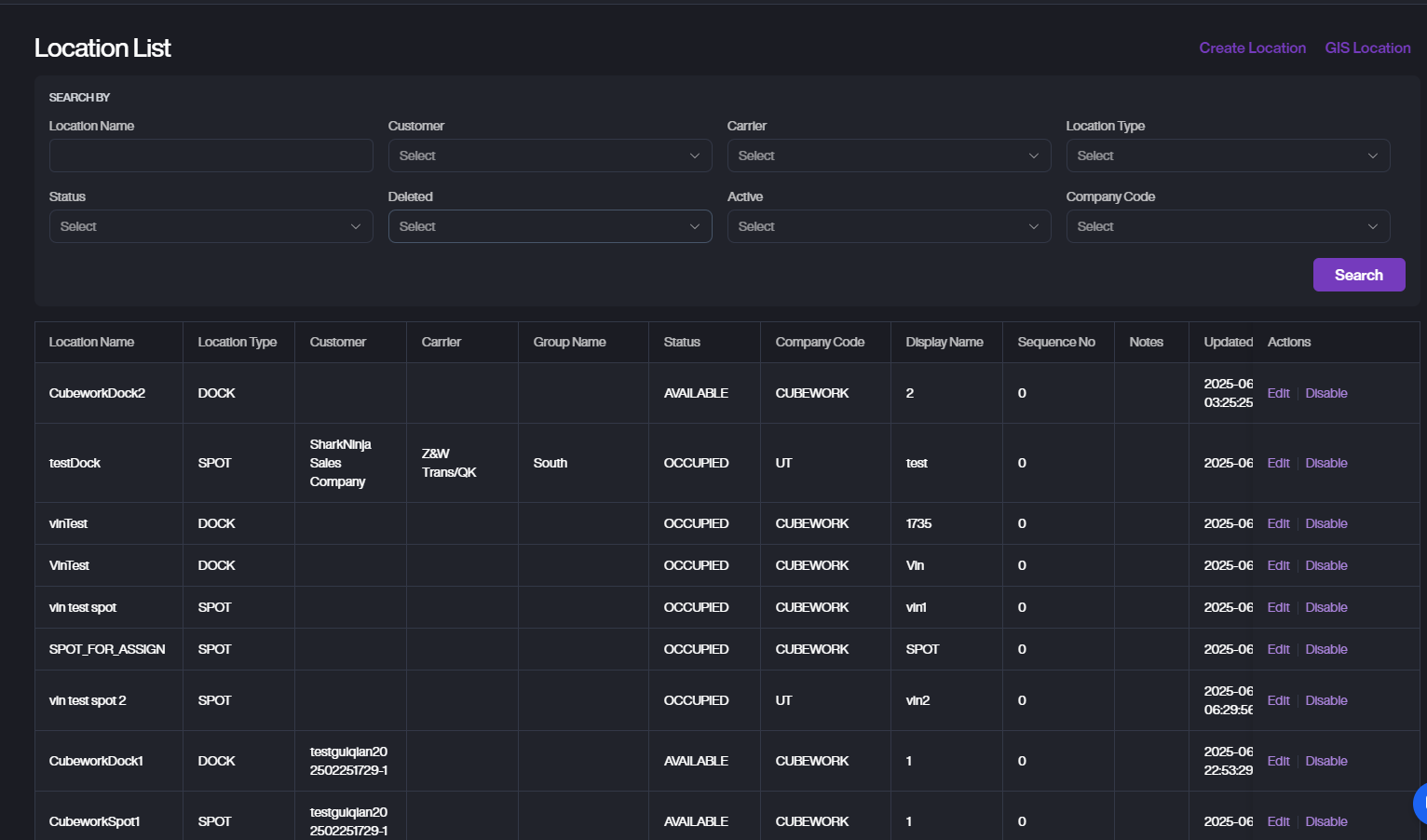
You can search using:
-
Location Name
-
Customer
-
Carrier
-
Location Type
-
Status
-
Deleted
-
Active
-
Company Code
Create Loctaion
-
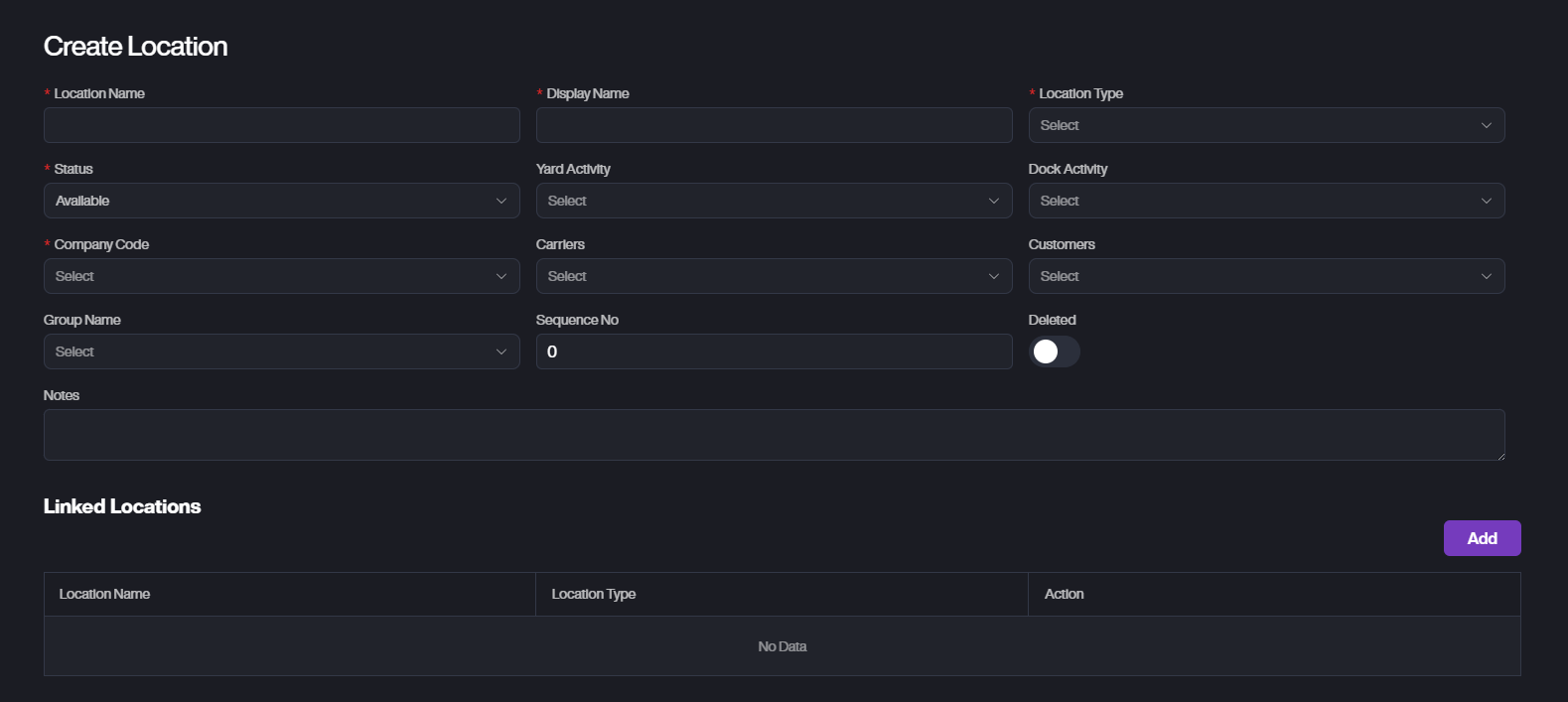
On the Location Management page, click Create Location.
-
Fill in the required fields.
-
Location Name: Enter the name of the location.
-
Display Name: Enter the display name for the location.
-
Location Type: Choose the location type from the dropdown, dock or spot.
-
Status: Select the location status (e.g., Available/Occupied/Assigned).
-
Yard Activity: Select the dock activity, Drop Off Empty/Drop Off Full/Pick Up Preload/Pick Up Empty/Parking/Shared(if applicable).
-
Company Code: Choose the Cubework.
-
Dock Activity: Select the dock activity (if applicable).
-
Carriers: Select associated carriers (optional).
-
Customers: Select the customers associated with the location, (optional). If no customers are selected, the location will be open to all customers and unknown vehicles.
-
Sequence No: Enter the sequence number (optional).
-
Deleted: Toggle if the location is deleted (optional).
-
Notes: Add any relevant notes (optional).
-
-
In the Linked Locations section, click Add to link additional locations, if needed.
-
In the Dynamic Field section, fill in any additional fields (DockID, Offload Type, etc.) as required for the location.
-
Click Create to save the location.
-
If you do not want to save the changes, click Cancel to exit without saving.