Allocate Order
Use this manual allocation action to handle exceptions or when orders require specific warehouse routing that differs from standard automated rules.
Prerequisites
Before manually allocating an order, ensure the following conditions are met:
- Inventory Availability: Verify that the required items have sufficient on-hand inventory in the target warehouse. Navigate to Inventory > Warehouse/Inventory to review stock levels.
- Order Status: Only orders in a pre-processing state are available for manual allocation: Imported, On Hold, Deallocated or Exception.
Note: Partial allocation is not supported. All unfulfilled items in a single order must be allocated in a single operation.
Allocation Methods
You can allocate orders using either a single warehouse for the entire order or specific warehouses for individual SKUs.
To allocate a sales order:
- Navigate to Sales Orders > Sales Orders.
- From the list, select the checkbox for one order.
- Click the Actions menu and select Allocate.
- In the Allocation window, select one of the following methods:\nWhole Order Allocation: Assigns all unfulfilled items to a single warehouse. SKU-Based Allocation: Assigns specific warehouses to individual items within the order.
Warehouse Access: The available warehouses in the selection list are determined by your account's merchant configuration.
- Follow the steps for your chosen method:
- For Whole Order: Select the target warehouse from the Warehouse dropdown menu.
- For SKU-Based:\na. Click Add Warehouse to select a target facility.\nb. Click Add SKU and select the item and enter the quantity to be fulfilled from that facility.\nc. Repeat for remaining SKUs and warehouses.
- (Optional) Enter an internal Remark for audit tracking.
- Click Confirm.
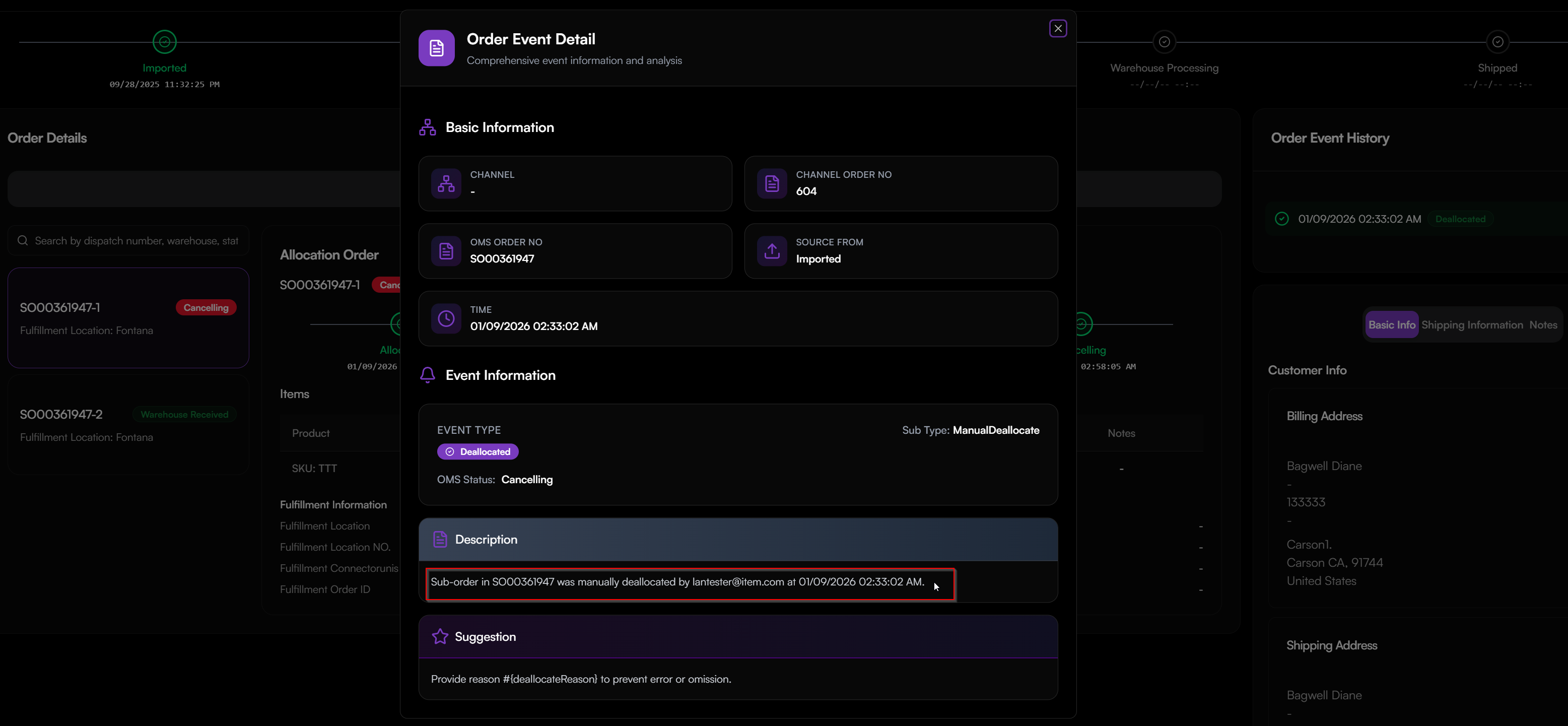
Every manual allocation generates a system event. To audit these actions, navigate to the Events module to view the user, timestamp, and details of the manual override.
Troubleshooting
If an allocation fails because a product does not exist in item master, check your routing settings. To prevent allocation failures due to missing items:
- Navigate to Sales Order Routing and ensure the Add New Product toggle is enabled.
- When enabled, the system will automatically create the necessary product records during the allocation process if they are missing.